

Barkod Studio Installation and Design Guide for Personalized Barcodes and Invoice Carrier Graphics
A full web version with no installation required and polished custom styles. Pull out a shark- or poop-shaped carrier at checkout and you will definitely get noticed.
Why Choose Barkod Studio?
Every time you want to generate a barcode, do you end up annoyed by ad-filled websites with ugly interfaces? This minimalist Barkod Studio not only looks great, it also comes with plenty of slightly unhinged joke styles.
It is a fully web-based tool. You do not need to register or download an app, and you can still create high-resolution barcodes with a nice sense of design. You can even use it to customize your own invoice carrier, making checkout a little more fun.
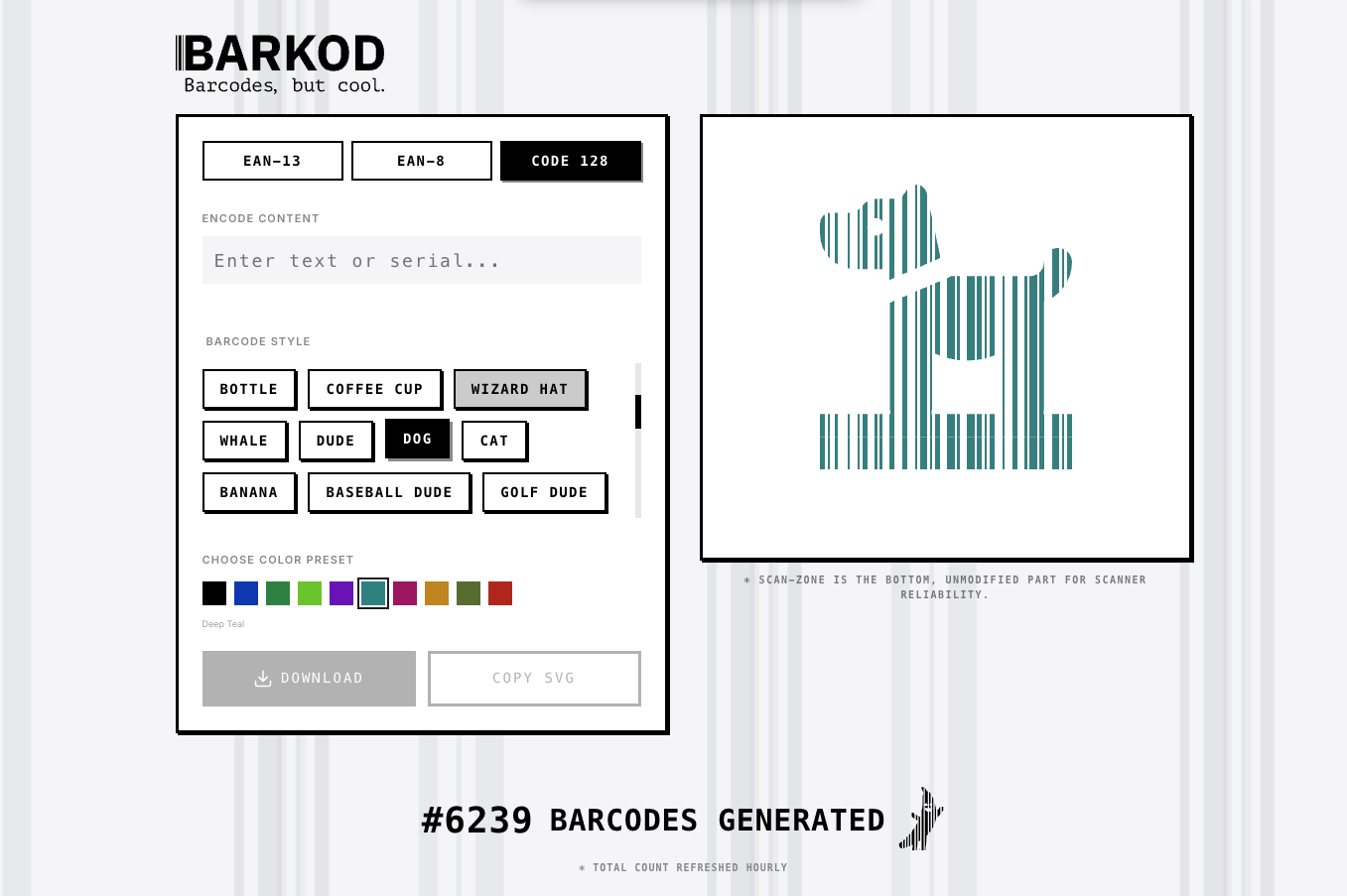
Barkod Studio's minimalist, design-conscious interface
Which Barcode Type Should You Choose?
Barkod Studio supports several standards. If you are not sure which one to pick, use this table as a reference:
| Type | Use Case | Notes |
|---|---|---|
| Code 128 | Invoice carrier (recommended) | The most versatile format, supporting both letters and numbers. Choose this if you want to make your own carrier. |
| EAN-13 | Product barcode | The format most commonly seen on drinks and snack packaging. Numbers only. |
How to Generate a Personalized Carrier Barcode
Go to the Barkod Studio website.
After selecting Code 128 and entering your carrier number, remember to include the / symbol. Then comes the fun part. In the Barcode Style option, you can choose from all kinds of wonderfully strange shapes:
- POOP: Strongly recommended. Next time you check out, just hand the clerk a poop barcode to scan.
- ANGRY SHARK: Cool, with a bit of playfulness.
- GHOST: A good minimalist choice.
- HAPPY PINEAPPLE: Full of tropical vibes.
You can freely adjust the barcode color and shape until you are happy with it.
Hands-On Guide: Put the Carrier Into an iPhone Shortcut
Barkod Studio downloads high-resolution SVG files. Opening them quickly on an iPhone takes a small trick. Here is a quick way to set up a Shortcut:
1. Process the Image File
- Open the downloaded SVG file in Preview.
- Take a screenshot directly and crop it to a suitable size.
- Tap the 「分享」 button in the bottom-left corner, scroll down to find 「儲存到檔案」, and remember where you saved it.
2. Set Up the Shortcut
If you do not want to set everything up from scratch, I also prepared a ready-made template you can use directly:
Quick Shortcut Template: Download the iCloud Shortcut here
For manual setup, arrange it as shown below: add the first “File” action, choose the screenshot you just created, then configure whatever trigger method you prefer.
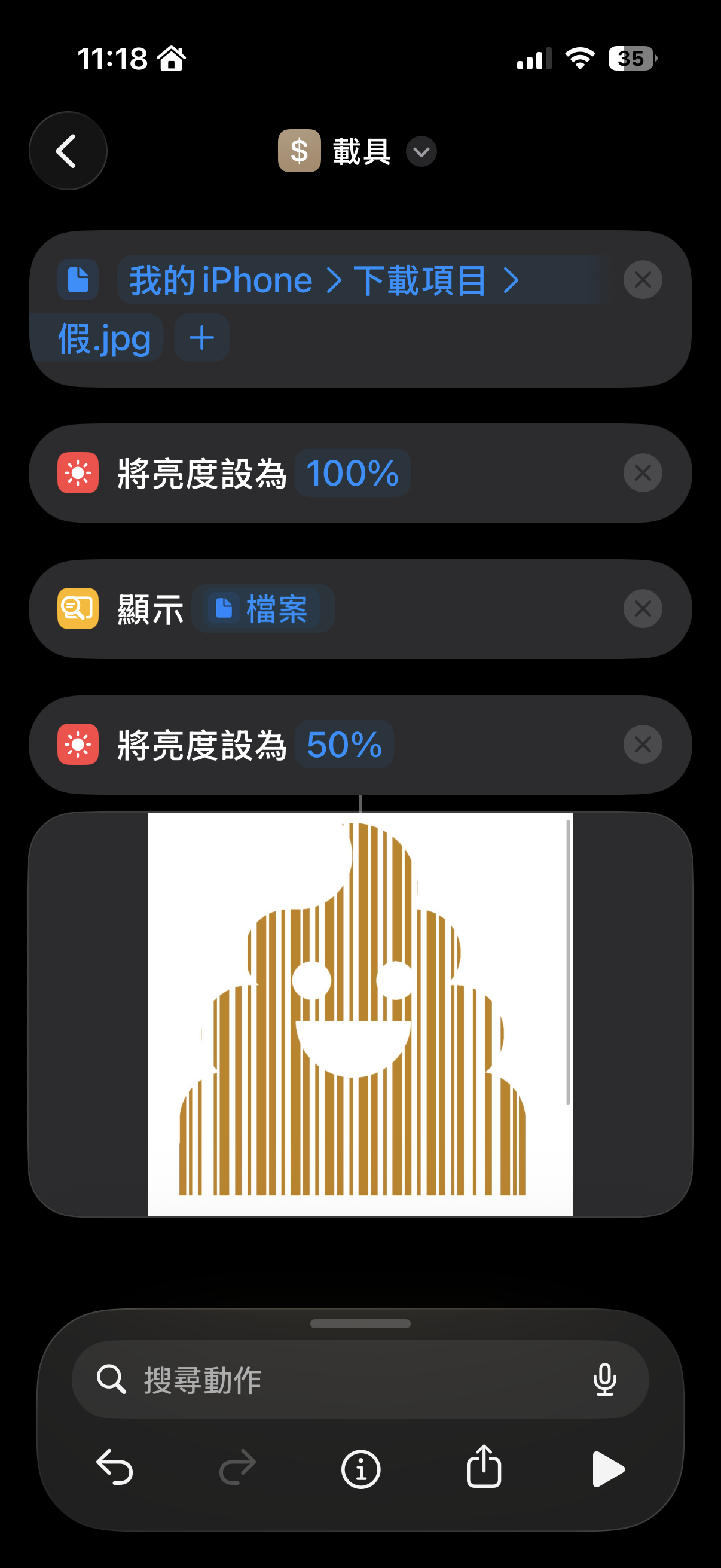
Example iOS Shortcut setup: use the screenshot file as the first action
3. Opening the Shortcut
My personal setup is to change the flashlight button on the iOS Lock Screen so it launches this “carrier shortcut” instead. Now when I check out, I only need to tap my phone screen once to show off my poop carrier.
Personal Notes
I really like Barkod Studio’s design idea: a tool does not have to be just a tool. It can have a little weirdness too.
If you are also tired of ugly barcode generators, Barkod Studio is worth trying. It does not just provide practical functionality; the rich style options also let you show some personal character.
Tip: If you are worried the clerk will not be able to scan it, avoid choosing colors that are too light. Dark-colored barcodes have the best scan success rate.
Related Links:
The barcode tool implementation in this article references the official Barkod Studio website.