

Gemini 3.5 Live Translate Hands-On: New Two-Way Real-Time Voice Translation and Live API Developer Guide
Google has released the new Gemini 3.5 Live Translate model, supporting low-latency two-way real-time voice translation across more than 70 languages. This article walks through a hands-on test of the Google AI Studio web experience, explains how it works, and provides Live API development examples and WebSocket connection setup.
Introduction
Google has released its latest voice translation model, Gemini 3.5 Live Translate. This model is designed specifically for real-time speech-to-speech translation and supports two-way translation across more than 70 languages.
Unlike traditional turn-based voice translation systems, which have to wait for the speaker to finish a full sentence, detect a pause, then run speech-to-text, translation, and finally speech synthesis, Gemini 3.5 Live Translate uses continuous streaming processing. It translates in real time while the speaker is talking, keeps latency to just a few seconds, and preserves as much of the speaker’s tone, speaking speed, and pitch as possible, making conversations feel closer to working with a professional interpreter.
The model is currently rolling out across Google AI Studio, the enterprise preview version of Google Meet, and the Google Translate apps on Android and iOS.
Below is the official demo recording for Gemini 3.5 Live Translate:
Try it here: If you want to test it yourself right away, you can go directly to the Google AI Studio experience URL.
Core Features and Technical Highlights
The reason this model has attracted attention across multiple use cases mainly comes down to the following technical improvements:
- Two-way, low-latency real-time streaming: The model can process streaming audio in real time and generate translated speech within a few seconds. It strikes a good balance between “waiting for context to preserve translation quality” and “translating immediately to stay in sync,” avoiding awkward long pauses.
- Automatic language detection: When multiple input languages are used, there is no need to manually switch the source language. The model automatically recognizes more than 70 input languages and translates them into your specified target language.
- Preservation of acoustic characteristics: The translated speech is not just a cold machine voice. It simulates and preserves the speaker’s intonation, pace, and emotional tone, making the conversation feel more natural and fluid.
- Noise resistance and real-world integration: It can still run steadily in noisy or unpredictable real environments, such as streets and meeting rooms. Companies including Grab are already testing it for real-time communication between drivers and passengers.
- SynthID digital watermarking: All audio generated by the model automatically includes an inaudible SynthID watermark to help prevent misuse of generative AI speech or the spread of false information.
Web Experience and Usage Steps
If you want to try this feature in Google AI Studio, follow the steps below:
Step 1: Go to AI Studio and click the model selector on the right
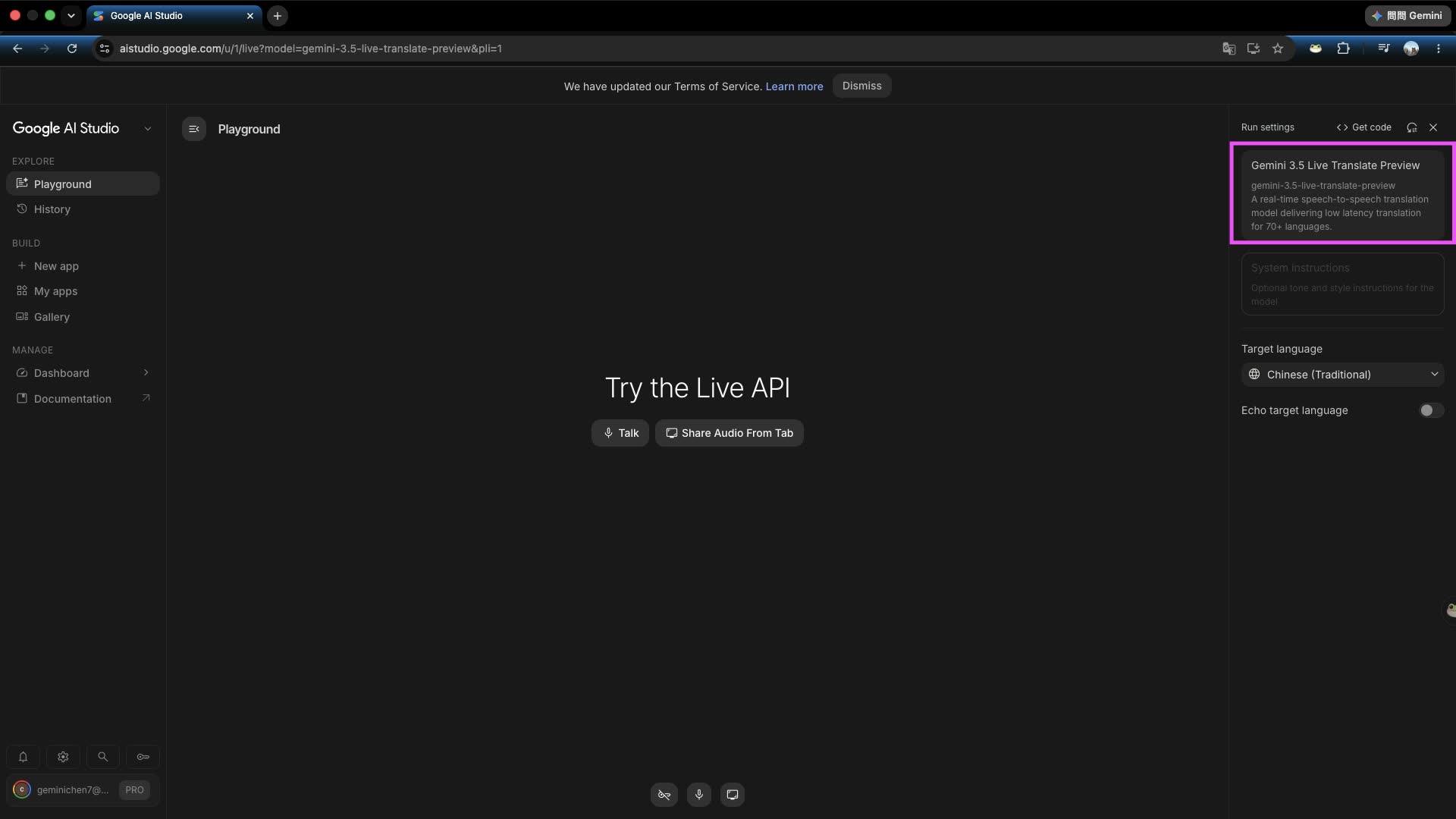
Enter the Google AI Studio page and click the mode and model selection area on the right
Step 2: Select Audio to find 3.5 Live Translate
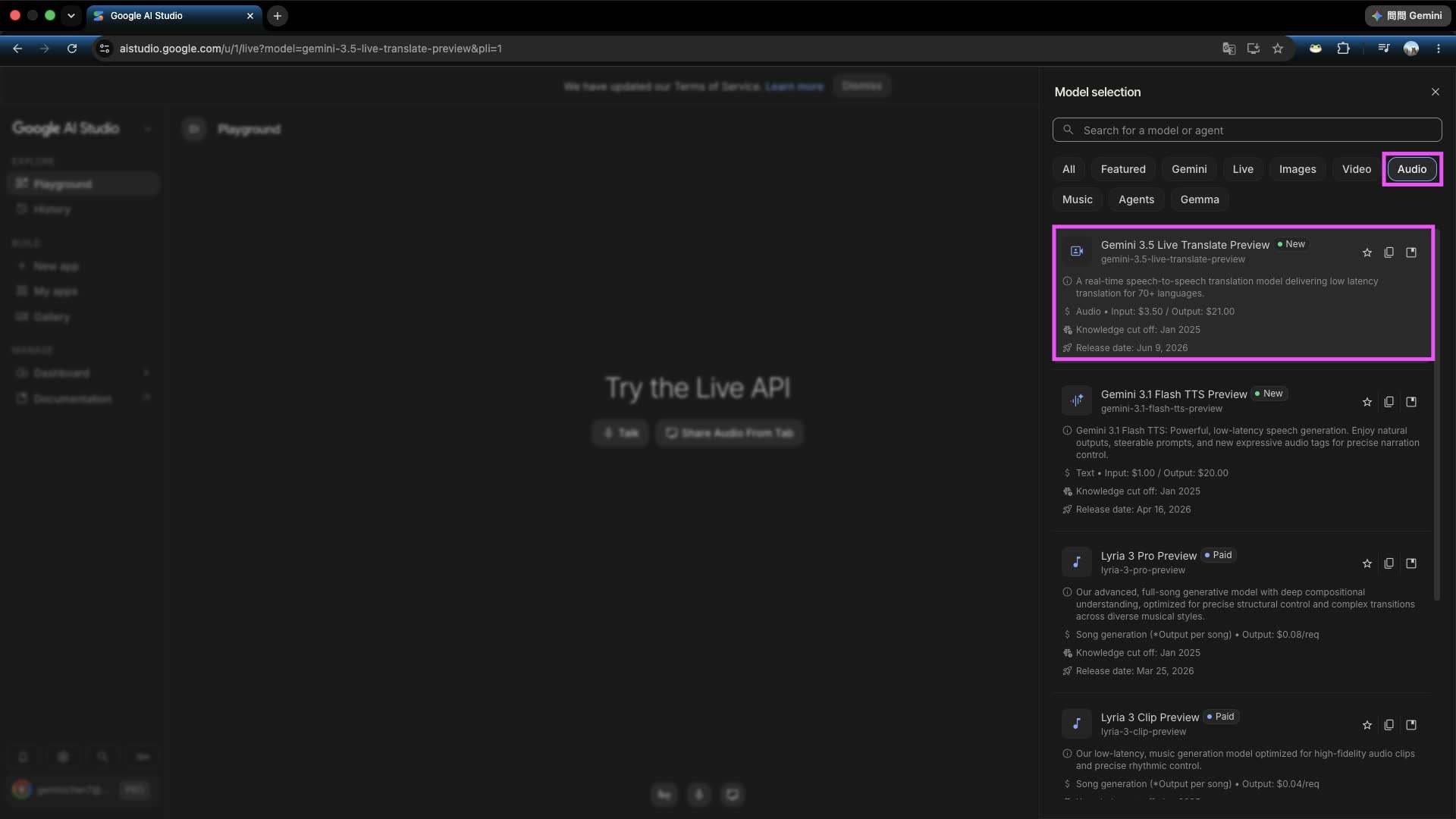
Switch to the Audio tab, then find the gemini-3.5-live-translate-preview model from the dropdown menu
Step 3: Set the Target Language
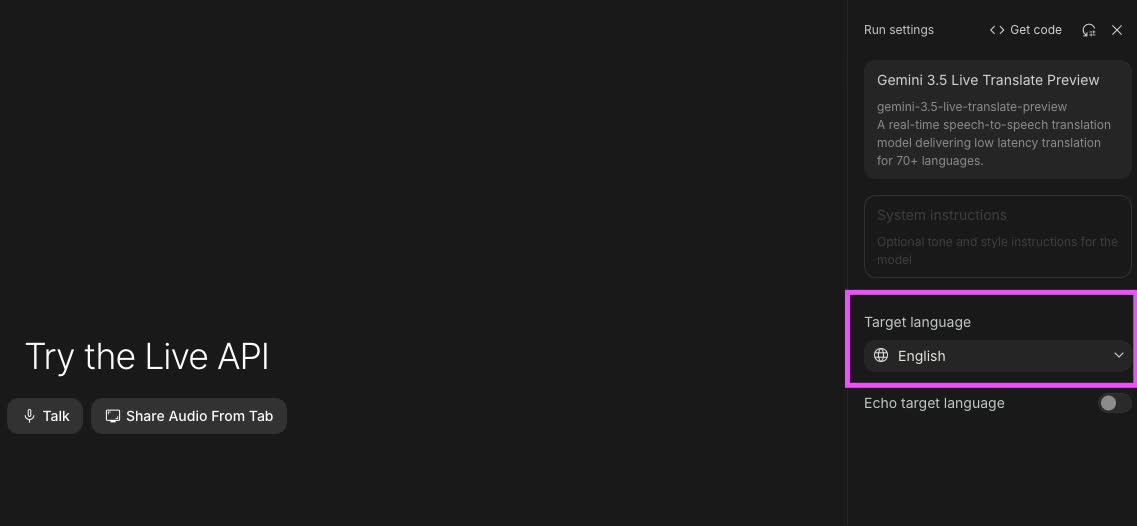
In the settings area, click and choose your Target Language, such as Traditional Chinese, English, Japanese, and so on, then it will start working
Step 4: Click Talk to use your microphone for real-time translation, or choose tab audio sharing
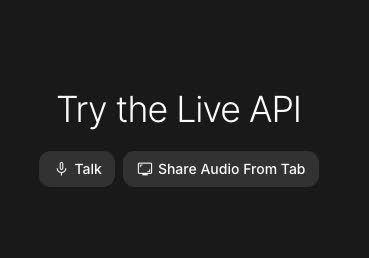
Click the “Talk” button to speak directly through your microphone for real-time interpretation. If you want to translate another web page, such as a YouTube video, you can choose “Share Audio from tab” to feed in audio from that tab
Developer Guide: Using the Gemini Live API for Real-Time Translation
Beyond the web experience, Google also provides the Live API for developers to integrate.
When using the Gemini Live API, you need to understand the core differences in mental model and technical behavior between “Conversational Agent” and “Live Translation”:
| Feature | Conversational Agent | Live Translation |
|---|---|---|
| Role | Acts as an assistant that listens, reasons, and executes instructions on your behalf. | Acts as an interpreter, purely serving as a speech-to-speech translation pipeline. |
| Interaction model | Turn-based. Relies on pause detection, intent analysis, and interruption handling. | Continuous streaming. Translates while the speaker is talking, without waiting for the utterance to end. |
| Tools and extensions | Supports Function Calling, Google Search, and system instructions. | Translation only. To guarantee low latency, it does not support other tools or external instructions. |
| Multimodal capabilities | Fully supports text, audio, video, and image input. | Audio input only, to meet the strictest real-time latency requirements. |
| Configuration complexity | Requires configuring generation parameters, voice types, tool descriptions, and system instructions. | Simplified configuration. You only need to specify the target language code and how to handle input that is already in the same language. |
Connection and Implementation Example
Below is a Python example that initializes the client and connects to the Live API through LiveConnectConfig for real-time translation:
import asyncio
from google import genai
from google.genai import types

client = genai.Client()

model = "gemini-3.5-live-translate-preview"
config = types.LiveConnectConfig(
    response_modalities=["AUDIO"],
    input_audio_transcription=types.AudioTranscriptionConfig(),
    output_audio_transcription=types.AudioTranscriptionConfig(),
    translation_config=types.TranslationConfig(
        target_language_code="pl", # Set the target translation language, for example "pl" means Polish
        echo_target_language=True  # If the input is already in the target language, whether to repeat/respond
    )
)

async def main():
    async with client.aio.live.connect(model=model, config=config) as session:
        print("Session started with translation")
        # Start receiving translated audio streams and text transcriptions
        async for response in session.receive():
            if response.server_content:
                if response.server_content.input_transcription:
                    print(f"Input transcript: {response.server_content.input_transcription.text}")
                if response.server_content.output_transcription:
                    print(f"Output transcript: {response.server_content.output_transcription.text}")
                if response.server_content.model_turn:
                    for part in response.server_content.model_turn.parts:
                        if part.inline_data:
                            audio_data = part.inline_data.data
                            # Play or process the received audio chunk (PCM format)
                            print(f"Received audio chunk ({len(audio_data)} bytes)")

if __name__ == "__main__":
    asyncio.run(main())
Sending Audio Data
To send voice input to the Live API for translation, you must stream PCM audio that matches the required format in 100 millisecond (100ms) chunks:
- Input audio spec: 16 kHz, raw 16-bit PCM, mono, Little-Endian.
- Output audio spec: 24 kHz, raw 16-bit PCM, mono, Little-Endian.
# Assume chunk is your raw PCM audio byte data
await session.send_realtime_input(
    audio=types.Blob(
        data=chunk,
        mime_type="audio/pcm;rate=16000"
    )
)
Ephemeral Tokens for Client Applications
When developing real-time translation apps for mobile or browser clients, you can use the ephemeral token mechanism (v1alpha version) to avoid exposing your main API key in client-side code:
- You must use the
v1alphaendpoint. - Locked configuration: Developers can restrict
translationConfigwhen creating a token on the backend server. This ensures the translation parameters are locked and cannot be modified by the client. - Unlocked configuration: If you want users to freely switch the target translation language on the client side, you can omit this setting when generating the token on the server and declare
'lock_additional_fields': [].
Below is an example of generating a restricted ephemeral token on the backend server:
import datetime
from google import genai

now = datetime.datetime.now(tz=datetime.timezone.utc)

client = genai.Client(
    http_options={'api_version': 'v1alpha'}
)

token = client.auth_tokens.create(
    config = {
        'uses': 1,
        'expire_time': now + datetime.timedelta(minutes=30),
        'live_connect_constraints': {
            'model': 'gemini-3.5-live-translate-preview',
            'config': {
                'translation_config': {
                    'target_language_code': 'pl',
                    'echo_target_language': True
                }
            }
        },
        'http_options': {'api_version': 'v1alpha'},
    }
)
Model Limitations and Notes
Although Gemini 3.5 Live Translate performs quite well, there are still several limitations to keep in mind when developing and designing real products:
!IMPORTANT
- Voice input only: Real-time translation mode currently supports audio input only, not text input.
- Voice cloning stability: After a long pause, the system-generated voice may change. Or, based on the speaker’s initial pronunciation characteristics, it may misjudge and assign a voice with the wrong gender. In fast multi-speaker conversations, the translated voice may also get stuck on specific voice characteristics.
- Ambiguity in automatic language detection: If the speaker has a very strong accent, or uses very similar languages while speaking, such as Spanish and Portuguese, the detection system may have a harder time distinguishing them accurately. However, this mainly affects the input-side text transcript. The final translated language and content are usually still correct.
- Echo and background noise interference: If the input audio already contains the target language, turning on
echoTargetLanguage: truemay introduce distortion in the final generated audio due to interference from background noise or music.
Related Links
- AI Studio experience URL: https://aistudio.google.com/u/1/live?model=gemini-3.5-live-translate-preview
- Live API feature guide: Google AI Studio official documentation
- GitHub example project: google-gemini/gemini-live-api-examples