

LLM Wiki Hands-on: Building a Personal Offline Knowledge Base That Large Models Can Organize and Update Automatically
Do your notes always feel tedious to organize? LLM Wiki is a personal knowledge base tool built around ideas from Andrej Karpathy. It can automatically read documents, run a two-stage chain-of-thought analysis, generate interconnected Wiki pages, and work well with Obsidian and local AI models.
Introduction: When Traditional Notes Meet Automated AI Organization
In an age of information overload, we deal with a large amount of papers, reports, contracts, and notes every day. Traditional personal knowledge management systems such as Obsidian and Notion require a lot of manual work: categorizing, tagging, and building backlinks. Common RAG systems can answer questions, but every query starts with temporary retrieval from scratch, so they do not naturally settle into a structured knowledge system.
To address this pain point, former OpenAI founding member Andrej Karpathy proposed a pattern called LLM Wiki: let a large model act as your librarian, automatically reading the documents you import, then incrementally building, revising, and maintaining a structured Wiki knowledge base in the background.
The open-source project LLM Wiki introduced in this article turns that design idea into a cross-platform desktop application. It can run fully offline, generate clear knowledge relationship graphs, and work smoothly with Obsidian.
Hands-on Demo
Here is a short hands-on clip showing LLM Wiki automatically analyzing documents and producing a dynamic knowledge relationship graph:
Core Features and Architecture of LLM Wiki
Compared with typical AI reading assistants, LLM Wiki uses an architecture that feels closer to how humans accumulate knowledge:
1. Two-Stage Chain-of-Thought Import
Traditional document import usually chunks the text directly and stores it in a vector database. LLM Wiki instead uses a two-stage Chain-of-Thought mechanism:
- Stage 1: Analysis: The large model first reads the original document in full, extracts core concepts, key entities, and main arguments, analyzes how they relate to the existing knowledge base, and points out whether there may be potential knowledge conflicts.
- Stage 2: Generation: Based on the analysis from the first stage, the large model automatically generates or updates the corresponding Wiki pages in the background. This includes adding YAML properties to new pages, automatically adding backlinks to keywords using wikilinks syntax, and recording operation logs.
2. Four-Signal Relevance Model and Community Detection
To present a higher-quality knowledge graph, LLM Wiki includes a multidimensional relevance model that evaluates the following four signals together:
- Direct links: Whether wikilinks backlinks exist between pages.
- Source overlap: Whether different concepts come from the same original document.
- Shared neighbors: Whether two concepts are often connected to the same other entities.
- Type affinity: Appropriate weighting for pages of the same type, such as entity-to-entity or concept-to-concept relationships.
The system also has a built-in Louvain community detection algorithm, which can automatically group closely related pages into the same knowledge cluster and mark them with different colors. This helps users quickly see the boundaries and structure of their knowledge.
Beginner Tutorial: Build Your AI Knowledge Base from Scratch
Here is the plain-language workflow for using the desktop app:
Step Zero: Download and Install
Go to the LLM Wiki GitHub Releases page and download the installer for your operating system. It supports macOS DMG, Windows MSI, and Linux DEB/AppImage. Then double-click to install.
Step One: Create a New Project and Set Its Name
After opening the app, the first step is to create a new project. You can name the project, choose a suitable knowledge base template such as academic research, personal growth, or business analysis, and select a local folder for the project.
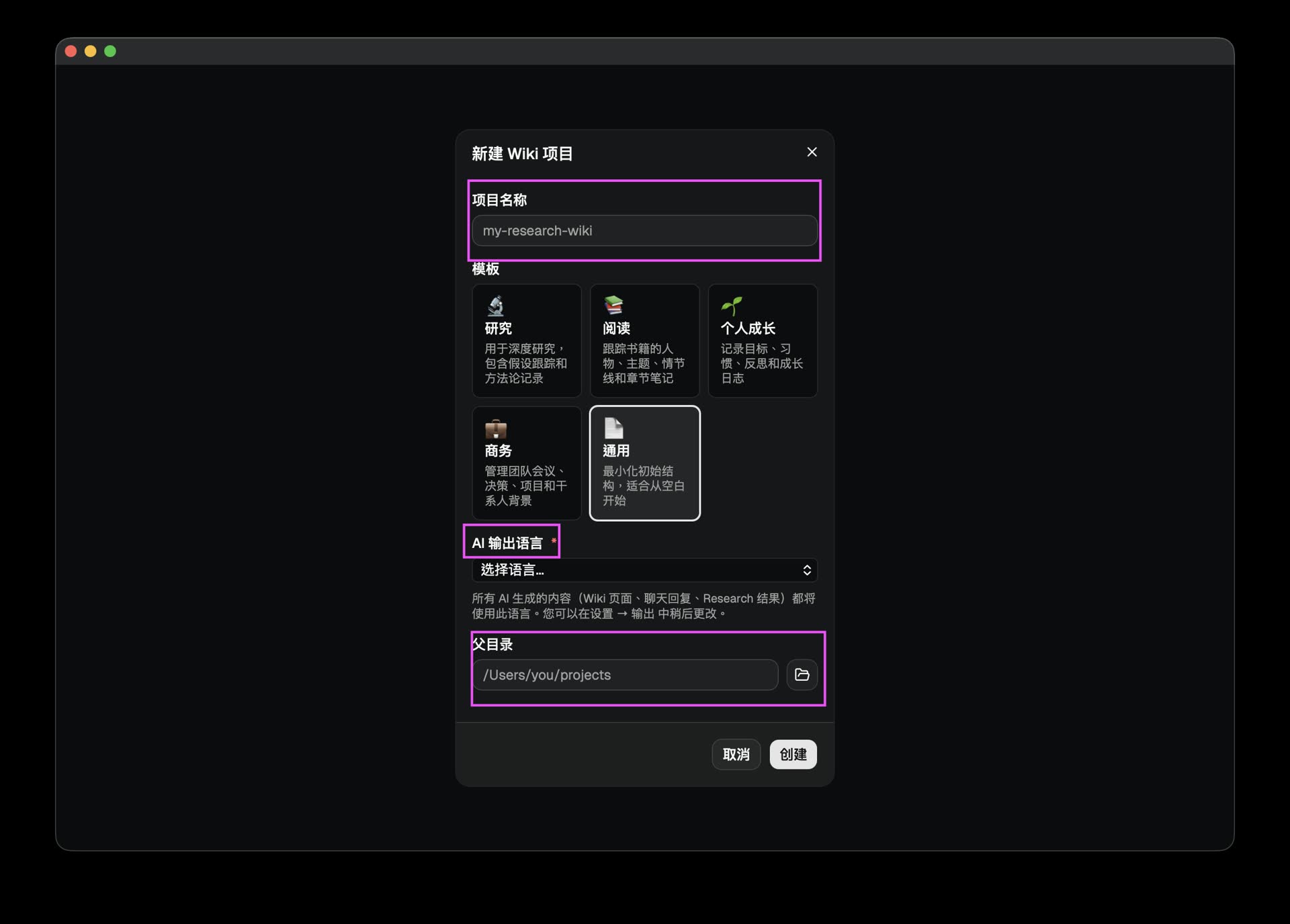
Fill in the project name, choose a template and storage path, then click create to finish initialization
Step Two: Choose the Interface Language
The system supports Chinese Simplified and English interfaces. After entering the main screen, you can switch to Chinese in preferences so later settings and operations feel more intuitive.
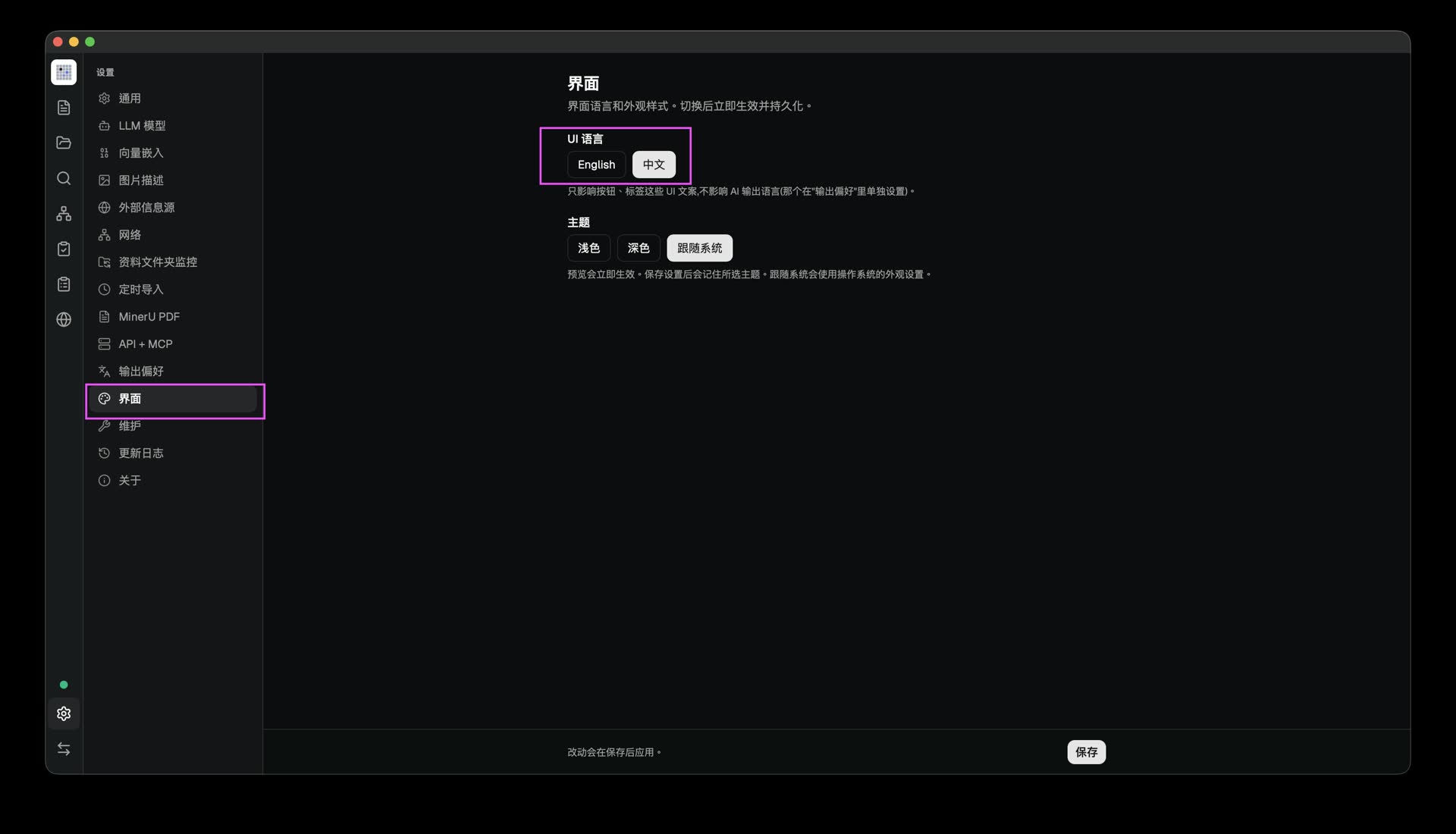
After entering the settings screen, you can freely switch the display language
Step Three: Configure and Connect the Large Model
The core of LLM Wiki is the large model running behind the scenes. You can choose a remote API service such as OpenAI, Anthropic Claude, or Google Gemini, or use open-source models running locally through Ollama, such as Llama 3 or Qwen 2.5. This makes it possible to build a 100% local offline knowledge base.
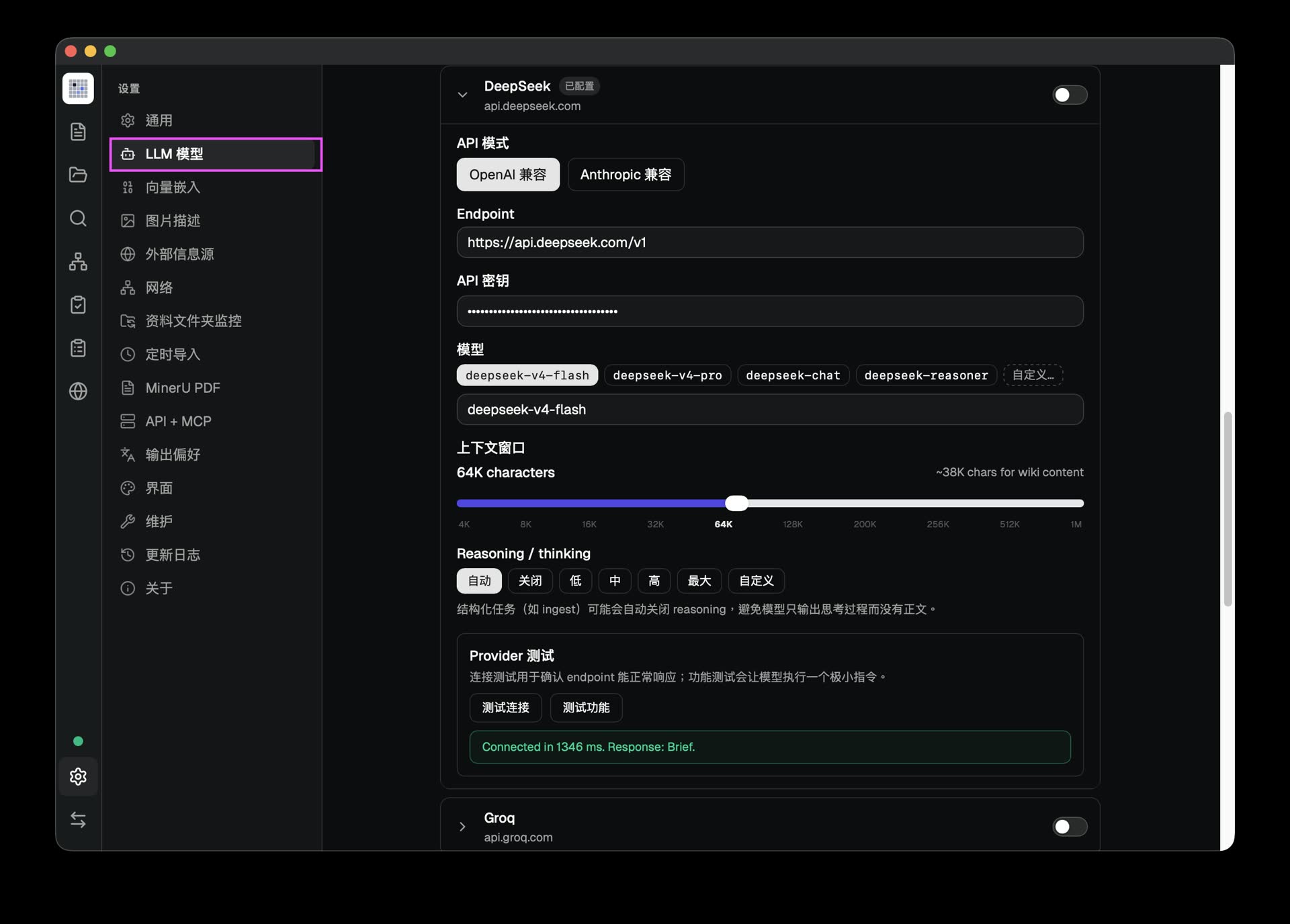
Configure your LLM provider, API key, and the model you want to use
Step Four: Import Documents and Automatically Generate a Relationship Graph
In the source management screen, drag in the PDF, Word DOCX, Excel XLSX, or Markdown files you want to organize. You can even import an entire folder. The large model will quietly start working in the background, automatically parse the document structure, generate summaries, and draw a clean knowledge graph on the right side in real time.
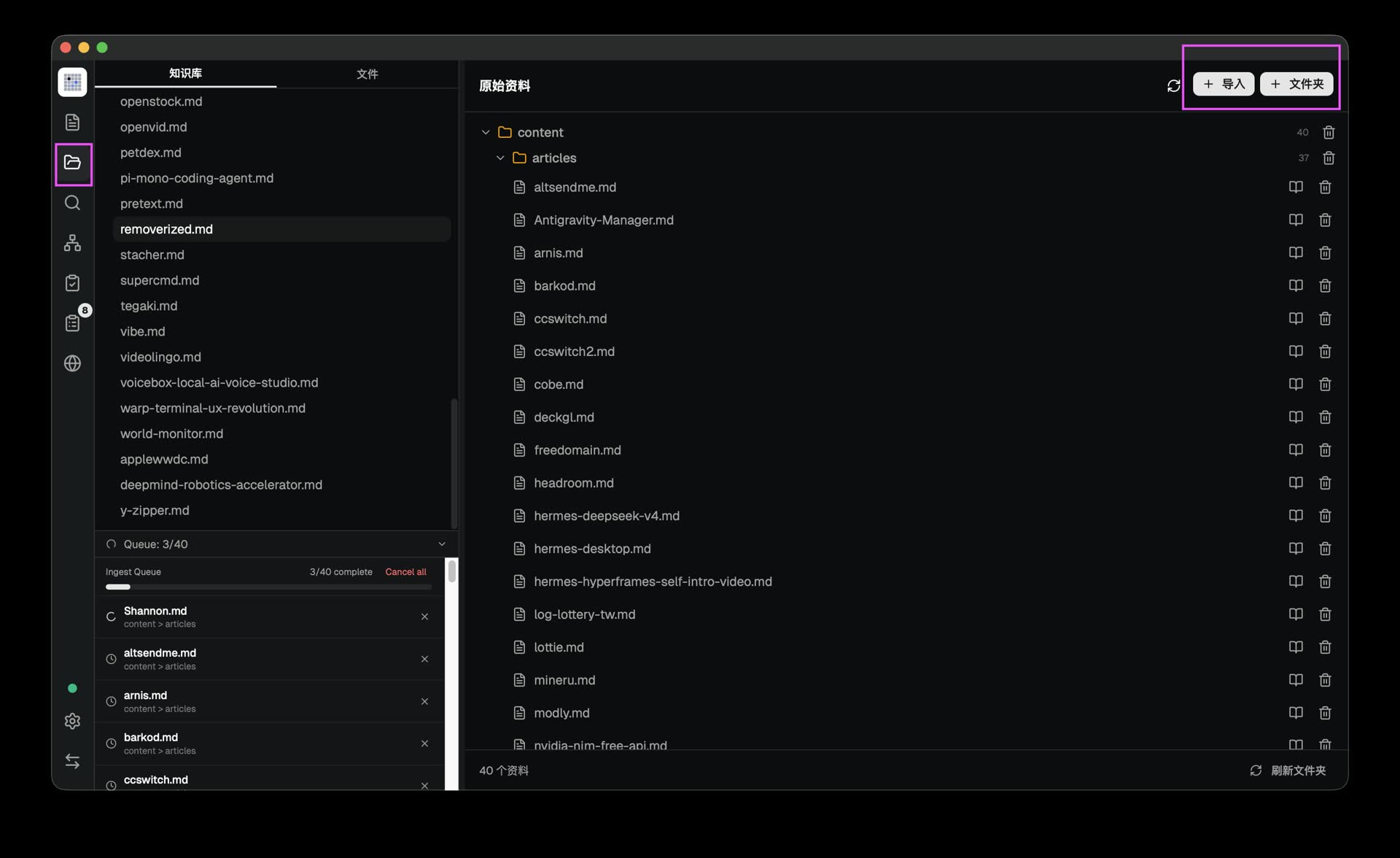
After importing documents, the system runs the two-stage analysis in the background and automatically builds a network-style relationship graph
Step Five: Chat with AI and Cite the Original Files Precisely
Once the knowledge base has been built, you can ask the AI questions directly in the chat box. In the background, the AI calls a hybrid retrieval system to find relevant Wiki pages as context, then precisely marks citation numbers in its replies. This lets you jump to the original document or paragraph with one click and reduces the hallucination problem where large models make things up.
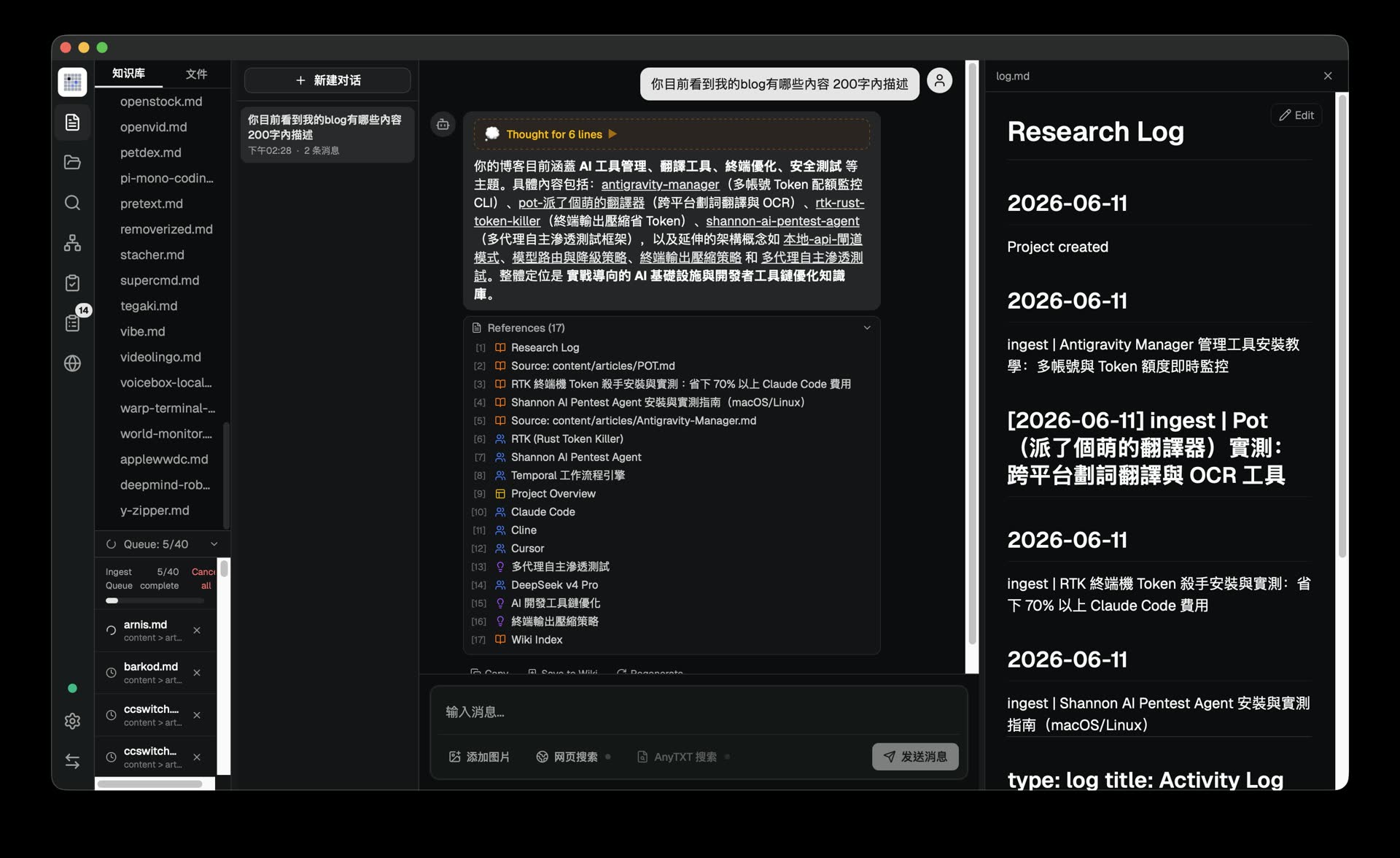
Chat with the knowledge base directly in natural language, with strict source citation links attached to every answer
Why It Works So Well Alongside Obsidian
Many note-taking users already have their own Obsidian vaults. LLM Wiki puts compatibility first from the beginning:
- Pure Markdown format: All Wiki pages generated by LLM Wiki are standard
.mdfiles, stored in a clearly structured folder layout, including categories such as entities and concepts. - Obsidian-compatible syntax: When the large model writes related concepts, it automatically uses the
[[wikilinks]]backlink format. - Smooth handoff: You can open the LLM Wiki project folder directly in Obsidian as an Obsidian Vault. This means you can enjoy the convenience of automatic analysis, chat, and relationship graph generation inside the LLM Wiki interface, while still using Obsidian for manual editing, plugin extensions, and local backups.
Conclusion
LLM Wiki changes how we organize notes. Work that used to take hours of manual sorting and linking can now start by simply dropping documents into the app. The AI will categorize them, draw the relationship lines, and stay ready to answer your questions.
Whether you are a researcher who needs to read a large number of academic documents, or a developer who wants to build a personal offline brain, this open-source tool combines privacy, automated organization, and backlinks in a way that is worth trying for yourself.
Related Links:
The open-source project LLM Wiki introduced in this article is licensed under the GNU General Public License v3.0. If you like this tool, you can support the author by giving the project a Star on GitHub.