

AltSendme Cross-Platform P2P File Transfer Tool: Serverless Setup Guide
No cloud, no signup. Transfer directly between Windows and macOS.
Why Choose AltSendme?
In company or cross-platform collaboration scenarios, the real pain point is not "how to send files," but "slow transfers, needing the cloud, and having to log in." AltSendme uses P2P directly, with end-to-end encryption, no cloud, and no account required. Sending files feels as intuitive as copy/paste between two computers.
Speed Test (Windows ↔ macOS)
In the video below, Windows is on the left and macOS is on the right. This test used an MP4 file:
- File size: 32.4 MB
- Transfer time: 1.9s
- Average speed: 16.91 MB/s
A Good Fit for Coworkers Sending Files at Work
This tool is best suited for teams that send files back and forth every day:
- No need to upload design drafts, screen recordings, or presentation videos to the cloud anymore
- Windows / macOS transfers require no extra setup
- Works in the same office or across locations (NAT traversal + QUIC)
Workflow (Really Short)
- Drag a file into AltSendme → generate a ticket
- Send the ticket to your coworker (Slack / Email / LINE all work)
- The other person pastes the ticket → transfer starts immediately
Download and Installation
Go directly to the original repo to download:
AltSendme GitHub
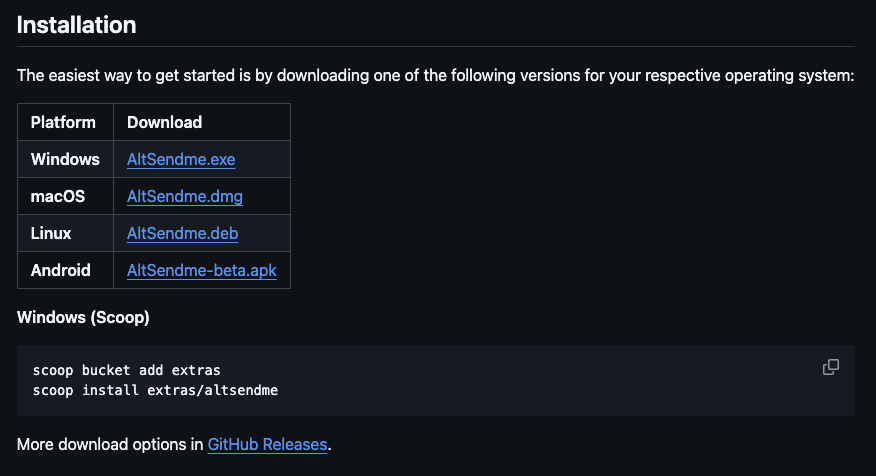
Scroll down to the Installation section and download the version for your platform, as shown below.
Personal Notes
AltSendme's biggest value is not "having lots of features," but making file transfer as simple as it can reasonably be. No login, no upload overhead, and the speed is solid. For office workers or studios that need cross-platform file transfers, it can realistically replace tools like WeTransfer / Dropbox for this use case.
Small tip: If it cannot launch on a company firewall or Windows device, first check whether WebView2 Runtime is installed.
Related Links: