

Syncthing Hands-On: Syncing Folders Between Mac and Windows Without Cloud Storage
I connected a Mac and a Windows PC with Syncthing, tested two-way file sync through a shared folder, and documented an encryption-setting mistake plus a sync conflict.
Intro
I wanted the Mac and the Windows PC to share one working folder long-term. I can add Markdown, images, or other files on the Mac, edit them on Windows after they arrive, and sync the result back again.
I ended up using Syncthing for this. It continuously syncs folders between multiple devices, with no account registration and no need to upload files to cloud storage first. Device pairing was only the first step. I then created a shared folder, put a test file in from the Mac, and had Windows read it and send a file back. In the end both test files showed up in the Windows folder, and the verification screenshot taken on Windows also made its way back to the Mac.
What's different between Syncthing and a one-off file transfer tool?
Tools like LocalSend are good for temporarily sending a single file to another device; Syncthing handles continuous sync. As long as both computers are online, when one side adds, modifies, or deletes a file, the shared folder on the other side changes too.
There's no central cloud storage. Files stay on your own devices and the two computers can connect directly; in network environments where a direct connection isn't possible, traffic may relay through a Syncthing Relay, but the transfer content is still encrypted. This is closer to a self-managed cross-platform sync layer than a free-storage replacement for Dropbox or Google Drive.
Mac install: one Homebrew line
On the Mac you can grab syncthing-macos from the official download page, or just use Homebrew. This time I went with the latter:
brew install syncthing
After it's installed, run syncthing and the browser opens the local management page at http://127.0.0.1:8384/. If you want it to stay resident after login, use this instead:
brew services start syncthing
The management page only listens on the local machine by default. I didn't change the GUI's listen address this time, and pairing and syncing the two computers didn't require exposing the management page to the LAN either.
Windows install
On the Windows side I went to the Syncthing official download page. For a typical Intel or AMD 64-bit machine, pick Windows Intel/AMD 64-bit; if you'd rather not handle starting it as a resident service yourself, you can also use the Syncthing Windows Setup integrated installer listed on the download page.
This time the Windows side was running Syncthing v2.1.3, Windows 64-bit Intel/AMD. On first launch it also opens the browser management page and auto-generates this computer's device ID.
The two devices need to add each other
Syncthing doesn't identify devices through accounts; every computer generates a device ID on first launch. The Mac has to add Windows' ID, and Windows has to add the Mac's ID. If only one side adds the other, the two won't start syncing directly.
Once Windows detects the Mac, a "New Device" notification appears at the top of the home page. Before clicking "Add Device," make sure the device name shown is actually your other computer.
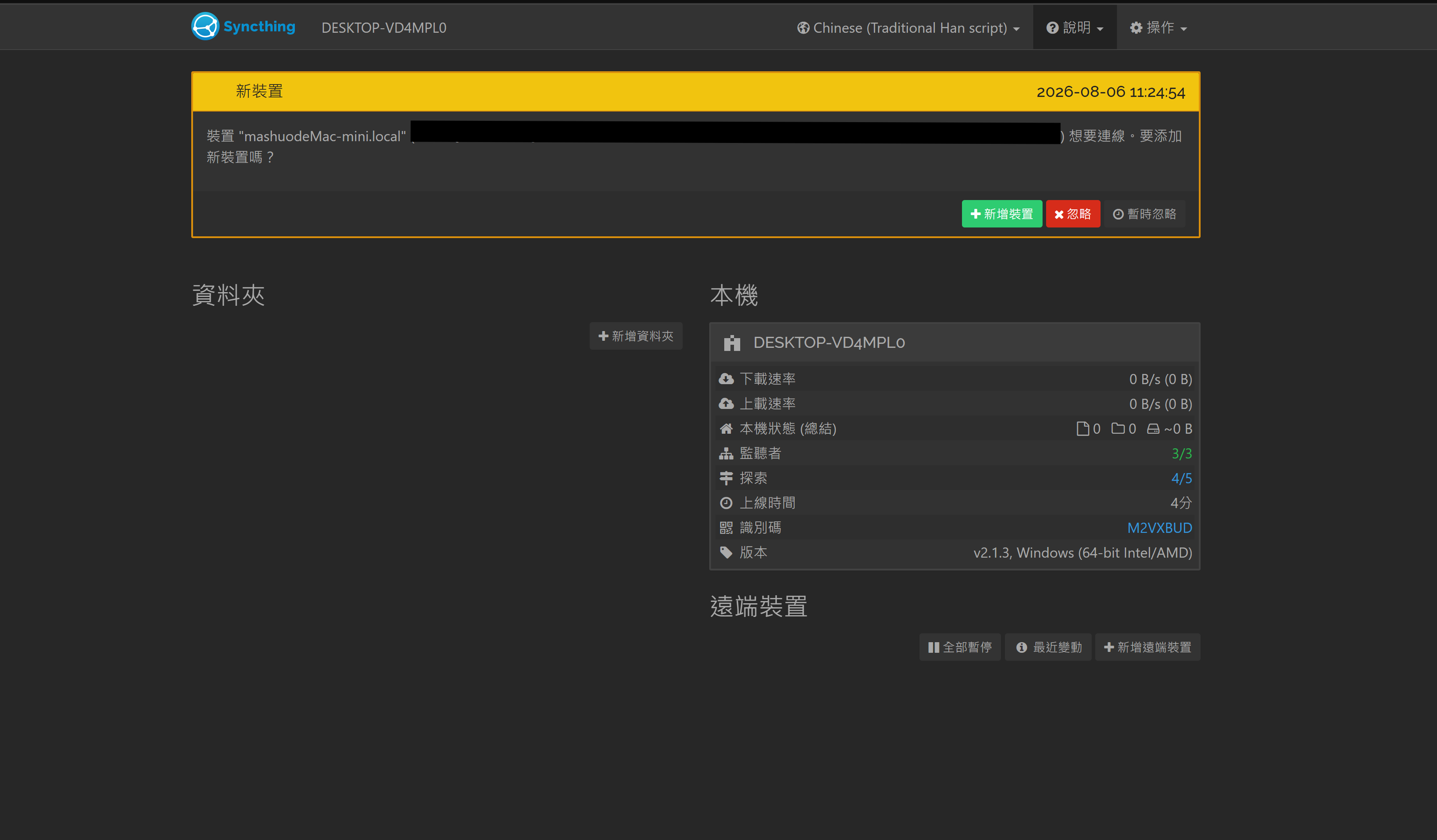
Windows receives Mac's device invitation; the full device ID has been blurred out
On the Mac side, click "Add Remote Device" and paste in Windows' device ID. The device name is just for your own reference; you can fill in the Windows computer name. A normal pairing doesn't require touching the advanced options.
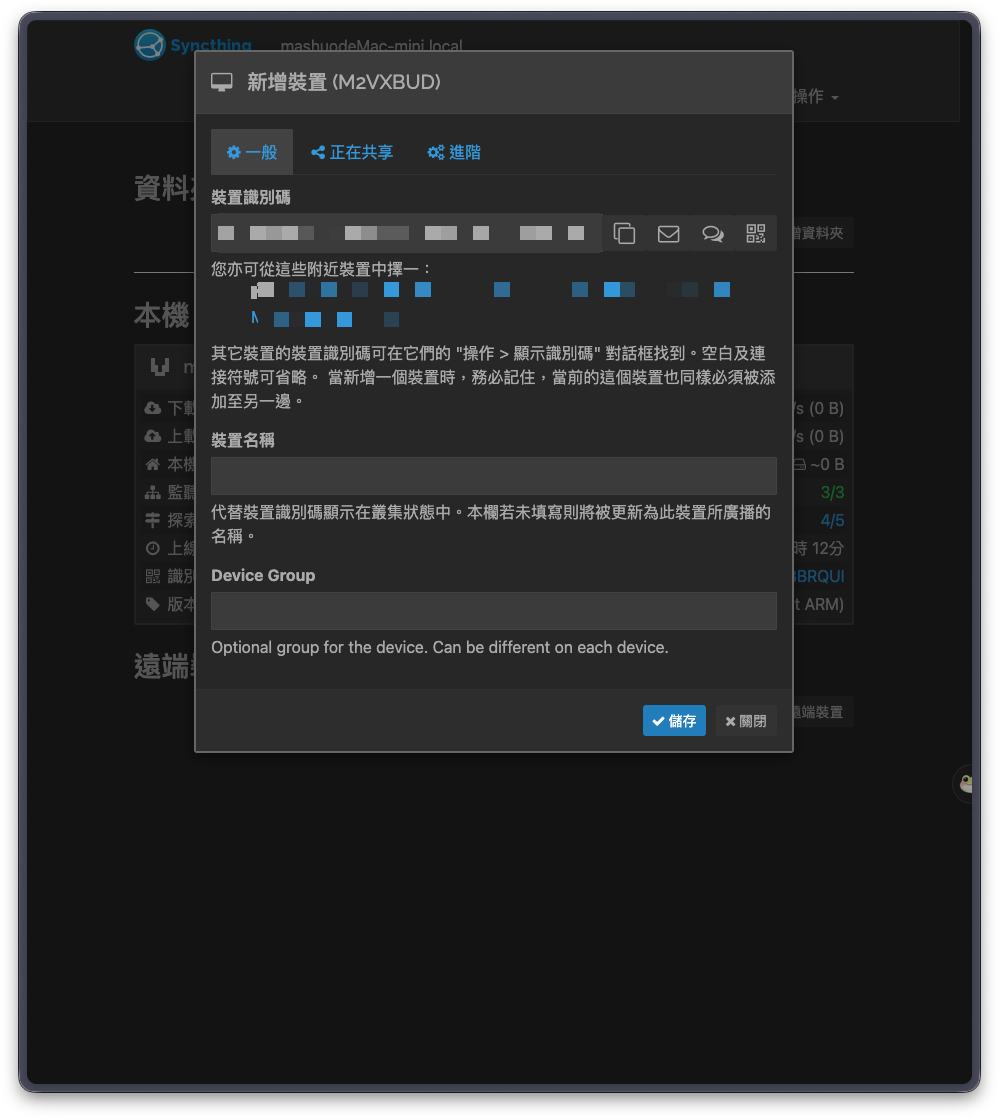
Adding the Windows device on the Mac side; identifier and nearby-device info blurred out
After saving on both sides, the Mac can already see Windows showing "Connected" — but with "Not Used" right behind it. The two computers have found each other but still don't share any folders, so no files start transferring.
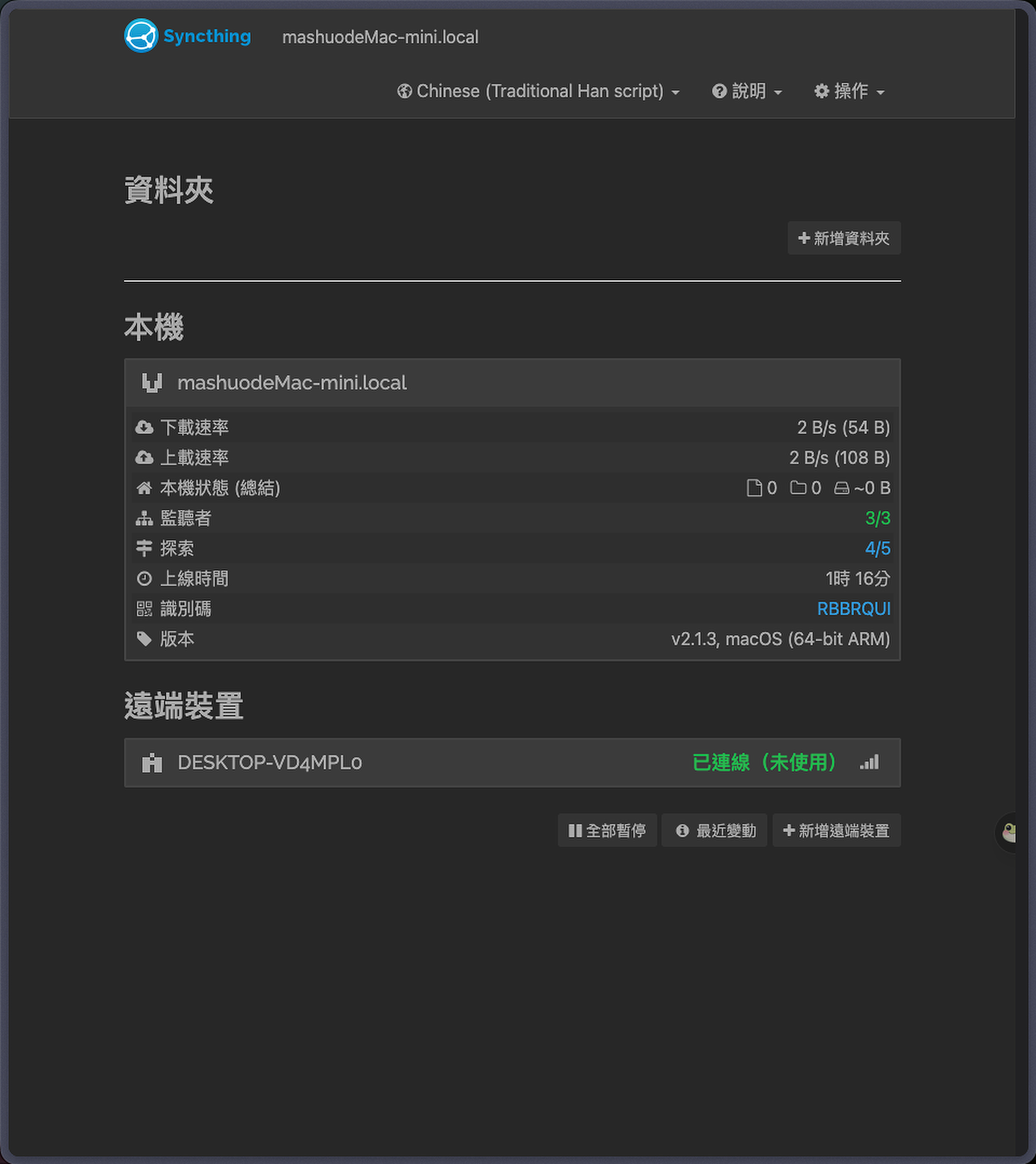
Device connection doesn't mean folders are synced yet; you still have to create and share a folder
Creating a shared folder
On the Mac I created SHUO TechBlog Syncthing Collab and shared it with Windows. The setup shows three main fields:
Folder Labelis the name shown in the management page; you can use Chinese or English, whatever's easy to recognize.Folder IDis the identifier the two devices use to recognize the same share, and it must stay consistent when accepting a remote share.Folder Pathis where this computer actually stores the files; the Mac and Windows don't need to use the same path.
The Folder ID has to be identical on both sides, but the actual storage paths can differ. I selected Windows under "Share With" and saved, and after Windows accepted the invite and picked its local folder, the home page started showing sync progress.
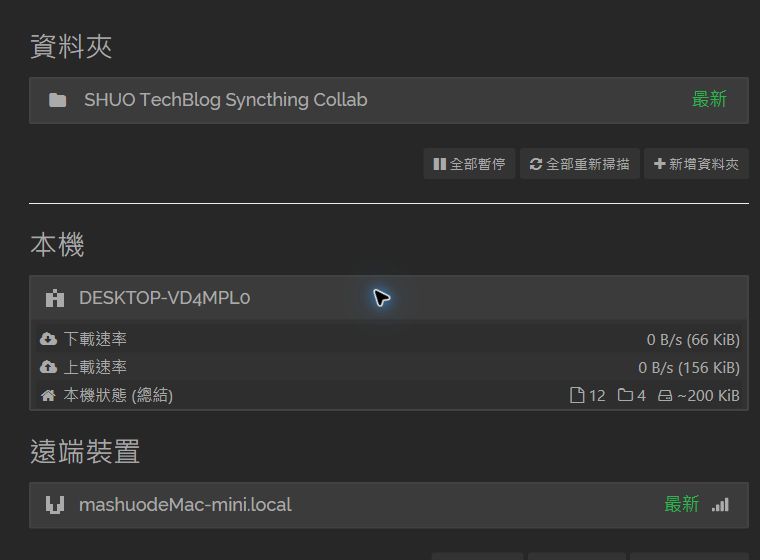
Windows shows "Up to Date" after receiving the shared folder
Actually throwing a file at it
First I created mac-sync-proof.txt on the Mac, and after Windows received it, it created windows-sync-proof.txt. In the end, Windows File Explorer could see both files, and the verification screenshot taken on Windows also came back to the Mac automatically. Only then was the two-way sync actually complete — not just the management page showing devices as connected.
Both sides said the other was offline — it was the encryption modes fighting
The first attempt didn't actually work. The Mac said Windows was offline, and Windows said the Mac was offline — it looked like both sides were blaming each other. The real cause in the logs was mismatched encryption modes on the shared folder: one side was ready to exchange normal data while the other had been set to Receive Encrypted.
That option is meant for untrusted devices storing encrypted data, and it's not suited to two of your own computers editing files with each other. After both sides were switched back to normal Send & Receive, with no encryption password filled into the share settings, there was no need to re-pair — Syncthing reconnected on its own and kept syncing.
Is a device ID safe to share?
The official docs treat the device ID as part of the public key. Knowing just this ID doesn't let someone connect into your device or read files, because both sides still have to add each other before a connection can be established. That said, with Global Discovery enabled, a device ID can potentially be used to look up the corresponding IP address, which is why I blurred the full strings in the article screenshots.
What really must not leak is Syncthing's TLS keys and config files. Someone with those could impersonate your device and connect to already-authorized remote computers. If a device is lost, you should also remove its access from your other devices right away.
It's sync, not backup
Syncthing syncs additions and modifications, but it syncs deletions too. After a mistaken delete, the deletion can propagate to your other devices quickly, so you can't treat "there's still a copy on the other machine" as a complete backup strategy. Important data still needs a separate versioned backup, or at minimum File Versioning enabled on the shared folder.
When two devices modify the same file at the same time, Syncthing keeps one copy and renames the other into a conflict file tagged with sync-conflict, the date, and the time. This time both machines happened to edit the same Markdown file simultaneously, and a conflict file immediately appeared in the folder. No content was lost, but I still had to decide which version to keep. Going forward I'll avoid editing the same file on both computers at once.
For sending a single file once, I'll still open LocalSend. Syncthing fits this situation better: the Mac and Windows need to share the same group of files over time, and either computer can continue with the latest version. The test files, images, and video used in this article were all synchronized through this shared folder.