

witr Hands-On: Find What Is Using a Port—and Why It Is Running—with One Command
I started a Node service on my Mac that occupied port 5173, then used witr to trace the process, its launch source, and its socket. I also cover the TUI, useful commands, and the private information to check before sharing screenshots.
Introduction
When a port was already in use during development, I used to start with lsof -i :5173, find the PID, and then try to work out where the process came from. Finding out “what is running” is easy enough. The troublesome part is the next question: why is it here in the first place?
This time I came across witr, short for “Why is this running?” I started a Node service on my Mac to occupy port 5173, then ran witr --port 5173. It found more than just Node—it also showed the entire launch chain: launchd → ChatGPT → codex → zsh → node.
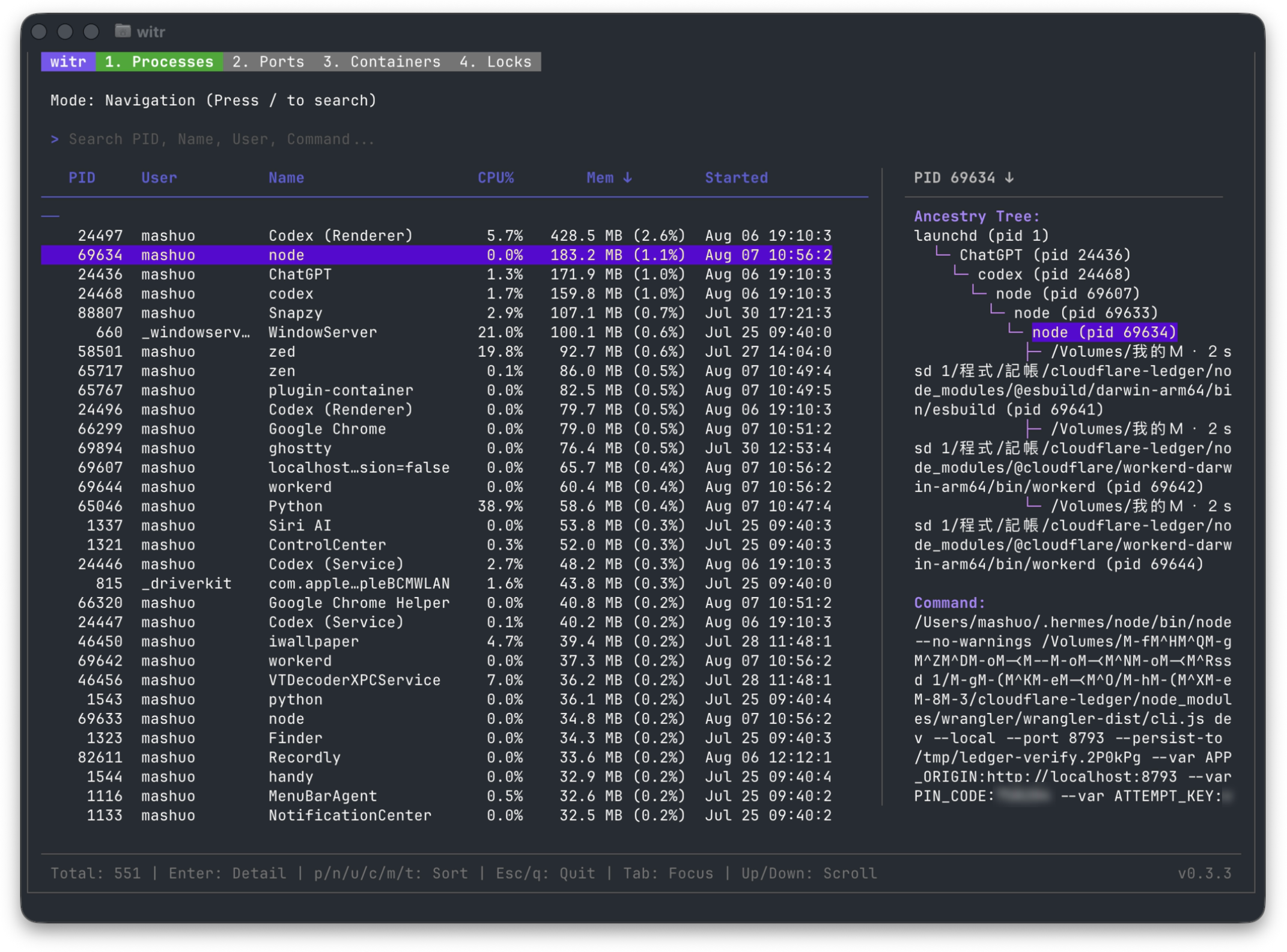
In the video, I only applied a light blur to the terminal username and private working paths. The port, PID, process names, launch chain, and general network information remain visible. The bottom-right corner of the first image also contained a PIN and Key in the launch arguments, so those two values definitely had to be hidden. witr can uncover quite a bit of local information, so it is worth checking everything again before publishing a screenshot.
How Is It Different from lsof and ps?
ps, top, lsof, and system monitoring tools can all tell me which processes are running and which one owns a port. The point of witr is not to recreate those tools, but to connect information scattered across different places and explain the cause.
When you query a port, it first finds the corresponding PID, then traces upward through parent processes, launch services, shells, or containers. It brings together the process name, user, full command, start time, working directory, Git repository, and socket information. Once I see the Why It Exists line, I no longer need to carry a PID around and piece together the answer myself.
It is currently an open-source project licensed under Apache-2.0, with support for macOS, Linux, Windows, and FreeBSD. I tested v0.3.3 on my Mac, which is also the latest version currently listed in the official Releases.
The Simplest Way to Install It on a Mac
The full builds and installers for other platforms are available from the official witr Releases. If you have Homebrew on your Mac, installation takes one command:
brew install witr
After installation, check the version:
witr --version
Windows users can install it with Winget, while Linux users have APT, an installation script, and other package managers. The official README lists plenty of options, and there is little point in repeating all of them here. Just open the Releases page or README and choose the installation method you already use.
I Deliberately Occupied Port 5173 First
To make the result easier to follow, I started a very small Node HTTP server locally:
node -e 'require("http").createServer((req,res)=>{res.end("witr demo\n")}).listen(5173,"127.0.0.1")'
This service keeps 127.0.0.1:5173 occupied. I then opened another terminal and ran:
witr --port 5173
My result immediately showed node as the Target, a socket listening on 127.0.0.1:5173, and zsh as its source. The most interesting part was the launch chain: it traced all the way back to launchd, passing through ChatGPT, Codex, and zsh before reaching the Node process that was actually occupying the port.
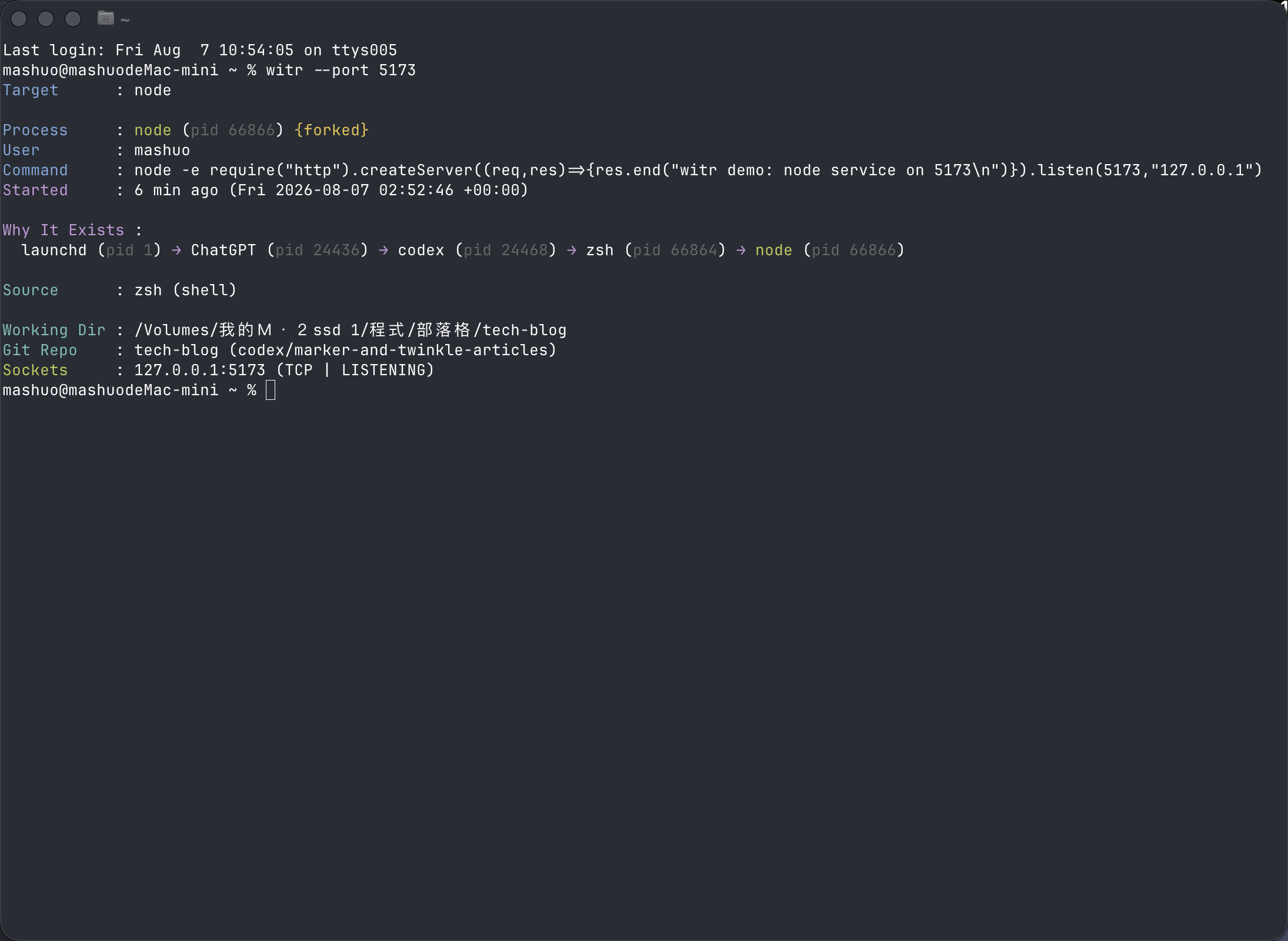
That is exactly the information I wanted. If I only need to free the port, getting the PID is enough. But when a background service, development server, or container keeps restarting itself, knowing what launched it makes it less likely to come back right after I kill it.
When you are done testing, return to the terminal running Node and press Control + C. Do not start killing unfamiliar system processes just to free a port.
Run It Without Arguments to Open the Full TUI
Running witr directly opens its interactive terminal interface. The top is divided into four pages:
Processes: Process list, CPU, memory, and launch chains.Ports: Currently listening ports and the processes that own them.Containers: Information about Docker, Podman, Kubernetes, and other containers.Locks: File locks and open files.
You can move with the arrow keys, press Enter to view details, and press / to search. My Mac listed more than 500 processes at the time, which was a lot to scroll through. If I already know the port or PID, I still prefer starting with a targeted command. The TUI is more useful when I do not yet know where the problem is and want to scan the whole machine first.
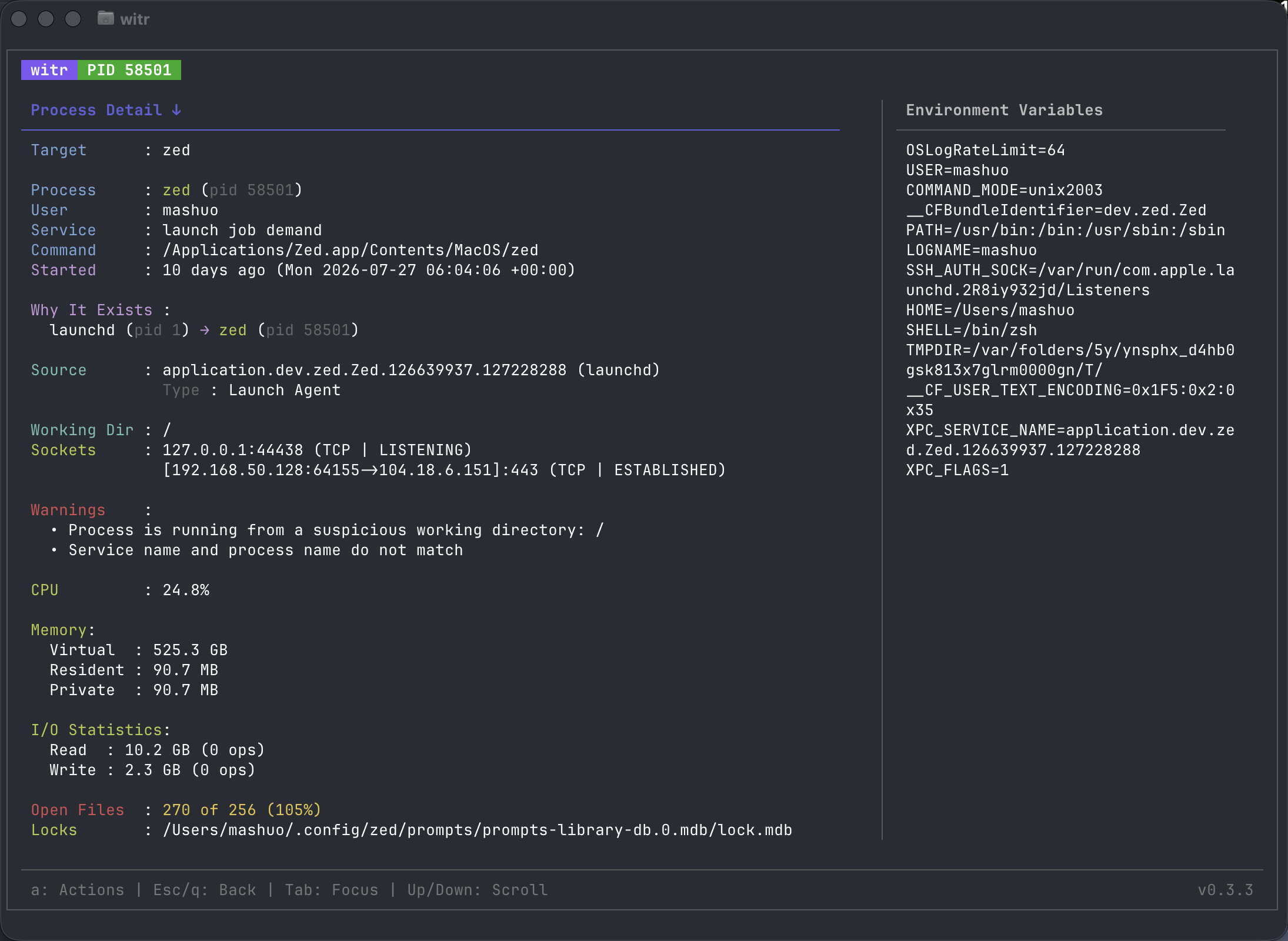
On Unix systems, the interface can also send Kill, Terminate, Pause, or Resume signals to a process, or adjust its priority. These actions genuinely affect running processes. If you are unsure what something does, look it up first instead of treating the TUI like a task manager and terminating processes one after another.
A Few Queries I Find Most Useful
Query by process name:
witr node
Show only a one-line launch chain:
witr --port 5173 --short
View parent and child processes as a tree:
witr --pid 12345 --tree
When another program needs to process the result, output JSON:
witr --port 5173 --json
It can also trace backward from a file or container:
witr --file /path/to/locked-file
witr --container redis
You can add --verbose, --env, or --warnings to the same query. I normally do not print every environment variable from the start. I check the regular output first and add options only when something is missing, which keeps the screen from becoming overloaded with information.
Hide Sensitive Information Before Sharing Screenshots or Logs
While preparing the material for this article, I initially thought it was only a process list and probably had nothing worth hiding. After zooming in and checking carefully, I found a local username, full disk paths, a Git branch, LAN IP addresses, remote connection addresses, and environment variables. The full Command for some processes may even contain tokens, PINs, or other launch arguments.
I did not cover the entire user field or details panel, because that would make it impossible to see what the tool actually does. The PIN and Key in the bottom-right corner of the first image were the values that definitely needed to be hidden. In the video, I only blurred the terminal username, working directory, and Git paths, while leaving the information that helps explain the feature visible.
witr is a tool for investigating your own computer, but that does not mean everything it outputs is suitable for posting online. This is especially important when using --env, --verbose, or opening a detailed TUI page. Before publishing anything, it is best to inspect the entire image again.
When Would I Use It?
If I only need to check a port occasionally, lsof is still fast, and I would not force myself to use another tool for every PID. witr is more useful after I have found a process but still want to know whether it was launched by a shell, service, container, or another tool.
The next time I see EADDRINUSE, I will start with:
witr --port 5173
At least I will not be left with only “Node is occupying the port.” I will also know what launched it.