

MarkText: The Most Comfortable WYSIWYG Markdown Editor I’ve Used So Far
MarkText is an open-source Markdown editor, and its biggest feature is WYSIWYG editing: instead of switching back and forth between source code and a preview pane, you write and see the result directly in the same view. This article records how to download it on macOS and Windows, which file to choose for Apple Silicon, and how to fix the macOS “damaged and can’t be opened” warning with xattr.
Introduction
I recently went through another round of trying Markdown editors, and the one that stayed in my setup was MarkText.
What attracts me most is not how packed its menus are, but that its writing model is a bit different from many Markdown editors. A lot of tools split the screen in two: write Markdown source on the left, see the rendered result on the right. MarkText feels more like it merges those two things together. You edit directly on the same page, and the page itself is already close to the final result.
For me, this WYSIWYG style feels very intuitive. Especially when writing notes, READMEs, or article drafts, I do not really want to keep switching between “syntax” and “preview.” I just want to finish the content while still knowing roughly what it will look like.
Related links:
What MarkText Does
MarkText is a cross-platform Markdown editor. The official README describes it very directly: it is a simple and elegant open-source Markdown editor focused on speed and usability, supports Linux, macOS, and Windows, and uses the MIT license.
It supports common Markdown workflows, such as:
- Real-time preview and WYSIWYG editing
- CommonMark and GitHub Flavored Markdown
- KaTeX math, front matter, emoji
- HTML / PDF export
- Multi-language interface
But I do not think you need to make it too complicated. The core value of MarkText is this: you can write Markdown the way you would write in a normal document editor.
macOS Installation Method 1: Use Homebrew
If you already use Homebrew regularly, you can install it directly with this command:
brew install --cask mark-text
There is one thing I would specifically point out here: the Homebrew cask page currently shows that mark-text is deprecated, the version is still 0.19.1, and the disable date is marked as 2026-09-01.
So Homebrew is the easiest method, but it may not be the latest version. If you just want to install it quickly and use it, Homebrew is fine. If you want the latest release, I recommend going directly to GitHub Releases and finding the installer for your platform.
macOS Installation Method 2: Download from GitHub Releases
This time, I downloaded it from GitHub Releases myself.
First open the official release page:
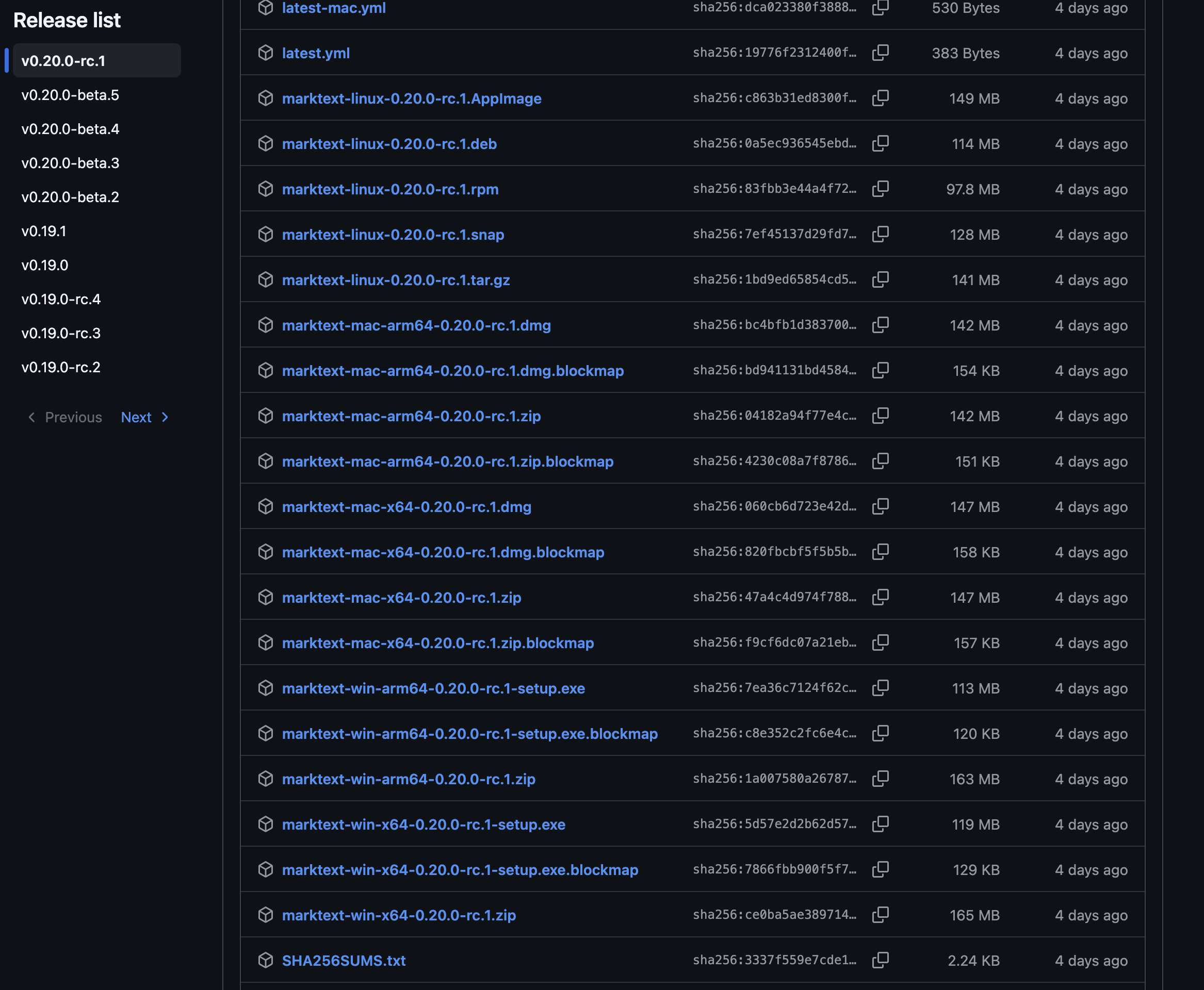
The latest v0.20.0-rc.1 I saw is a pre-release, so if stability matters to you, you can choose v0.19.1; if you want to try the newer version, choose v0.20.0-rc.1.
For macOS, pay attention to the chip version:
- Apple Silicon / M-series chips: look for
marktext-mac-arm64-...dmg - Intel Mac: look for
marktext-mac-x64-...dmg
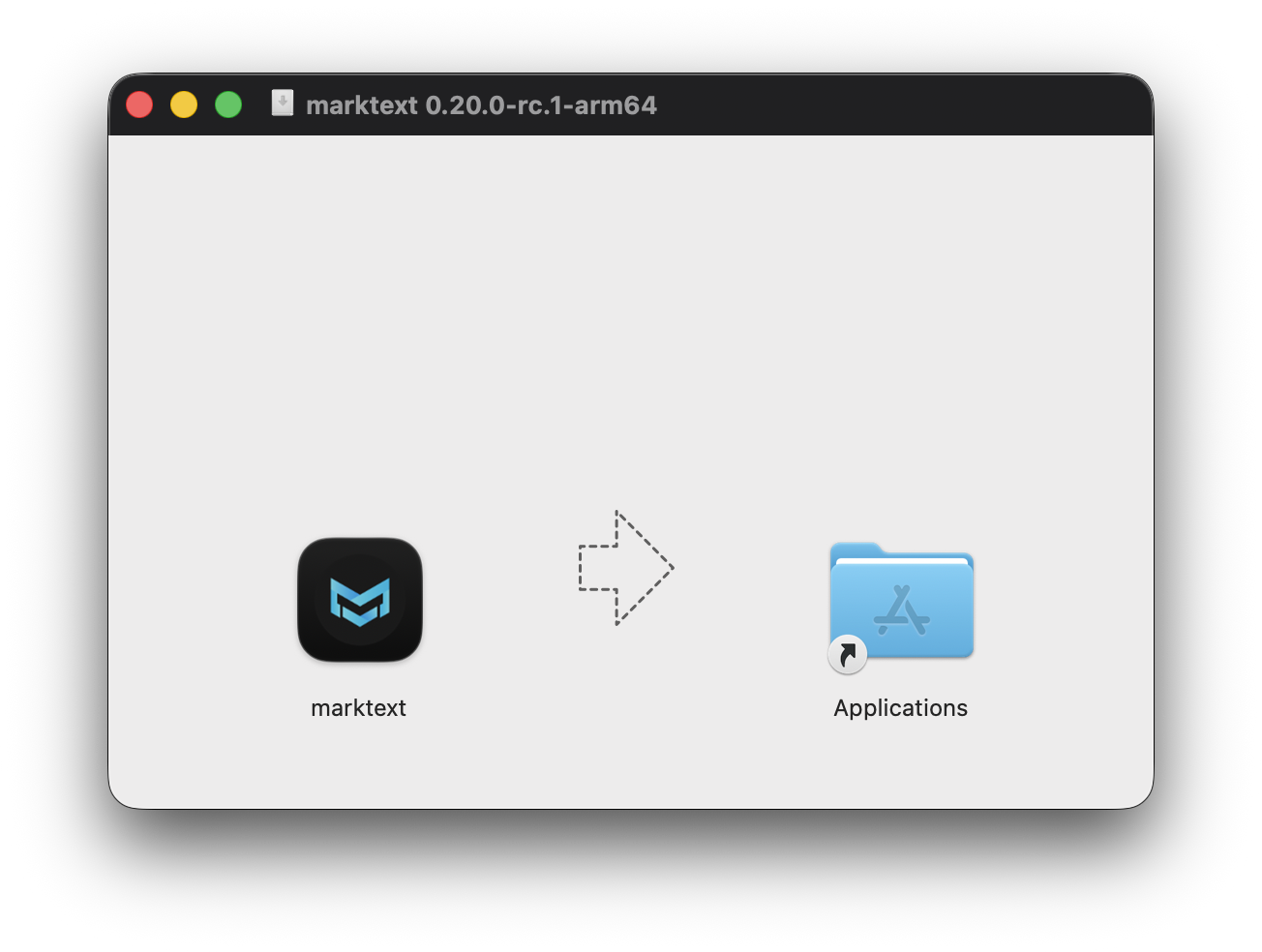
After downloading the dmg, open it and you will see the familiar macOS installation screen: MarkText on the left, Applications on the right. Drag MarkText into Applications, and that is it.
If macOS Says It Is “Damaged and Can’t Be Opened”
During my own test, I ran into a situation that many macOS users may also hit: after dragging the app into Applications, opening it showed the warning “marktext is damaged and can’t be opened. You should move it to the Trash.”
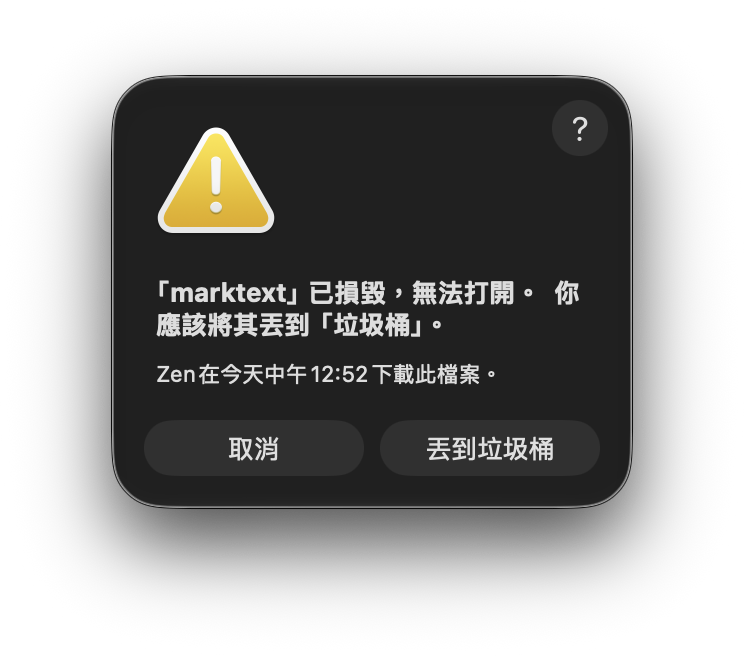
This does not necessarily mean the app is actually broken. MarkText’s official release note mentions that the macOS build is not signed with an Apple Developer ID, so after dragging it into Applications, you need to clear the quarantine flag.
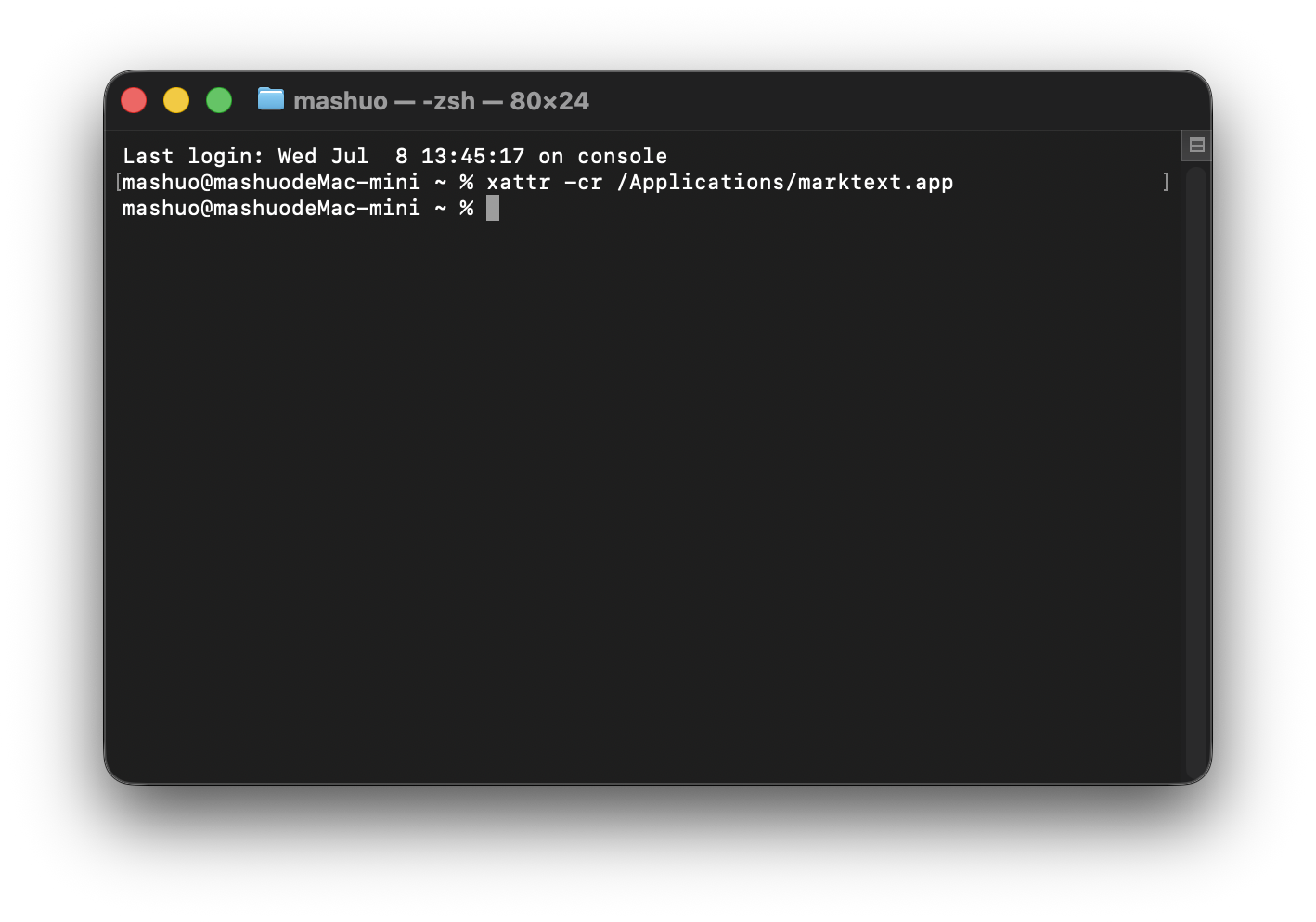
Open Terminal and enter:
xattr -cr /Applications/marktext.app
It is normal for this command to finish without output. Then go back to Applications and open MarkText again. It should launch normally.
Windows Installation Is More Straightforward
Windows is much simpler.
Go to the same GitHub Releases page and find the corresponding Windows file. Most users can choose the setup installer:
marktext-win-x64-...-setup.exemarktext-win-arm64-...-setup.exe
If you want a more portable version, you can also download the zip. After extracting it, just open and use it directly.
I would recommend that most Windows users choose setup first, because the flow feels more like installing a normal app. The zip is better for people who do not want to go through an installer and just want to try it quickly.
The Interface Can Be Switched to Chinese
After opening it for the first time, if you want to change the interface to Chinese, you can adjust the language in Preferences.
In my screenshot, you can see a language menu under General, with options including English, 簡體中文, 繁體中文, and more.
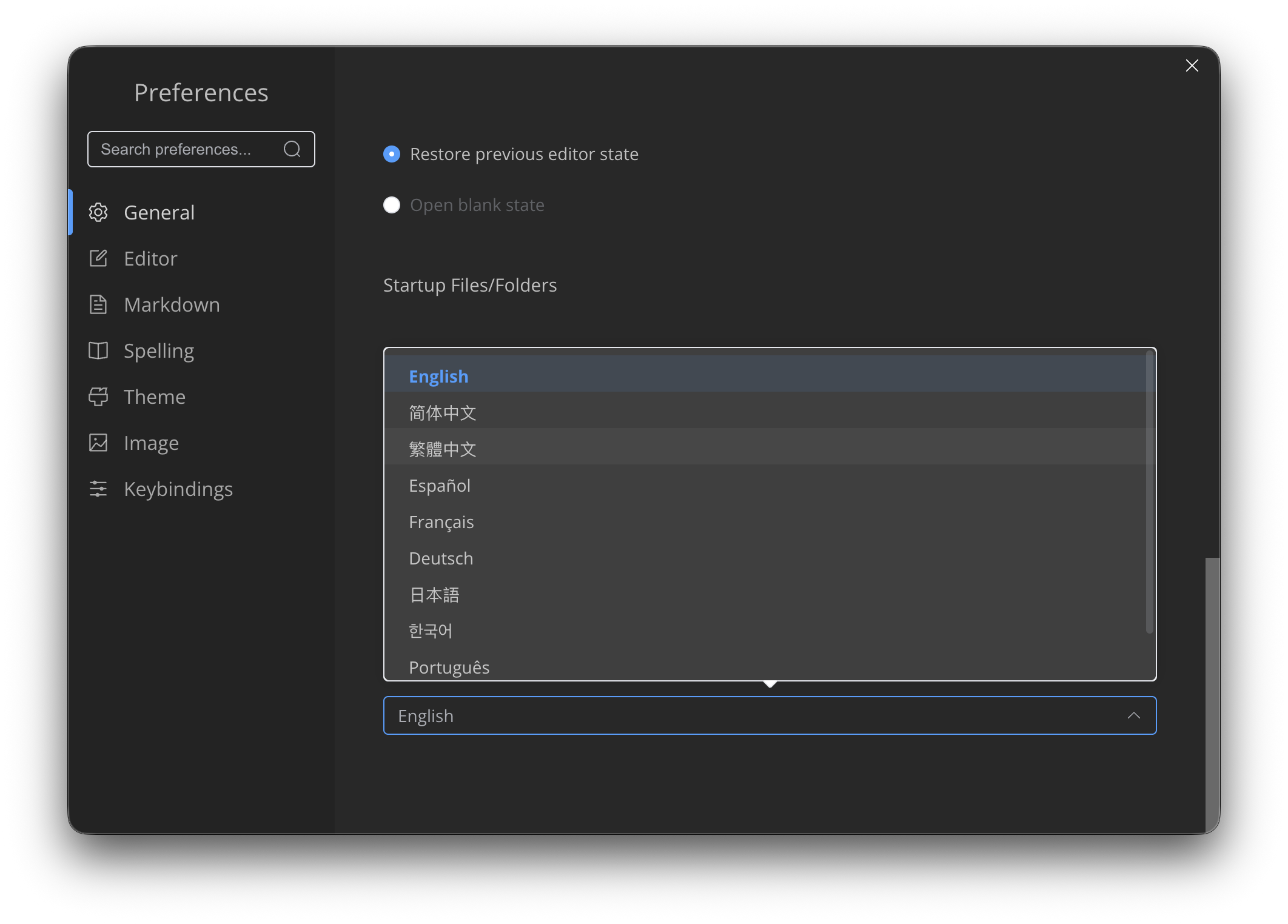
This is pretty friendly for Chinese-speaking users. Many Markdown tools are usable even with an English interface, but being able to switch settings, preferences, and menus to Chinese makes it feel less distant for people who are just starting to learn Markdown.
Why I Think It Feels Good to Use
What I think MarkText does well is that it does not turn Markdown into a tool where you must understand the syntax first before writing comfortably.
A common issue with typical Markdown editors is that you write #, -, and **bold** while checking the preview next to it to confirm the result. That is very developer-like, of course, but when writing an article, it can feel a bit disconnected.
MarkText feels more like this:
- When I type a heading, it looks like a heading
- When I type a list, it looks like a list
- When I insert an image or block, it sits inside the article
- I do not need to keep switching preview perspectives
This is also why I say it is one of the most comfortable Markdown editors I have used so far. It does not have the most features, and it is not the most IDE-like, but it really does make it easier for me to get into writing mode.
Who It Is For
I think MarkText is especially suitable for these kinds of people:
- People who want to write Markdown but dislike split-screen previews
- People who often write READMEs, notes, and article drafts
- People looking for a Typora alternative
- People who want to use the same Markdown editor across Windows / macOS / Linux
- People who do not need a full knowledge base and just want a comfortable Markdown writing experience
If you need backlinks, databases, or a plugin ecosystem, then Obsidian or other note-taking tools may be a better fit.
But if your need is simple: open Markdown, write directly, and see the result directly, then MarkText’s experience is very clean.
Wrap-Up
MarkText is the kind of tool that made me rethink what a Markdown editor should look like after using it.
It does not force source code and preview into two separate worlds. Instead, it turns Markdown writing into a more continuous screen. For someone like me, who often has to write articles, organize tool tutorials, and edit READMEs, that smooth writing feel matters more than a pile of advanced features.
macOS users should remember two things: choose mac-arm64 for Apple Silicon, and mac-x64 for Intel Mac. If you see the damaged app warning after dragging it into Applications, use:
xattr -cr /Applications/marktext.app
Windows users can just download the setup or zip. The process is much simpler.
The video above shows what I think is MarkText’s core appeal: WYSIWYG editing, direct editing, and direct results.