

Umi-OCR Hands-on: A Free, Open-source, Offline OCR Tool for Screenshots, Batch Images, and PDFs
I tested Umi-OCR, a free and open-source offline OCR tool that supports screenshot OCR, batch image recognition, PDF document OCR, QR code scanning, and command-line/API calls. It does not require uploading files, and on Windows you can choose the Paddle or Rapid engine version based on your computer's performance.
Introduction
While I was recently organizing some screenshots, scanned PDFs, and tool documentation, I ran into the old OCR problem again: online OCR is convenient, but as soon as a document contains accounts, invoices, or internal company information, I start hesitating about whether I should upload it. The more annoying part is that some tools are only good for single images. Once you have a full PDF or an entire folder of screenshots, it turns into a lot of repeated work.
This time I tested Umi-OCR. It is a free, open-source desktop OCR tool that can be used offline. It supports screenshot OCR, batch image recognition, PDF document OCR, QR code scanning/generation, and also provides command-line and HTTP API access. My impression is that it is not the kind of document parsing tool that tries to recreate fancy layouts. It is more like a practical local text recognition workbench for everyday use.
What Is Umi-OCR?
Umi-OCR has a very clear purpose: it handles common OCR work locally, without sending images or documents to the cloud. It includes multilingual recognition libraries, and the official project currently mainly provides Windows, Linux, and Docker deployment options.
Its common features can roughly be divided into a few categories:
| Feature | What it does | Where I think it fits |
|---|---|---|
| Screenshot OCR | Select an area on the screen and recognize text | Copying unselectable App text, image text, and error messages |
| Batch OCR | Import multiple images and recognize them at once | Organizing screenshots, scanned images, and form photos |
| PDF document OCR | Extract text from scanned PDFs, or output searchable PDFs | Processing scanned documents, old files, and reports |
| QR codes | Scan or generate QR Codes/barcodes | Quickly reading QR Codes in screenshots |
| Command line/API | Call OCR from scripts or other tools | Automation workflows and internal tool integration |
What I like most is that its features are not wrapped in a heavy AI product narrative. You open it and it is just a tool: choose images, take screenshots, recognize text, copy results. The whole flow is direct.
Which Download Version Should You Choose?
Umi-OCR is mainly distributed through GitHub Releases. As of the latest version I saw while writing this article, v2.1.5, Windows users will see two main versions: the Paddle engine version and the Rapid engine version.
You can download it from the official entry points:
After opening the Releases page, Windows users will see Paddle and Rapid builds. Try Paddle first on newer computers; if it fails to launch, OCR initialization fails, or your computer is older, switch to Rapid.
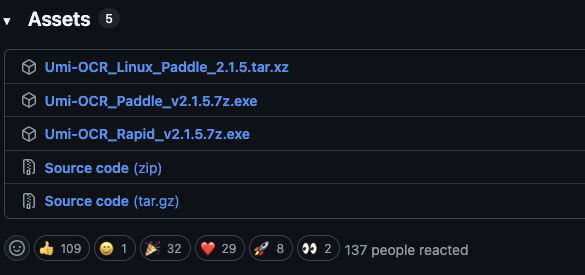
When downloading for Windows, you can choose the Paddle or Rapid engine version based on your computer's performance
In simple terms:
| Version | Characteristics | Best for |
|---|---|---|
| Paddle engine version | Better performance and faster speed, but higher resource usage and more selective CPU compatibility | Newer computers, or users who want faster recognition |
| Rapid engine version | Slightly slower, but lower resource usage and better compatibility | Low-spec computers, older CPUs, or cases where the Paddle version fails to launch or recognize text |
The official project also specifically notes that if OCR on Windows encounters 0xc0000142 or [Error] OCR init fail, it is likely that the CPU is incompatible with Paddle. In that case, you can switch to the Rapid version. This is practical, because many OCR tools do not clearly explain where the problem is when they fail. Umi-OCR at least documents this common split clearly.
It is a portable tool. After downloading the self-extracting file or compressed archive, extract it and run Umi-OCR.exe. For the Linux version, run ./umi-ocr.sh from the command line first after downloading, then you can create desktop or start menu shortcuts from the global settings.
Screenshot OCR: The Most Common and Intuitive Use
The feature I used most often during testing was screenshot OCR. After opening the screenshot recognition page, you can use a hotkey to select an area on the screen. Umi-OCR then sends the image to the local OCR engine for processing, and the recognition history is kept on the right.
This is useful in several situations:
- Text in a webpage or App cannot be selected directly.
- A tutorial video, screenshot, or error screen contains text you want to copy.
- During development, you encounter code, commands, or error messages inside an image.
- You want to quickly extract text from a foreign-language interface and send it for translation.
The nice thing about Umi-OCR is that the result does not just appear in a floating window and disappear. It keeps the recognition history, so you can edit and copy items from the list on the right, and you can also select multiple records at once. The image preview area on the left also lets you select and copy with the mouse directly. Compared with many small tools where the result disappears after recognition, this is much better for continuous work.
It also provides OCR text post-processing options, such as multi-column layout, natural paragraph line breaks, always break lines, no line breaks, and preserving indentation. This makes a big difference when recognizing article screenshots, explanatory text next to tables, or code screenshots. Raw OCR results often just dump a pile of text blocks. Post-processing can make the result look more like readable paragraphs.
PDF OCR: Good for Turning Scans into Searchable Documents
Besides screenshots, I also tested PDF OCR this time. Umi-OCR's document recognition can process scanned PDFs, extract text, and output searchable dual-layer PDFs. For people who have many scanned files, contracts, reports, or old lecture notes, this is more useful than simple screenshot OCR.
I think it fits these PDF tasks well:
- A scanned PDF originally has no text layer, and you want to make it searchable.
- You want to extract text from a PDF for organization.
- You want to run OCR on the whole document instead of taking screenshots page by page.
- Headers, footers, or watermarks interfere with recognition, and you need to exclude them using ignore regions.
Umi-OCR's document OCR is not meant to convert PDFs into polished Markdown. It is more about adding a text layer and recognizing the content. If your goal is "make scanned documents searchable and allow text copying," it works well.
But if your needs are mainly focused on PDFs, and you want to convert PDFs into more complete Markdown while preserving heading levels, images, tables, formulas, or even using the results for a RAG knowledge base, then MinerU is stronger for PDF parsing. I previously wrote another article, MinerU Hands-on: A Strong Open-source Tool for PDF and Multi-format Document Parsing, which you can refer to if you need more advanced PDF parsing. In short, Umi-OCR is more like an everyday desktop OCR tool; MinerU is more like a framework specialized in structured parsing for PDFs and multi-format documents.
Batch OCR and Ignore Regions
Umi-OCR's batch OCR can import many images at once. It supports common formats such as jpg, png, webp, bmp, and tif, and the output formats include txt, jsonl, md, and csv. If you have a whole batch of scanned images, this saves much more time than processing them one by one.
The small feature I find most useful in batch OCR is "ignore regions." For example, if every image has a fixed watermark at the top, a fixed Logo in the lower-right corner, or fixed page numbers in the footer, you can first draw the areas you do not want to recognize, and those regions will be excluded during batch recognition.
This feature looks minor, but it matters a lot in actual use. A lot of OCR post-processing trouble does not come from the main text being recognized incorrectly. It comes from the same watermark, header, or footer being mixed into every image. Excluding those at the source is much cleaner than trying to clean the text with rules afterward.
QR Codes, Command Line, and API
Umi-OCR also includes QR Code/barcode scanning and generation. This may not be something you use every day, but when you only have a screenshot containing a QR Code, or you need to quickly generate a code image, it is convenient to do it in the same tool.
The more advanced part is that it also provides command-line and HTTP API access. This means you can connect Umi-OCR to your own automation workflows, for example:
- Automatically run OCR after a screenshot tool outputs an image.
- Call local OCR after an internal system uploads an image.
- Use scripts to batch process images in a folder.
- Pass recognition results to the next cleaning, translation, or archiving step.
If you only occasionally copy text from images, the GUI is enough. But if you often need to process a batch of images or PDFs, the command line/API turns Umi-OCR from a simple desktop tool into a local OCR service that can be integrated with other workflows.
Pros and Cons After Testing
What attracts me most about Umi-OCR is how practical it is. It does not turn OCR into a cloud subscription service, and it is not just a model demo for developers. Instead, it puts screenshots, images, PDFs, QR Codes, and batch processing into a desktop App you can open for daily use.
The advantages are clear to me:
- Fully local processing, which feels better for privacy.
- Free and open-source, with features not tied to accounts or quotas.
- Screenshot OCR and PDF OCR both fit normal workflows well.
- Windows has both Paddle and Rapid paths, so you can adjust based on hardware.
- It has command-line and HTTP API support, so advanced users can automate it.
But it is not the final answer to every document problem:
- If you want very polished PDF-to-Markdown conversion, Umi-OCR is not the best fit.
- The Paddle version may be incompatible with older CPUs, and you may need to use Rapid instead.
- The interface has many features, so it may take a few minutes to understand each tab the first time you open it.
- Complex tables, formulas, and multi-column documents may still require a more specialized document parsing tool.
For me, Umi-OCR feels like a "regular toolbox" utility. When I need to quickly grab text from a screenshot or PDF, it feels safer than opening an online OCR service. When I need more advanced structured document parsing, I would hand the task to tools like MinerU.
Conclusion
If you often need to extract text from screenshots, scans, PDFs, or images, and you do not want to upload documents to online OCR services, Umi-OCR is worth adding to your toolbox. Its strength is not flashiness, but offline use, direct operation, and a complete feature set.
I would especially recommend it to these people:
- People who often organize text from screenshots.
- Students, researchers, or office users who need to process scanned PDFs.
- Developers who want to connect OCR to automation workflows.
- People who care about document privacy and do not want to rely on cloud OCR.
When downloading, just remember: on newer Windows computers, you can try the Paddle version first; if you run into compatibility issues or your computer is older, switch to the Rapid version. That should help you avoid most first-use issues.