

QuickLook Hands-On: Bringing macOS Spacebar Preview to Windows, Smoother Than PowerToys Peek
I tested QuickLook, a Windows file preview tool that lets you preview PDFs, Markdown, images, videos, 3D models, and many document formats with the spacebar. It feels like macOS Quick Look, but supports a wider range of formats on Windows and feels smoother than PowerToys Peek in my use.
Introduction
If you have used both macOS and Windows, this gap is probably easy to understand: on a Mac, you select a file and press the spacebar to preview it instantly; on Windows, in many cases you still need to double-click, wait for an app to open, look at the file, and then close it.
Windows does have similar tools, such as Peek in PowerToys. I had used it before too, but after testing QuickLook this time, it feels closer to the “spacebar preview” experience I actually want. It is fast, supports more formats than I expected, and can even preview and rotate 3D models like .stl files directly.
What surprised me most was the Markdown rendering. It does not just open the raw text. It renders it into something closer to a reading view. You can see the .md file in my demo below; the preview feels much better than a plain text viewer.
Related Links:
What Is QuickLook?
QuickLook is a fast file preview tool for Windows. The core interaction is simple: select a file in File Explorer, press the spacebar, and a preview window appears; press the spacebar again or Esc to close it.
The idea is very similar to macOS Quick Look. The difference is that QuickLook brings this experience to Windows users, and it is not limited to images or text. The official documentation lists broad format support, including images, videos, PDFs, Office documents, plain text, code, Markdown, ebooks, archives, fonts, 3D models, and more. Some formats depend on built-in viewers or plugins.
This time, I mainly tested the file types I run into most often day to day:
| File Type | Hands-On Impression |
|---|---|
| Opens quickly and works well for scanning content | |
| Markdown | Renders into a reading layout, not just raw text |
| Images and videos | Very useful for checking assets without opening heavy software |
.stl 3D models | Can be previewed and rotated quickly, which was more useful than I expected |
| Code and text files | Good for quickly checking contents without necessarily opening an editor |
Its role is not to replace full apps. It is for taking a quick look with the spacebar before deciding whether you actually need to open the file. For anyone who organizes downloads folders, project assets, article screenshots, or 3D files every day, this kind of small tool quietly saves a lot of time.
Differences from PowerToys Peek
I know Windows users may think of PowerToys Peek first. Peek is also a quick preview tool, and PowerToys itself is a Microsoft-maintained toolkit that gives you many features after one installation.
But based on my own feel, QuickLook is faster and supports formats more completely. Peek feels more like one feature inside PowerToys; QuickLook is a standalone tool built specifically around file previews.
I would not say everyone must replace Peek. If you already use PowerToys and only need basic image, text, or PDF previews, Peek may be enough. But if you often view different types of files, such as Markdown, videos, 3D models, archives, or various development files, QuickLook feels more like a complete preview hub.
My own conclusion is:
| Tool | Best Fit |
|---|---|
| PowerToys Peek | You already use PowerToys and only need simple previews |
| QuickLook | You want something closer to macOS spacebar preview, with support for more formats |
Download and Installation
QuickLook has a few installation options. General users can download it directly from the official website, or go to GitHub Releases and download the installer. Pick either one; there is no need to download both.
You can download it from the official entry points:
If you are a general Windows user, just click Download on the official website. If you prefer GitHub, open the Releases page and choose the latest installer there.
You can first go to the QuickLook official website and click Download
If you are used to downloading from GitHub, you can also go to the Releases page and choose the installer for the latest version.
You can also download the QuickLook installer from GitHub Releases
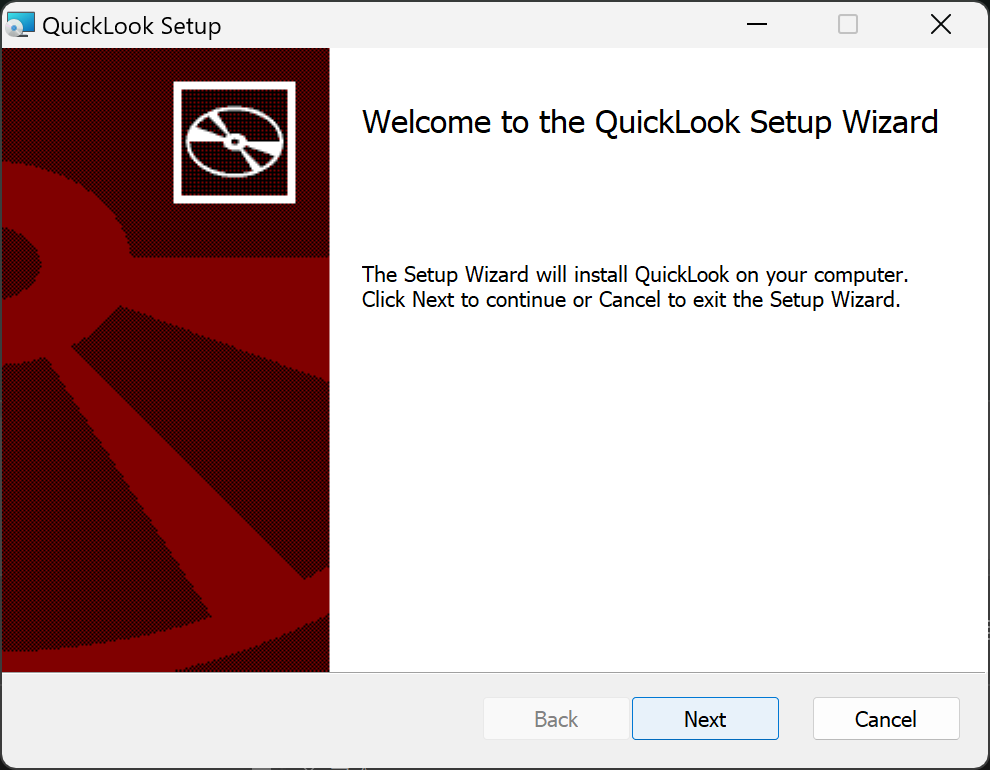
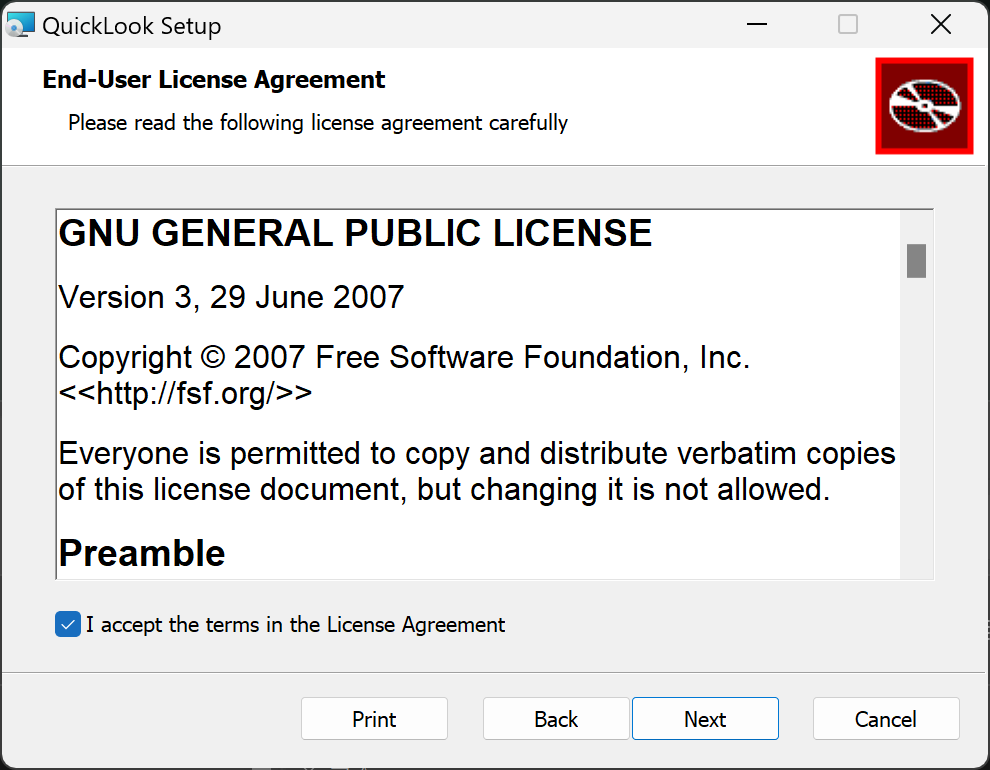
The installation itself is straightforward. After downloading, go through the installer. If you see permission or security confirmation screens along the way, confirm that the source is the official website, Microsoft Store, or the QL-Win/QuickLook GitHub repository, then click Accept or agree to continue.
After installation, QuickLook runs in the background and usually appears in the system tray. From then on, you can select a file in File Explorer and press the spacebar to preview it.
Basic Controls
There is not much to learn for QuickLook:
| Action | Function |
|---|---|
| Space | Open or close preview |
| Esc | Close preview |
| Enter | Open the file with the default app |
| Arrow keys | Switch to the previous or next file |
| Mouse wheel | Scroll content or zoom certain formats |
The smoothest part for me is that it works well with the arrow keys for browsing through files continuously. Suppose you have a folder full of screenshots, PDFs, or model files. Select the first file, press the spacebar to open the preview, then use the arrow keys to move through the folder quickly.
This is very useful for organizing assets. In the past, I often had to open images, videos, Markdown files, and PDFs with different apps. Now I can quickly filter through them once with QuickLook, and only open the full tool when I actually need to edit something.
Supported Formats and Plugins
QuickLook emphasizes that formats can be extended through plugins. The basic formats are already useful enough, but if you need more advanced previews for Office, PDF, EPUB, or other formats, you can look at the official plugins.
One thing to note: not every format has the same preview quality, and not every plugin is installed by default. For formats like Office documents, some situations may require the OfficeViewer plugin; for PDFs, there is also an optional Native PDF viewer plugin. My suggestion is to install the main app first and test the files you use daily. If a certain format does not preview well, then go back and install the matching plugin.
For developers or people who often organize technical documents, I think Markdown preview is especially practical. Many GitHub project folders have README, CHANGELOG, or configuration notes. Quickly previewing them with QuickLook feels much lighter than opening VS Code every time.
Hands-On Notes
After testing it, the clearest feeling I had was: QuickLook is fast, and that speed matters.
If a tool like this is slow, it loses its value. You only want to glance at a file, not formally edit it. When I tested PDFs, Markdown, images, videos, and .stl files, QuickLook responded very close to what I expect from a spacebar preview. Compared with my previous experience using PowerToys Peek, it has more of that “I press it and it appears” feel.
Another advantage is broad format support. General users need images, videos, and PDFs; programmers need Markdown, JSON, and code; people working with 3D or printing may run into STL files. Being able to view all of these through the same entry point makes the experience consistent.
But I would also note that QuickLook is a background resident tool. If you care a lot about the number of background programs running on your system, you can install it and test it for a few days to see whether it actually fits into your workflow. For me, it is the kind of small tool that easily becomes muscle memory after installation.
Conclusion
QuickLook is currently the Windows tool I have used that feels closest to the macOS spacebar preview experience. Its point is not to overwhelm you with features, but to make the small act of “quickly taking a look at a file” feel smooth.
If you already use PowerToys Peek but feel that its speed, format support, or Markdown presentation is not quite ideal, you can try QuickLook. If you are originally a macOS user and keep wanting to press the spacebar to preview files whenever you switch to Windows, this tool is even more worth installing.
My suggestion is: install the main app from the official website or GitHub Releases first, then test the file types you view most often. If some formats need more complete support, install the matching plugins afterward. That gives you a better Windows file preview experience with minimal setup.