

ShareX 21.0 Hands-On: An Old, Reliable, Practical Windows Screenshot Tool
I tested ShareX 21.0 on Windows, including region capture, image annotation, after-capture tasks, and OCR. The interface looks dated, but it lets you decide everything from hotkeys to output actions. It is free, open source, and reliable.
Introduction
ShareX does not make a great first impression. There is a long row of menus on the left, more than a dozen actions you can run after taking a screenshot, and a settings page that is nowhere near as clean as modern apps. But after using it, I think that is exactly why it has survived on Windows for more than 18 years: it does not spend much effort looking polished, but it has always had the features that matter.
I tested ShareX 21.0, focusing on region capture, image annotation, after-capture tasks, and OCR. The best part is not any single feature, but the way it can turn “capture, add a border, save, and copy to the clipboard” into a fixed workflow. Configure it once, and every future hotkey press follows the same process.
ShareX is free, open-source software licensed under GPL-3.0, and it only supports Windows. Version 21.0.0 was released on July 3, 2026. This release added background removal and image comparison tools while continuing to refine the image editor. There are no ads, and it does not require an account. If you only want to keep screenshots on your computer, you do not need to configure any upload service either.
Download and Installation
Most users can simply download the installer from the official ShareX download page. A portable ZIP archive is also available, and ShareX can be installed through the Microsoft Store or Steam. I used the standard installer for this test, and the app showed version 21.0.
After installation, do not rush to study every menu. The right side of the main window already lists five default hotkeys:
| Hotkey | Action |
|---|---|
Ctrl + Print Screen | Capture region |
Print Screen | Capture entire screen |
Alt + Print Screen | Capture active window |
Shift + Print Screen | Start/stop screen recording |
Ctrl + Shift + Print Screen | Start/stop GIF recording |
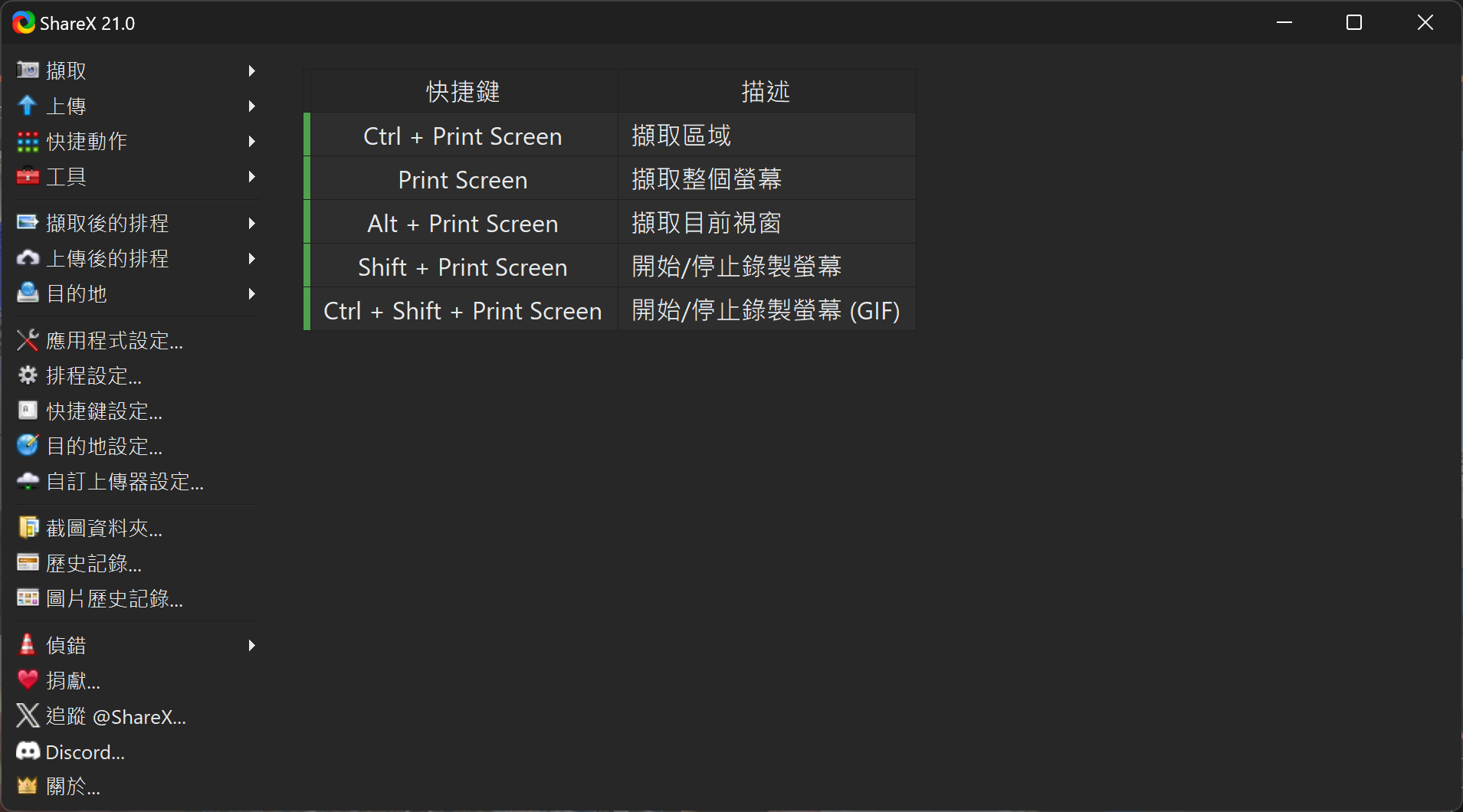
Start by remembering the hotkeys for region capture and active-window capture. Enable the other features when you need them.
If a hotkey conflicts with another application, you can reassign it under “Hotkey settings.” ShareX has a lot of features, but I would not recommend changing every hotkey on the first day. Making sure that region capture, active-window capture, and screen recording work correctly is enough to start.
The Really Useful Part Is “After Capture Tasks”
Windows' built-in Snipping Tool can also take screenshots. What sets ShareX apart is its “After capture tasks.” Once a screenshot is taken, ShareX can display the quick task menu, open the image editor, copy the image to the clipboard, save it to a file, run OCR, scan a QR code, or pass it to another action.
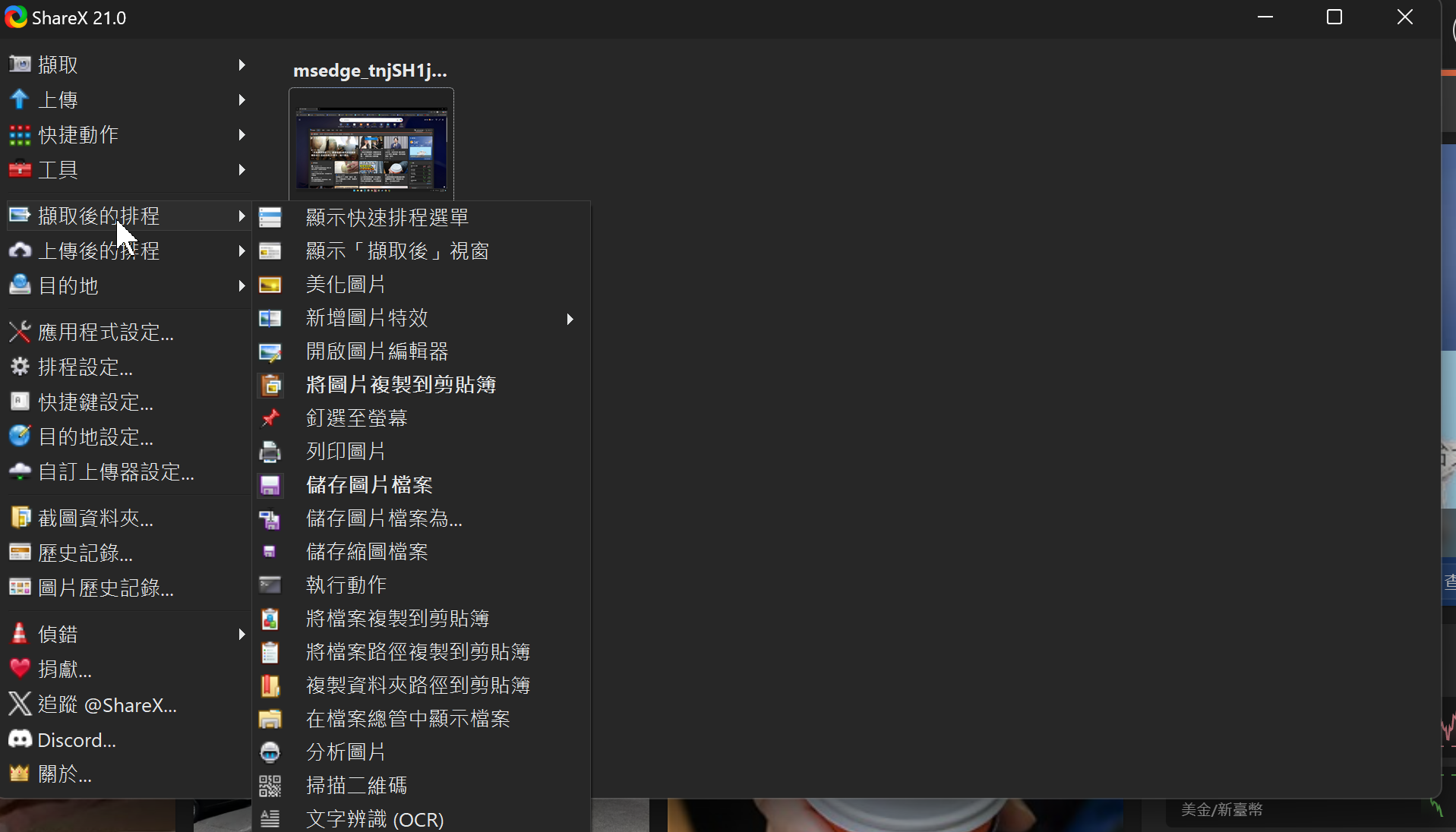
You can decide exactly what happens after each screenshot under “After capture tasks.”
I keep “Open in image editor,” “Copy image to clipboard,” and “Save image to file” enabled. This lets me annotate the screenshot first, save it after closing the editor, and then paste it into an article or chat window. For actions I only use occasionally, opening the quick task menu and choosing one when needed is cleaner than enabling everything at once.
ShareX also keeps screenshot thumbnails and a history log. Right-clicking an item lets you reopen, copy, upload, or edit the image, pin it to the screen, or run OCR. There is no need to open File Explorer and figure out where the latest screenshot was saved.
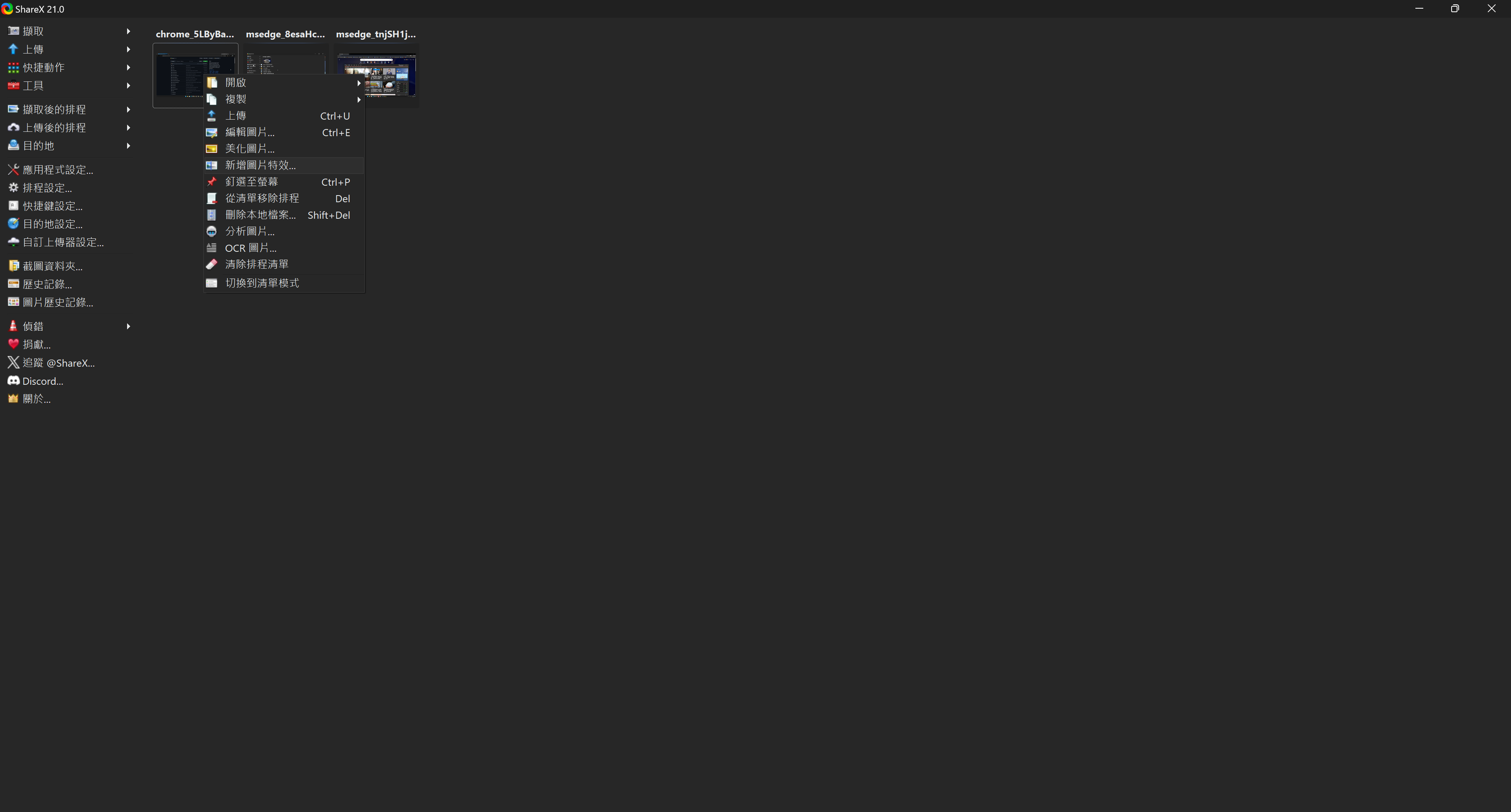
Recent screenshots remain in the main window, where you can edit them again or run other actions later.
The Image Editor Is Not Flashy, but It Has the Tools You Need
The 19-second video above shows me capturing part of a GitHub page and then adding a border and text in the ShareX image editor. The toolbar includes rectangles, circles, arrows, text, speech bubbles, and numbered steps, along with blur, pixelation, spotlight, crop, and magnification tools.
The advantage of this editor is how closely it is integrated with the screenshot workflow. When writing a tutorial, reporting a bug, or sending someone a screenshot, you usually only need to highlight an area, add a short note, and hide sensitive information. Once that is done, you can copy or save the result without opening Photoshop.
The downside is just as obvious: there are a lot of buttons, and even the newer toolbar still feels a little like an engineering utility. You do not need to try every icon the first time you use it. Learning the rectangle, arrow, text, blur, and crop tools is already enough for most screenshots.
OCR Works, but You Need to Clean Up the Results
ShareX's OCR lets you select an area of an image and copy the recognized text. In my test, I selected “繁體中文(台灣)” and scanned English content from a GitHub page. It recognized most of the words, but the spacing and line breaks were messy. For example, 3 months ago became 3monthsago.
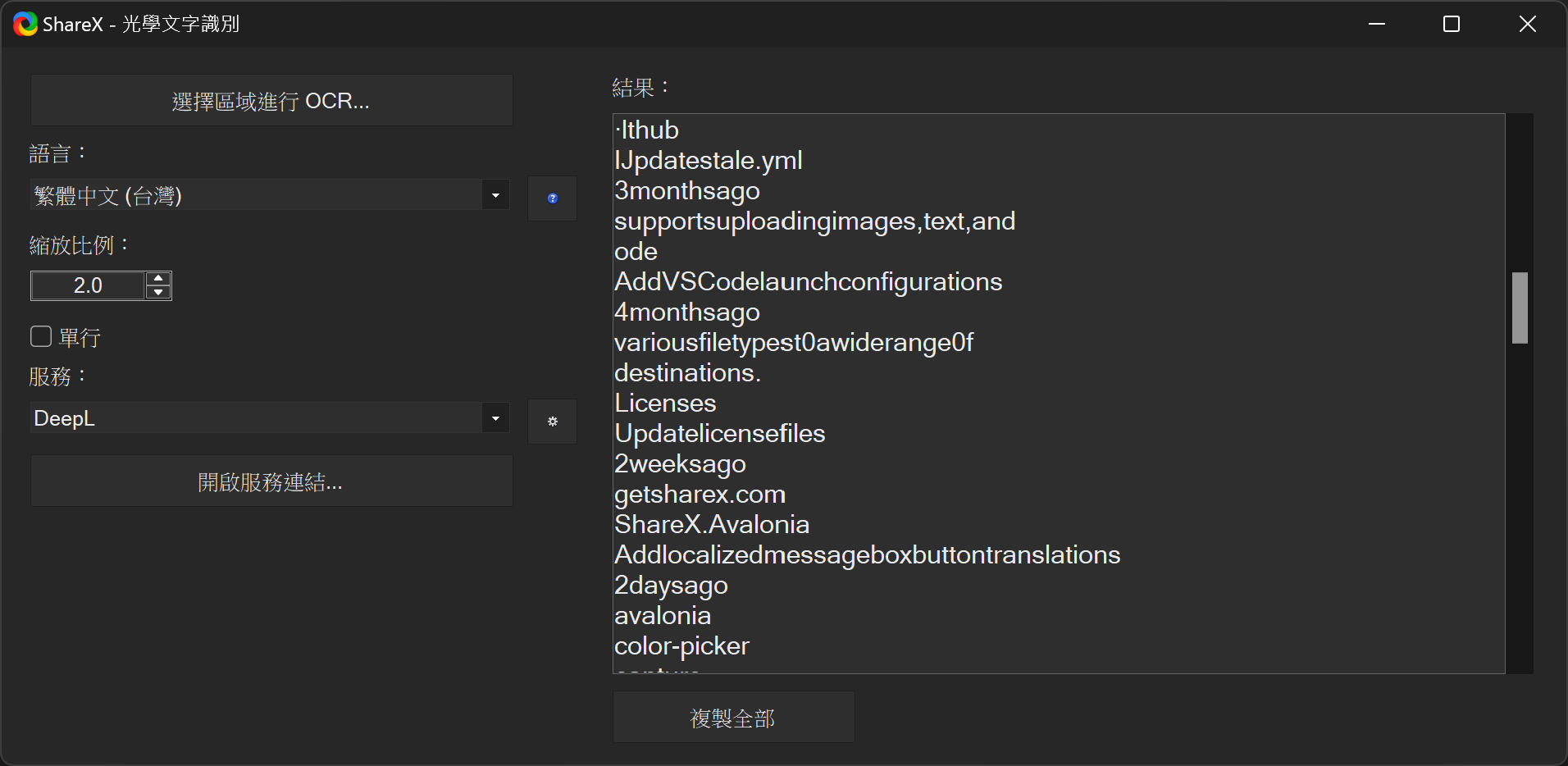
It can extract the text, but English spacing and paragraph breaks still need manual cleanup.
I tested another area, and it again recognized filenames and keywords while joining some words together. This feature is useful when you need to quickly copy a passage from an image, but it is not suitable if you expect a fully formatted document to be reconstructed automatically.
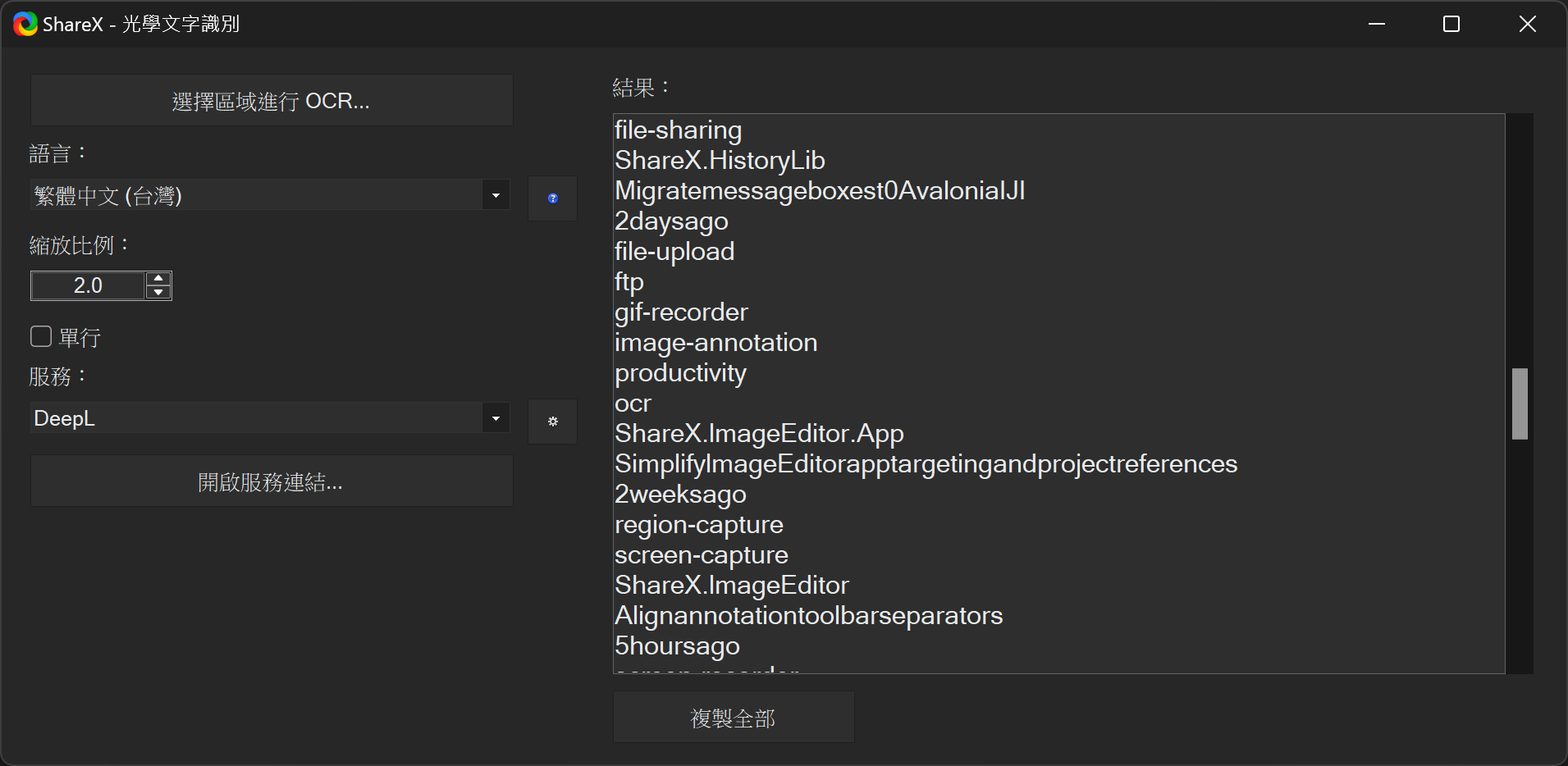
It is good enough for quickly copying text from the screen, but formal documents still need to be proofread.
There Are Plenty of Features, but You Do Not Need to Enable Them All
Beyond the features I tested, ShareX also includes scrolling capture, screen recording, GIF recording, pinning images to the screen, a color picker, ruler, image effects, QR codes, file uploads, and custom uploaders. Version 21.0 also added background removal and image comparison, so the Tools menu really does feel a bit like a utility drawer.
I treat ShareX as a screenshot workflow rather than a Swiss Army knife where I need to learn every tool. Most of the time, I take screenshots with hotkeys and let them open automatically in the editor. When I need OCR, screen recording, or scrolling capture, I open it from the menu.
The upload feature is optional as well. ShareX can send images or files to different destinations and automatically copy the resulting URL, but if a screenshot might contain account details, internal information, or private conversations, I prefer to keep it stored locally. I only configure a service I trust when I actually need to share a link.
Why This Old Tool Is Still Worth Installing
If you only take a few screenshots each month, Windows' built-in Snipping Tool is more convenient. ShareX is better suited to people who create tutorials, report issues, organize visual material, or share work screenshots every day—especially when the same set of post-capture actions gets repeated over and over.
It is not new, and it is not simple. But its hotkeys, capture tools, annotations, file saving, clipboard integration, and history all work together without requiring a subscription. For a Windows screenshot tool, being old, reliable, and practical is already high praise.