

TRex Review: Copy Screen Text on macOS with OCR, QR Codes, Raycast, and Automation
My hands-on review of TRex, an open-source macOS OCR tool that puts selected screen text straight into the clipboard. It also reads QR codes, supports Raycast, global shortcuts, CLI, Shortcuts, and Watch Mode.
Introduction
This time I tested TRex. Its job is simple: take text that cannot normally be selected on screen and put it straight into the clipboard. There is no results window to dismiss and no extra Copy button. I click Capture in the macOS menu bar, select an area, then press Command + V in any text field to paste.
The video starts by running OCR on text in an image/video subtitle, then selects a QR code. Both use the same workflow: if I can see it, I select it, then paste it.
The Convenient Part Is That It Removes the Copy Step
My old screen-OCR flow usually had too many steps: take a screenshot, open an OCR tool, run recognition, inspect the result, copy it, then return to the original app to paste. TRex works more like the native macOS screenshot tool: invoke capture, select a region, and the result is already in the clipboard.
That makes it especially useful for small tasks that happen repeatedly throughout a day:
- Text in a web page, PDF, or app that cannot be selected.
- Subtitles, URLs, and commands shown in YouTube videos, online courses, or shared meeting screens.
- Error messages, serial numbers, and addresses in screenshots or images.
- A QR code or barcode on screen whose contents I want quickly.
It is not a replacement for an OCR workbench that processes a complete PDF or hundreds of images. It is a resident tool for extracting the bit of text right in front of me, and it is very smooth at that job.
Actual Use: Menu Bar → Select → Command + V
TRex normally lives in the macOS menu bar. The first and most common item is Capture; the official app also supports configurable global shortcuts, so after setup I do not need to use the mouse at all.
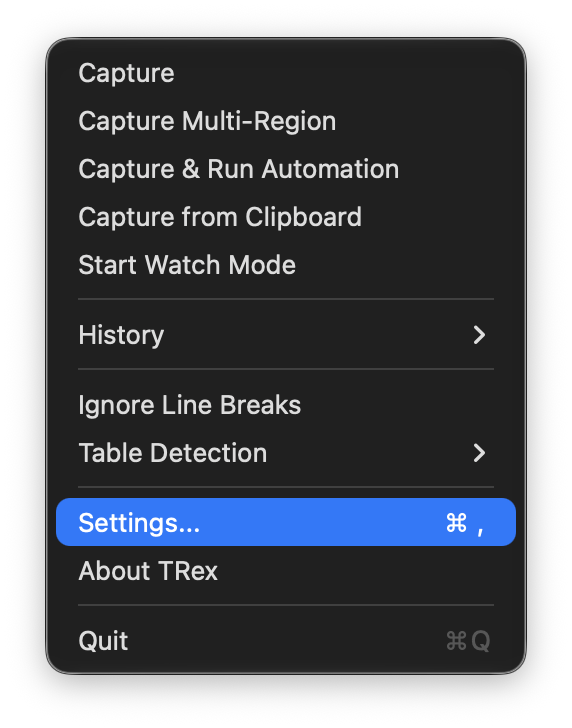
Capture is the core action; the other features share the same menu-bar entry point
My basic workflow is three steps:
- Choose
Capturefrom the menu bar, or press a configured shortcut. - Select text or a QR code just as I would select a screenshot.
- Return to my note, chat, or terminal and press
Command + V.
The easy detail to miss is that there is no additional Copy step. TRex writes recognized text directly to the clipboard, so step three is already Paste. The video captures bilingual subtitles, then a QR code, and pastes each into a Markdown document. For a line from a video, a link from a meeting, or a command displayed on screen, that is much faster than retyping.
QR codes and barcodes are not a separate tool either. They are built-in capabilities, so I use the same selection action on the code. With automation configured, TRex can take a follow-up action on a URL inside a QR code; if I only need the content in a note, the basic capture-and-paste flow is enough.
Installation: Use the App Store to Support the Author; Use Homebrew or Releases for Free
Here is the direct answer: TRex source code is MIT-licensed, and both GitHub Releases and Homebrew provide a free download; the Mac App Store edition is paid. The US Mac App Store currently lists it at US$7.99, although prices vary by storefront. Choose the Store if you want to support the author or prefer Store updates and purchase history; choose a free channel if you simply want to try it first.
The official download entry is GitHub Releases. With Homebrew installed, run:
brew install --cask trex
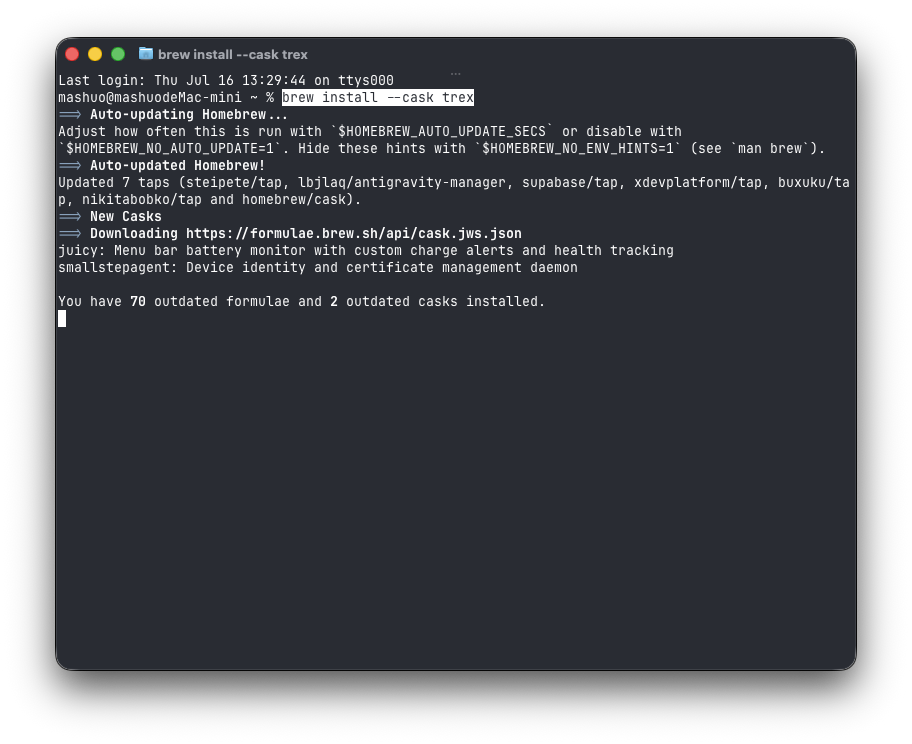
The Homebrew install command is one line: brew install --cask trex
The current Homebrew Cask requires macOS 14 or later, while the App Store listing requires macOS 14.6 or later. Do not rely only on old tutorials that mention earlier versions of macOS; check the requirement shown by the distribution channel you choose.
The First Run Needs Screen Recording Permission
TRex needs macOS Screen Recording permission because it reads text from the screen you are viewing. The wording can sound like it will record a video, but for a screen-OCR tool this is the macOS entitlement that provides pixels for recognition.
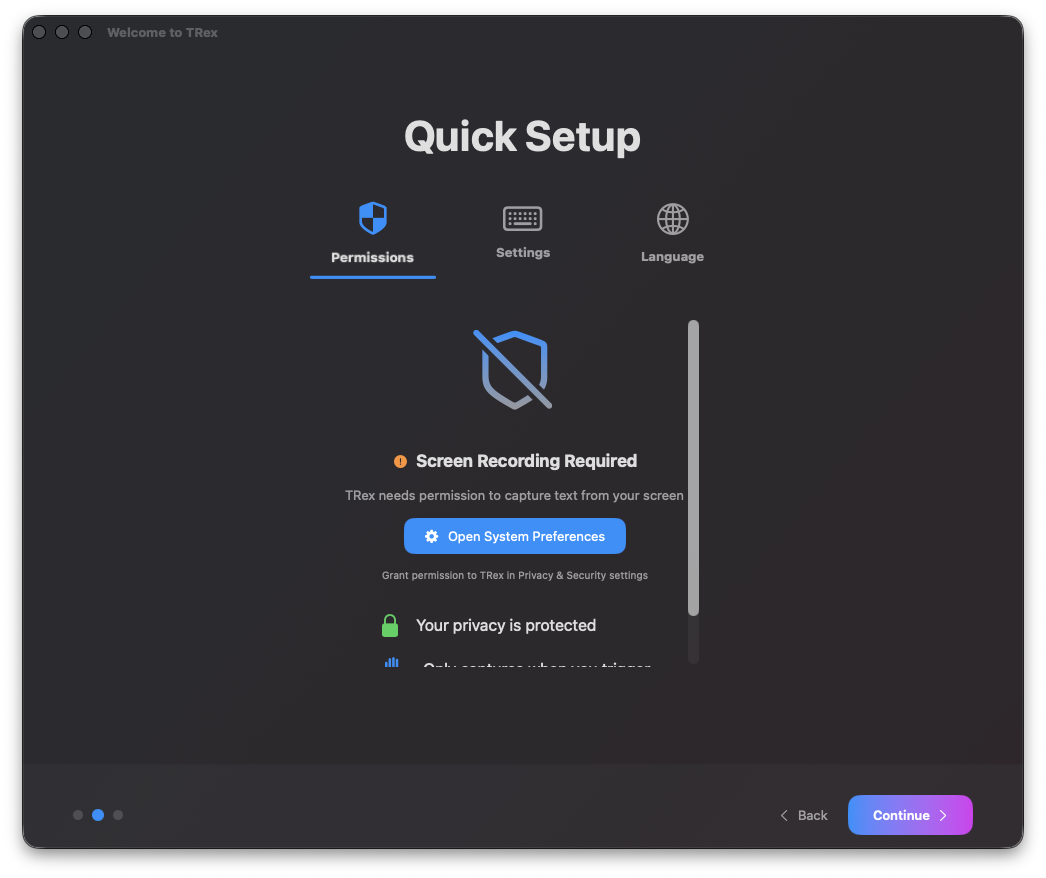
On first use, allow Screen Recording in macOS Privacy & Security settings
If selection still does not work after permission is granted, quit TRex completely and open it again. That normally clears the issue. The entitlement is also worth taking seriously: TRex can read the part of the screen you select, so when handling account details, private conversations, or internal company material, only select the range you genuinely need.
Standard TRex OCR does not need the internet, and the official README presents offline operation as a core feature. Version 2.0 also adds optional OpenAI, Anthropic, Ollama, and Apple Intelligence LLM features. When a cloud provider is selected, screen content is handled according to that provider's configuration; that is not the same as built-in local OCR. To stay fully local, use built-in OCR, a locally configured Ollama instance, or an on-device Apple Intelligence route where available, and verify your configuration.
Raycast Support Makes It Feel Like Part of a Daily Workflow
I think TRex is especially good for Raycast users. The project includes official Raycast Script Commands: download and unzip the TRex repository, open Raycast Settings → Script Commands, and add Resources/Raycast/TRex Commands as a script directory. I can then search Raycast for Capture Text and assign my own shortcut.
This is smoother than remembering an unrelated hotkey because it fits into an existing Raycast workflow. I can start OCR from Raycast, select a region, then paste directly into the active code editor, note, Slack message, or browser. It is available when I need it, while TRex otherwise stays quiet in the background.
One detail worth knowing: these are official bundled Script Commands, not a one-click Extension from the Raycast Store. The script directory has to be selected once manually. After that, the integration is stable and matches TRex's goal of removing a step from the workflow.
It Is More Than OCR: Version 2.0 Adds Advanced Tools
I initially thought TRex was only a menu-bar OCR app. The menu and preferences reveal considerably more functionality.
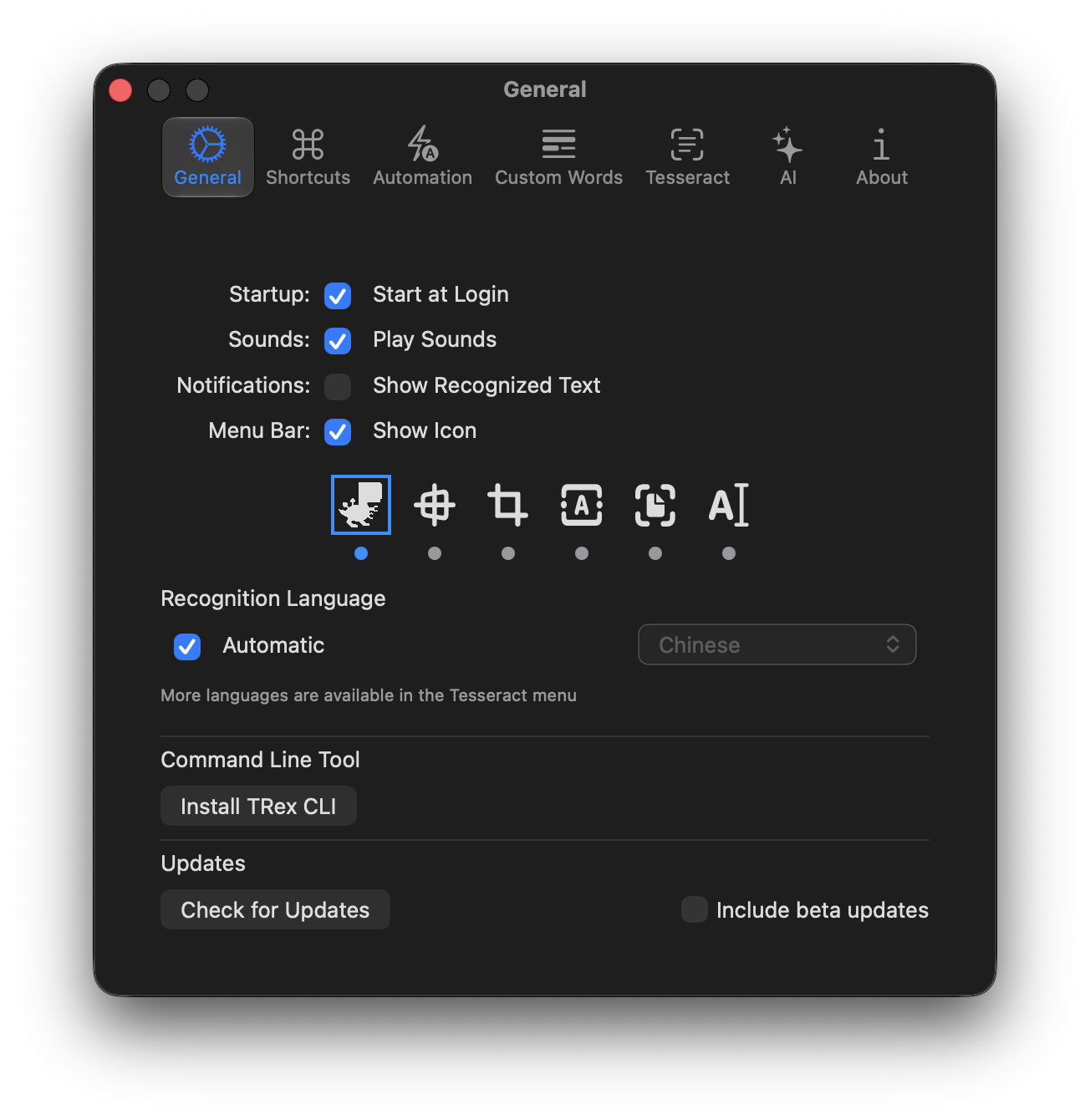
Preferences cover more than language: shortcuts, automation, AI, and CLI are available too
The features I think are most useful fall into two layers:
| Feature | What it does | When I would use it |
|---|---|---|
| Multi-Region Capture | Select several areas in one session and combine them; v2.0 supports up to 50 regions | Multi-column pages, forms, or slide text in separate blocks |
| Capture from Clipboard | Recognize an image already in the clipboard | I already took a screenshot or copied an image and do not want to select it again |
| History | Keeps captures and thumbnails for one-click copying later | An address or error message I need to paste again |
| Watch Mode | Watches a screen region and captures when content changes | Monitoring a number, status string, or other information without an export |
| Table Detection | Exports a captured table as Markdown, CSV, or plain text | Moving a visible table into notes or a spreadsheet |
| Custom Words / Languages | Sets recognition languages and specialized vocabulary | Mixed Chinese/English text, product names, medical, or engineering terms |
| CLI, URL Scheme, Shortcuts | Lets scripts, Shortcuts, and other apps trigger capture and follow-up actions | Personal automation with repeated steps |
Version 2.0 also adds LLM OCR and post-processing. It can use OpenAI, Anthropic, Ollama, or Apple Intelligence to format, correct, or transform recognized text. I would not enable an LLM by default, though. For ordinary screen-text copying, built-in OCR is the simpler route for speed and privacy. I would consider the advanced options only for difficult images, complex tables, or when several captures need a specific output format.
Small App, More Than Basic OCR
At first, the first-run setup, languages, Tesseract, AI, tables, history, Watch Mode, automation, and CLI made me expect something larger than a small utility. The test app bundle is actually about 13.8 MB—roughly a 15 MB app. The current Mac App Store listing says 4.6 MB; packaging and versions differ, but both figures show that the app itself is small.
In actual use, the response from invoking the menu bar or Raycast through selecting, recognizing, and pasting is very quick. “Quick” here is my daily-use impression, not a measured latency benchmark. I also did not record CPU or memory figures, so I will not turn that into an imprecise performance claim.
This is a trade-off I like: basic capture remains only “menu bar or Raycast → select → Command + V,” without having to learn every feature first. The extra settings are there only when I want automation.
Hands-On Verdict
TRex is one of those tools whose value is obvious on the first use. Video subtitles, image text, non-selectable web content, and QR codes normally mean retyping or opening an OCR website; now I select a region and paste.
I would recommend it most to:
- macOS users who often copy text from videos, screenshots, PDFs, or app interfaces.
- Raycast users who want OCR inside their existing launcher and shortcut habits.
- Anyone starting with simple screen OCR but likely to need QR codes, tables, history, CLI, or Shortcuts automation later.
For bulk processing of complete scanned PDFs or hundreds of images, use a batch/document OCR tool instead. TRex's strength is fast capture of “this part on screen right now.” Its app bundle is small, its basic flow is extremely short, and its Raycast and automation headroom make it well worth installing.
Related links: