

Moshi vs. Termius Hands-On: Two Ways to Take Over Claude Code, Codex, and Grok Build from Your Phone
I used an iPhone to SSH back into a Mac mini over Tailscale and tested how Moshi and Termius handle CLI agents running in the terminal. The thing that actually keeps the work alive through disconnects is tmux.
Introduction
Claude Code, Codex, OpenCode, and Grok Build are all terminal tools, and I already like working this way. The problem is not the terminal. It is that when an agent is running on the Mac mini at home, I sometimes still want to check its progress, answer a question, or pick up the same session after I leave.
For this test, I used an iPhone to SSH back into the Mac mini over Tailscale. I tried Moshi and compared it with Termius, which I already use regularly. The result was not that “Moshi replaces Termius.” Both are good, but they approach the job differently: Termius is a mature SSH tool, while Moshi is designed to make taking over a CLI agent from your phone feel smoother.
The clip below shows me connecting back to the Mac and opening Grok Build from my phone.
- Moshi official website and download page
- Moshi documentation: tmux
- Termius official website
- Tailscale official website
Prerequisites: Set Up These Four Things First
This article uses regular SSH over a Tailscale network, not the Tailscale SSH feature itself. I did not configure port forwarding on the router, and I do not need a public IP. As long as the phone has cellular service or Wi-Fi, it can connect back to the Mac while the Mac remains powered on.
- Install Tailscale on both the Mac and iPhone, then sign in with the same account. Both devices will appear on the same tailnet. MagicDNS, which Tailscale enables by default, lets you connect using the hostname, so you do not necessarily need to remember the 100.x.x.x IP address. Official Quickstart
- On the Mac, open “System Settings → General → Sharing,” enable “Remote Login,” and allow access only for your own account. This is the SSH service built into macOS. Apple’s Remote Login guide also recommends enabling it only for users who need access.
- Make sure tmux is installed on the host. Run
tmux -Vfirst. If it is missing, install it with Homebrew:brew install tmux. - Install Moshi or Termius on the iPhone. When adding the host, enter its Tailscale MagicDNS name or 100.x IP address, your macOS username, and port
22. I recommend using an SSH key for authentication. If you still use a password, at least do not expose SSH directly to the public internet.
Once everything is configured, connect from the phone. If you see the Mac’s shell prompt, the network and SSH connection are working. Only then should you enter tmux and launch your agent.
I Eventually Realized That tmux Matters More Than Which App You Choose
At first, I thought the main question was whether to use Moshi or Termius. I later realized that tmux is the part you really need to install first.
If you SSH in from your phone and launch claude, codex, or grok directly, the work inside that shell may terminate when the OS closes the mobile app, the network changes, or the SSH connection drops. tmux keeps the session running on the host. Your phone simply reconnects to the same screen. The agent, current directory, and running commands are all still there.
I used the following command for this test. It first tries to reattach to a tmux session named termius. If that session does not exist, it creates one:
tmux attach -t termius 2>/dev/null || tmux new-session -s termius
Once connected, launch the agent as usual:
claude
codex
opencode
grok
termius is simply the session name I chose. It is not a required Termius setting. You can call it agent, use the project name, or use a date. The important part is not repeatedly restarting the same work in a new SSH shell.
Moshi’s documentation also puts tmux at the center of long-running agent workflows. Mosh handles reconnection when the phone changes networks or goes to sleep, while tmux keeps the remote shell and the agent itself alive. One cannot replace the other. Moshi tmux documentation
Termius: I Was Already Using It, and It Works Really Well
Termius is already a polished SSH client. It supports host management, keys, command snippets, SFTP, port forwarding, and runs on macOS, Windows, Linux, iOS, and Android. If you need more than monitoring an agent—such as managing hosts, transferring files, or opening tunnels—it covers much more ground than Moshi. Termius official website
When I use Termius to reconnect to tmux, its mobile keyboard gives me quick access to commonly used keys such as esc, tab, ctrl, and directional controls. These details may not seem important at first, but they make a big difference when you actually need to enter terminal commands on a phone.
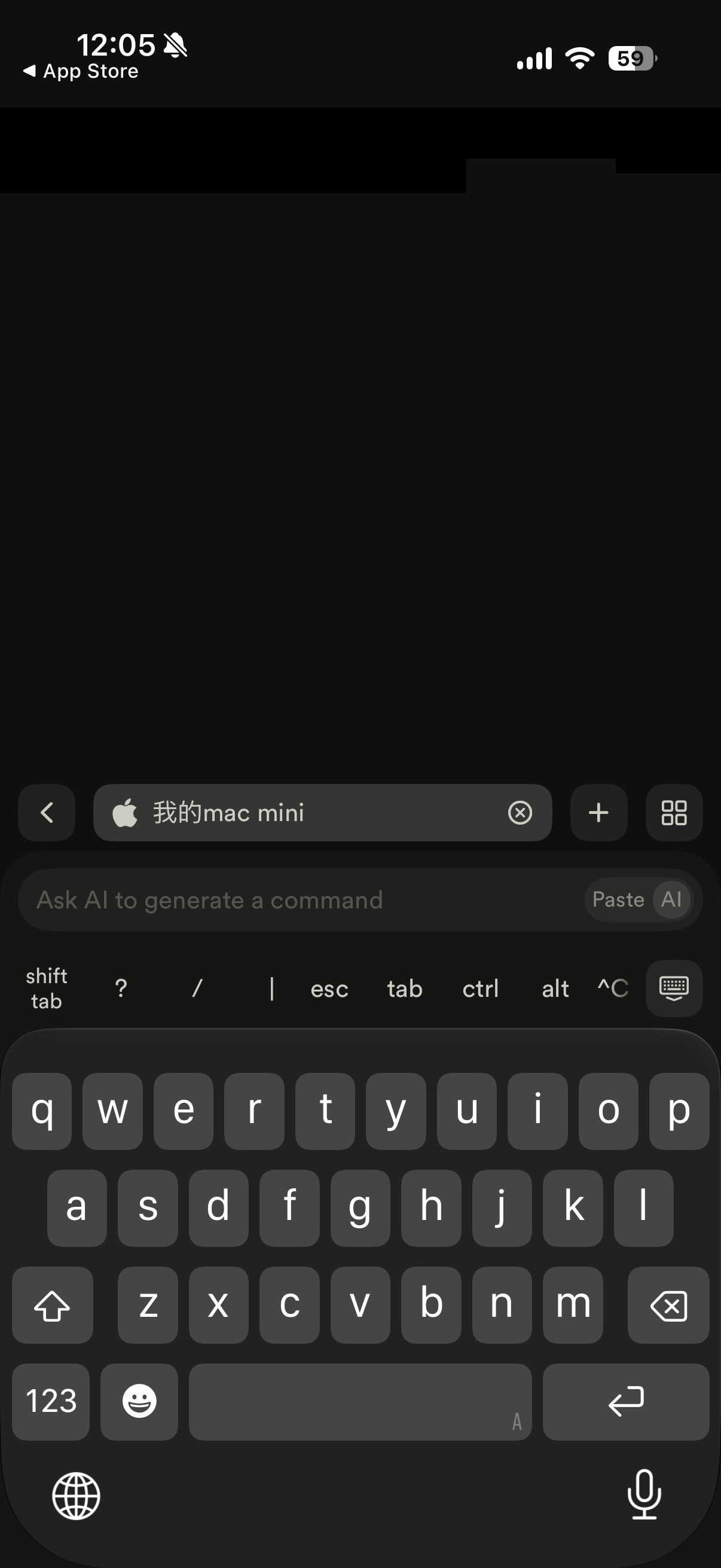
Termius puts commonly used terminal keys within easy reach on its mobile keyboard bar
So if Termius, Tailscale, and tmux already work well for you, I do not think you need to switch apps specifically for Claude Code or Codex. Termius can already open any CLI agent. The difference is that it treats you as someone operating an SSH session rather than making the agent’s state a central part of the product.
Moshi: Fewer Steps on My Phone When I Want to Check an Agent
Moshi’s core feature is also an SSH terminal. I did not install any additional hooks, but I could still connect back to the Mac, enter tmux, and open Grok Build. Its mobile toolbar, session switching, and input methods fit this use case well. When I have just stepped away from the computer and only want to check whether an agent is stuck, it is genuinely convenient.
Moshi also offers an optional moshi-hook layer. Once installed on the host, supported agents can send events such as approval requests, completed work, and tool execution to Moshi’s Inbox. You can also inspect diffs from your phone, preview a local development server, or use Chat View with some agents. These are the features that set Moshi apart from a general-purpose SSH client. Moshi Hooks documentation
I did not install moshi-hook for this test, though. I first wanted to verify whether the basic “mobile SSH → tmux → CLI agent” flow worked well, and it did. Hooks are the next step, not a requirement for establishing the connection. Because the hook runs persistently on the host and writes hook settings for supported agents, I would try it with a test project before deciding whether to enable it.
Privacy is also worth reviewing. Moshi says complete terminal traffic, source code, and diffs travel between the phone and host over SSH. Once Agent Inbox or notifications are enabled, however, event summaries are sent to Moshi’s servers. According to the documentation, this may include up to 200 characters of a prompt and 80 characters of a response title. That does not make the feature unusable, but it is not an app whose permissions you should ignore after installing it. Moshi Hooks data documentation
I Will Keep Both
I plan to keep both apps.
Termius is what I open when I need a complete SSH toolbox. If you manage many hosts, need to transfer files, use port forwarding, or already rely on its cross-platform synchronization, there is no reason to stop using it.
Moshi is what I open when my focus is on CLI agents. It does not move Claude Code, Codex, or Grok Build onto the phone. Instead, it lets me reconnect from my phone to a session already running on the host. I can check progress after leaving home, add another instruction, or enable hooks later if I decide I need notifications and approvals.
Whichever app you choose, you first need a secure remote network, SSH keys or another reliable authentication method, and tmux. After this test, I do not want to replace the terminal. I simply have another way to pick up the same agent session while I am away.