

Stirling PDF Hands-On: An Offline Open-Source PDF Tool That Handles 50+ Tasks Without Uploading to the Cloud
I recently tested Stirling PDF, an open-source PDF editing platform that runs entirely locally. It supports merging, compression, signing, and over 50 other operations — no need to worry about sensitive documents being uploaded to third-party cloud servers.
Intro
Dealing with PDFs has always been a hassle for me. There are plenty of online PDF converters and editors out there, but every time I upload a sensitive document — something with personal data or a project contract — to some random cloud server, I can't help feeling uneasy. Sure, there's Adobe Acrobat, but the subscription is expensive and doesn't make sense for a developer who only needs to tweak a PDF once in a while.
Then I found Stirling PDF. It's a fully open-source PDF editing platform that runs locally. What I like most is that you can run it as a desktop app on your machine or self-host it with Docker.
One thing I need to call out upfront: a few advanced features — like OCR text recognition and PDF repair — aren't bundled with the desktop build by default because of the huge model sizes. These do require uploading your file to the official cloud server for processing, rather than running entirely locally. OCR is a popular feature, but to use it you'll need to go through the official server. The good news is that only a handful of features — maybe around five — need cloud processing. Everything else you'd normally use, like merge, split, rotate, compress, watermark, and password management, runs 100% offline on your local machine with no external uploads.
Here's a screen recording I made of Stirling PDF in action, showing the interface and how the tools work:
Download, Install & Platform Support
Stirling PDF offers builds for Windows, macOS, and Linux. Head over to the Stirling PDF documentation, scroll down to the Installation section, and pick the installer for your system (Installer for Windows, dmg for macOS, deb for Linux).
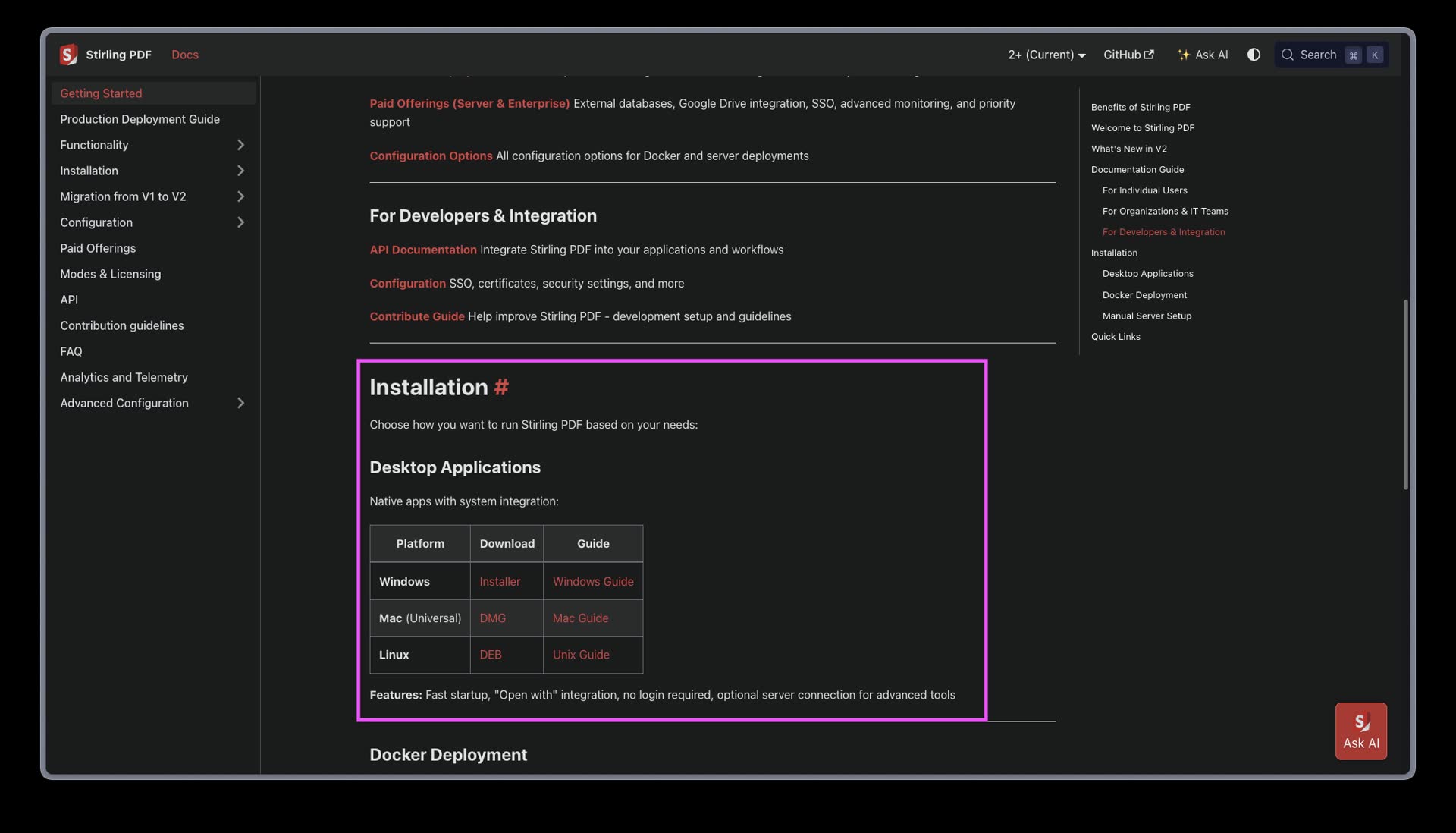
In the Installation section on the official site, you can choose the Windows, Mac, or Linux version to download
If you'd rather run it as a self-hosted service or share it with your team, Docker is also supported:
docker run -d \
  -p 8080:8080 \
  -v /location/of/templates:/usr/share/tessdata \
  -v /location/of/configs:/configs \
  --name stirling-pdf \
  frooodle/s-pdf:latest
Features I Use Most — Hands-On
The Stirling PDF local interface is organized into feature modules, with all PDF tools neatly categorized. Here are the ones I use the most and found well executed:
1. Multi-tool
Before, whenever I needed to run multiple operations on the same PDF — say, rotate pages, delete a few, then compress — I had to export and re-import between different tools repeatedly. Stirling PDF's multi-tool lets you upload the file once and chain multiple page operations together in sequence. Huge time saver.
2. Security & Privacy: Handwritten and Certificate Signing
Stirling PDF packs solid security features. Beyond the usual password protection and permission restrictions, you can draw a handwritten signature with your mouse or trackpad, and it also supports formal certificate-based signing using digital certificates to keep documents secure.
3. Redact
This is essential when handling sensitive contracts. You can manually select regions to black out sensitive information, or use the auto-redact feature to prevent confidential data from leaking.
4. Page Management & Format Conversion
Whether you need to convert Word, Excel, or Markdown to PDF, extract tables from a PDF into CSV, or split, merge, rotate, and extract PDF pages — you'll find the right tool quickly under the Page Operations or Convert categories in the sidebar.
Stirling PDF Quick Reference Table
I put together a quick reference table mapping common tasks to their corresponding tools:
| What I want to do | Corresponding tool |
|---|---|
| Shrink a PDF file size for easier sharing | Compress |
| Turn scanned PDF images into selectable, copyable text | OCR |
| Combine multiple PDFs into one file | Merge |
| Split a large file into separate pages | Split |
| Convert between Word, Excel, images, and PDF | Convert |
| Add a handwritten signature or digital certificate to a contract or form | Sign / Certificate Sign |
| Remove sensitive content or personal data from a PDF | Redact / Clean |
| Reorder PDF pages, delete blank pages, or rotate them | Reorganize / Multi-tool |
| Batch-process large PDF workflows | Automation |
Hands-On Impressions: Pros & Cons
After running it locally for a few days, I found the interface snappy and much more pleasant than web-based tools. Here are my subjective takeaways:
Pros:
- Offline security: All files are processed locally — no privacy concerns about documents leaking externally.
- Multilingual interface: Supports over 40 languages, and the Chinese translation is fairly complete.
- No login limits: Once you download the desktop version, there's no daily conversion cap or forced sign-up like online tools.
Cons (pain points):
- Cloud dependency for OCR and repair features: As I mentioned in the intro, around five advanced features — OCR text recognition and PDF repair among them — depend on the official cloud server. The desktop build doesn't bundle the heavy recognition models by default. If you're working with highly sensitive documents that absolutely cannot touch the internet, you'll want to be careful when using these. To get fully local OCR, you'd need to deploy via Docker and mount the relevant language model packages yourself — a higher barrier for casual users.
It's not perfect, but it's still the most satisfying open-source PDF solution I've used so far. If you care about contract and privacy security, and don't want to be locked into an Adobe Acrobat subscription, I'd strongly recommend giving the desktop version a try.