

AnyDoc Hands-On: Convert Word to Markdown in Under 1 Second, Ready for Agents to Use
I used AnyDoc to convert documents to Markdown at high speed. This article covers the complete CLI and Agent Skill workflows, the document structure it preserves, and how it differs from Marker and MinerU.
Introduction
When I give a PDF, Word document, or presentation to an Agent, I usually want it to read the headings, paragraphs, lists, and tables. Converting the file to Markdown first makes it much easier to summarize, search, or extract data afterward.
AnyDoc, which I tested this time, handles that conversion layer. It is written in Rust, uses no models, and does not require you to set up a service first. I ran its CLI on an 8.5MB Traditional Chinese Word document, and the terminal reported a total runtime of 0.997 seconds for the entire command. It also preserved the headings, bold and italic text, numbered lists, tables, and links.
- AnyDoc Official GitHub Repository
- AnyDoc Agent Skill Source File
- AnyDoc Browser Demo
- AnyDoc v0.1.7 Release
Installation and Basic Usage
The AnyDoc CLI requires Node.js 20 or later. You can check your version in the terminal first:
node --version
There is no need to install AnyDoc globally. You can convert a file directly with npx:
npx @firecrawl/[email protected] \
  "input-document.docx" \
  -o "output-document.md"
The first path is the source document, and the path after -o is where the Markdown output will be written. On the first run, npx downloads the package. Later runs will usually use the cached copy directly.
Besides Word, you can use PowerPoint, Excel, OpenDocument, RTF, EPUB, CSV, or text-based PDF files. Once the conversion finishes, open the output .md file in any Markdown editor to inspect the result.
How Did I Test It?
I first created a Traditional Chinese Word document that deliberately included headings, bold text, italics, Chinese punctuation, numbered and nested lists, a table, and hyperlinks. I then ran the following command in the same folder:
time npx @firecrawl/[email protected] \
  "AnyDoc 繁體中文測試文件.docx" \
  -o "anydoc-test.md"
The terminal reported 0.997 total. This figure includes the startup time for both npx and the CLI, so it is not the pure document parsing time shown in AnyDoc's official benchmarks. The package was also already cached at the time. A first run on another computer would need to include the download time as well. I only treat this as a real-world result for this particular document on this Mac.
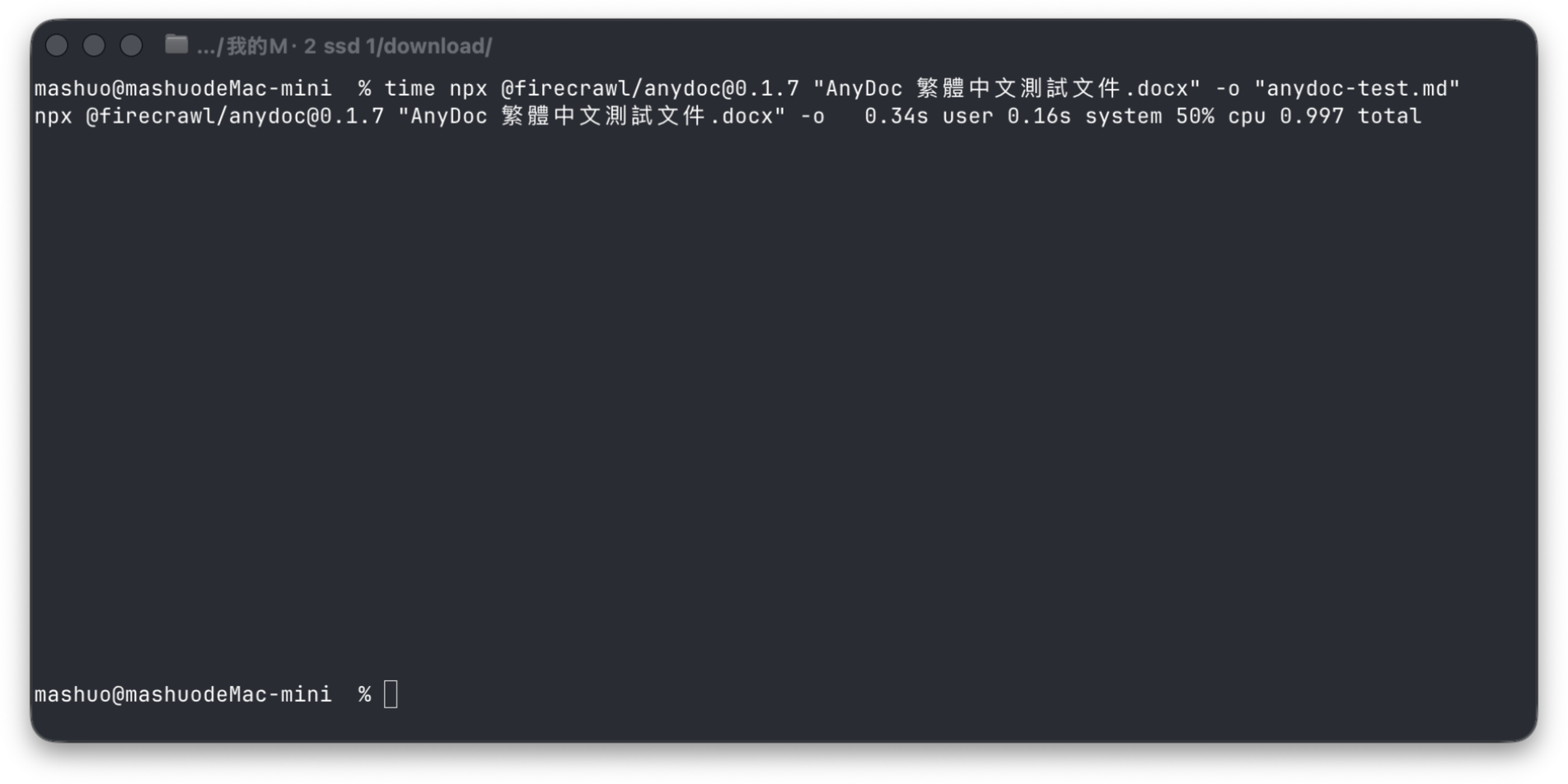
From running the npx command to completing the output, the terminal reported a total time of 0.997 seconds
What Did the Conversion Preserve?
I compared the original Word document and the converted Markdown side by side. The heading hierarchy, bold and italic text, numbered lists, table contents, and hyperlinks were all preserved, and the Traditional Chinese text displayed correctly. The \ after the second list item is Markdown's hard line break syntax, and the nested item below it still appears correctly in the preview.
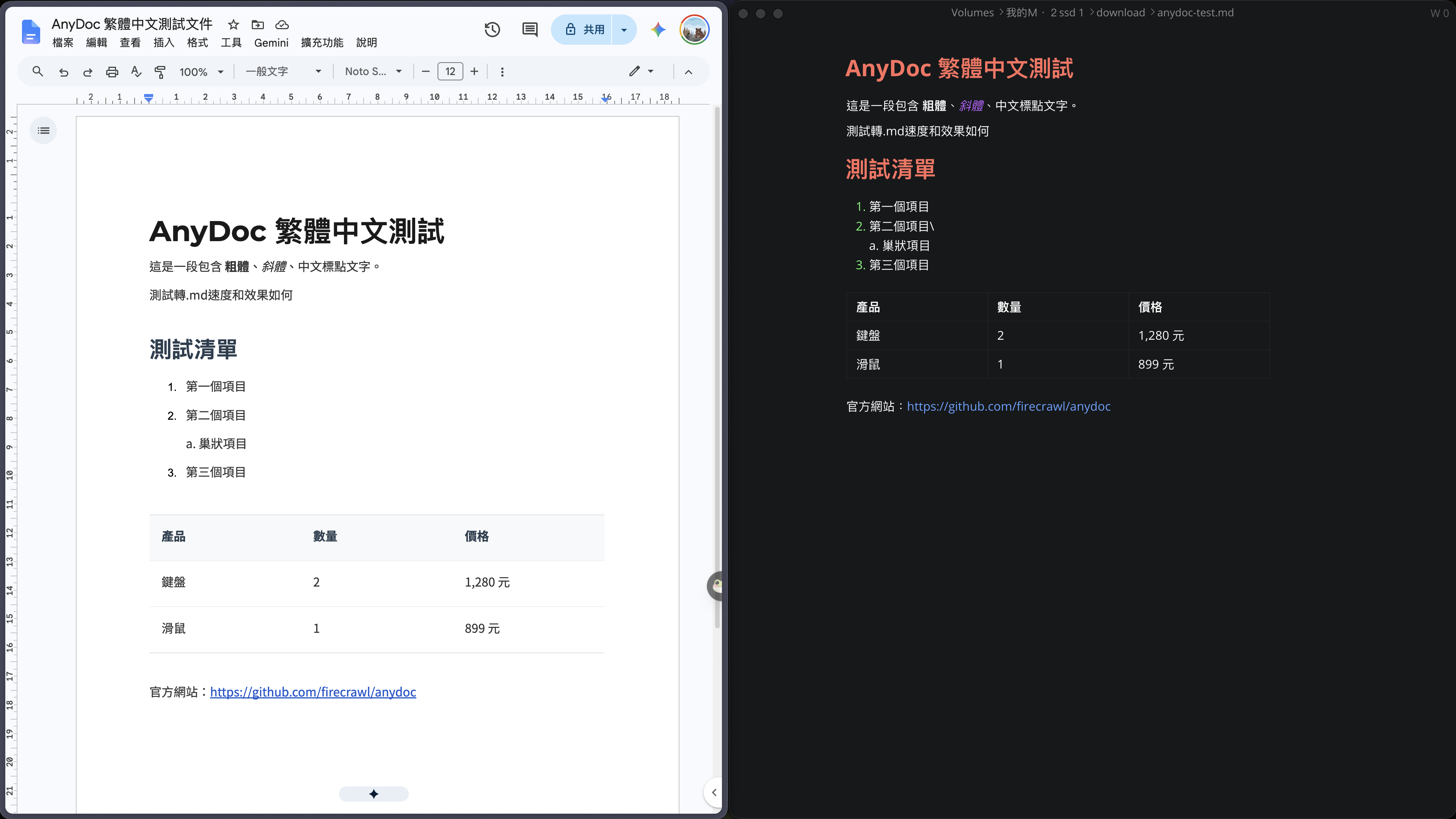
The original Word document is on the left, and AnyDoc's Markdown output is on the right
AnyDoc discards Word formatting such as fonts, column widths, colors, and page layout. Images are also represented mainly by their alt text. What remains is the document's semantic structure, which is easier for programs or Agents to process later. If you need to see the original layout, you still have to return to the Word document.
Put Paths in Quotes When Filenames Contain Spaces
On my first attempt, I pasted the Chinese filename directly into the terminal:
npx @firecrawl/[email protected] AnyDoc 繁體中文測試文件.docx -o anydoc-test.md
This produced the following error:
anydoc: one document per invocation: unexpected second input '繁體中文測試文件.docx'
The problem was not that AnyDoc could not read Chinese. The Shell split the text after the space into a separate argument. Putting both the input and output paths in double quotes fixes the issue. AnyDoc also accepts only one document per invocation. To process an entire folder, you still need to write a loop or have an Agent run the command on each file.
Why Is It Particularly Useful for Agents?
AnyDoc itself is a document parser and CLI. The official project also includes a convert-documents-to-markdown Agent Skill, which you can install with this command:
npx skills add firecrawl/anydoc
Once installed, you do not have to convert files manually first. Give the Agent the document path together with the next task, for example:
Use AnyDoc to convert
"/Users/example/Downloads/meeting-notes.docx"
to Markdown, then extract the key meeting points, action items, and owners.
The Agent follows the Skill's instructions to call AnyDoc, generate the Markdown, and then continue with the summary or data cleanup. An Agent with terminal access can still run the CLI without the Skill installed, but installing it tells the Agent which formats are supported, when to use -o, and that scanned PDFs require an OCR tool instead.
The Skill itself is lightweight. It mainly tells the Agent to convert Word, PowerPoint, Excel, OpenDocument, RTF, EPUB, CSV, or PDF files that it cannot read directly into GitHub-Flavored Markdown with AnyDoc. For large documents, it writes the output to a file with -o first, then reads only the sections required for the task instead of placing the entire document into the context at once.
The officially listed compatible tools include Codex, Claude Code, Cursor, and OpenCode. This Skill adds a small, focused document entry point: after the user provides a binary Office document, the Agent has a consistent way to convert it into a text format that is easier to process, without adding another chat interface.
If you are already working inside a Node.js, Python, or Rust project, you do not necessarily have to call it from the Shell. AnyDoc also provides npm, PyPI, and crates.io packages that expose the same conversion API directly. The CLI and Agent Skill are useful for validating the workflow first. Once you know it will become a long-term integration, switching to the library is cleaner.
The Trade-Offs of Staying Lightweight Are Clear
AnyDoc does not load OCR or vision models, so conversion is fast and requires no GPU. Its browser demo can even process documents locally through WebAssembly without uploading them. The trade-off is that it cannot recognize scanned PDFs or image-only PDFs, which the official documentation lists as unsupported.
This is how I would divide the work:
| Scenario | My First Choice |
|---|---|
| Quickly give Word, PowerPoint, Excel, or other Office documents to an Agent for reading | AnyDoc |
| Normalize many different formats into Markdown for an automated workflow | AnyDoc |
| Extract text quickly from a standard text-based PDF | AnyDoc or Marker fast |
| Recognize scanned PDFs, complex formulas, tables, and layouts | Marker balanced or MinerU |
| Preserve the original document's visual layout | Use an Office or PDF reader directly |
I would use it in two ways. For a one-off document conversion, I would run npx @firecrawl/anydoc directly. If I wanted an Agent to handle Word, PowerPoint, or Excel files regularly, I would install the official Skill first, then include the document path and task in the same prompt. For me, the second workflow is where AnyDoc is most useful: I do not have to copy the document contents manually, and the Agent can convert the file itself before continuing with summarization, search, or table cleanup.