

TranslucentTB Hands-on: A Few MB of RAM for a Better-looking Windows Taskbar
TranslucentTB is a free, open-source Windows taskbar utility that uses only a few MB of memory and almost no CPU. It switches between transparent, blurred, acrylic, and normal taskbar styles. I keep the normal style for maximized windows and blur for everything else, which balances readability with a cleaner desktop.
Introduction
Today I want to share TranslucentTB, a small Windows utility that fits my taste perfectly. It does not try to redesign the whole desktop; it only makes the taskbar look better. The project says it uses a few MB of RAM and almost no CPU, and after installing it for everyday use, I have not noticed any slowdown.
It lets Windows 10 and Windows 11 taskbars switch between normal, opaque, clear, blurred, and acrylic styles, with automatic changes based on what is happening on screen. It is free and open source, and the result is immediate: the wallpaper and taskbar no longer feel like two harshly separated blocks, so the desktop looks much cleaner.
Simple job, noticeable result
TranslucentTB lives in the system tray. Right-click its icon to change the taskbar appearance. It is not limited to transparency; the useful states include:
- Normal: the default Windows taskbar appearance.
- Clear: a more transparent look that lets the wallpaper visually extend into the taskbar.
- Blur: keeps the translucent feel while making taskbar icons and text easier to see.
- Acrylic: a frosted look closer to Microsoft's Fluent Design style.
The dynamic rules are what make it convenient. It can apply different settings when a window is open, a window is maximized, the Start menu is open, search is open, or Task View is open. There is no need to switch modes by hand every time.
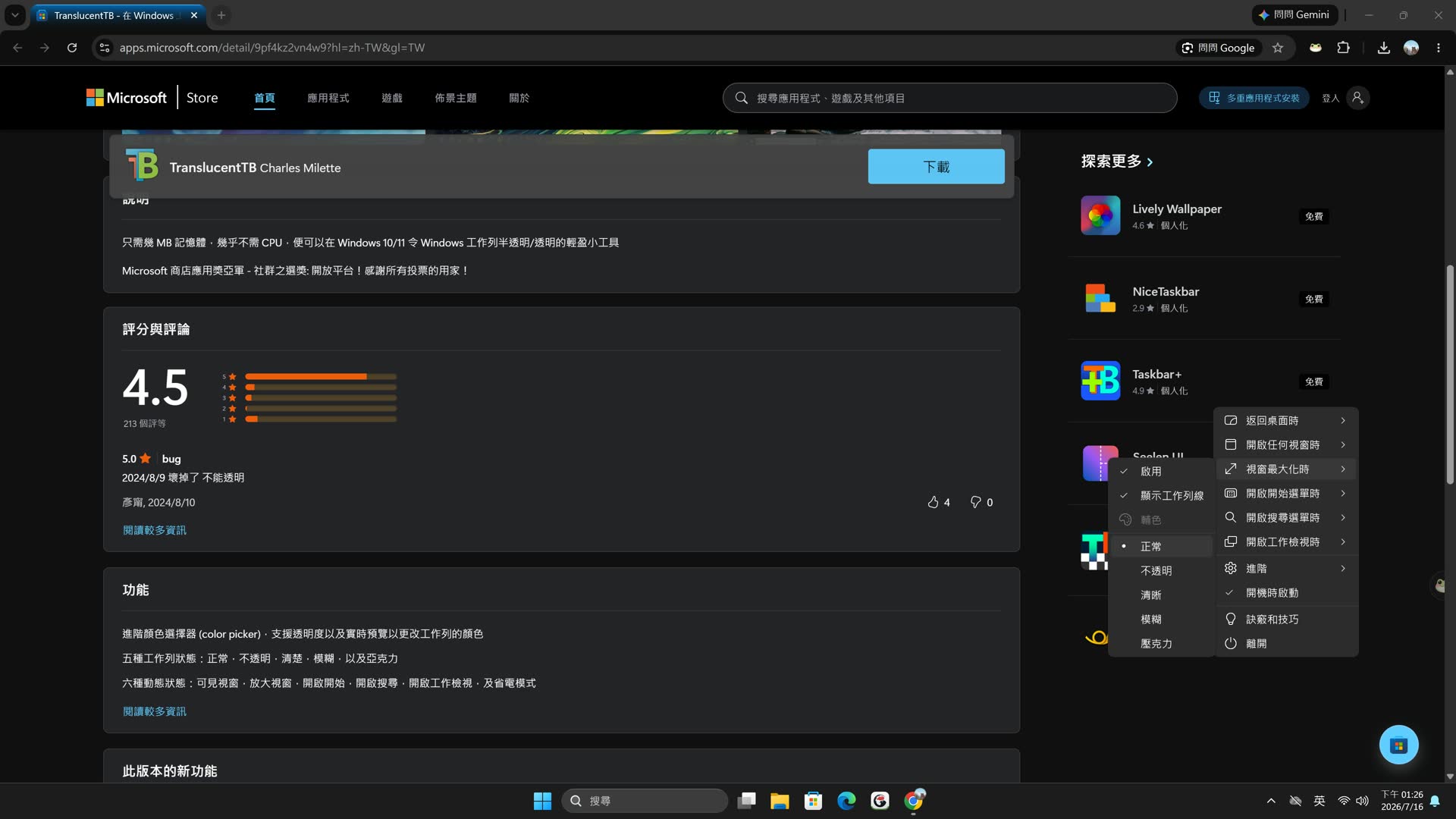
The system tray menu controls taskbar states and dynamic rules
My setup: normal when maximized, blur the rest of the time
I do not like leaving the taskbar fully transparent all day. When the wallpaper has a busy color or a bright area, icons can become harder to read. It looks cool, but that does not always make it the best choice for daily use.
So I set "Maximized window" to Normal. When Chrome is maximized, for example, the taskbar returns to the familiar, stable appearance. It makes reading pages, switching tabs, and finding icons easier.
For normal work, such as when I have a smaller window open and most of the wallpaper is still visible, I set "Visible window" to Blur. This is my favorite balance: the icons remain readable, but the taskbar has a soft translucent feel rather than competing with the background.
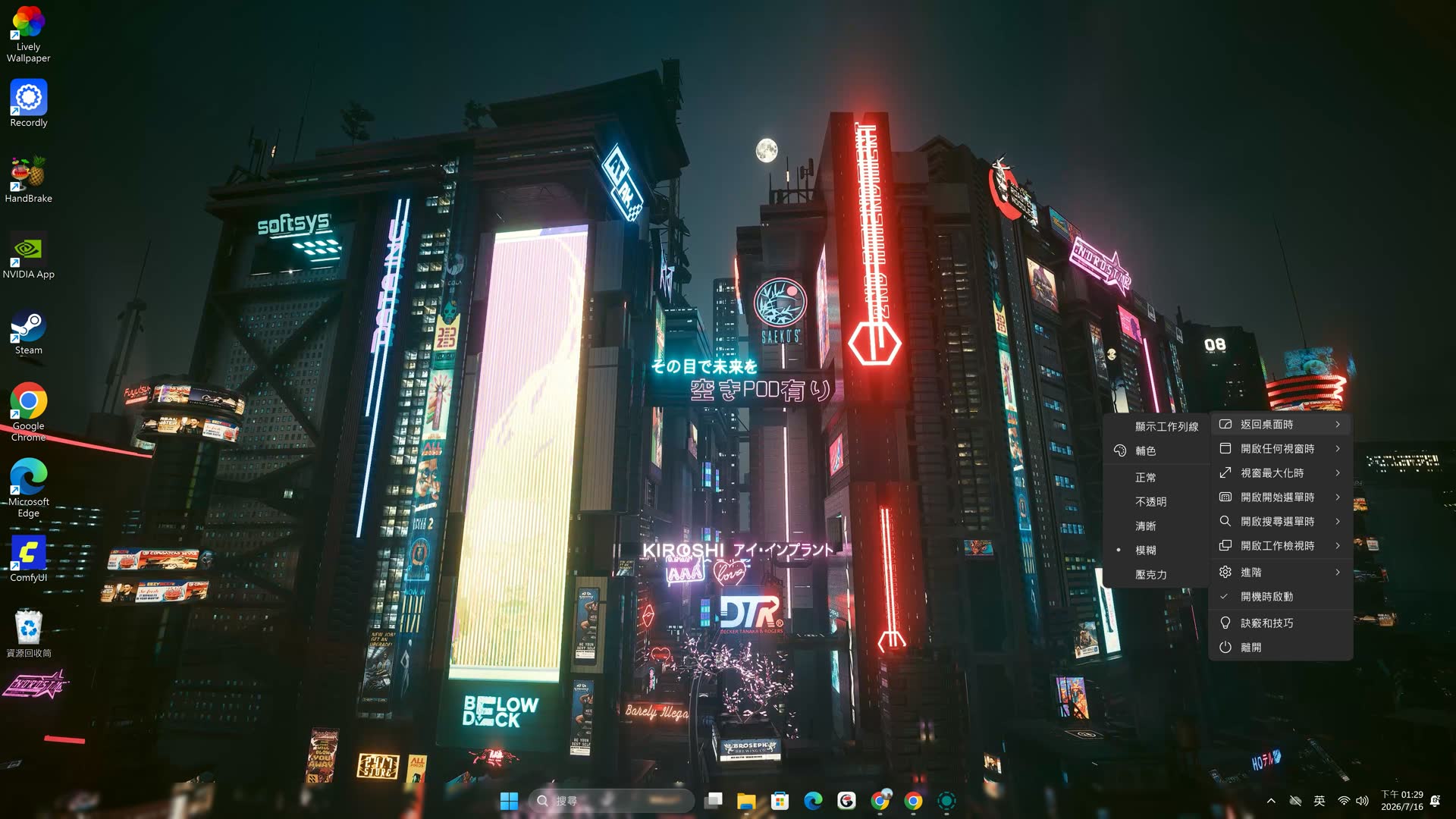
Blur preserves the wallpaper's atmosphere while remaining easier to read than full transparency
There is no universal best setting. If you use a simple wallpaper and few taskbar icons, Clear or Acrylic may work well. If you care more about readability as I do, Blur is a style that stays pleasant over time.
Download and installation
The easiest option is the official Microsoft Store page. It is free, and Store installation also gives you background updates. The source code is publicly available under the GPLv3 license on GitHub.
If you prefer the command line, Windows winget installs it in one line:
winget install TranslucentTB.TranslucentTB
Launch TranslucentTB from the Start menu after installation. Its icon will appear in the system tray. Right-click it, then choose an effect under both "Maximized window" and "Visible window" to create a setup close to mine. You can also enable "Open at boot" in the same menu to start it automatically.
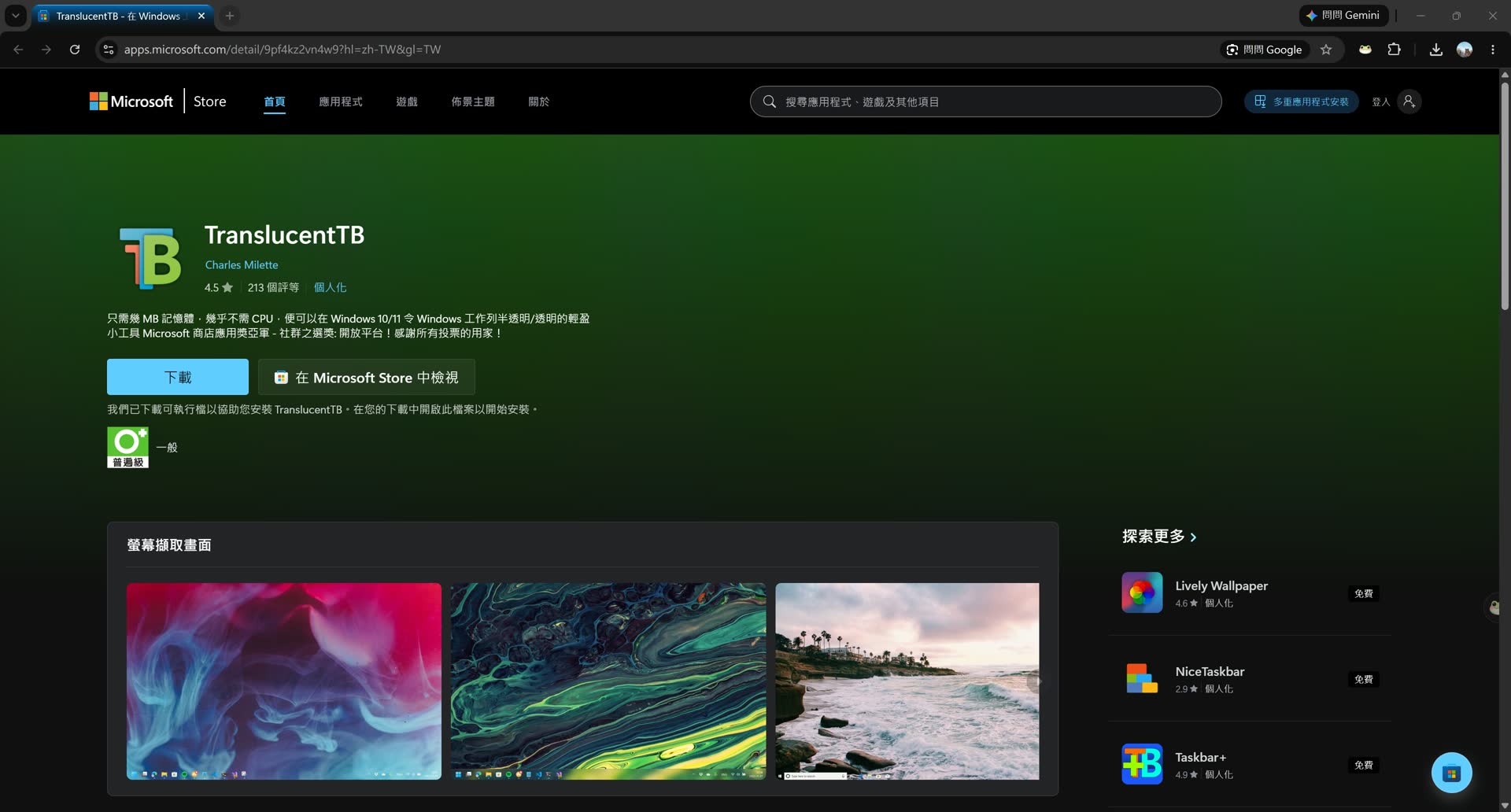
Download it free from the Microsoft Store, or install it with winget
GitHub Releases also offers an installer; its portable zip edition is for Windows 11 only. For most people, I would still choose the Microsoft Store because installation and updates are simpler.
After using it for a few days
TranslucentTB does not solve a major problem. It simply makes the Windows taskbar, something I see every day, feel more comfortable. Because it is so lightweight, it works well as a long-term background utility: there is almost nothing to learn and no reason to keep opening its settings once the rules are configured.
My main recommendation is not to chase full transparency blindly. Start with Blur or Acrylic, then keep maximized windows in Normal mode. You get a desktop that feels more cohesive without giving up the readability that matters most while working.
If you like a cleaner desktop but do not want to install a pile of resource-hungry customization tools, TranslucentTB is well worth trying.
Related links: