

Zed Hands-on: A Smooth AI Code Editor I Have Been Trying Lately
I recently moved a project into Zed and found it surprisingly pleasant to use. It feels responsive, and it can bring ChatGPT, Codex, and MCP into the same workspace without asking me to abandon VS Code.
Introduction
Zed has been around for a while, but I have always been a VS Code user, so I never felt much of a reason to try it. This time I finally opened one of my projects in it and realised: it is actually very good, and it feels remarkably smooth.
Opening files, moving between panels, and bringing up the terminal all feel fluid. Compared with my usual VS Code setup, the whole rhythm feels noticeably lighter. I cannot tell whether that is because I have too many extensions in VS Code or something else, and I have not run a serious benchmark. I only know that Zed feels responsive to me: the interface is clean, and my computer feels less like it is dragging itself along.
Zed is written in Rust, and its own GPUI framework lets the GPU handle much of the UI rendering. That probably explains its direction, but I care more that it is simply pleasant to use.
I like that it does not feel heavy
At a glance, Zed looks like the editor layout everyone already knows: files on the left, code in the middle, a terminal below, and an Agent panel when I need it. The difference is that adding another panel did not make the whole app feel sluggish.
I have used it to open projects, edit JSON, inspect Git state, and run commands in the built-in terminal. VS Code can of course do all of this too. Zed just feels more like a native Mac app to me, rather than a web app carrying a lot of features inside it.
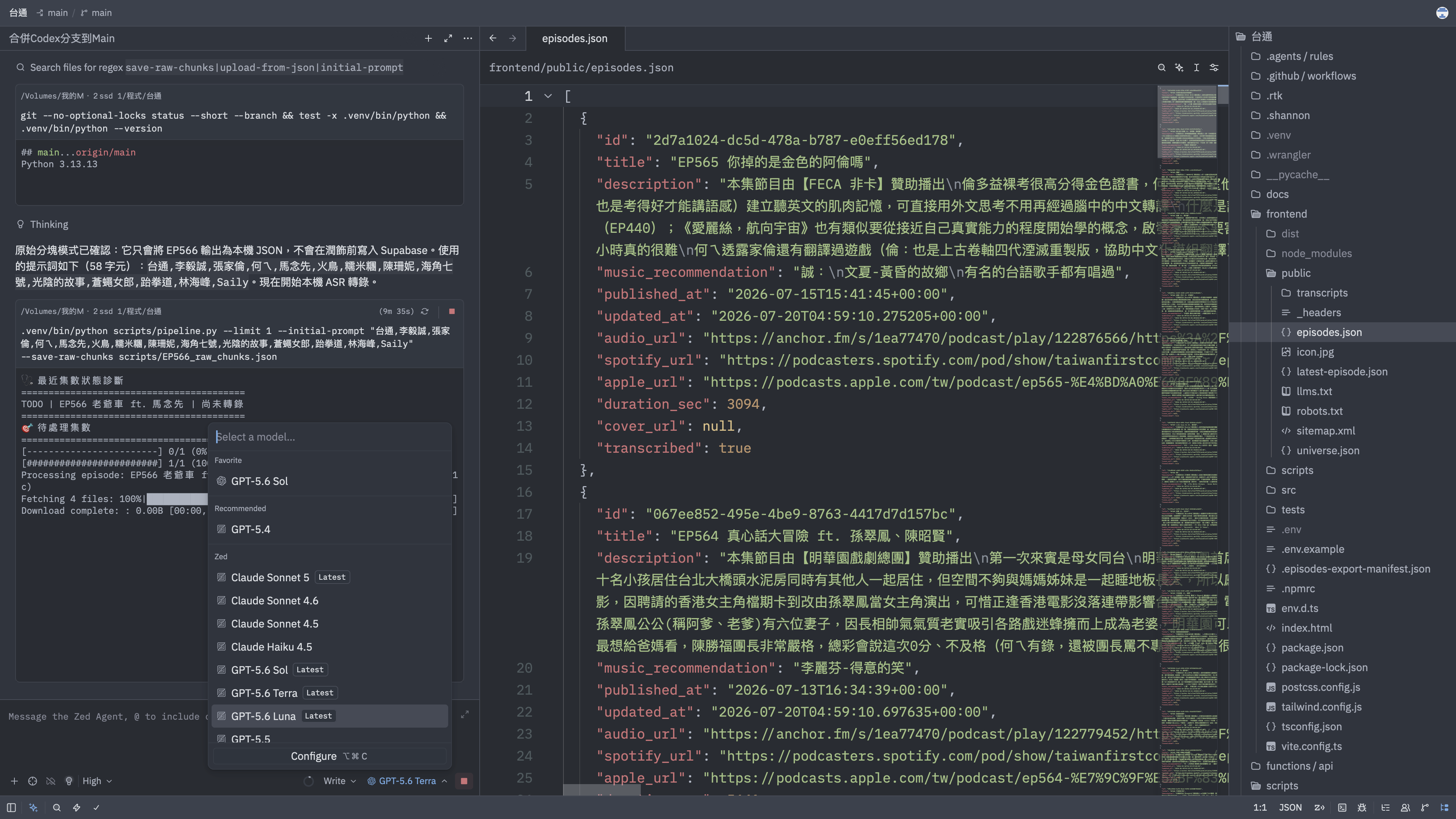
This is how I used it: the project, terminal, and Agent all stayed in one window.
It is not meant to beat VS Code at everything. I would still return to VS Code for projects that rely on specific extensions, company tooling, or remote-development workflows. Zed is simply another option that feels very comfortable to use.
A collaboration feature I have not used yet, but find very cool
Zed has treated multiplayer collaboration as part of the product from the beginning, rather than as an extension added later. You can invite people into the same project to look at and edit code together, and Channels give a group a shared collaboration space.
I used Zed on my own for this article, so I did not spend a long time testing it in a multi-person project. I do not want to pretend it has already become my team's collaboration tool. But for anyone who regularly does pair programming with friends or coworkers, it is a genuinely appealing feature. It makes Zed feel like it wants to be more than a fast editor; writing code together is part of the idea too.
Zed has the details in its official Collaboration documentation.
I can use my existing ChatGPT subscription in it
This is one part I found especially convenient. I already have a ChatGPT subscription, so I did not need to prepare a separate API key. I could sign in to ChatGPT Subscription in Zed and choose models directly from the Agent panel.
That does not mean I have stopped using ChatGPT in the browser. I still use it for conversations. But when I am already inside a project, letting an agent read files, look for something, or make a few changes is much nicer than copying and pasting everything back and forth.
Zed's official documentation says ChatGPT Plus and Pro can sign in this way. The models and usage available still follow the subscription plan, which is worth knowing before assuming that installing Zed somehow adds unlimited AI usage.
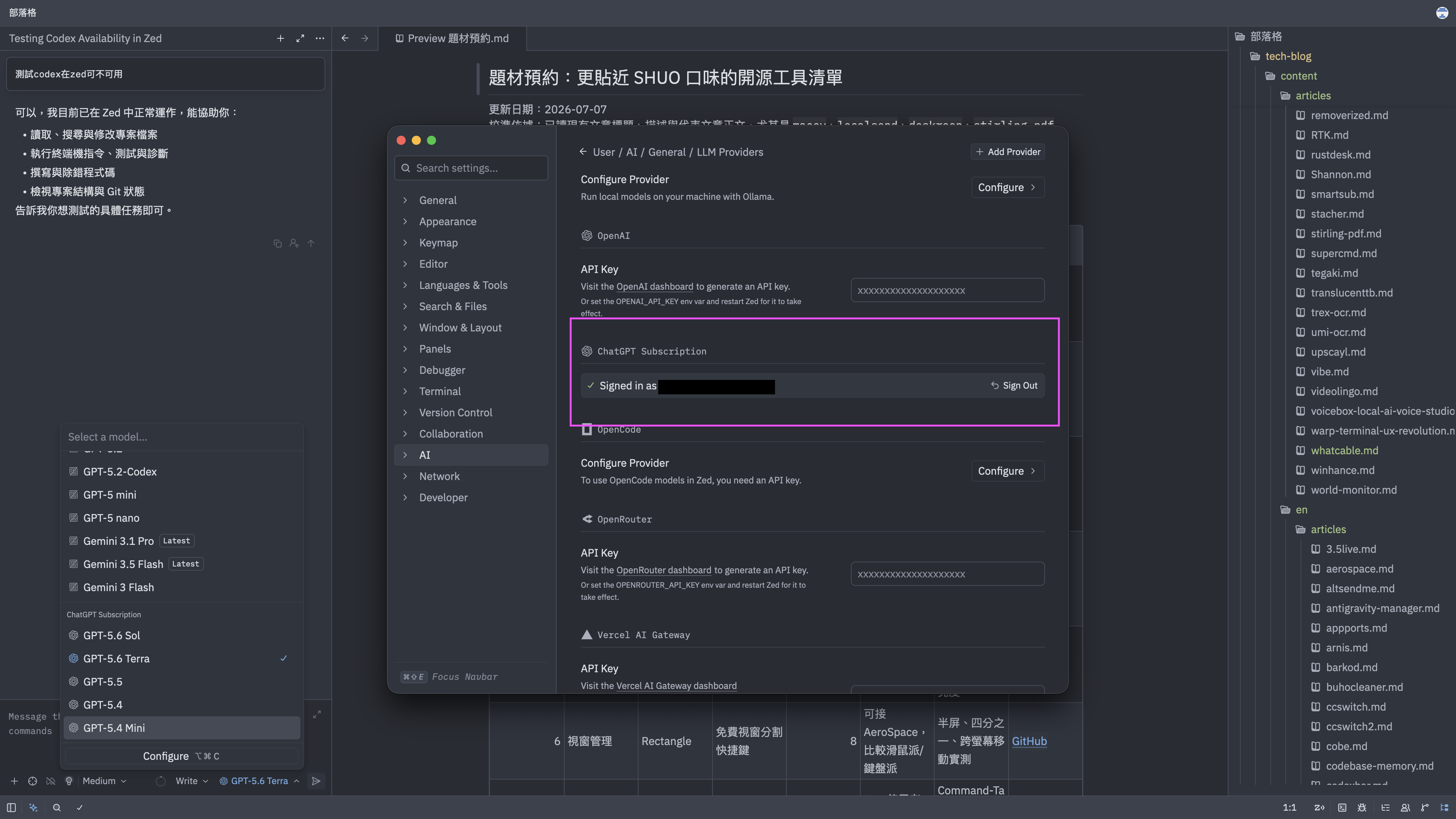
I signed in to ChatGPT Subscription in the AI settings, and the models then appeared in the Agent picker.
Then I noticed it is not tied to one AI tool
I started by trying ChatGPT, then opened the settings page and realised that Zed leaves room for several different paths.
Its own Agent can use configured models. If you already use a coding agent such as Codex or Claude, Zed can also connect it as an external agent through ACP. MCP, Skills, and Sandbox settings are all in the same place. The names can be a lot at first, but I like that the editor does not ask me to pick only one side.
I can use ChatGPT on its own, keep using Codex, and only connect more tools if I actually need them. I have not tested every possible combination, but the settings made it clear to me that Zed is trying to do more than put a chat box beside the editor.
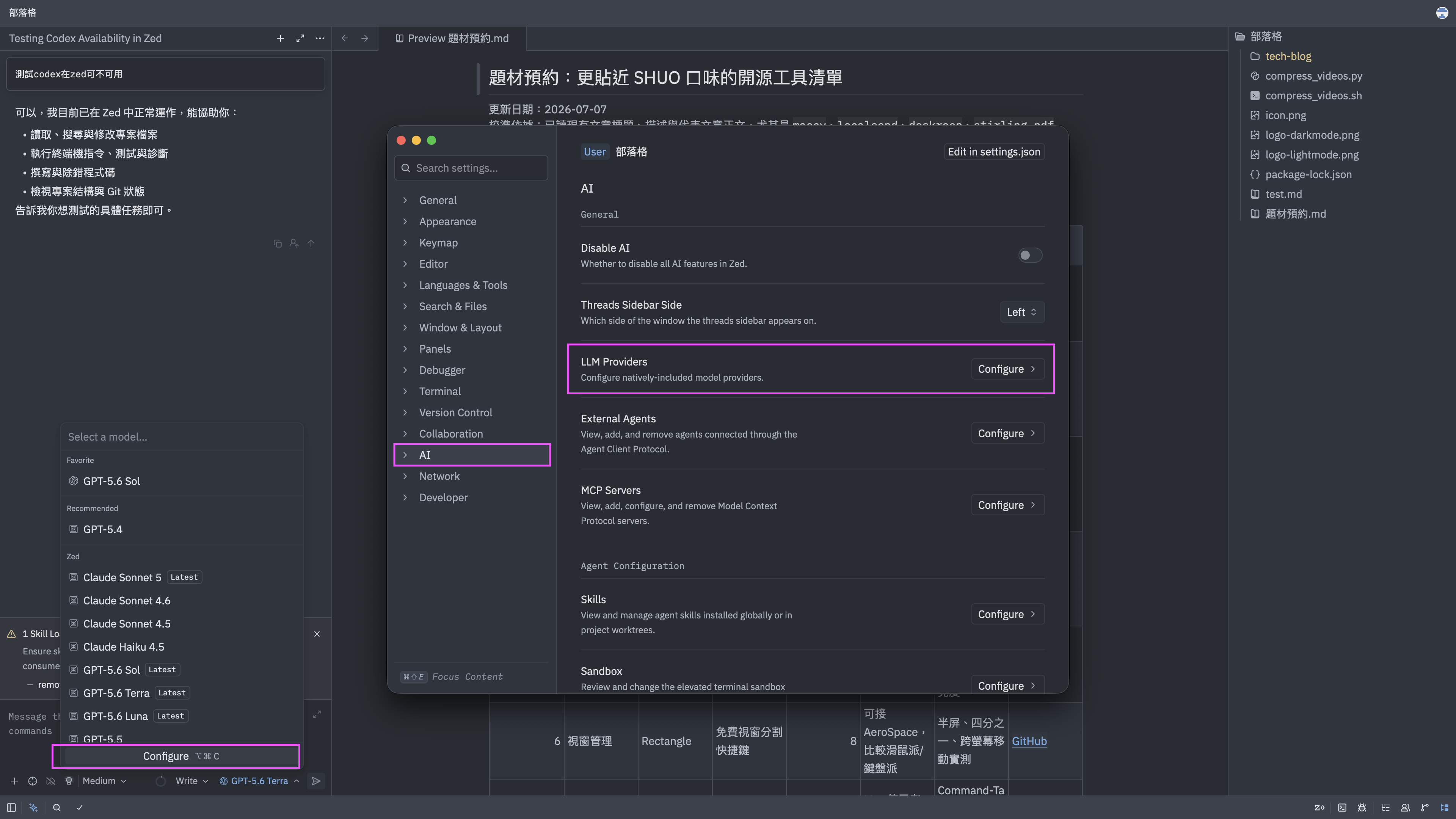
This screen was when I realised Zed had room for built-in models, external agents, and MCP.
I will keep using it for a while
Zed is not the kind of app that made me delete VS Code immediately. But it did make me notice that a code editor does not have to feel heavy from the moment it opens.
If you mostly write in VS Code but are curious about another option, I think Zed is worth opening for a familiar project. There is no need to migrate everything or learn every setting first. Just see whether its pace works for you.
What I like most is not one single feature. It is that the editor, terminal, and AI can sit together without losing that light feeling. It is easier to understand after using it.