

Lively Wallpaper Review: Free Open-Source Windows Live Wallpapers with Audio Sync and Auto-Pause
My hands-on look at Lively Wallpaper, a free and open-source Windows live-wallpaper app. It accepts videos, GIFs, web pages, and URLs, supports audio visualizers, and can pause wallpapers automatically for full-screen apps.
Introduction
This time I tested Lively Wallpaper. If you know Wallpaper Engine on Steam, think of Lively as a lighter Windows live-wallpaper tool that is completely free, open source, and does not require Steam.
It does more than place a video on the desktop. Videos, GIFs, web pages, Shadertoy content, and even interactive Unity or Godot projects can become wallpapers. My main demo is below: I picked one from the built-in library and applied it, and the desktop immediately had a complete animated look.
- Lively Wallpaper official website
- Lively Wallpaper on GitHub (GPL-3.0)
- Lively vs. Wallpaper Engine comparison
Who I Would Recommend It To
Lively is a good fit if you want a little motion on a Windows desktop but do not want to open Steam, pay for a wallpaper tool, or work through a long setup process. It is a GPL-3.0 open-source project, with both a Microsoft Store release and a standalone installer; the app does not lock useful features behind a paid tier.
I think it is especially useful for these people:
- Anyone who wants to turn videos, GIFs, or web pages into wallpapers quickly.
- People who prefer free, open-source software and do not want to depend on Steam.
- Users with multiple or ultrawide displays who need per-display or spanning wallpapers.
- Anyone interested in audio visualizers, interactive web wallpapers, or eventually controlling wallpapers through a command line or script.
The Windows 11-style interface was an unexpected strength for me. For everyday wallpaper changes, I do not need to know anything about shaders or HTML5; those advanced options are there only when I want to explore further.
Download and Install
The easiest starting point is the official Lively Wallpaper download page. You can choose the Microsoft Store version or download the standalone installer from GitHub Releases.
I would pick the Store version first because updates are simpler. Choose the Releases installer only if you prefer not to use the Store. The official README lists Windows 10 1809 or later for the Store build and Windows 10 1903 or later for the standalone installer. It is a Windows-only tool, so macOS and Linux users will need another option.
After installation, there is no need to search the entire library right away. The + button in the top right adds a wallpaper, and the flow is simpler than I expected.
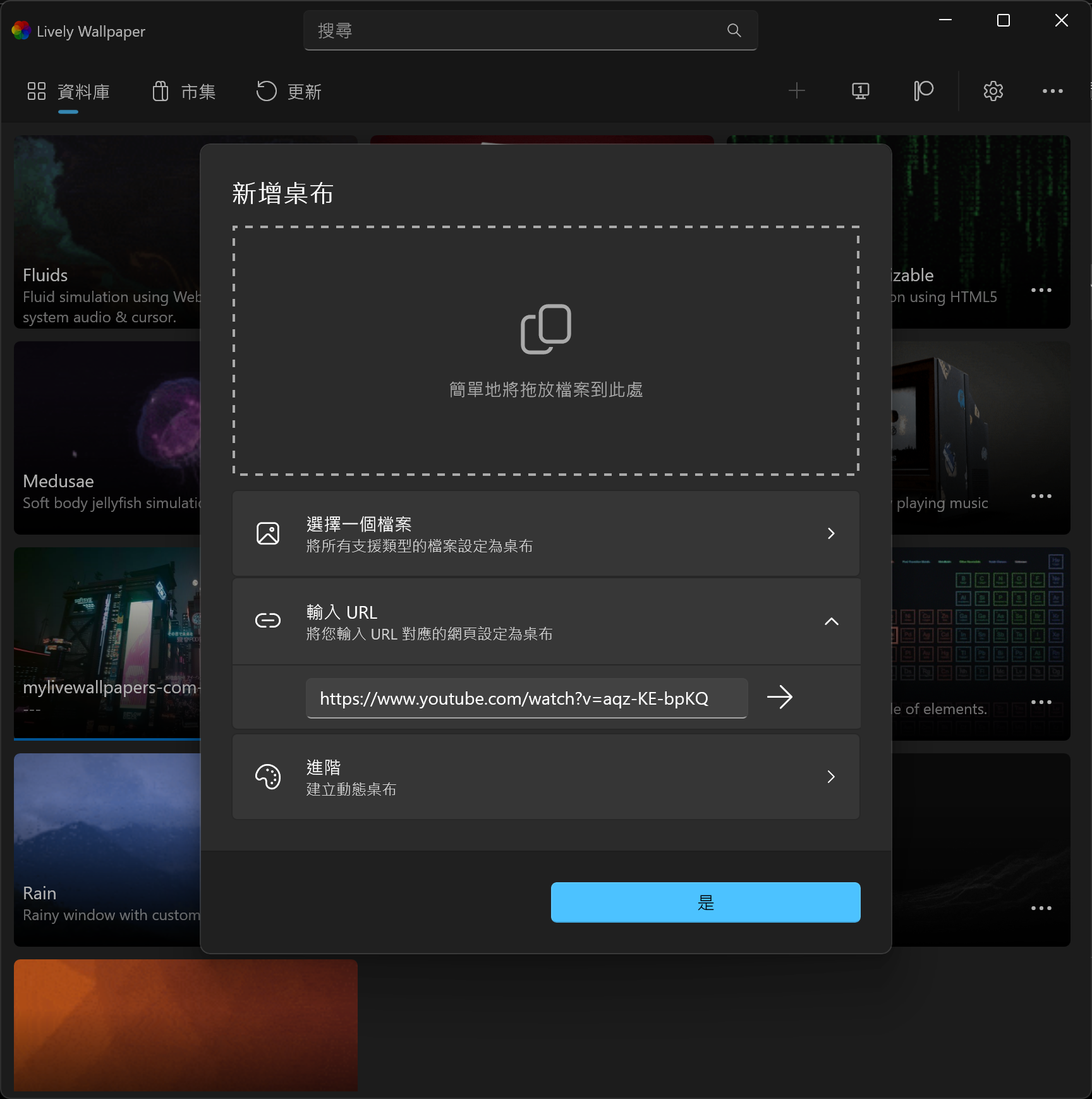
Add a wallpaper by dropping in a file or entering a web URL
There are three useful routes here: drag in a local file, choose a file, or enter a URL. The first two are the most direct—just drop in your own MP4, WebM, or GIF. URLs are useful for web content that supports embedding. The screenshot happens to show a YouTube URL example, but I treat that as an interface example rather than a promise that every website will work reliably as a wallpaper; each site has its own embedding and playback restrictions.
More Than Video Playback: Wallpapers That React to System Audio
The second demo shows one of the more interesting features: Lively wallpapers can use system-audio data so visual effects react to the sound currently playing. The official project also lists audio graphs and music information among the capabilities it exposes to wallpaper creators.
This does not mean that music is recorded into the wallpaper. A wallpaper that supports audio input reads system audio and uses it to drive graphics or animation. So, if you want a desktop that responds to music, look for or make a wallpaper that supports system audio—an ordinary video wallpaper will not automatically animate to the beat.
I see this as a desktop-ambience feature rather than something to keep enabled while working. It looks great with music, a livestream, or a display setup; for focused work, a static wallpaper is often less distracting.
Performance Is Not Just a Claim That It Feels Smooth
I was also concerned that animated wallpapers might quietly consume CPU and GPU resources. Lively's official website and README explicitly state that wallpapers pause when a full-screen game or application runs, with approximately 0% CPU and GPU use in that state. It can also change playback behavior based on the foreground app, laptop battery state, or a remote-desktop session.
This settings page is the important part. Each situation can be set to either pause or play: full-screen apps, focused apps, battery use, power-saving mode, remote desktop, and multi-display rules are all available here.
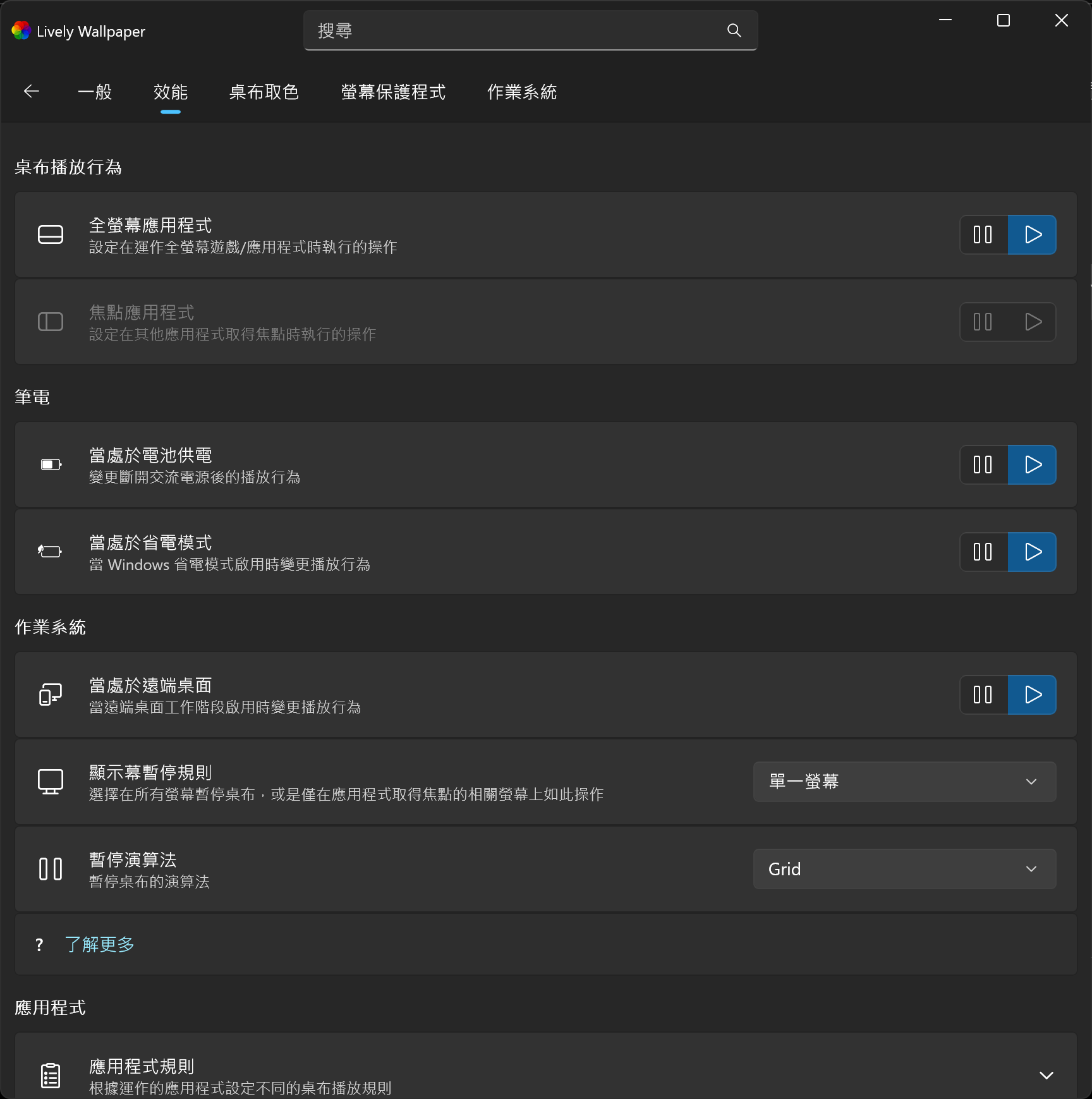
Setting full-screen applications to pause is the first rule I recommend enabling
This supports my impression that the author cares about performance. Instead of a vague claim that the app is lightweight, the cases where resources are likely to be wasted are actual, configurable playback rules. My simple recommendation is to pause for full-screen apps and on battery power. With multiple monitors, decide whether to pause every wallpaper or only the display related to the focused application. That prevents the wallpaper from using resources unnecessarily while gaming, presenting, or working away from a charger.
Of course, “close to 0% while paused” does not mean every wallpaper has the same footprint while it is running. High-resolution video, complex web pages, real-time shaders, and game-engine content all have different costs. For long-term use, I would start with a built-in wallpaper or a short video asset, then check Task Manager and adjust based on real use rather than immediately loading a heavy 4K web wallpaper.
Compared with Wallpaper Engine, the Trade-Off Is the Wallpaper Library
For the core job—putting animated content on a Windows desktop—Lively is already very capable: it is free, open source, can import common file formats, supports multiple displays, and offers screensaver and automation features.
But I would not pretend that it replaces Wallpaper Engine in every way. Wallpaper Engine's largest advantage is Steam Workshop: there are more ready-made creations, and searching and subscribing with one click is much more mature. If you want a very specific anime, game, or visual style, finding wallpaper assets there is genuinely easier. Lively's shared-content ecosystem is smaller, and Wallpaper Engine's proprietary .pkg scene files cannot simply be moved over.
My rule of thumb is:
- If you already live in the Steam ecosystem and rely on Workshop to discover wallpapers, Wallpaper Engine still saves time.
- If you want to use your own videos, GIFs, or web pages—or simply want a no-cost Windows live-wallpaper app—start with Lively.
- If you want to explore interactive wallpapers, audio visualization, or scripted control, Lively's open source code and API are worth a closer look.
Hands-On Verdict
What impressed me about Lively Wallpaper is not only that it is free. It combines free, open-source software with a practical everyday experience. On first launch there is a built-in library to choose from; when I want my own media, I can just drag in a file. If I want a wallpaper that reacts to music, there are options that support system audio. The useful features are not deliberately locked away.
It definitely lacks Steam Workshop's enormous wallpaper library, and that is its most practical downside. But if you want a clean, approachable animated-wallpaper app that can yield resources automatically for full-screen apps, battery use, and remote desktop, I would happily recommend it.
Related links: