

LocalSend Cross-Platform Open-Source LAN File Transfer Tool: No-Setup Usage Guide
Transfer files quickly and securely over HTTPS on a local network between macOS, Windows, Linux, iOS, and Android, with no internet connection or account registration required.
Introduction
In an era of multi-device workflows, cross-platform file transfer has always been a real pain point. Apple users have the smooth experience of AirDrop, but if you want to send files to Windows or Android devices, you usually end up relying on cloud drives, USB drives, or messaging apps.
This is where the open-source and completely free LocalSend becomes a very practical solution. It uses the local LAN for device discovery and file transfer, without requiring an internet connection, account registration, or complicated setup. This article walks through how to use it, and also compares it in depth with the P2P transfer tool AltSendme introduced earlier, from both technical and audience-fit perspectives.
Software Interface and Feature Demo
LocalSend follows a very minimal and intuitive design philosophy. After opening the app, it automatically searches the local network for other devices that also have LocalSend open.
For language support, the macOS version natively supports Traditional Chinese, while the Windows version may show Simplified Chinese by default. That said, the interface is clean and simple, with clear button placement, so most users can figure it out at a glance.
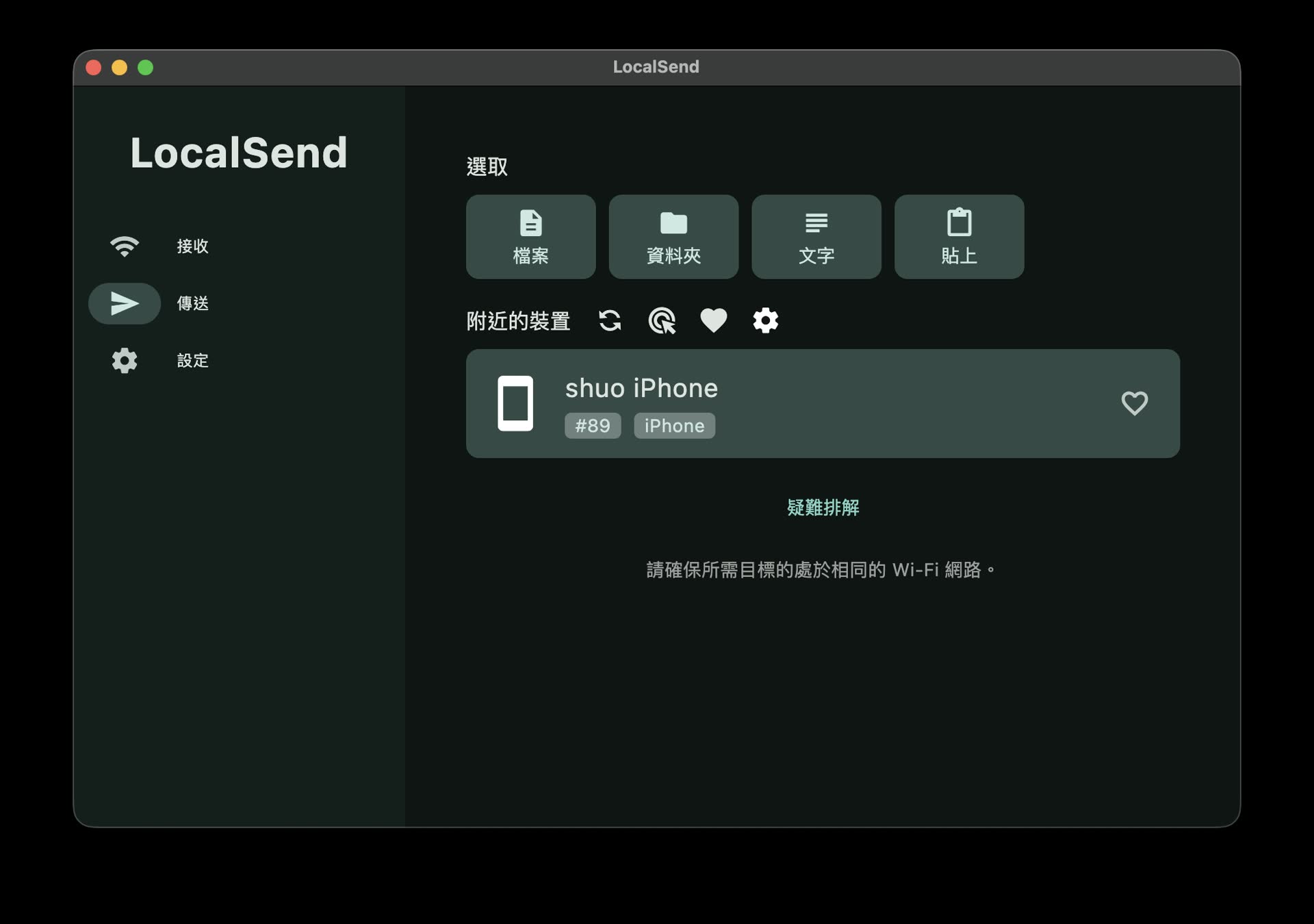
LocalSend's clean and simple transfer interface. macOS supports Traditional Chinese, while Windows shows Simplified Chinese by default.
Speed Test
In actual testing, LocalSend performed very well when transferring files within the local network.
Here is the measured data for transferring a ZIP archive from macOS to Windows. The archive contained multiple videos and photos:
- File size: 136.4 MB
- Transfer time: Around 12 seconds
- Transfer direction: macOS to Windows
How It Works and Technical Background
LocalSend’s underlying architecture is quite lean:
- Cross-platform development: Built with the Flutter (Dart) framework, which gives it strong consistency and smoothness across platforms.
- Device discovery: Uses UDP multicast to broadcast within the same LAN, automatically discover nearby devices, and assign each device a cute random alias, such as Sweet Orange.
- Encrypted transfer: Communication is handled through a REST API, and all file transfers are encrypted over HTTPS. Devices dynamically generate temporary TLS/SSL certificates locally, keeping the transfer path secure and preventing man-in-the-middle sniffing inside the LAN.
In-Depth Comparison: LocalSend vs AltSendme
Both tools are excellent cross-platform file transfer solutions, but their technical implementation and ideal use cases are very different.
1. Technical Comparison
| Comparison Dimension | LocalSend | AltSendme |
|---|---|---|
| Underlying technology | Flutter (Dart) / HTTPS / UDP multicast | Rust / Tauri (WebView2) / QUIC / NAT traversal |
| Network dependency | Must be on the same local network (LAN) | Can work across different networks (supports remote transfer) |
| Internet requirement | No internet required (fully offline) | Requires internet to establish signaling and hole punching |
| Pairing mechanism | Automatic LAN discovery; click a device to send | Drop in a file to generate a Ticket code, then copy and paste it to pair |
2. Audience and Use Case Comparison
- LocalSend (AirDrop-style mode)
- Target audience: Home users, students, and teams in the same office using multiple devices from different brands.
- Best use case: When you are on the same Wi-Fi network and need to quickly send photos from your phone to a Windows PC, or share presentation files and screen recordings with colleagues.
- Core experience: Focuses on “no barrier to entry, automatic discovery, click and send.”
- AltSendme (Ticket mode)
- Target audience: Remote workers, developers, and professionals who need to transfer files with external clients or collaborators in different locations.
- Best use case: During remote collaboration, when you do not want to spend time uploading GB-sized files to a cloud drive, you can send a Ticket code through a messaging app and start a direct peer-to-peer (P2P) high-speed download.
- Core experience: Focuses on “breaking through location limits, strong NAT traversal, and no server-side file storage.”
Conclusion
If most of your file transfers happen within the same office or home Wi-Fi network, LocalSend is the better first choice. It provides a seamless LAN experience comparable to AirDrop. But if you need to exchange large files with remote collaborators and it is inconvenient to upload those files to any third-party cloud service, AltSendme’s P2P traversal advantage becomes much more obvious.
These two tools each have their strengths, and together they cover both LAN and WAN file transfer needs in daily work very well.
Related Links: