

Text-To-Lottie Tested: Using an AI Agent to Generate and Preview Lottie Animations Locally
This article shows how to use Skia CanvasKit (Skottie) with a React and shadcn/ui control interface, letting a local AI agent write lottie.json directly and preview the animation through hot reload in the dev server.
Introduction
Lottie animations have become a visual standard for modern web and mobile apps because they are vector-based, lightweight, and cross-platform. Traditionally, though, making a Lottie animation required After Effects plus the Bodymovin plugin, which is a high barrier for non-designers or developers who need fast iteration.
Text-To-Lottie, based on diffusionstudio/lottie, removes that limitation. It integrates the Skottie animation playback engine built on Skia CanvasKit, and provides a control panel assembled with React, shadcn/ui, and TypeScript. With this toolchain, a local AI agent can write animation instructions directly into public/lottie.json, then preview the result through hot reload in the dev server.
Here is a screen recording of the actual result first:
Installation and Environment Setup
Text-To-Lottie provides a convenient local installation command. You can add it directly to your development environment through the npm skills management tool.
1. Add the Skill (npx skills)
Run the following command in your terminal to install the diffusionstudio/lottie skill:
npx skills add diffusionstudio/lottie
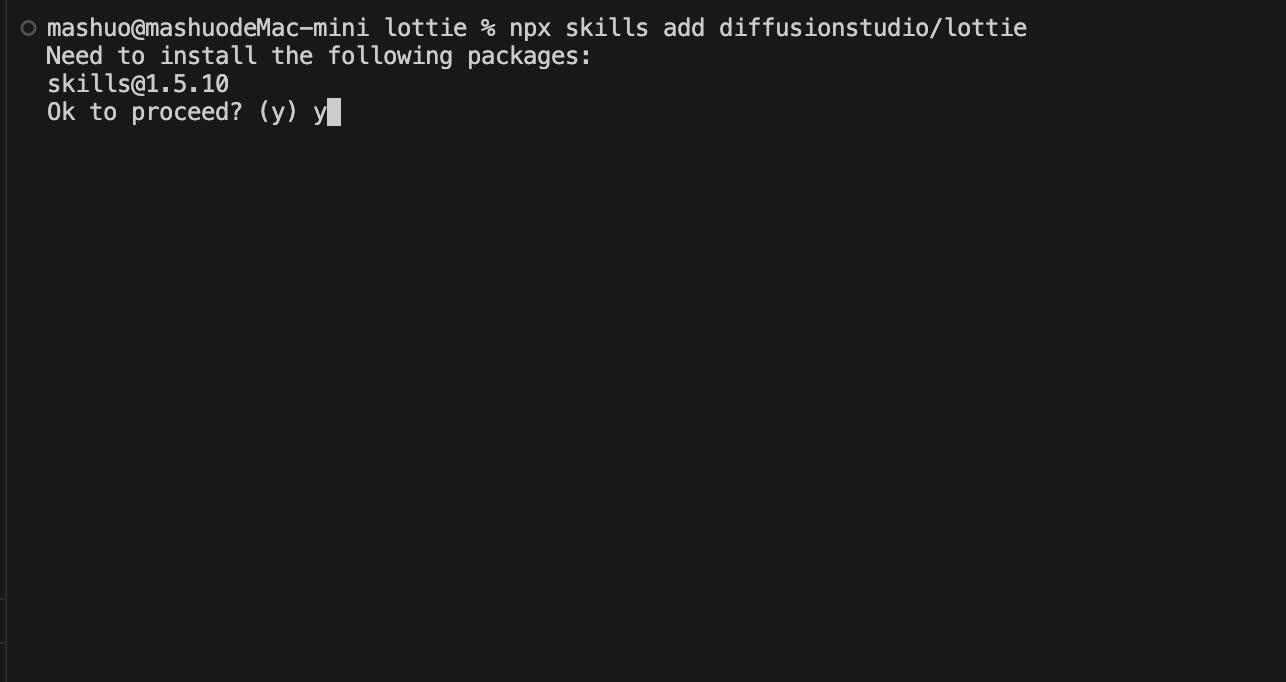
Run the skill add command in the terminal to finish pulling diffusionstudio/lottie
During installation, just keep pressing Enter to confirm the default options. After installation completes, you can use ls -la to check the .agents/skills/text-to-lottie directory and make sure the related files were written correctly.
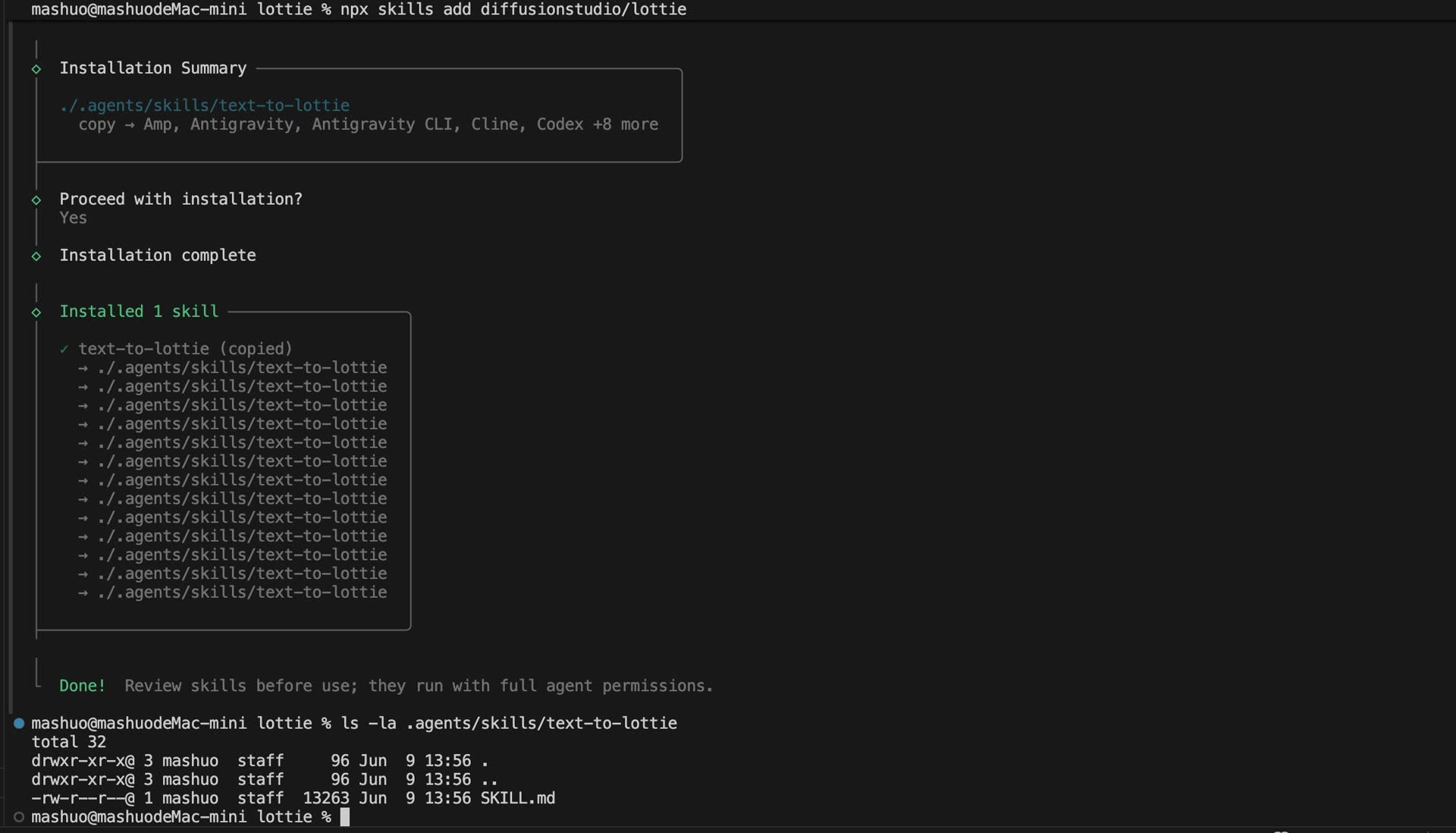
Confirm each installation step, then use ls -la at the end to verify that the skills files exist
Using an AI Agent to Generate Lottie Animations
After installing the skill, you can send a descriptive prompt directly to a local AI agent that supports Skills, such as Claude Code, Codex, or Antigravity, to generate an animation.
Here is a prompt example I tested for generating a finance-style candlestick chart animation:
A premium fintech Lottie of a transparent-background candlestick chart with 350 real TSLA-style red/green candles revealing rapidly left to right; each slim candle grows vertically into its OHLC body and matching-color wick, with tight spacing, natural clustered volatility, no grid or labels, and a single parent camera group that briefly holds then pans smoothly with ease-out motion across the forming market trend in a 150-frame, 30 FPS composition.
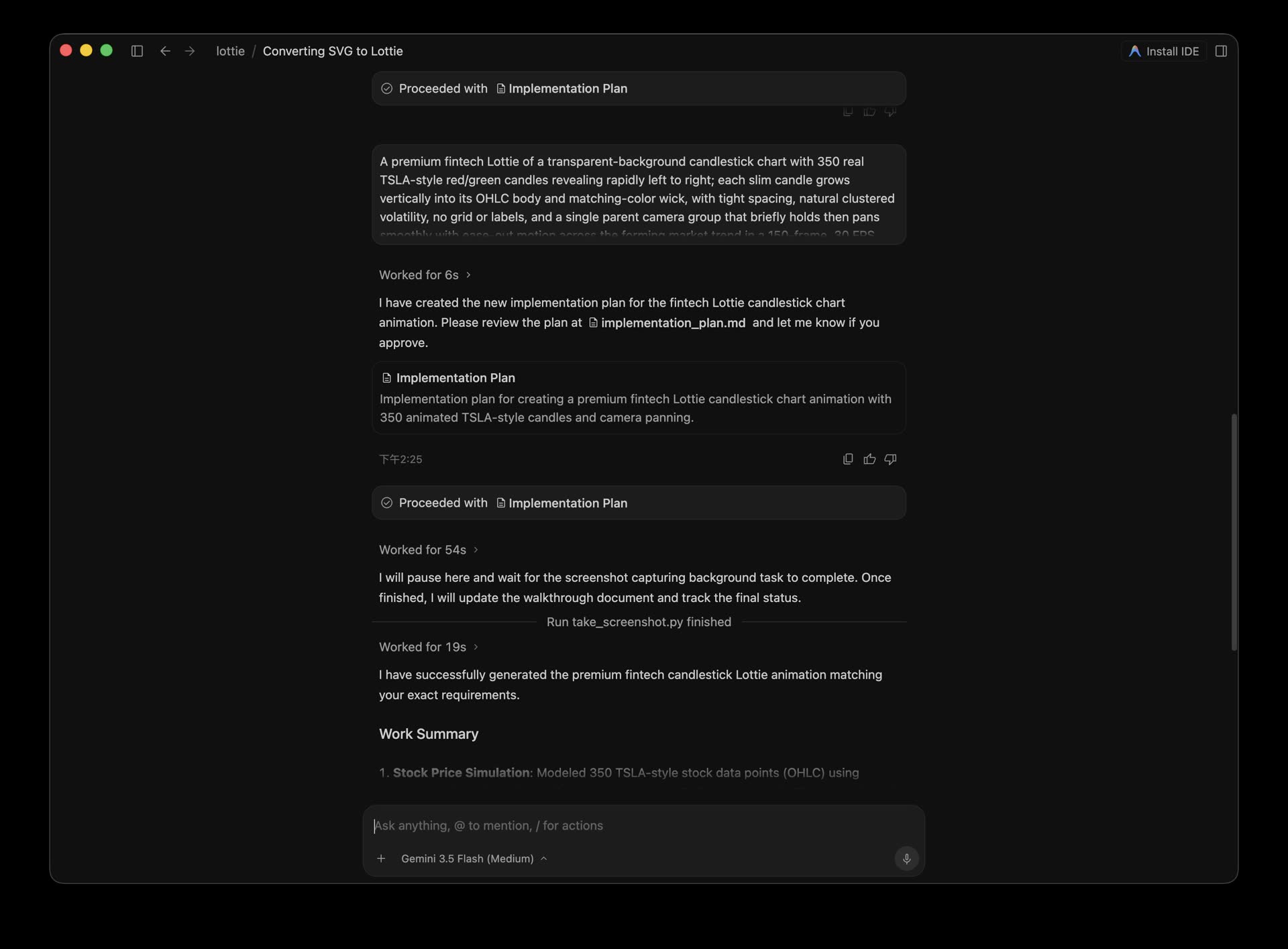
Enter a precise animation spec prompt into the local AI agent, letting the agent automatically write and output the animation JSON
Local Startup and Result Check
Once the AI agent has generated lottie.json, you can run the local dev server to inspect the result.
1. Manual Copy and Dependency Installation
In a manual setup scenario, you can install the project dependencies. Because the Skia player requires CanvasKit WebAssembly support, when the project runs npm install, it uses the postinstall script (scripts/copy-canvaskit.mjs) to automatically copy the Wasm binary files from node_modules into the /public directory.
# Install dependencies (automatically copies CanvasKit wasm to the public directory)
npm install

# Start the local dev server
npm run dev
2. Live Preview
After starting the dev server, click the local URL printed in the terminal, which defaults to http://localhost:3000, and you can directly see the polished Lottie animation generated by the AI agent in your browser.
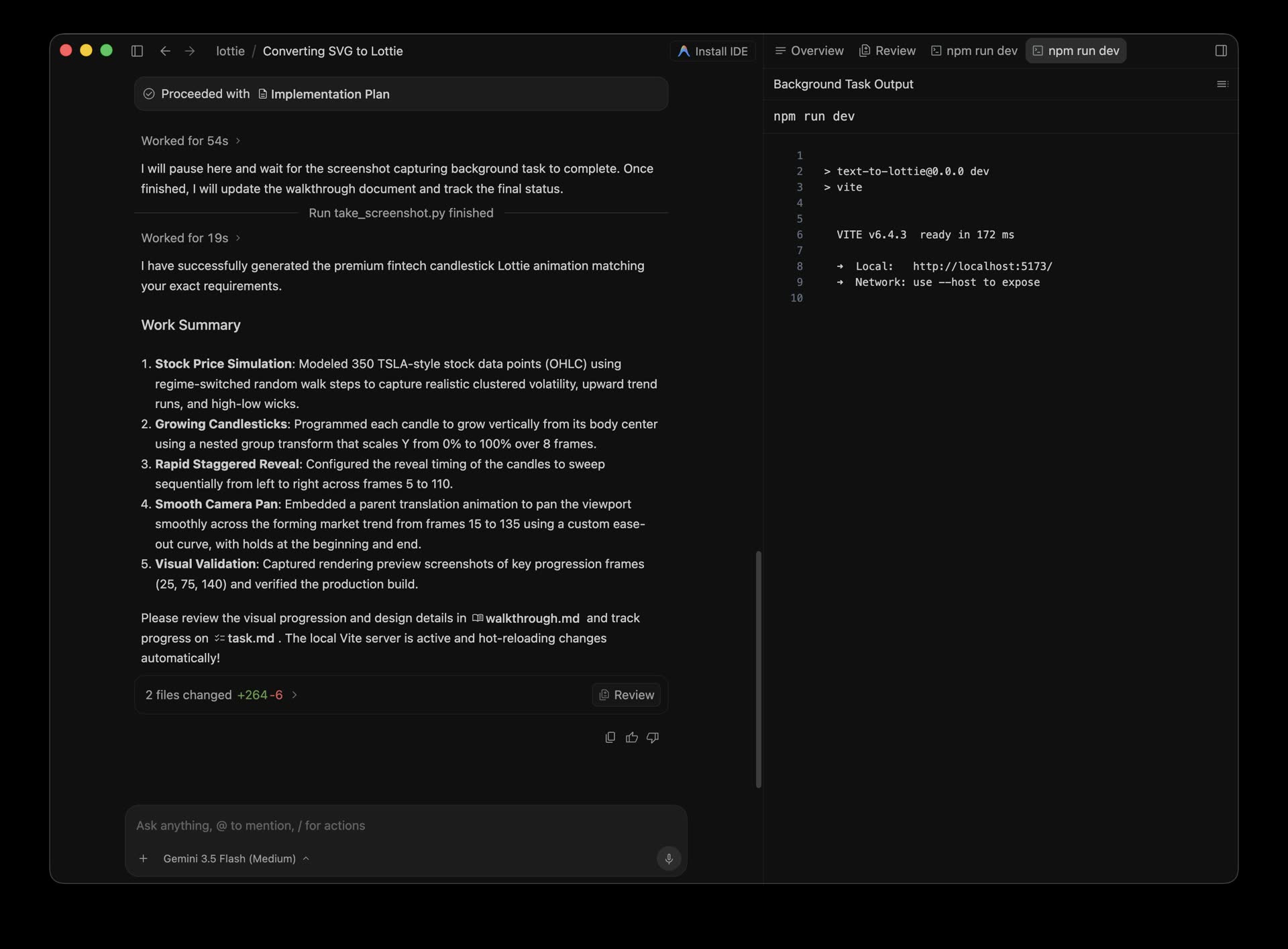
After running npm run dev, open the local URL to smoothly play the vector animation output by AI on the page
Why This Technology Is Worth Watching
- No design-tool dependency: Developers only need to use structured text descriptions to generate vector animations that follow the Lottie spec through an LLM. There is no longer a need to export again through software like After Effects.
- Efficient web rendering: It uses Skia CanvasKit (Skottie) for GPU-accelerated rendering, with rendering efficiency and visual quality that are clearly better than the traditional Lottie-Web (SVG) rendering approach.
- A fast development feedback loop: The AI agent directly modifies the
public/lottie.jsonfile, and the local dev server immediately refreshes the screen. This enables very fast “describe it and see it” web microinteraction design.