Nous Hermes Desktop Native Installation and Setup Guide: Hands-On Test of a Cross-Platform AI Assistant and Unified Memory
Nous Research’s Hermes agent has moved from the terminal to a GUI. This article walks through a hands-on test of the native desktop app across three platforms, covering one-click migration for existing users, API provider setup, and connecting Telegram and Line to build a personal AI assistant.
Introduction
As one of the more active agents in the open-source AI community, the Hermes Agent developed by Nous Research has long operated through the command line (CLI). For users who are not comfortable working in a terminal, deployment and daily conversations had a relatively high barrier to entry.
Now, Hermes has officially released a native desktop version for all three major platforms: Hermes Desktop. It brings the underlying adaptive workflow and memory takeover mechanism into a minimal GUI, with support for macOS, Windows, and Linux. It can automatically install system dependencies, and its main selling point is “unified memory across messaging platforms,” with direct integrations for Telegram and Line. This article is a complete installation walkthrough and hands-on field guide.
Step 1: Download and Install
First, go to the official Hermes Desktop download page and download the installer that matches your operating system:
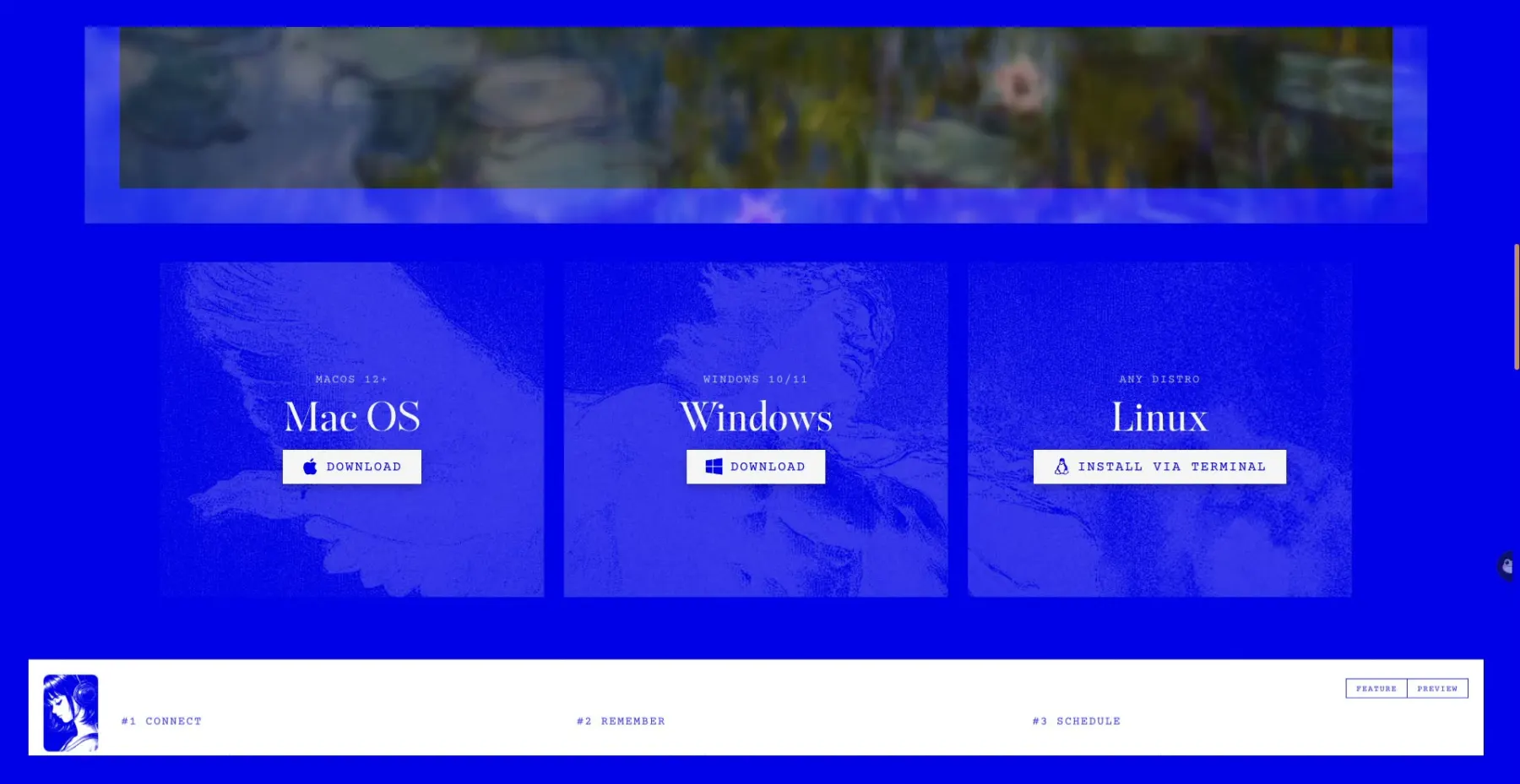
- macOS: Supports both Apple Silicon and Intel chips. You can download the DMG installer.
- Windows: Provides a standard EXE installer.
- Linux: Provides AppImage or DEB formats.
Step 2: Initialization and Dependency Installation
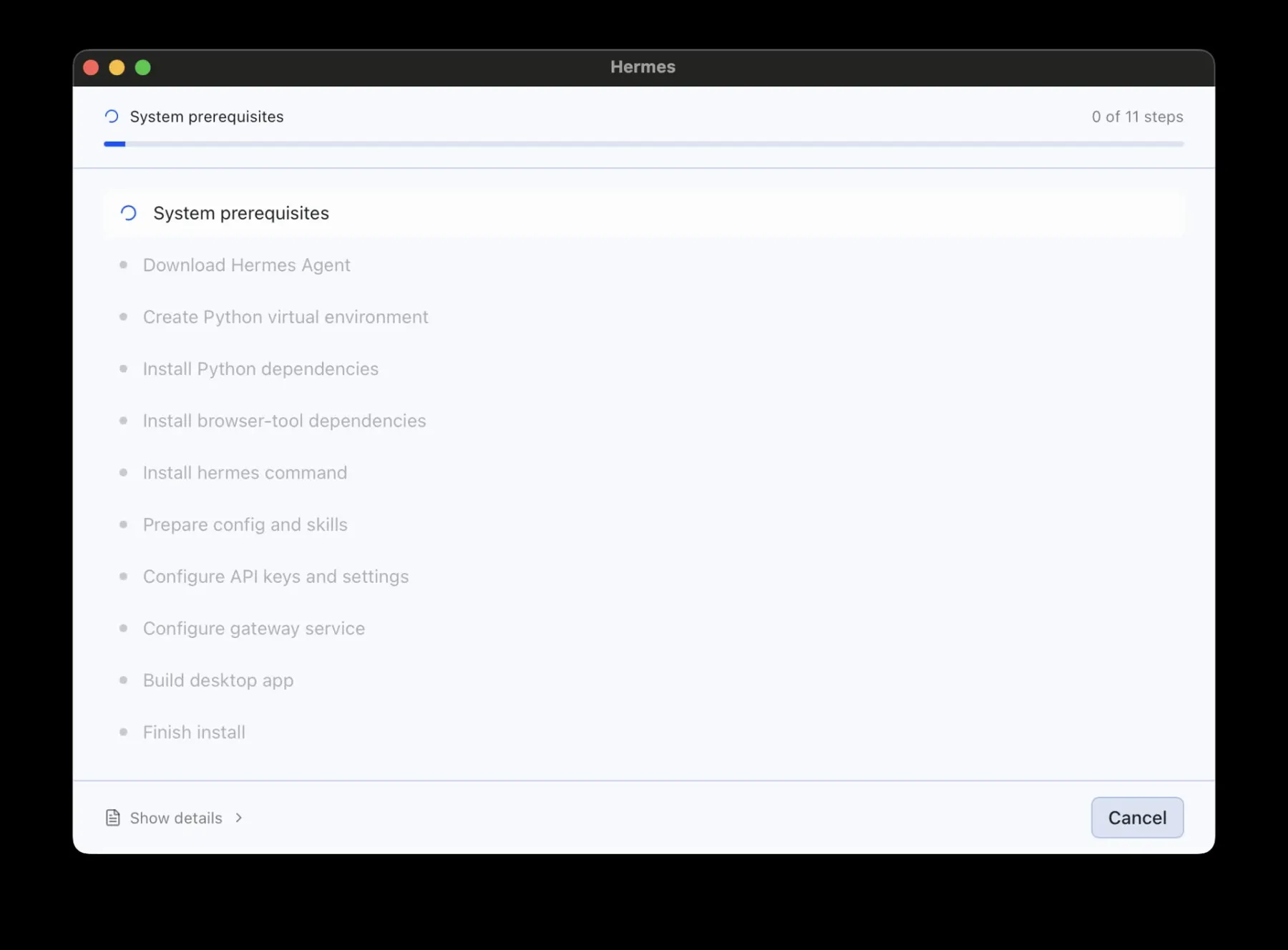
After installation, when you open the app for the first time, Hermes Desktop will automatically run a system environment check and download and install the required system dependencies and underlying executables in the background. This step usually only takes a few dozen seconds. The whole process is automatic, and you do not need to open a terminal and run commands manually:
Step 3: One-Click Data Migration for Existing Users
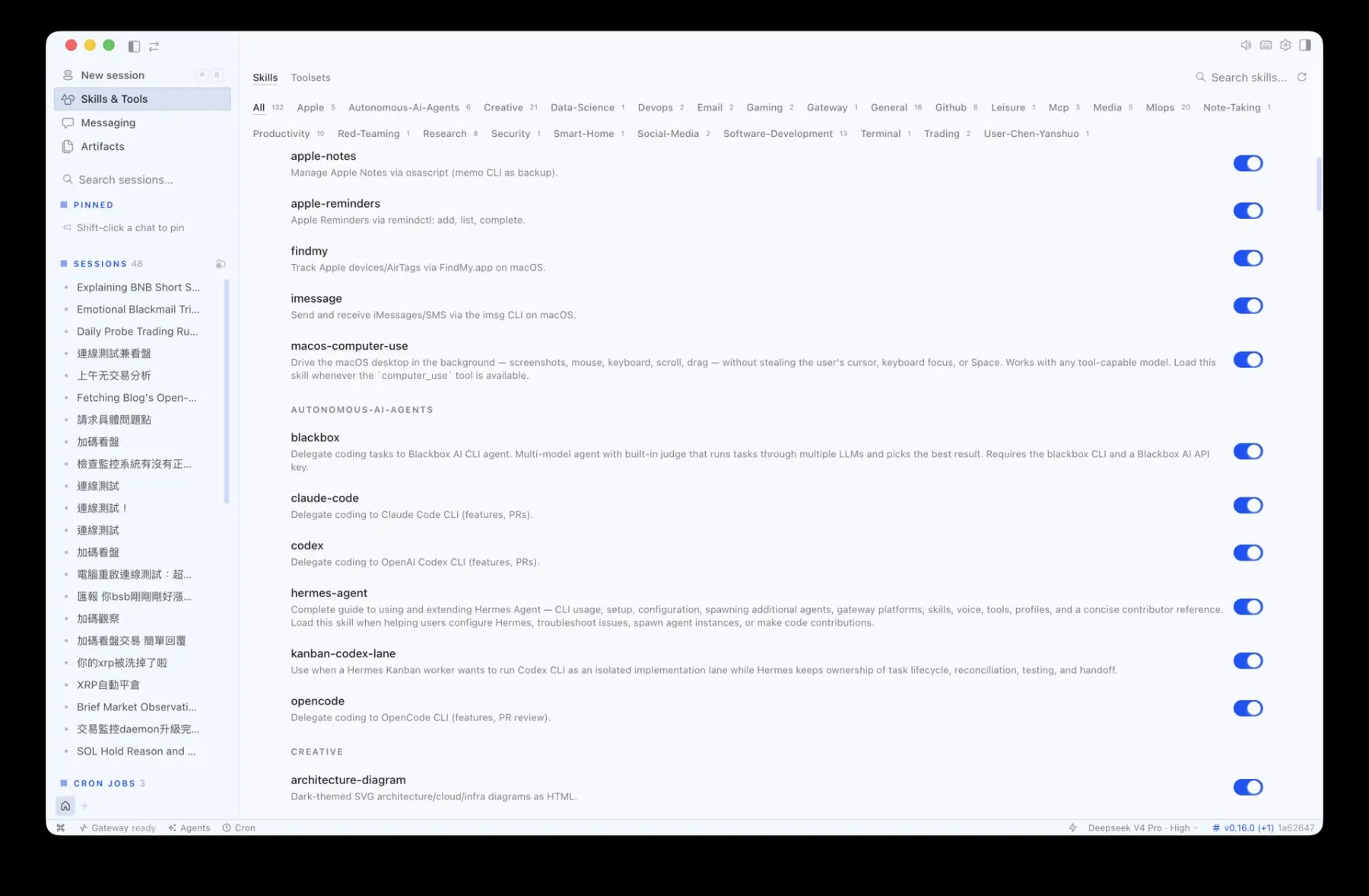
If you have previously used the older Hermes through the command line (CLI), the desktop version will automatically detect your local configuration files and chat history. After startup completes, you will find that all previous conversation history and related data have already been imported automatically, making the migration painless:
💡 Field Note: What if the Gateway gets stuck?
Some existing users may run into an issue after migration where the Gateway remains stuck on an old connection and cannot send or receive messages properly.
Solution: Click “設定 (Settings)” in the top-right corner, then go to “閘道 (Gateway)” and click the “重新連線 (Reconnect)” button to restart the gateway service.
Step 4: Adjusting the Interface, Appearance, and Language
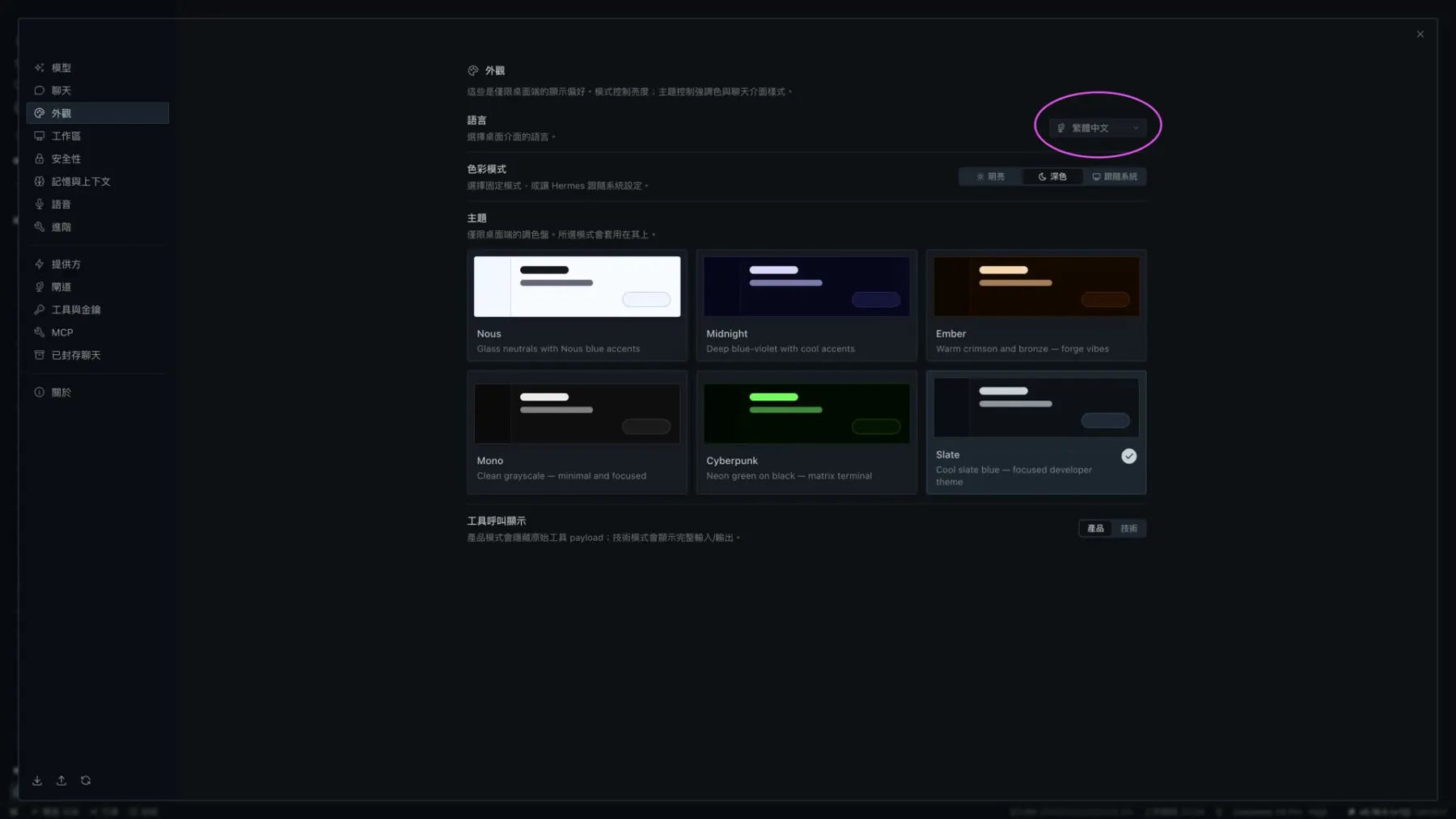
In the “外觀 (Appearance)” section of the settings page, you can freely adjust the system language, including Traditional Chinese support, switch between light and dark themes, and change the font size so the editing and reading experience better matches your personal preferences:
Step 5: Model Providers and API Key Setup
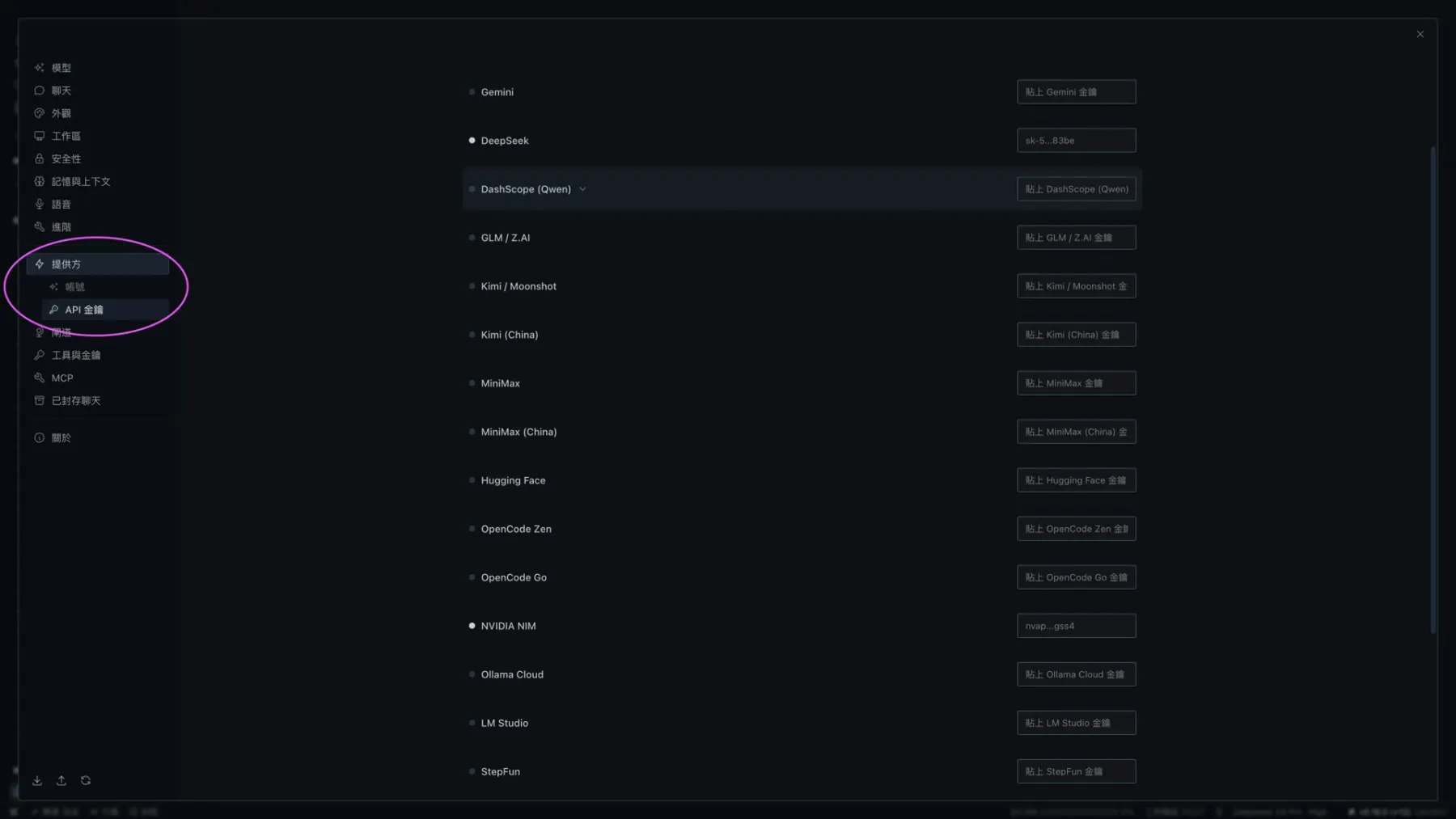
Hermes Desktop is an open-source client where you bring your own key. In the “供應商 (Providers)” panel under settings, you can enable the AI services you already use, such as OpenAI, Anthropic, DeepSeek, or local LM Studio / Ollama, and enter the corresponding API Key. Once configured, you can freely switch between different backend models during conversations:
Step 6: Connecting Messaging Platforms: Telegram and Line
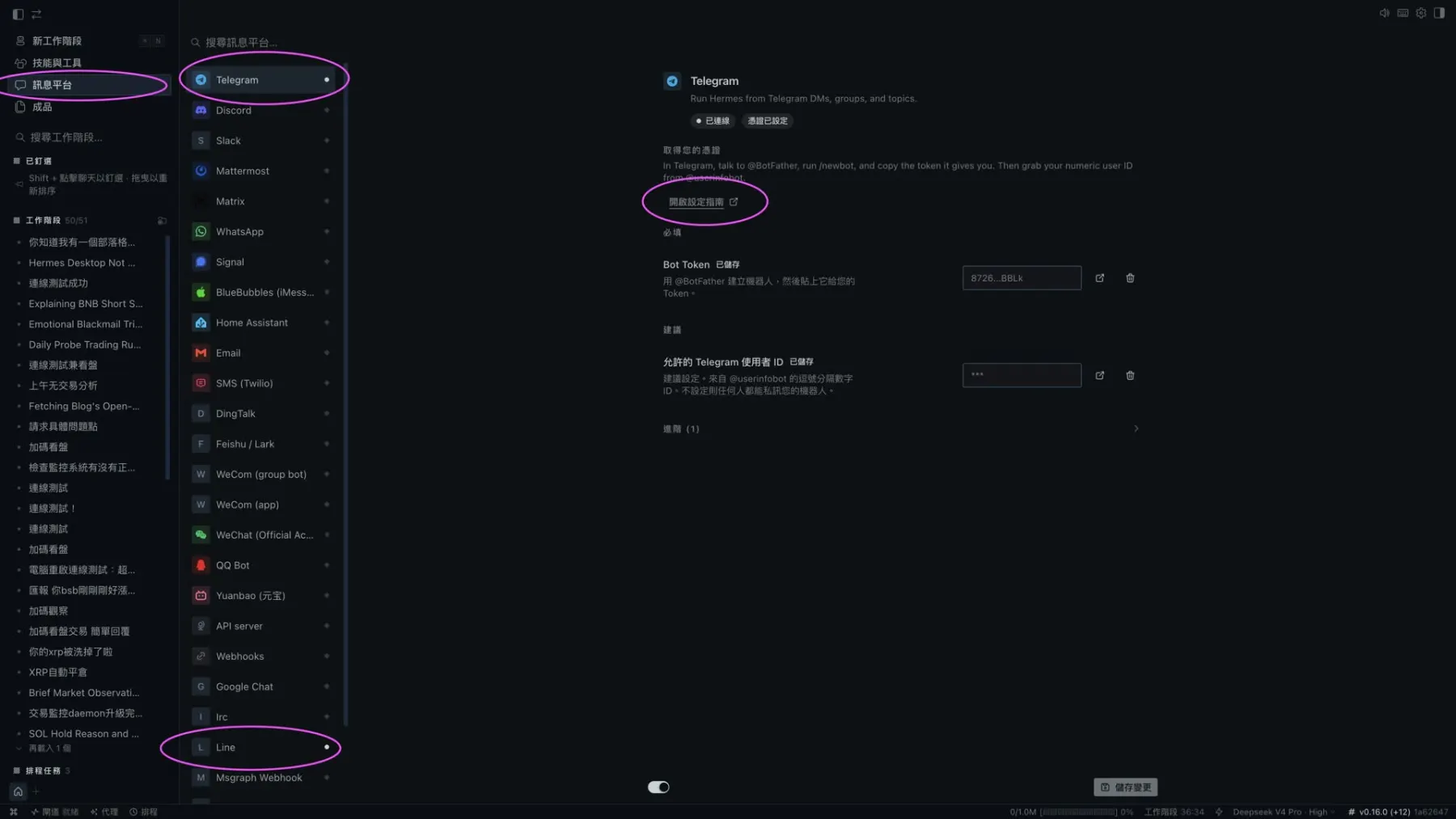
The most interesting part of Hermes Desktop is its “unified memory across messaging platforms.” At the top of the main page, you can find “訊息平台設定”.
I personally recommend setting up the Telegram (TG) connection. After clicking the setup guide, the system will walk you through creating a bot token. Once you enter the token, the binding is complete. Of course, if you use Line more often, you can also configure it in the same place.
After configuration, you can chat with your personal assistant Hermes directly from your phone through TG or Line, while its background memory and learning trail remain fully synchronized with Hermes Desktop on your computer.