

Vibe Review: A Cross-Platform Offline AI Speech-to-Text Tool for Beginners — Clean, Intuitive, One-Click
Dread the Whisper command line or find other tools too complicated to set up? Vibe is a minimal, hassle-free offline speech-to-subtitle tool. The feature set is simple, but the interface is clean and easy to pick up — a solid choice for less technical users.
Preface: No Complexity — Speech-to-Text Built for Non-Technical Users
Every time I finish recording a meeting, conducting an interview, or making a tutorial video, the most tedious step is generating subtitles and transcripts. Open-source models like Whisper are incredibly capable, but for most non-technical users, even glancing at a terminal with its white-on-black text and a wall of environment variables is enough to make them give up.
Plenty of speech-to-text software exists, but many bury you in parameter panels and acoustic settings that only raise the barrier to entry.
If all you want is to drop an audio or video file in and get subtitles out, then Vibe is exactly what you're looking for. It leads with a dead-simple interface and zero learning curve. Compared to other professional tools it does less, but by cutting out all the fiddly configuration, it becomes the most approachable offline speech-to-text option I've used.
Real-World Test (M4 Mac Mini)
Here's a test run on an M4 Mac Mini using the Medium Model. The interface is clean — no clutter. After importing the audio, it spat out high-quality subtitles in about 7 seconds (source video was 35 seconds):
I also tested transcribing a 21:44 video. It took 169 seconds (roughly 2 minutes 49 seconds).
Honestly, compared to Whisper MLX — which is heavily tuned for Apple Silicon — this isn't the fastest thing out there. But considering you don't need to set up any environment at all, it just opens and works, and the recognition accuracy is solid, this is more than good enough for everyday use by non-technical users.
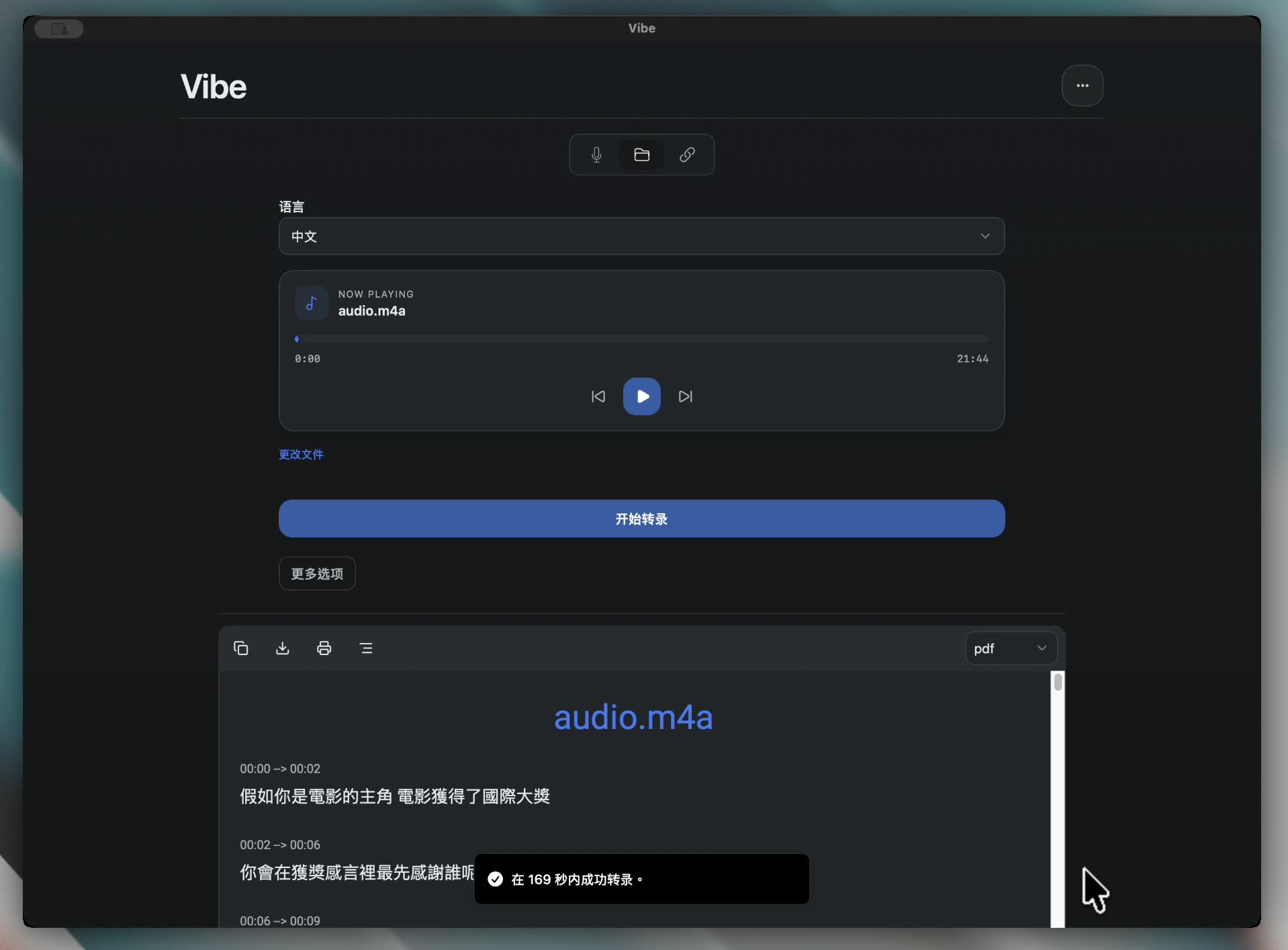
Transcribing a 21:44 video — completed in 169 seconds
Why Vibe Works for Beginners
1. Clean Interface, No Distractions
Open Vibe and you won't find jargon-filled panels or acoustic parameters. The interface is refreshingly minimal — basically just "select a file" and "start transcribing." Drag in your audio or video, press the button, and let the AI handle the rest.
2. Easy to Get Started, No Environment Setup
No Python installation, no CUDA configuration. Vibe follows a "one-click install, magic setup" approach. Whether you're on Windows, macOS, or Linux, it installs painlessly and runs immediately.
3. Just Enough Features — No Overwhelm
Where other tools pack in everything including the kitchen sink, Vibe does "subtraction." It skips speaker diarization and fine-grained waveform editing, focusing on the core job: transcription and subtitle generation. If you just need a transcript fast, that's actually more relaxing.
Quick Install & Setup Guide (Three Steps)
Vibe's model installation is clever — it uses a "Magic Setup" flow that links from a web page directly to the app, no manual file wrangling needed:
Step 0: Download Vibe
Head to the Vibe website and grab the package for your system:
Step 1: Open Settings and Click Download
Launch Vibe, go to settings, and click the Download button. Your browser will open to the model selection page.
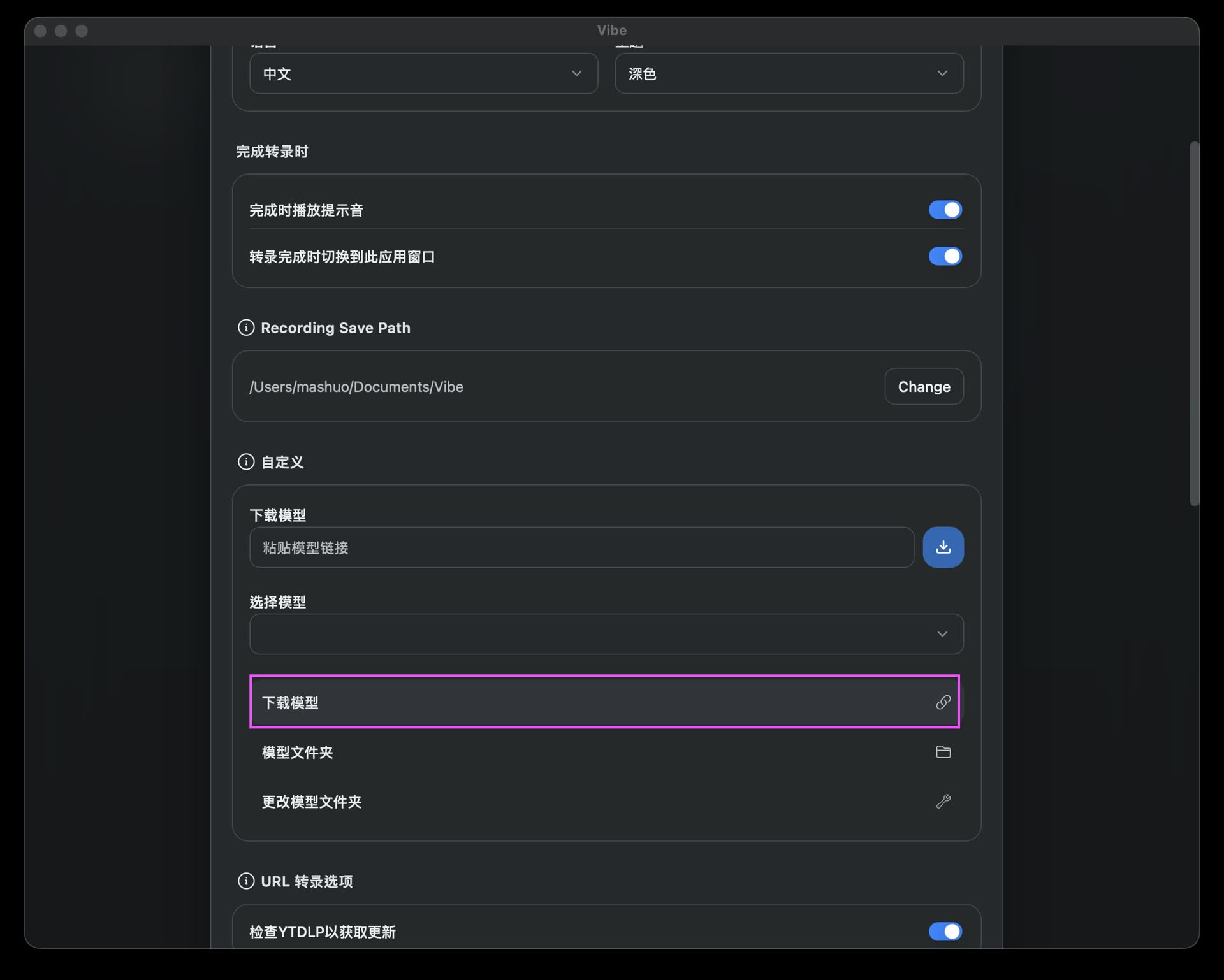
Click the Download button to open the model list page
Step 2: Pick a Model Size
On the page that opens, choose the model that fits your hardware:
- ⚖️ Medium Model (recommended): Best balance of accuracy and speed for most people.
- 🚀 Large v3 Turbo: Highest accuracy — good for noisy audio.
- 🌱 Tiny / Small Model: Very fast — suitable for older hardware.
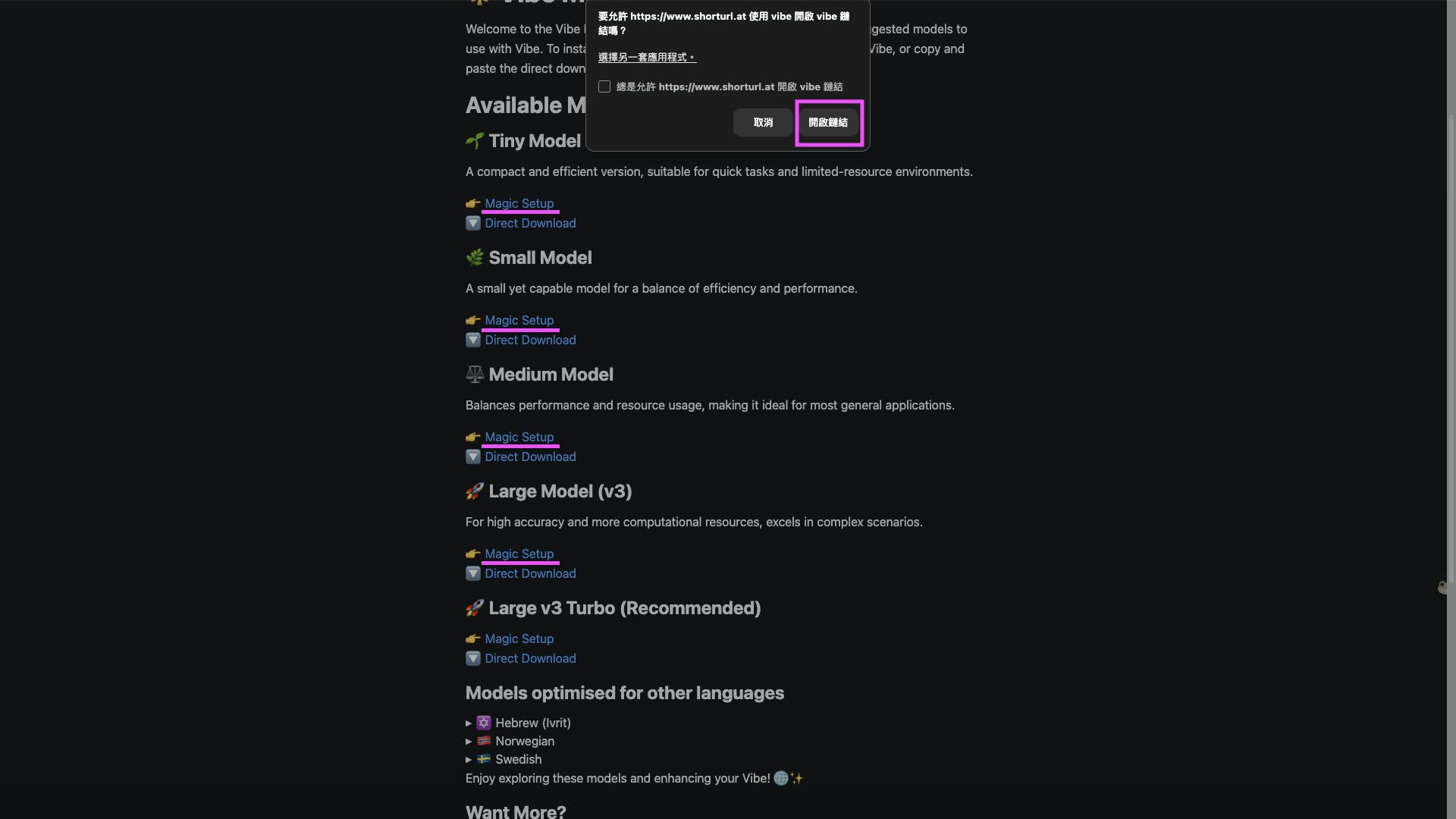
Find the model size you want on the web page
Step 3: Click "Magic Setup" to Auto-Download
Click the 👉 Magic Setup link next to your chosen model. Your browser will prompt you to open the Vibe app. Confirm, and Vibe will automatically download and configure the model in the background — no manual steps involved.
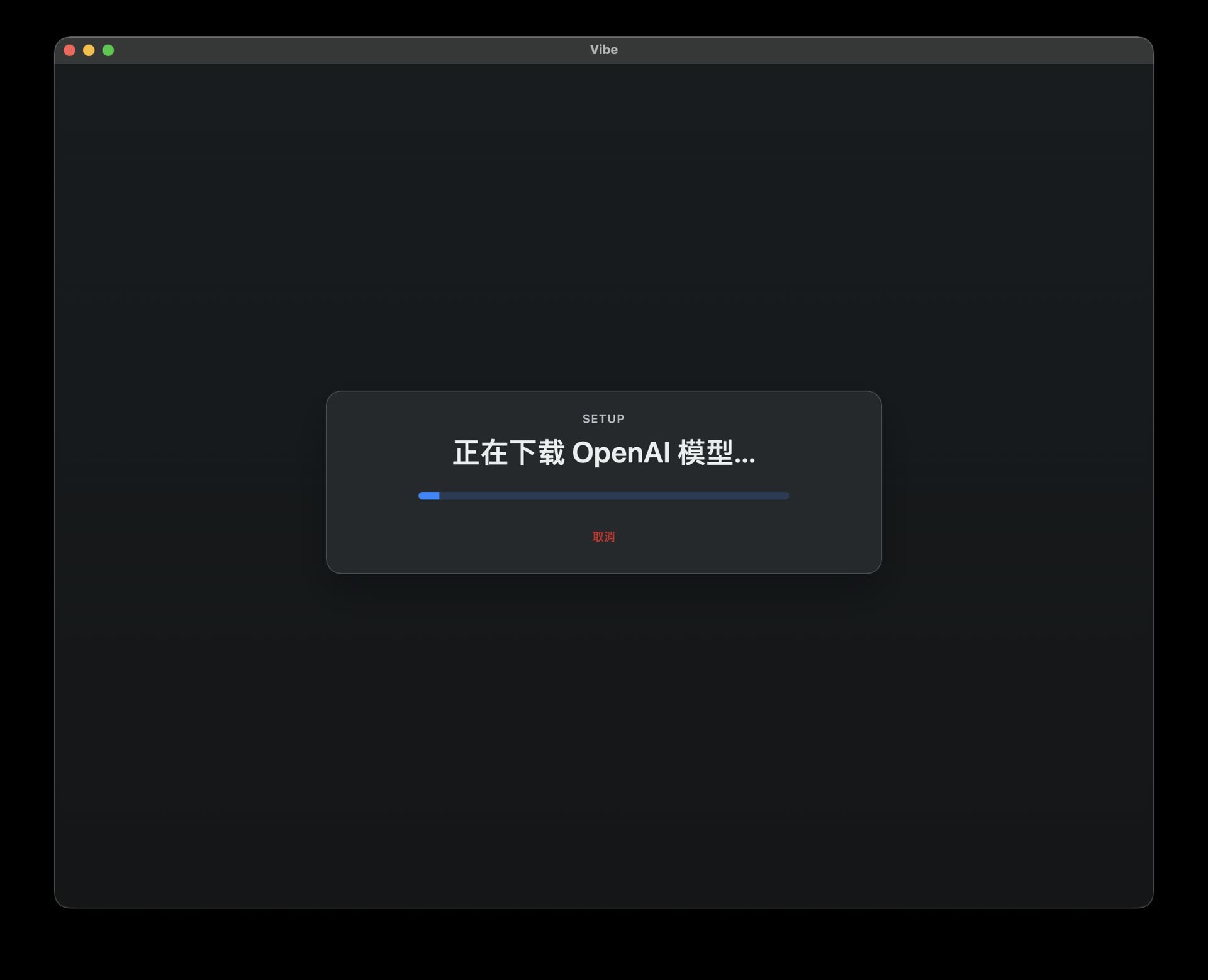
After clicking Magic Setup, Vibe automatically downloads and sets up the model
Bonus: Transcribe YouTube Videos Directly
Even though Vibe is minimal, it thoughtfully bundles yt-dlp support. If you want to transcribe a YouTube video, just paste the link into Vibe. It will guide you through installing the yt-dlp dependency with one click, then handle the download and local offline transcription. Very convenient.
Conclusion
Vibe wraps capable AI transcription into a package that genuinely respects a beginner's time. It strips away everything unnecessary and keeps only the core transcription workflow, delivering a clean, focused experience.
If you're not particularly technical — or you just don't want to burn time on configuration — and you want speech turned into text without the fuss, Vibe is an easy recommendation.
Links:
Vibe is an open-source project released under the MIT license. If this tool helps you out, consider dropping the author a Star on GitHub!