

LuLu Field Test: A Look Before a Mac App's First Outbound Connection
LuLu is a free, open-source macOS outbound firewall. When a program with no rule establishes an outbound connection, it shows the program, destination, and signing info. This article covers which default settings are worth keeping after install and how to judge the alerts.
Intro
After I installed LuLu, my first reaction was: so what exactly does it want me to do? It doesn't run scans like antivirus software, and it doesn't ask me to manually set network rules for every app.
It took me a while to get it: it manages "apps connecting outward." macOS's built-in firewall mainly handles requests coming into your computer. LuLu, on the other hand, when a program with no rule yet tries to reach the network, lays out the program name, destination, and signing info so I can decide whether to let it through.
This video shows the rules page after installation. Apple system services, Chrome Helper, ChatGPT, and Codex are all already on the allow list. Seeing these names doesn't mean there's a problem with them — LuLu is just listing out "who's allowed to connect to the network."
It's not antivirus, it's an outbound firewall
LuLu is a free, open-source macOS firewall from Objective-See, licensed under GPL-3.0. It only watches outbound connections: for example, a freshly downloaded app checking for updates, a background tool trying to ship data to some URL, or an unknown program suddenly starting to connect.
That difference matters. LuLu doesn't scan the whole Mac, and it doesn't declare a program malware just because it shows up in the rules list. It just keeps one more checkpoint open so I get a chance to look before a program goes out for the first time.
I think it fits people who regularly grab tools from GitHub, DMGs, or beta apps. Normally there's nothing to do; when an alert actually pops up, just spend a few seconds confirming it.
Download & install
First, download the DMG from the LuLu official download page. LuLu supports macOS 10.15 and later. After opening the DMG, drag LuLu into Applications; on first launch, follow macOS's flow to approve the System Extension and Network Filter.
If it's an update or a reinstall, remember to choose "Quit LuLu" from the menu bar icon first. If you don't quit it first, the DMG will say the app is still in use and the files can't be overwritten.
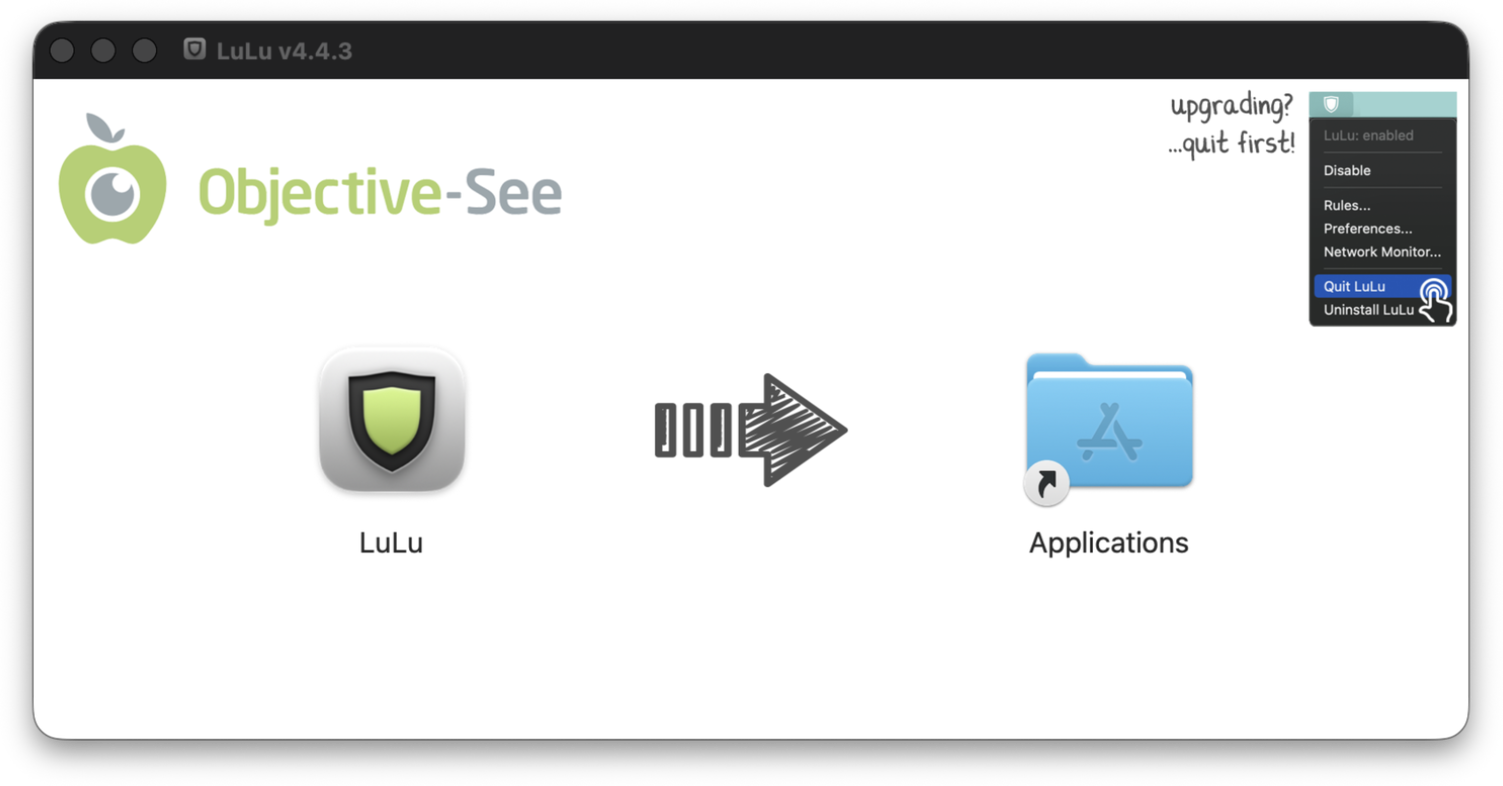
Quit LuLu from the menu bar before updating so the DMG doesn't say the app is still in use
The first launch shows a description of what it does: when a program establishes an outbound connection, LuLu shows an alert letting me allow or deny it. No need to rush through every option here — keep the defaults on the next step and you can start using it normally.
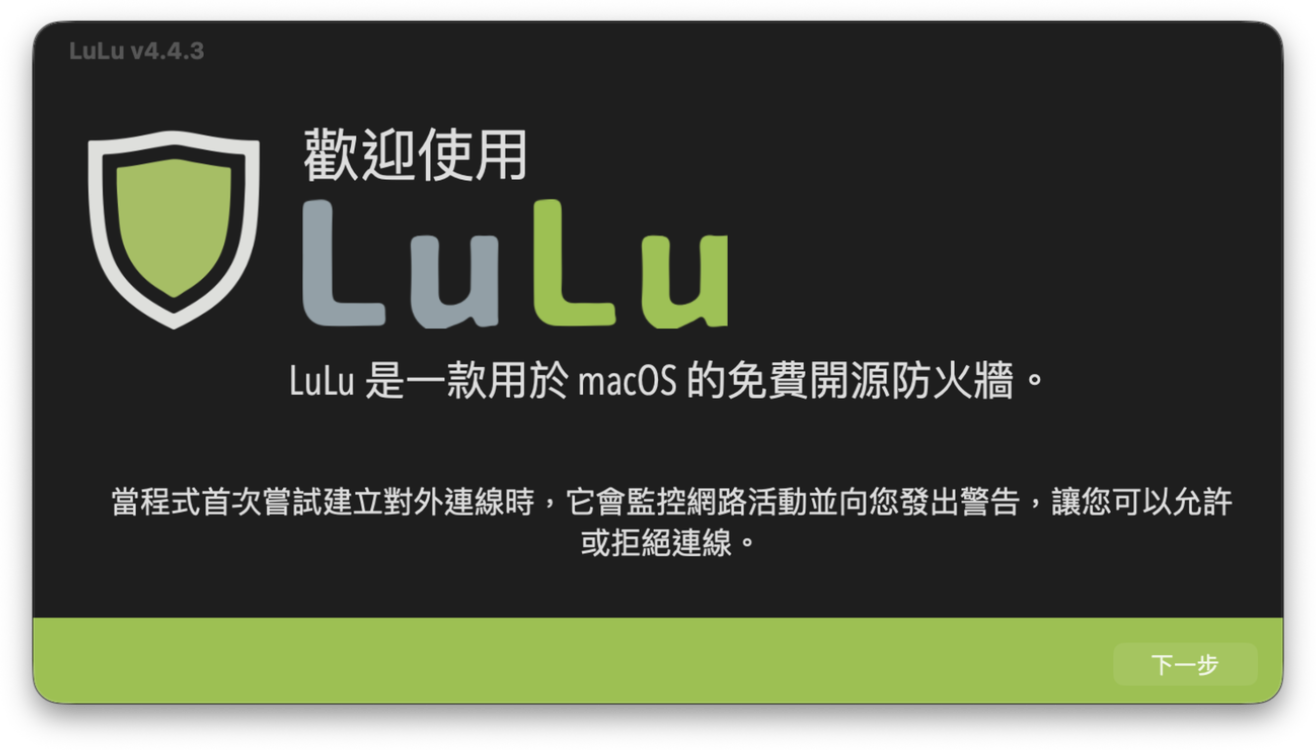
The "outbound connection" the install wizard mentions is exactly what LuLu actually watches
Leave the default settings alone
I kept the four items LuLu has checked by default: allow Apple programs, allow installed programs, allow DNS traffic, and localhost traffic. The official recommendation is also to keep these at first — otherwise system services and your existing apps will keep interrupting you right after install.
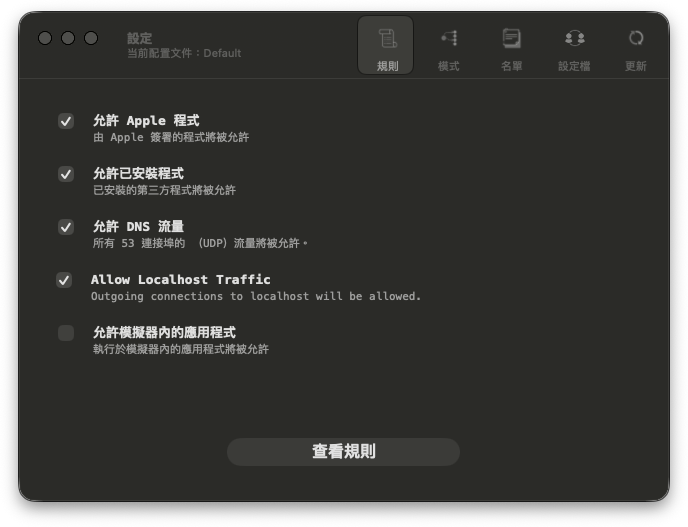
Keep these four default checkboxes and LuLu won't turn into a notification bomb
The mode page doesn't need any special adjustment either: Passive Mode stays off so LuLu shows alerts for new connections; and don't turn on Block Mode yet, since it blocks all traffic passing through LuLu unless the destination is already on the allow list. For daily use, just let LuLu sit in the menu bar.
Also, third-party apps that existed before the first install usually get allowed automatically, so opening Chrome, ChatGPT, or Codex won't necessarily pop a window. That's why the video already shows third-party app rules — not because LuLu is broken.
When Allow/Block pops up, I check three things
LuLu's alert gives me three clues: which program it is, which URL or IP it wants to reach, and who signed the program. The official docs also specifically mention that signing info helps confirm who made the program and whether the file has been tampered with.
I don't hit Block on every alert. Usually I judge in this order:
- Whether the program name is the one I just opened.
- Whether the destination seems reasonable, e.g., the app's official domain, login service, or update server.
- Whether the signer matches the program's developer.
If all three line up, I allow it. If I'm only testing an app, I allow it temporarily so it doesn't leave a permanent rule. If I don't recognize the program at all, or the thing it wants to reach has nothing to do with what it's for, I block it first. Blocking just means "I don't want it going out right now," not that I'm labeling it malware.
Reading the rules list without scaring yourself
The rules page separates Apple, installed third-party programs, and rules I made myself. In the video, ChatGPT, Chrome Helper, cloudflared, codex, and Codex Computer Use all show their bundle identifier and signer. At minimum I can see what the program is and where it can connect, instead of guessing from a list of IPs.
But this list isn't a "suspicious program leaderboard." I don't delete a rule just because I see an unfamiliar system service, and I don't block all of Apple's background processes. When I actually need to deal with something, I first recall which app I just opened, then cross-check its signature and destination. If I'm unsure, I block it first and decide after confirming.
LuLu also has a VirusTotal button, but it only opens a lookup page for the corresponding file hash when you actively click it. If you don't want to look anything up, you don't need to change any settings for it.
How I'd use it
The thing I most often got wrong at first was treating LuLu like a security dashboard you have to patrol every day. It's more like an outbound doorbell for new programs: keep the defaults, keep the menu bar icon; when a new alert shows up, pause and check the program, destination, and signature.
For someone like me who installs lots of little GitHub tools, this reminder fits just right. It won't judge whether every program is safe for me, but at least when a program goes out for the first time, I'm not completely blind to it.