

Pot (派了個萌的翻譯器) Hands-On: A Solid Cross-Platform Selection Translation and OCR Tool
Looking for a smooth translation tool that does not interrupt your workflow? Pot supports side-by-side comparison across multiple translations, accurate screenshot OCR, and a wide range of translation and LLM integrations, making it a practical efficiency tool for macOS, Windows, and Linux users.
Introduction: Why Do You Need Pot?
In day-to-day development and reading, we often need to read English documentation, technical papers, or discussions from overseas communities. Many of us already use excellent browser extensions such as Immersive Translate.
Immersive Translate is undoubtedly the go-to tool for bilingual side-by-side web reading. It is very suitable for long articles, English news, and ebooks. But outside the browser, we still run into these pain points:
- Interrupted cross-app workflow: In Terminal, code editors like VS Code, Slack, or local PDF readers, browser extensions cannot translate directly, so you have to copy and paste constantly.
- Single translation result: Some technical terms feel stiff in translation engine A but natural in translation engine B. A single translation app does not let us quickly compare multiple results.
- Text that cannot be copied: For example, images, video subtitles, design mockups, PDFs, or some copy-protected web pages. In those cases, you can only type things manually, which wastes a lot of time.
This is where Pot (派了個萌的翻譯器) becomes a very good companion tool. Unlike Immersive Translate, which focuses on "webpage layout and bilingual comparison," Pot is a system-wide selection translation and OCR tool, designed for quick translation snippets and cross-app use anywhere.
Immersive Translate vs Pot
| Feature / Scenario | Immersive Translate | Pot (派了個萌的翻譯器) |
|---|---|---|
| Main Positioning | Bilingual side-by-side reading for web pages, ebooks, and long-form content | System-wide translate as you select and screenshot OCR translation |
| Runtime Environment | Browser Extension | Standalone desktop app (Tauri / Rust App) |
| Best For | Long English web pages, web PDFs, foreign-language news | Terminal, editors, chat apps, and text that cannot be copied |
| Translation Mechanism | Native web DOM injection with polished layout | Floating window triggered by hotkey, disappears when the mouse moves away |
| Comparison Feature | Single translation engine (manual switching available) | Multiple translation engine results shown side by side for cross-checking |
Pot is built with Tauri and Rust, so it is fast and uses little memory. It also has three very practical strengths:
- Parallel translation across multiple interfaces: It can call multiple services such as DeepL, Google, Gemini, and OpenAI at the same time, then show the translations side by side for easier comparison.
- Hotkey-triggered floating window: Select text, press a hotkey, and the result appears immediately. Move the mouse away and it disappears automatically, without breaking your train of thought.
- Fast screenshot OCR and translation: Select any area of the screen with one shortcut, and it automatically recognizes and translates the text with very responsive behavior.
Live Demo
Below is a live demo of Pot doing OCR recognition and selection translation:
Notes on the Demo:
- First Part: OCR Recognition and Translation
- When we encounter text on screen that cannot be selected or copied, we can press the screenshot OCR hotkey, such as
Option + X, select an area, and Pot immediately recognizes and translates the text. The response is very fast, and the interface is intuitive. This is especially useful for images, PDFs, or copyright-protected web pages.
- When we encounter text on screen that cannot be selected or copied, we can press the screenshot OCR hotkey, such as
- Second Part: Selected Text Translation
- After selecting text, press the selection translation hotkey, such as
Option + C, to bring up the translation floating window. There are many good products in this space, but Pot's strongest point is that it can show results from multiple translation engines at the same time. By cross-checking multiple translations, we can examine and understand proper nouns and complex sentences more carefully, while the floating window stays out of the way of the original development or reading flow.
- After selecting text, press the selection translation hotkey, such as
My Recommended Settings
To get the most out of Pot, I strongly recommend setting up your commonly used hotkeys in "Preferences." Set them based on your habits, and remember that you can also switch the interface to Traditional Chinese here:
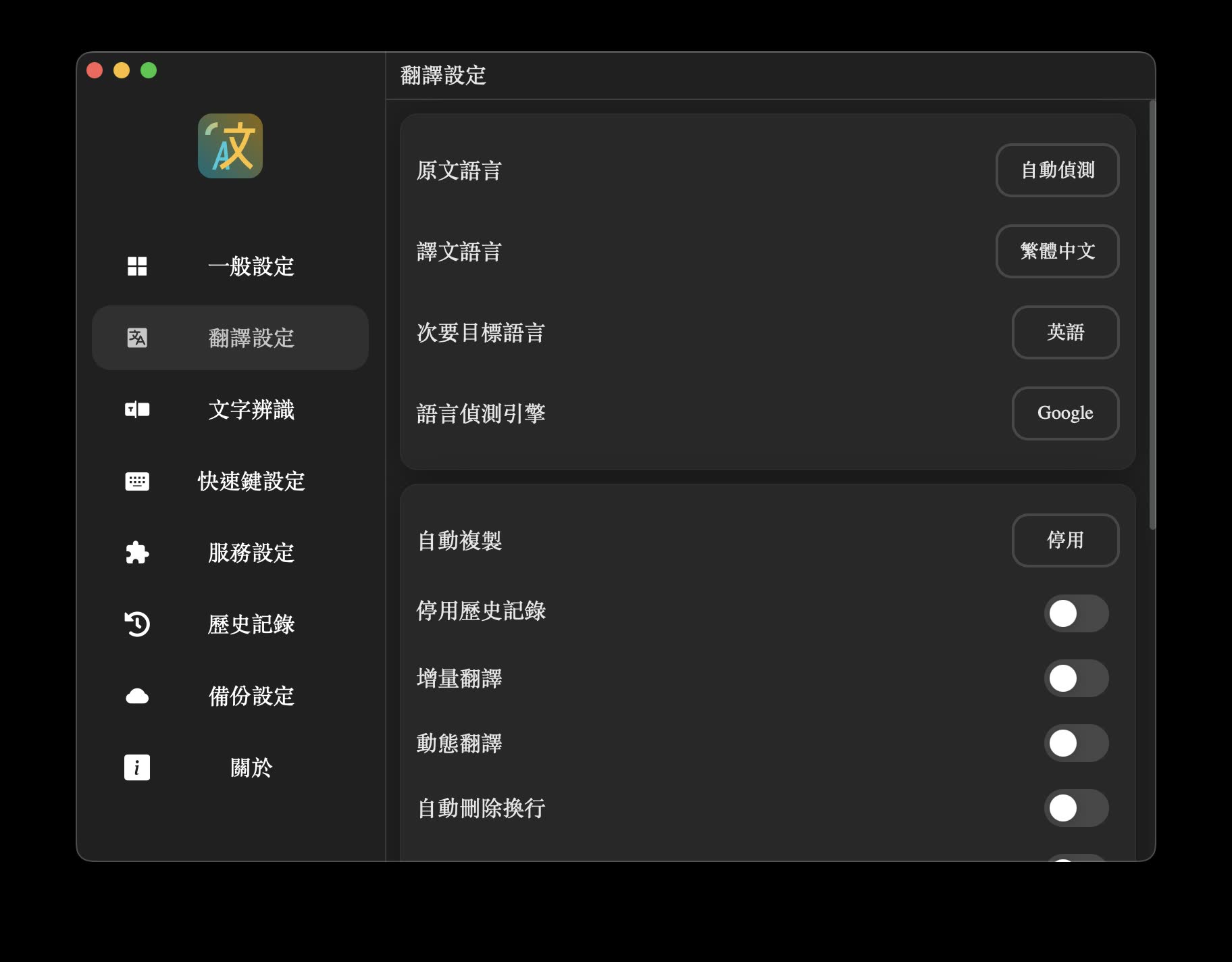
Recommended Traditional Chinese settings
!TIP I suggest setting "Selection Translation" and "Screenshot OCR" to the key combinations that feel most natural to you. On macOS, for example, I use:
- Selection Translation:
Option + C- Screenshot OCR:
Option + XThis lets you complete translation and text recognition within one second without moving your hands away from the main keyboard area.
Two Main Download and Installation Methods for Each Platform
Pot supports Windows, macOS, and Linux. To fit different user habits, here are two installation paths: installing with a package manager and manually downloading the installer.
Method 1: Install with a Package Manager (Recommended, Supports Auto Updates)
If you like managing software from the terminal, this is the most convenient approach:
- macOS (Homebrew)bash
# Add the tap repository brew tap pot-app/homebrew-tap # Install pot brew install --cask pot - Windows (Winget)cmd
winget install Pylogmon.pot - Linux (Arch Linux / Debian / Ubuntu / Flatpak)
- Arch Linux (AUR):
bash
yay -S pot-translation # Or sudo pacman -S pot-translation - Debian / Ubuntu: Go to Releases, download the corresponding
.debfile, then run:bashsudo apt-get install ./pot_{version}_amd64.deb - Flatpak:
bash
flatpak install flathub app.pot_app.pot-desktop
- Arch Linux (AUR):
Method 2: Manually Download a Standalone Installer
If you prefer the traditional graphical installer flow, you can go to Pot GitHub Releases and download the latest version:
- macOS Users
- Apple Silicon chips such as M1/M2/M3: Download
pot_{version}_aarch64.dmg. - Intel chips: Download
pot_{version}_x64.dmg. - Pitfall note: If, after installation, macOS says the app "cannot be opened because the developer cannot be verified," go to System Settings -> Privacy & Security, then click "Open Anyway"; or run the following command in Terminal to remove quarantine:
bash
sudo xattr -d com.apple.quarantine /Applications/pot.app
- Apple Silicon chips such as M1/M2/M3: Download
- Windows Users
- 64-bit systems: Download
pot_{version}_x64-setup.exe. - 32-bit systems: Download
pot_{version}_x86-setup.exe. - ARM64 systems: Download
pot_{version}_arm64-setup.exe. - Pitfall note: If nothing happens after launch, or no window appears, your system may be missing WebView2. Install Microsoft's WebView2 Runtime manually, or download the version with WebView2 bundled from the Releases page:
pot_{version}_{arch}_fix_webview2_runtime-setup.exe.
- 64-bit systems: Download
- Linux Users
- You can download
.deb,.AppImage, or another suitable package from the Releases page.
- You can download
Strong Extensibility and Supported Interfaces
Pot is lightweight, but the range of interfaces it supports is very broad. You can connect your own APIs through settings or its built-in plugin system.
1. Supported Translation and LLM Interfaces
- Large language models: OpenAI, Gemini Pro, 智譜 AI, Ollama (local offline models), and more.
- Traditional translation: DeepL, Google, Bing Dictionary, Youdao Translate, Baidu/Tencent/Volcano translation, and more.
- Extension plugins: ECDICT, Lingva, Tatoeba, and more.
2. Text Recognition (OCR) and Text-to-Speech (TTS)
- System-native OCR: On macOS, Pot calls Apple Vision Framework directly. On Windows, it calls Windows.Media.OCR. It works fully offline and is highly accurate.
- Cloud OCR: Baidu, Tencent, Volcano, Simple LaTeX (formula recognition), and more.
- Vocabulary book sync: Supports syncing to Anki, Eudic, Youdao Wordbook, Shanbay Words, and more, which is very useful for language learners.
Advanced Developer Usage: External API Calls
Pot is designed to be quite open. It starts a lightweight local HTTP service by default, listening on 127.0.0.1:60828. This means you can use other software, such as PopClip on macOS or SnipDo on Windows, to send requests directly and call Pot.
For example, you can trigger Pot's selection translation with a simple curl command:
curl "127.0.0.1:60828/selection_translate"
If you are on a Linux Wayland environment, such as Hyprland, where system restrictions prevent direct reading of mouse coordinates or hotkeys, you can also use this API together with screenshot tools such as grim and slurp to write a hotkey binding:
# Hyprland config example: press Alt + X to take a screenshot and trigger Pot OCR
bind = ALT, X, exec, grim -g "$(slurp)" ~/.cache/com.pot-app.desktop/pot_screenshot_cut.png && curl "127.0.0.1:60828/ocr_recognize?screenshot=false"
Conclusion
With side-by-side comparison across multiple interfaces, very fast screenshot OCR, and flexible API integration, Pot stands out among selection translation tools. It is not just a translator, but a serious productivity tool for improving cross-language reading and learning efficiency.
Related Links:
The software project introduced in this article is open sourced under the GPL-3.0 license. Feel free to visit GitHub and give the author a Star to support open-source work!