

Twinkle Tray: Adjust Multi-Monitor Brightness from the Windows Taskbar
Twinkle Tray is a free Windows utility that lets you adjust the brightness of multiple external monitors directly from the system tray, with support for keyboard shortcuts, scheduling, and DDC/CI monitor control.
Intro
Windows lets you adjust your laptop screen brightness natively, but once you plug in an external monitor, you usually have to reach for the physical buttons underneath it. With multiple monitors, that small inconvenience adds up.
Twinkle Tray does one simple thing: it puts a brightness control panel in the Windows system tray. Click it open and you can adjust the brightness of each compatible monitor individually. I'm sharing it mostly because it requires almost no explanation. Install, launch, drag the slider — that's it.
It Just Puts Monitor Brightness in Your Taskbar
I have two external monitors connected, and Twinkle Tray lists them separately. You can adjust each one individually or change them all at once. When you want a different brightness during the day or at night, there's no need to fumble with physical buttons on each monitor anymore.
It also supports keyboard shortcuts, automatic brightness adjustment based on time of day, and auto-starting when you log into Windows. The settings UI includes Traditional Chinese, and the basic options are straightforward enough to understand at a glance.
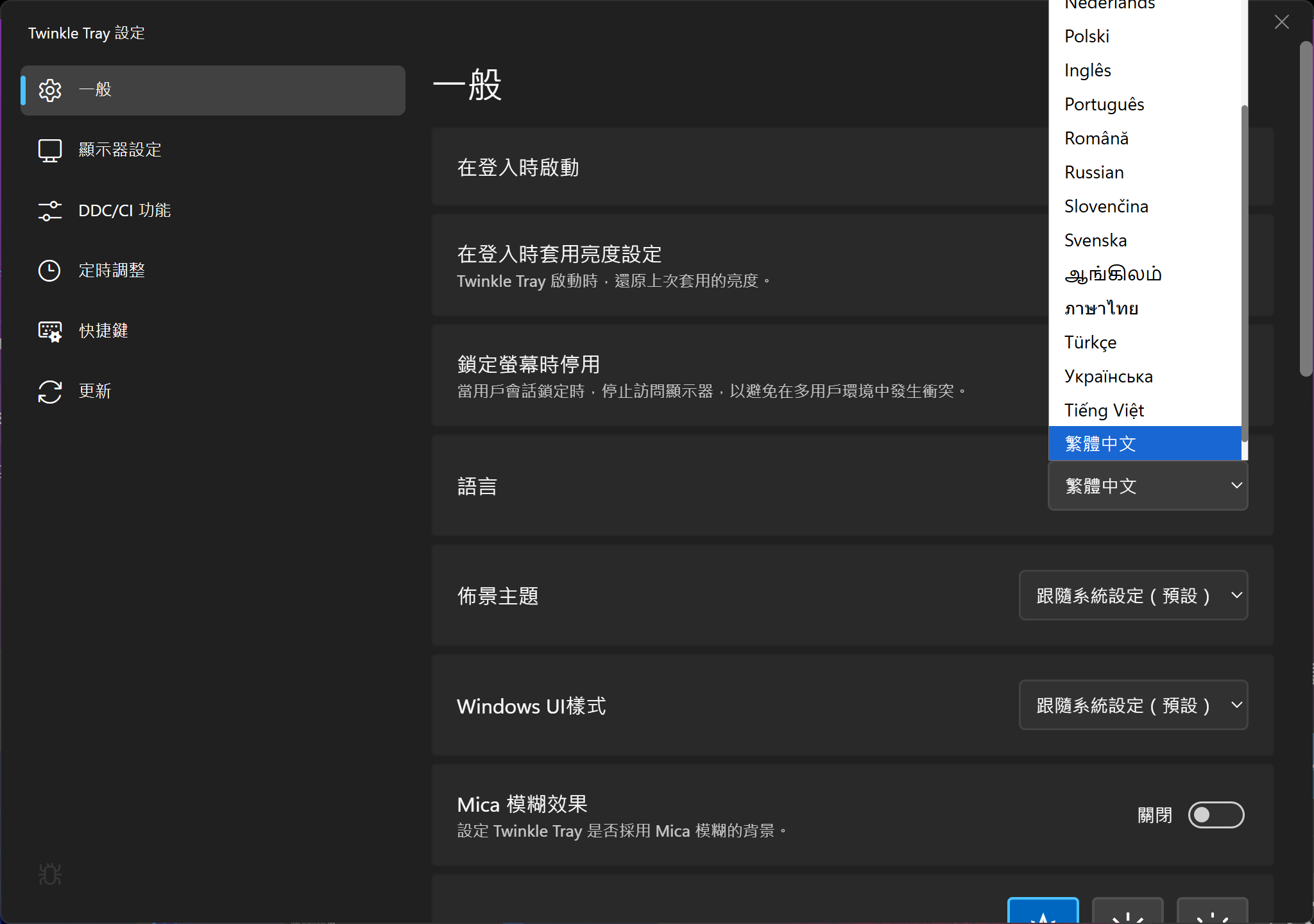
The interface supports Traditional Chinese, and you can set it to launch automatically at login
More Than Just Brightness, But Brightness Is Enough
Twinkle Tray communicates with monitors via DDC/CI. If your monitor supports it, you can also control contrast, volume, input source, and power state — though which options are actually available depends on the model.
On my setup, the MAG 274UPF E2 reports brightness, contrast, volume, input, and power state; the other monitor is detected too. In practice though, I mostly just use the brightness slider. It's good to know the rest is there if needed.
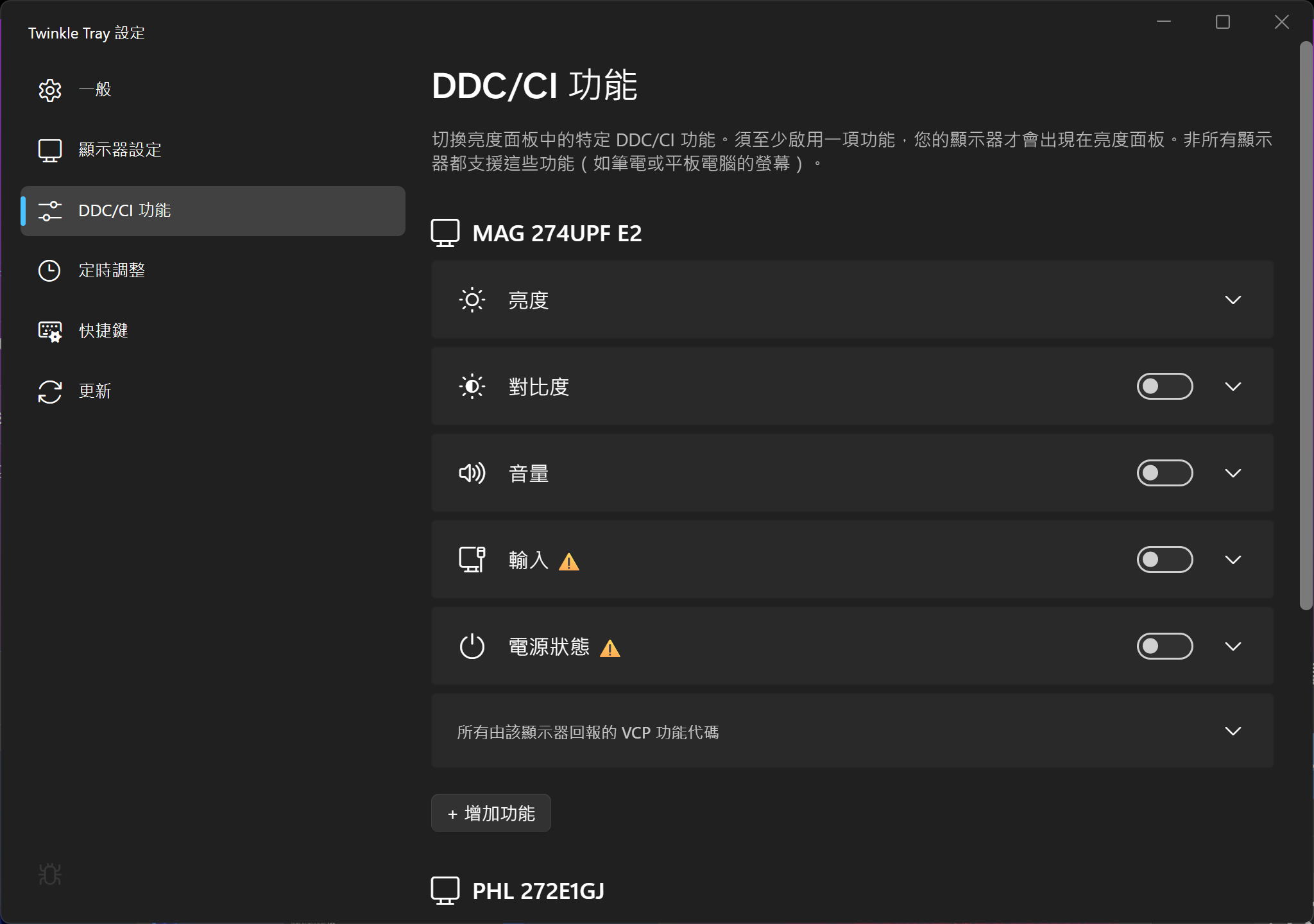
DDC/CI support varies between different monitors
If it doesn't detect your external monitor after installation, check your monitor's own menu to make sure DDC/CI is enabled. The project also notes that some USB/Thunderbolt docks, VGA/DVI connections, or specific GPU settings may not be compatible.
How to Download
The easiest way is to grab it from the Microsoft Store. That's what I did — updates are handled by the Store automatically after that.
If you'd rather skip the Store, the official website has an installer, or you can download the latest release from GitHub Releases.
If you use WinGet, it's a single command:
winget install xanderfrangos.twinkletray
Twinkle Tray supports Windows 10 and Windows 11, is free to use, and its source code is on GitHub. Once installed, look for the icon in the system tray — click it and start dragging sliders.