

BuhoCleaner Tested: The Mac Cleaning and App Uninstaller I’ve Used for Over a Year
I tested BuhoCleaner, a Mac cleaning tool, and share my experience after using it for over a year, including free version limits, paid pricing, menu bar monitoring, junk file cleanup, complete app removal, and everyday use cases.
Introduction
This time I want to share a tool I’ve personally used on my Mac for more than a year: BuhoCleaner.
To be clear up front, this is not a sponsored post. I bought the paid version myself and have been using it long-term. Later, I realized I had almost forgotten how much I originally paid, and I also forgot what the free version’s limits were. So in addition to writing about my own experience, I also checked the official pages again and sorted out what the free version can do and how the paid version is currently priced.
The reason I kept it is simple: it is not the kind of tool that asks you to study a bunch of cleanup rules. Instead, it puts several features I actually use often in one place. Things like junk file cleanup, complete app removal, large files, duplicate files, startup item management, memory release, plus CPU, memory, disk, and fan speed monitoring from the menu bar.
- BuhoCleaner Official Traditional Chinese Page
- BuhoCleaner Free Version and Paid Version Explanation
- BuhoCleaner Current Pricing Page
What Can the Free Version Actually Do?
BuhoCleaner is free to download, but not every feature is free. The official Trial explanation is pretty direct: the free version can scan your Mac, and it can remove up to 3GB of files for free. After that, you can still delete files manually, but if you want full one-click cleanup and all features unlocked, you need to buy a license.
When I checked the official docs again, the free version listed these features:
- Scan your Mac.
- Remove up to 3GB of files for free.
- Manage startup items.
- Find large files and duplicate files.
- Free up RAM.
- Shred files.
- Reindex Spotlight.
- Clear DNS cache.
- Monitor CPU load, CPU temperature, fan speed, RAM, network speed, and other information from the status bar.
In other words, it is not a trial version that is basically unusable. You can first scan your Mac to see what has piled up, and you can also use the menu bar monitor to check system status. But if your main goal is “fully remove apps with one click” or “clear a large amount of junk files at once,” the paid version is closer to the complete experience.
I think this needs to be said first, because Mac cleaning tools are easy to misunderstand. Free download does not mean completely free. The free version lets you try the workflow first, but it is not meant to clean your whole computer without limits.
Current Pricing: My Memory of Paying Around NT$300 Is No Longer Reliable
When I bought it, I remember it being quite cheap, maybe somewhere around NT$300, but I do not want to guarantee that, because this kind of software often has discounts, campaign prices, third-party bundles, or seasonal promotions.
When I checked the official pricing page this time, I saw the 2026 summer sale page:
- Yearly Plan: 1 Mac, 1-year subscription, currently listed at US$17.99, original price US$39.99.
- Lifetime Plan: 1 Mac, lifetime license, currently listed at US$25.99, original price US$67.99.
- Business Plan: 10 Macs, lifetime license, currently listed at US$55.99, original price US$155.99.
So if you check now, the price may not be the same as what I paid back then. I’d suggest looking directly at the amount shown on the official pricing page at the time, instead of using my old memory as the reference point.
I bought the one-time lifetime plan, because I do not really want to renew this kind of tool every year. A cleaning tool is not something I use heavily every day, but when I need to uninstall a large app, clear a batch of temporary files, or find files that are taking up space, it becomes very useful.
The App Uninstaller Is What I Use Most
After using BuhoCleaner for this long, the feature I open most often is actually not junk file cleanup. It is the app uninstaller.
On the surface, uninstalling apps on macOS is simple: drag the app into the Trash. But in practice, many apps leave behind preference files, caches, support files, helpers, login items, or other leftover files. Small utilities are usually fine, but for apps like browsers, development tools, video editing tools, virtual machines, and AI tools, the leftover files can sometimes be larger than you expect.
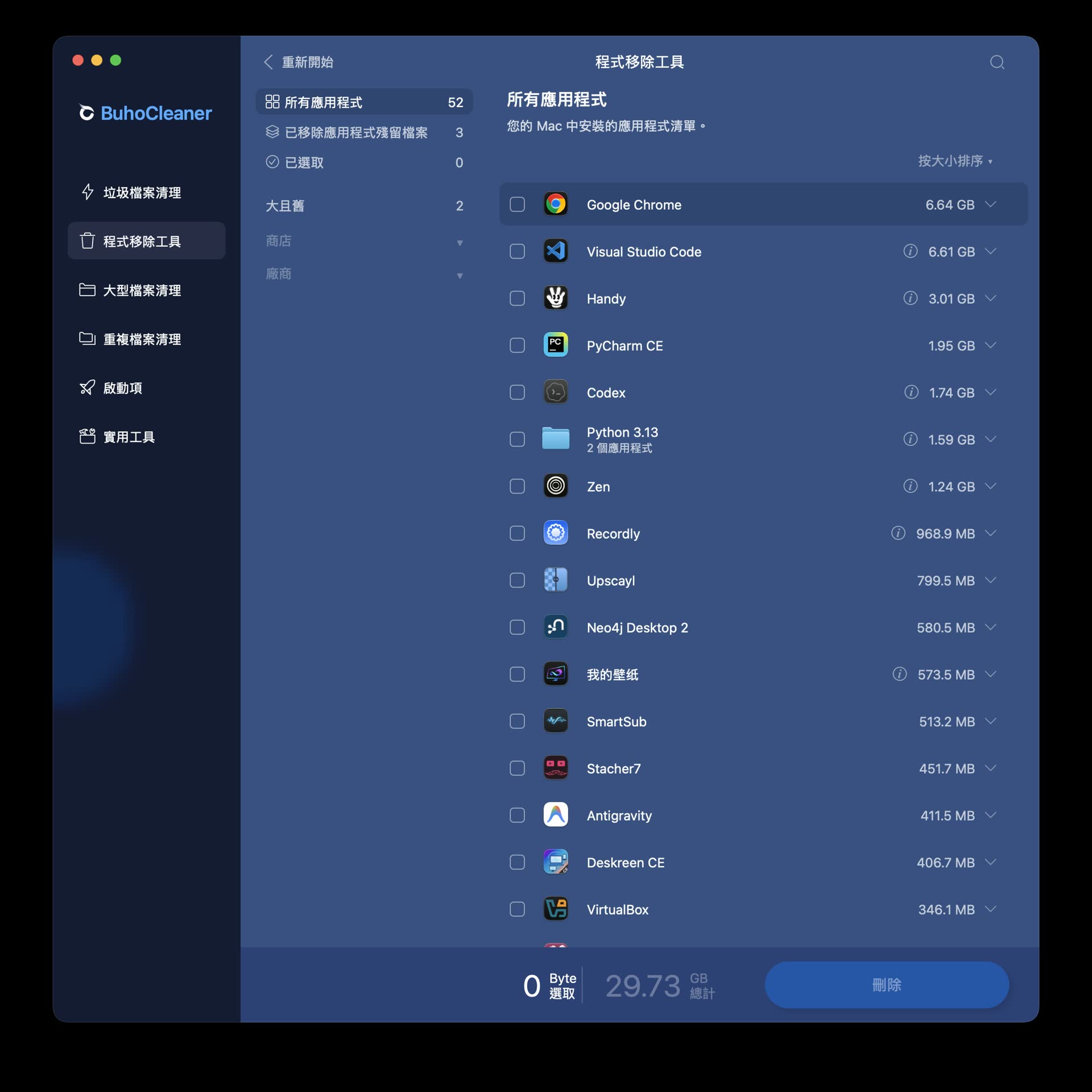
The feature I use most is the app uninstaller, where I can see how much space apps and related files occupy
The reason I like BuhoCleaner is that after it lists the apps, it also groups the related files together. You can see roughly how much space an app takes up, then decide whether to delete it.
This is very helpful for someone like me, who often tests tools, writes articles, and installs a bunch of apps. After testing a tool, if I only drag it into the Trash, I always feel a little uneasy. Using BuhoCleaner to do a complete uninstall at least feels more like cleaning the desk properly, instead of stuffing everything into a drawer.
The Menu Bar Monitor Is Surprisingly Useful
Another place I check often is the small panel in the top menu bar.
It can show CPU load, CPU temperature, fan speed, memory usage, network speed, and disk space. This information is not completely unavailable in macOS, but BuhoCleaner puts it into a small panel, so you can usually click once and know the current state of your Mac.
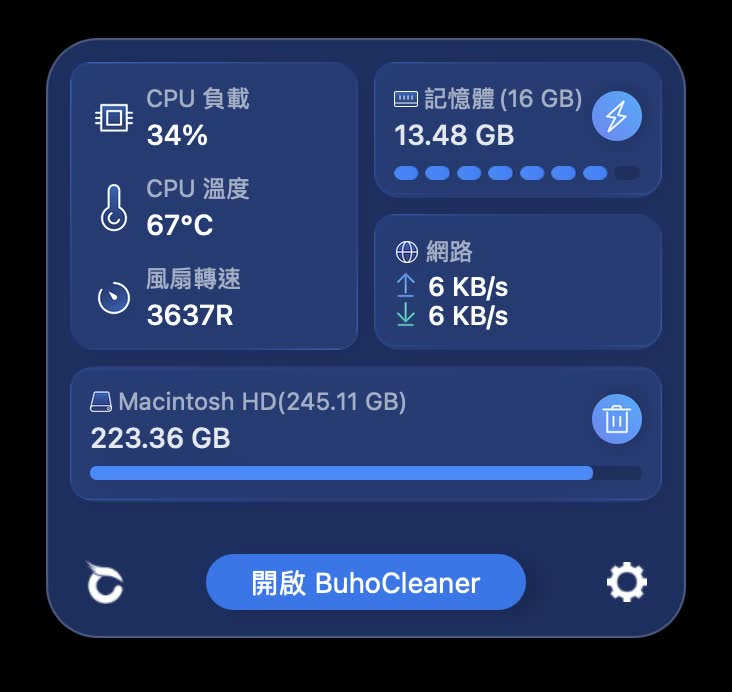
The menu bar panel lets you quickly check CPU, temperature, fan, memory, network, and disk status
The things I personally check most are CPU temperature, fan speed, and memory. Especially lately, when I often run local AI tools, video processing, screenshot recording, or a pile of browser tabs, my Mac occasionally gets hot all of a sudden. At that point, clicking the top menu bar gives me a rough idea of whether the CPU load is high, memory is tight, or a specific app is simply stuck.
It also has a one-click memory release button. I do not treat this as a magic speed-up button and press it all day, but sometimes after testing a bunch of tools and seeing memory pressure get high, pressing it once to bring the system back to a cleaner state does feel better.
Junk File Cleanup: Useful, But I Don’t Blindly Delete Everything
One of BuhoCleaner’s main official features is junk file cleanup. It scans system caches, app caches, logs, DMGs, Trash, and other data, letting you quickly find space that can be freed.
My own habit is this: after the first scan, I do not immediately select everything and delete it. I look at the categories first. This is especially true for development tools, design tools, and video tools. Some caches may be large, but they might be things your recent workflow still needs. Deleting them may not break anything, but it could make the next launch or reindexing slower.
So I treat BuhoCleaner as an “organizing tool,” not an “automatic decision-making tool.” It helps me find the problem; I then decide whether to delete it.
The things I feel less hesitant about are DMGs, Trash, obvious unused leftovers, and data left behind by deleted apps. These are usually things that should be cleaned up anyway. I just normally would not go digging through Library to find them myself.
Large Files and Duplicate Files Are Good for Occasional Checks
I do not use large file cleanup and duplicate file cleanup every day, but they are suitable for checking once in a while.
When Mac storage fills up, the real space hog is often not a few MB of cache. It is usually videos, screen recordings, installers, exported files, project folders, or duplicate downloads you forgot existed. After BuhoCleaner lists large files, you can quickly understand where your storage went.
Duplicate files require even more care. I usually start from safer locations like Downloads, Desktop, and video export folders. I do not start by scanning the whole system and deleting everything. Duplicate file tools are useful, but if you are not sure whether a file is needed by some app, do not rush to delete it.
This is also my attitude toward all cleaning tools: the closer it gets to user data, the slower you should go.
Who It Is For
I think BuhoCleaner is suitable for several kinds of people:
- People who often install, test, and remove Mac apps.
- People who do not want to manually find app leftover files inside Library.
- People who want a Mac cleaning tool with an intuitive interface.
- People who want to quickly check CPU, temperature, fan, memory, and network status from the menu bar.
- People who are willing to buy a license for the full feature set, instead of only looking for completely free tools.
But if you strongly dislike paid cleaning tools, or you are already familiar with the macOS file structure and know which caches and support files can be deleted, then BuhoCleaner is not as necessary for you. Many things can actually be done manually. It just organizes the workflow in a way that saves time.
Conclusion
For me, BuhoCleaner is not some huge tool that changes my workflow, but it is the kind of tool that stays installed after a while.
I use it most often for three things: fully uninstalling apps, checking system status, and occasionally cleaning junk files. Since I often install all kinds of software to write articles, then need to remove them cleanly after testing, BuhoCleaner is genuinely convenient in that regard.
The free version lets you try scanning, clean 3GB, view large and duplicate files, manage startup items, and use menu bar monitoring. If you only clean things occasionally, the free version is enough to see whether it fits you. But if, like me, you will use app uninstalling, junk file cleanup, and one-click cleanup over the long term, the paid lifetime plan is closer to the complete experience.
I would not say every Mac needs to have it installed. Cleaning tools should be used with some restraint, and knowing what you are deleting matters more than pressing the cleanup button. But based on my experience using it for over a year, BuhoCleaner’s interface, speed, and concentration of features make it the smoothest Mac cleaning tool I am currently using.