

DBX: A Lightweight Database Tool for 70+ Engines, Including Supabase
DBX is an open-source database client with an approximately 20 MB desktop installer. I connected it to Supabase and explored its multi-database workflow, editor themes, AI assistant, and MCP integration.
Introduction
I normally inspect my data directly in the Supabase dashboard, which is more than enough when a project is still small. My Taiwan Talk podcast project now contains a large collection of episodes and transcripts, and I have also started learning other databases. I did not want to switch tools every time I learned a new engine, so I tried DBX.
DBX is an open-source, cross-platform database client. Its official website currently lists support for more than 70 database engines, including PostgreSQL, MySQL, SQLite, Redis, MongoDB, and DuckDB. Supabase is my first connection, and I can keep adding other databases to the same workspace as I learn them.
For this test, I focused on two things: connecting to Supabase through PostgreSQL and running a simple SQL query. Both turned out to be more straightforward than I expected.
Keeping Different Databases in One Place
When creating a connection, DBX first asks you to choose a database type. Beyond PostgreSQL and MySQL, the list includes Redis, MongoDB, SQLite, Cloudflare D1, ClickHouse, Turso, and many others. Multiple connections can stay in the same sidebar, which is the main reason I want to keep using DBX.
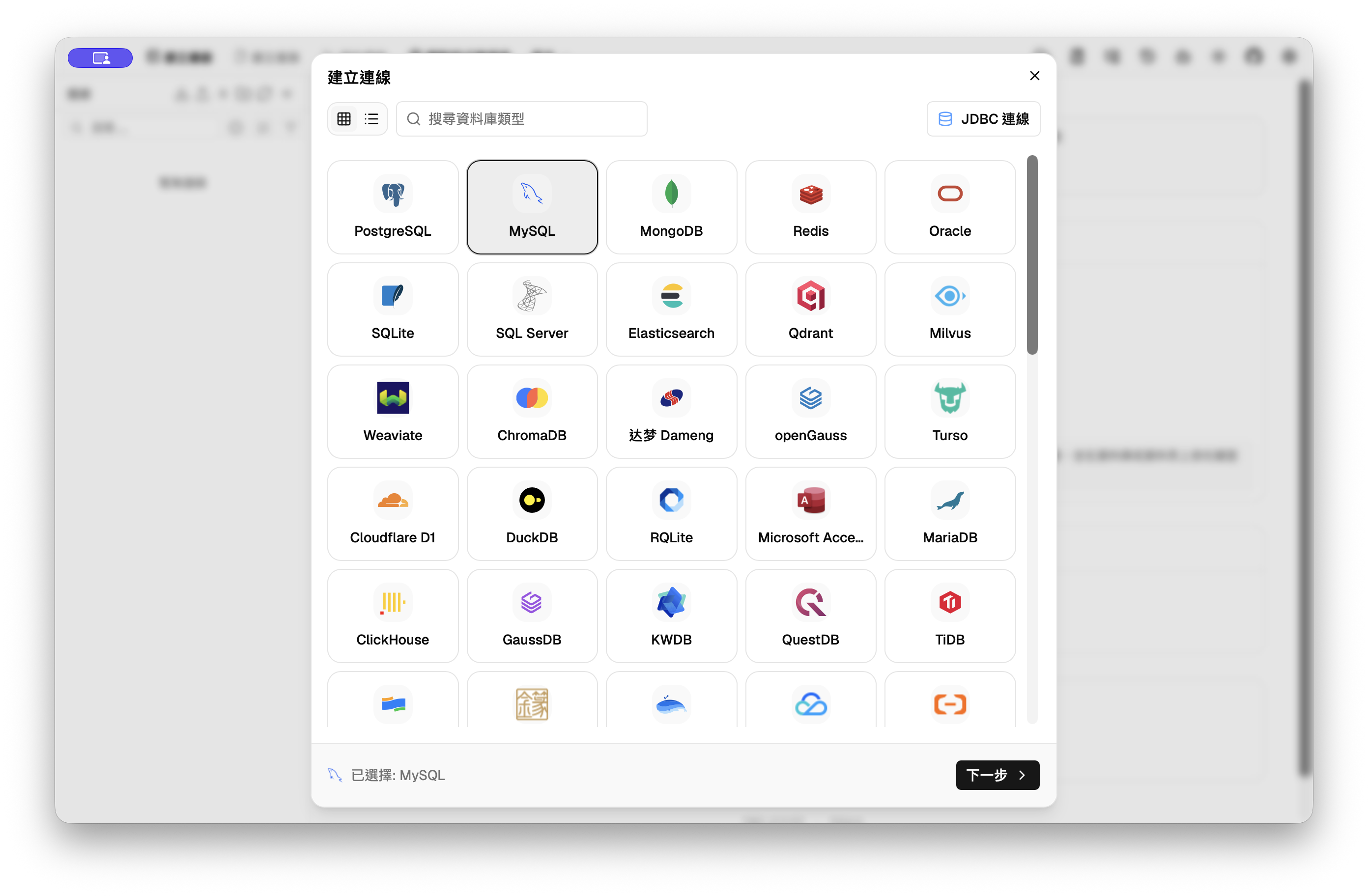
The connection screen gives a quick sense of how many database types DBX supports
That does not mean DBX replaces the Supabase dashboard. Supabase is still the most direct place to manage Auth, Storage, Edge Functions, and project settings. DBX is useful because it keeps tables, SQL, schemas, and connections to different database engines in one workspace.
Beyond the table browser and SQL editor I tested, the official feature list includes ER diagrams, schema comparison, import and export tools, and cross-engine data transfer. Its SQL editor also provides metadata-aware completion, formatting, selected execution, and query history. I did not test all of those features this time, but I will not need to find another tool when I start comparing schemas or moving data between engines.
Lightweight, Customizable, and Ready for AI Agents
DBX puts the approximately 20 MB desktop installer claim directly on its homepage. The desktop app is built with Tauri, while its core and native drivers use Rust. I did not run a formal benchmark, but browsing a large collection of episodes and transcripts, switching between tables, and displaying query results all felt smooth in this test.
The interface is more customizable than I expected. In the version I installed, the SQL editor offers nine themes, while the main interface can also switch its appearance and light or dark mode. Themes are not my first requirement for a database tool, but a query window often stays open for a long time, so being able to make it comfortable to read is useful.
DBX also includes an AI assistant for generating SQL, explaining queries, suggesting optimizations, and helping diagnose errors. Its MCP Server can expose saved DBX connections to agents such as Claude Code, Cursor, and VS Code Copilot, allowing them to inspect tables and run queries. The official MCP configuration blocks writes and dangerous SQL by default unless the user explicitly enables them. I did not connect an agent during this test, but it is the feature I most want to try next.
Connecting DBX to Supabase
Supabase is built on PostgreSQL, so I selected PostgreSQL in DBX and entered the host, port, user, password, and database. DBX can also parse a complete PostgreSQL connection URL, so the fields do not have to be copied one by one.
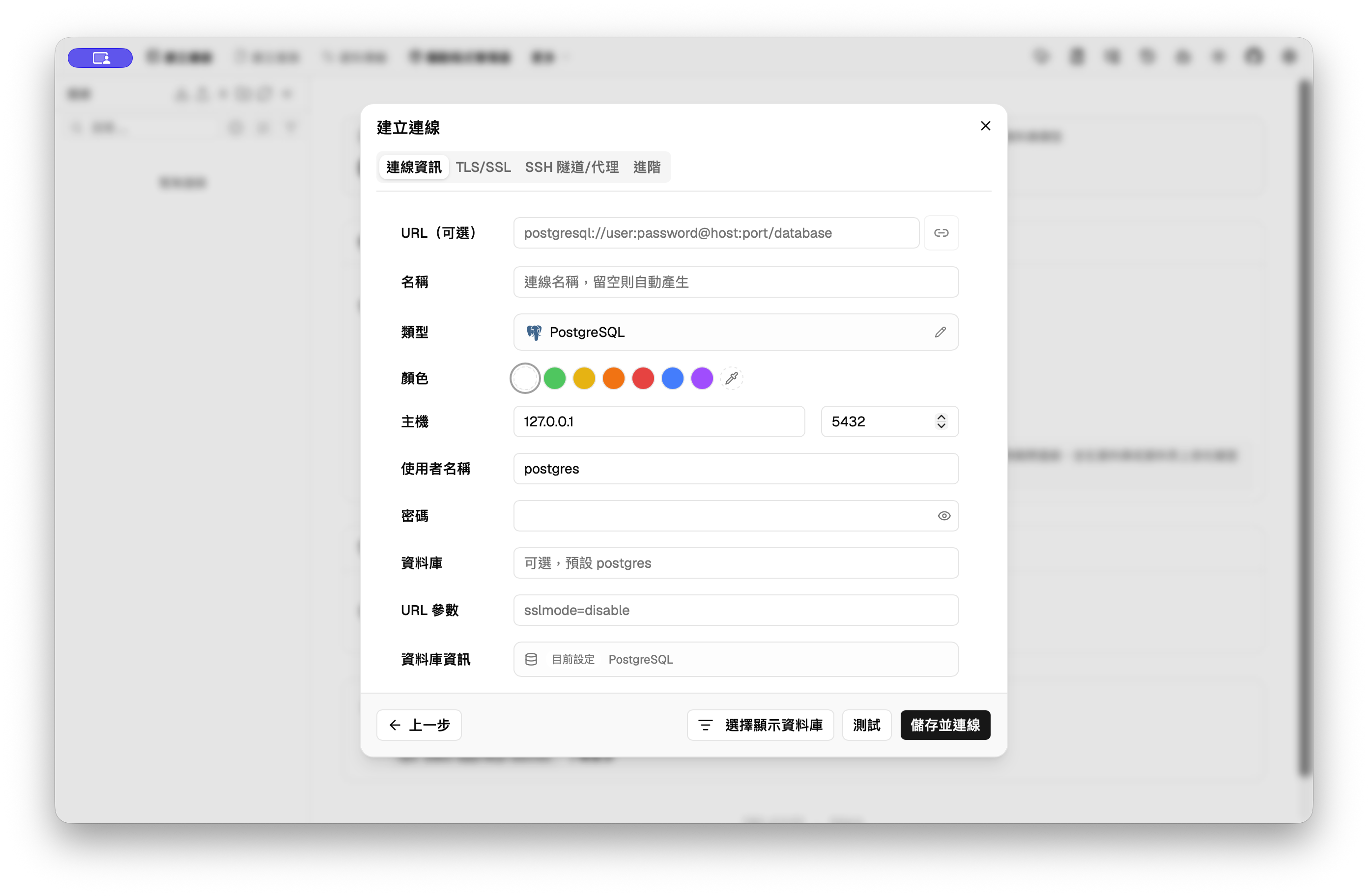
The PostgreSQL fields are clear, and DBX can also accept a complete connection URL
I first tried Supabase's default direct connection, but my network could not reach its IPv6 host. Switching to the Supabase Session pooler solved the connection problem. This does not mean everyone needs the pooler, but it is worth trying from the Supabase Connect screen if a direct connection keeps timing out on your machine.
There is another easy point to mix up: a database connection uses the database password, not the anon key commonly used by a Supabase frontend. A complete connection string also contains the account name, password, and host, so check the screen carefully before taking a screenshot or recording a video.
A Clear View of the Database Structure
Once connected, the left sidebar groups the database, schemas, tables, views, functions, and extensions. In my podcast project, the public schema contains two main tables, episodes and transcripts, and I can open either one to browse its contents.
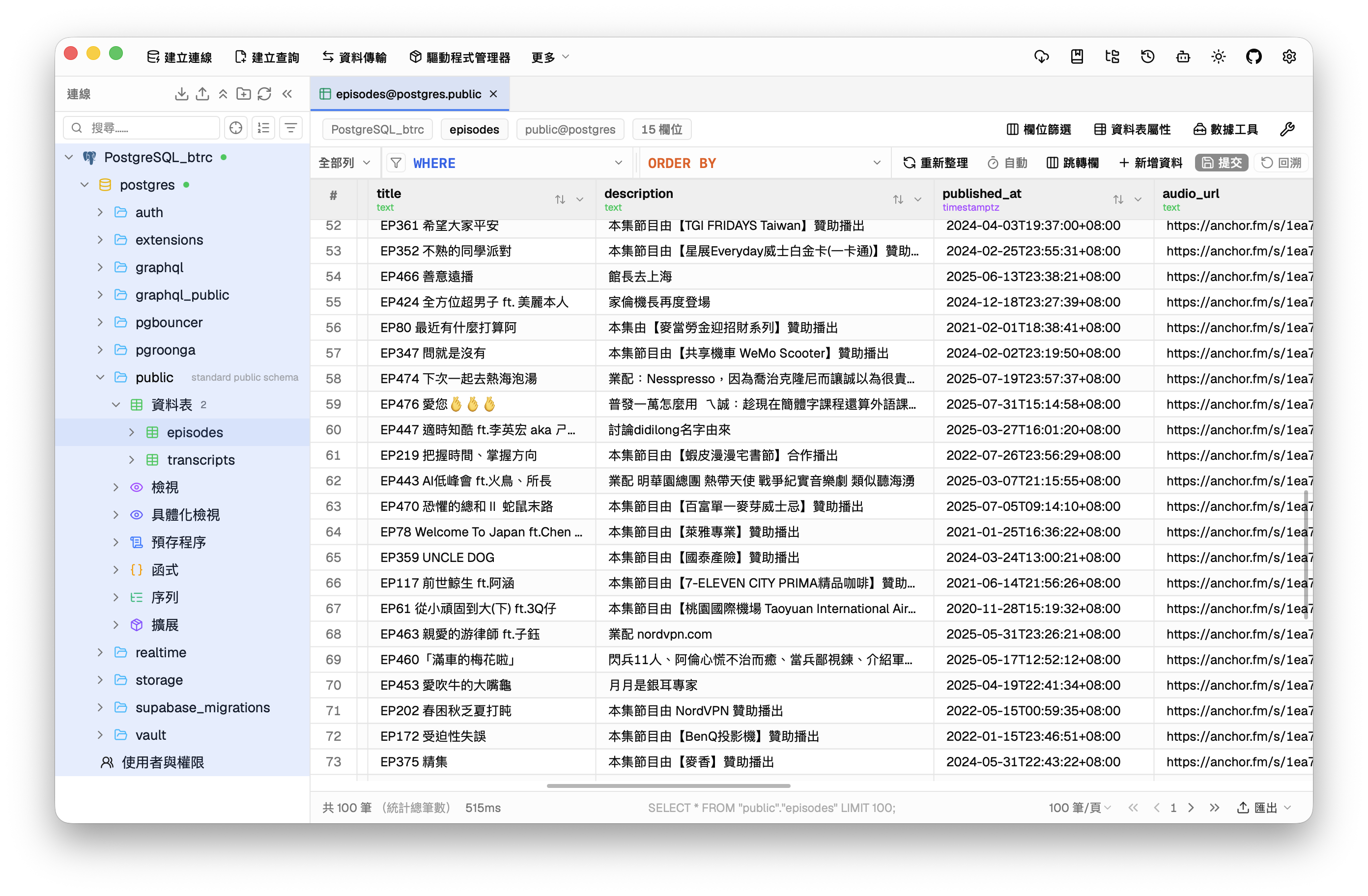
After connecting to Supabase, I could expand the episode and transcript tables directly
The screenshot contains public podcast metadata such as titles, descriptions, publication times, and audio URLs. DBX also provides WHERE and ORDER BY controls, column filtering, and export options, so checking a particular record does not require writing a separate script every time.
Querying the Latest Episodes with SQL
For the recording, I ran a simple read-only query that returns the IDs, titles, and publication times of the latest 20 episodes:
SELECT
  id,
  title,
  published_at
FROM public.episodes
ORDER BY published_at DESC
LIMIT 20;
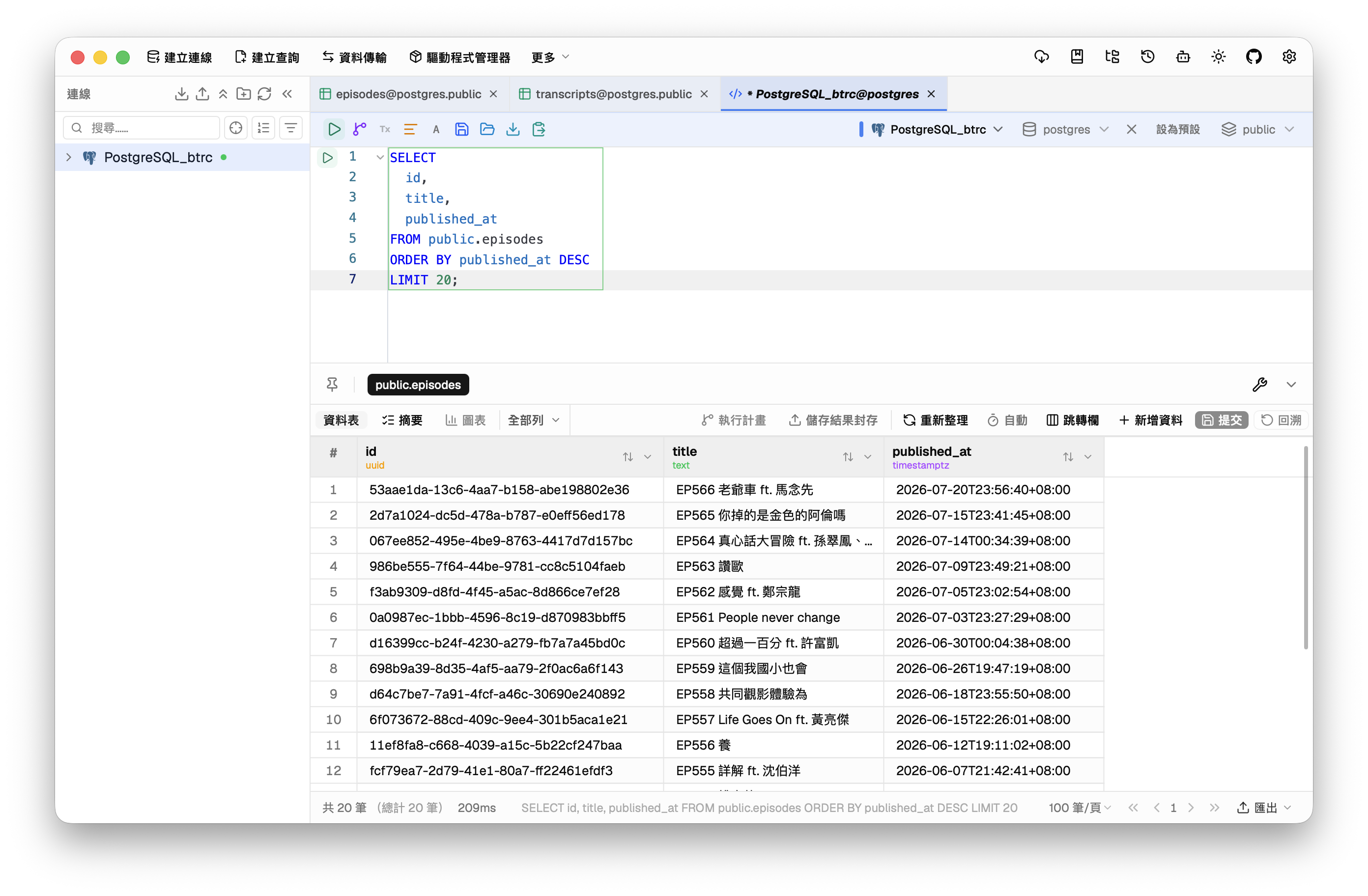
The query and its results share one screen, and this example only reads three public fields from 20 records
This is basic work for anyone who uses SQL every day, but I do not spend much time directly inside databases. Being able to confirm the table and columns on the left before running a query on the right makes it easier to see exactly what I am querying. Results can also be exported directly, so I would not need to write a temporary script just to prepare a CSV or Excel file.
Download and Installation
The most direct option is the DBX official website, which provides separate downloads for Apple Silicon Macs, Intel Macs, Windows, Linux x64, and Linux ARM64. Installers are also available from GitHub Releases.
On my Mac, I installed DBX through Homebrew:
brew install --cask dbx
After installation, open DBX and create a PostgreSQL connection. If the Supabase dashboard already covers everything you need and you only inspect one or two tables occasionally, another tool may be unnecessary. DBX starts to make more sense when a project has more tables, you run SQL regularly, or you also manage databases such as MySQL, Redis, and SQLite.