

OpenLogi Hands-on: A Local, Open-Source Logitech Options+ Alternative With a macOS HID Fix
OpenLogi is a local, open-source tool for selected Logitech HID++ peripherals, with button, DPI, and SmartShift controls. This guide covers Homebrew, macOS permissions, and one HID transport error; Windows worked directly after installation in my test.
Introduction
Logi Options+ can configure Logitech peripherals, of course, but it stays resident and requires an account. That feels like more than I need for changing a few buttons, DPI settings, and SmartShift.
This time I switched to OpenLogi. It is a Rust-based local tool: settings stay on my computer, with no Logitech account and no need to send peripheral data to a cloud service. I installed it on macOS with Homebrew. On Windows, I downloaded it from the official page, installed it, and it detected the device as soon as I opened it.
My first macOS connection did hit HID transport error: Failed to open device. I did not have to pair Bluetooth again or reinstall the app. Fully restarting OpenLogi's background agent brought the connection back. This looks like an isolated hiccup on my machine rather than something everyone will see, but I kept the screenshots and the troubleshooting steps here in case the same error appears for someone else.
What OpenLogi does
OpenLogi is a local-first, open-source replacement for the parts of Logitech Options+ that I use most. It manages supported Logitech HID++ peripherals, including button mappings, DPI, SmartShift, and per-app profiles.
It does not work with every Logitech mouse or keyboard. Before installing, check the official site and FAQ for your model and connection method. Bluetooth-direct connections, Logi Bolt receivers, and Unifying receivers can have different support situations.
Once connected, the home screen showed the device, connection state, Bluetooth indicator, and battery level.
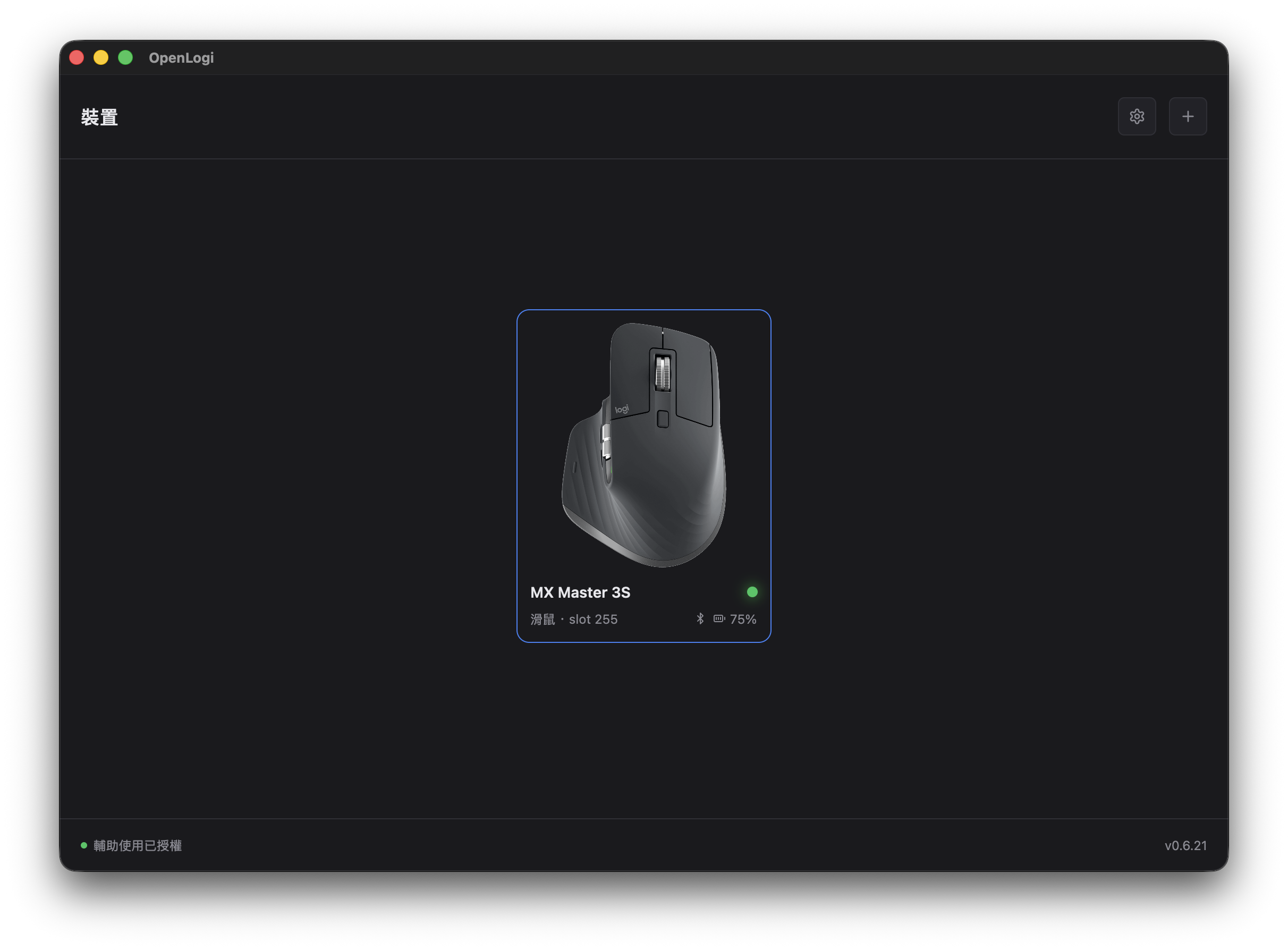
Once connected, OpenLogi shows the device Bluetooth state and battery level.
Download and installation
Start from the official OpenLogi site or the GitHub Releases page. Windows users can download the official installer there, while macOS users can also choose the DMG.
I used Homebrew on macOS:
brew install --cask openlogi
For Windows, I downloaded the official build, installed it, and opened it. There were no macOS-style privacy prompts, and my mouse was detected immediately. That was my own Windows test result; other hardware and connection methods may behave differently.
One thing to do first: fully quit Logi Options+ if it is installed. Both apps can need HID++ access, so running them together can cause a device conflict.
macOS permissions to enable first
If you connect a Logitech peripheral directly over Bluetooth, the first OpenLogi launch directs you to System Settings → Privacy & Security → Accessibility, where you enable OpenLogiAgent. This is the background agent, so enabling only the OpenLogi app is not enough.
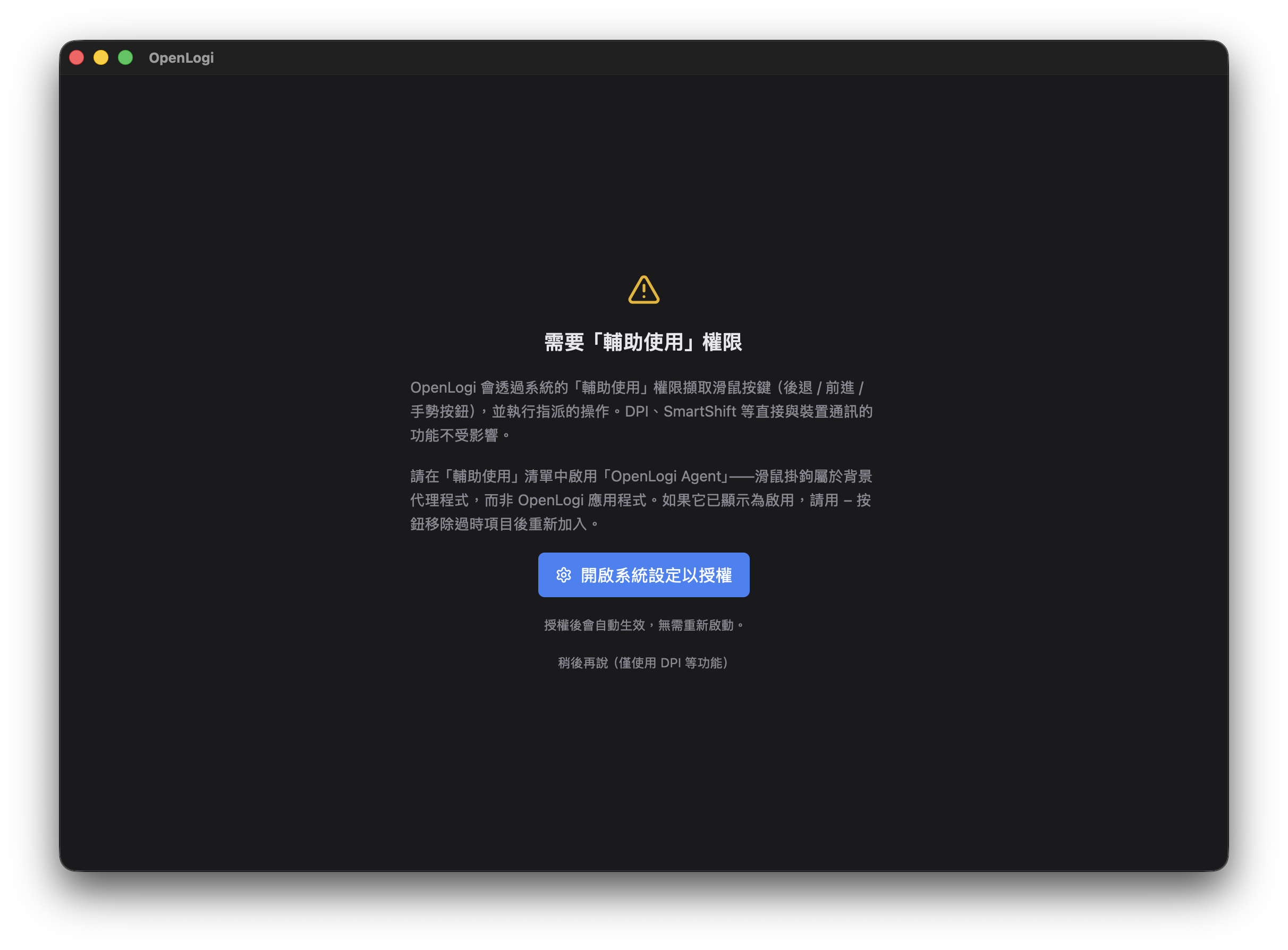
The prompt specifically asks for permission for OpenLogiAgent.
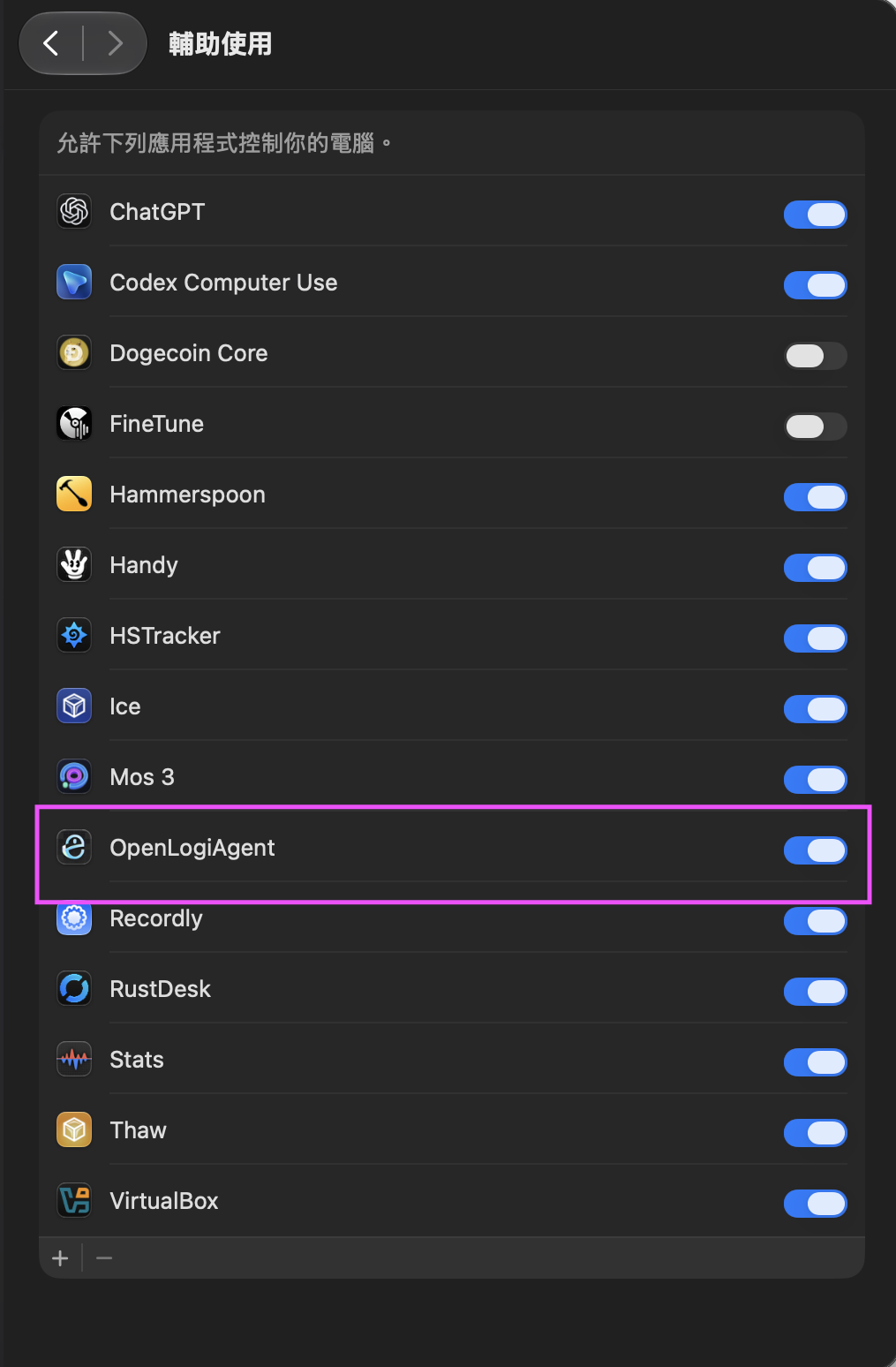
Enabling OpenLogiAgent in Accessibility allows button and gesture remapping to work.
Then open OpenLogi Settings and make sure these three permissions are granted:
- Accessibility: lets OpenLogi handle gestures and button remapping.
- Input Monitoring: reads HID++ data, especially for Bluetooth-direct mice.
- Bluetooth: lets OpenLogi use CoreBluetooth.
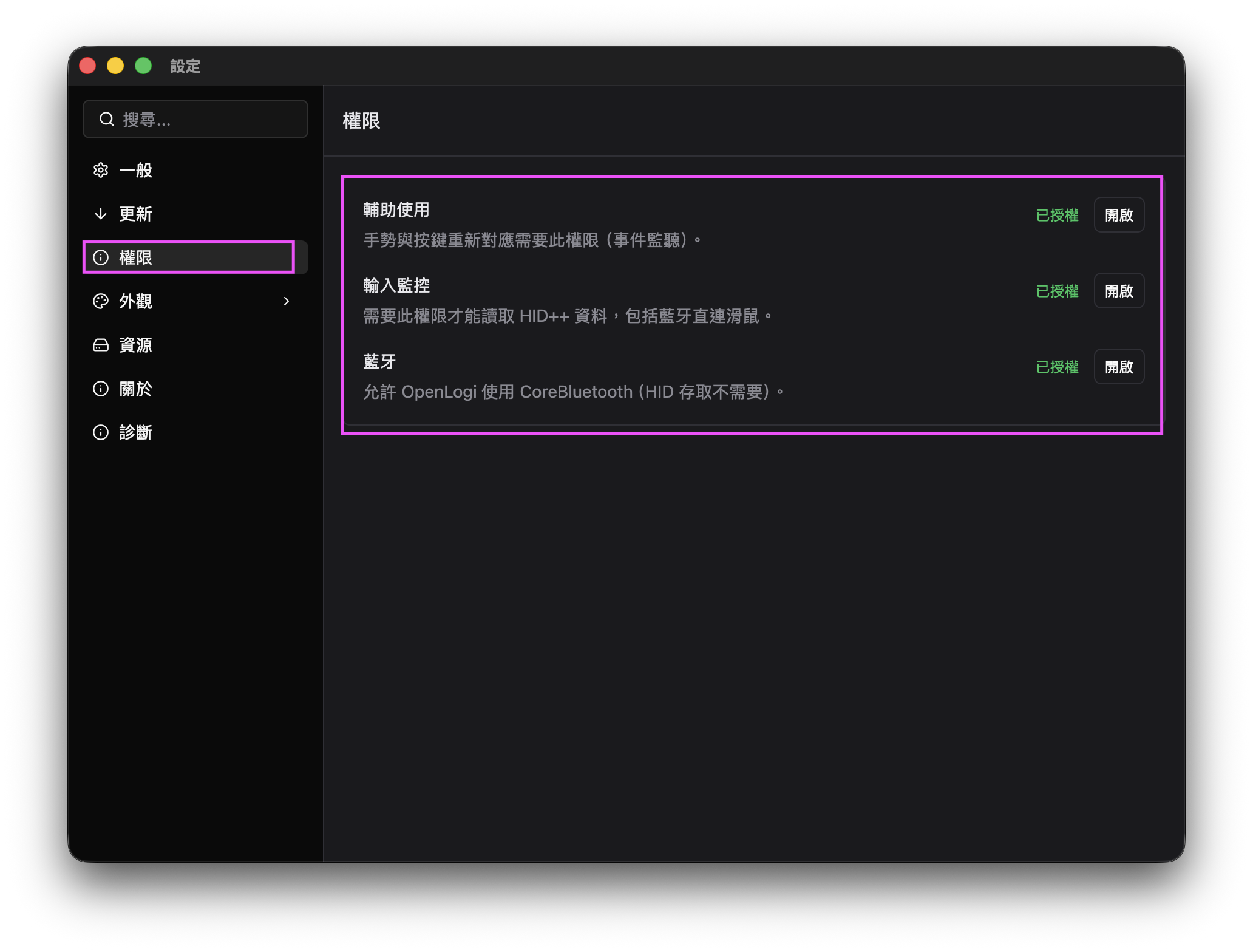
For a Bluetooth-direct device, I check all three permissions first.
Normally, OpenLogi should discover the device once those permissions are enabled.
The HID connection error I encountered
Mine was not completely smooth. All three permissions were enabled, but adding the device still showed:
HID transport error: Failed to open device
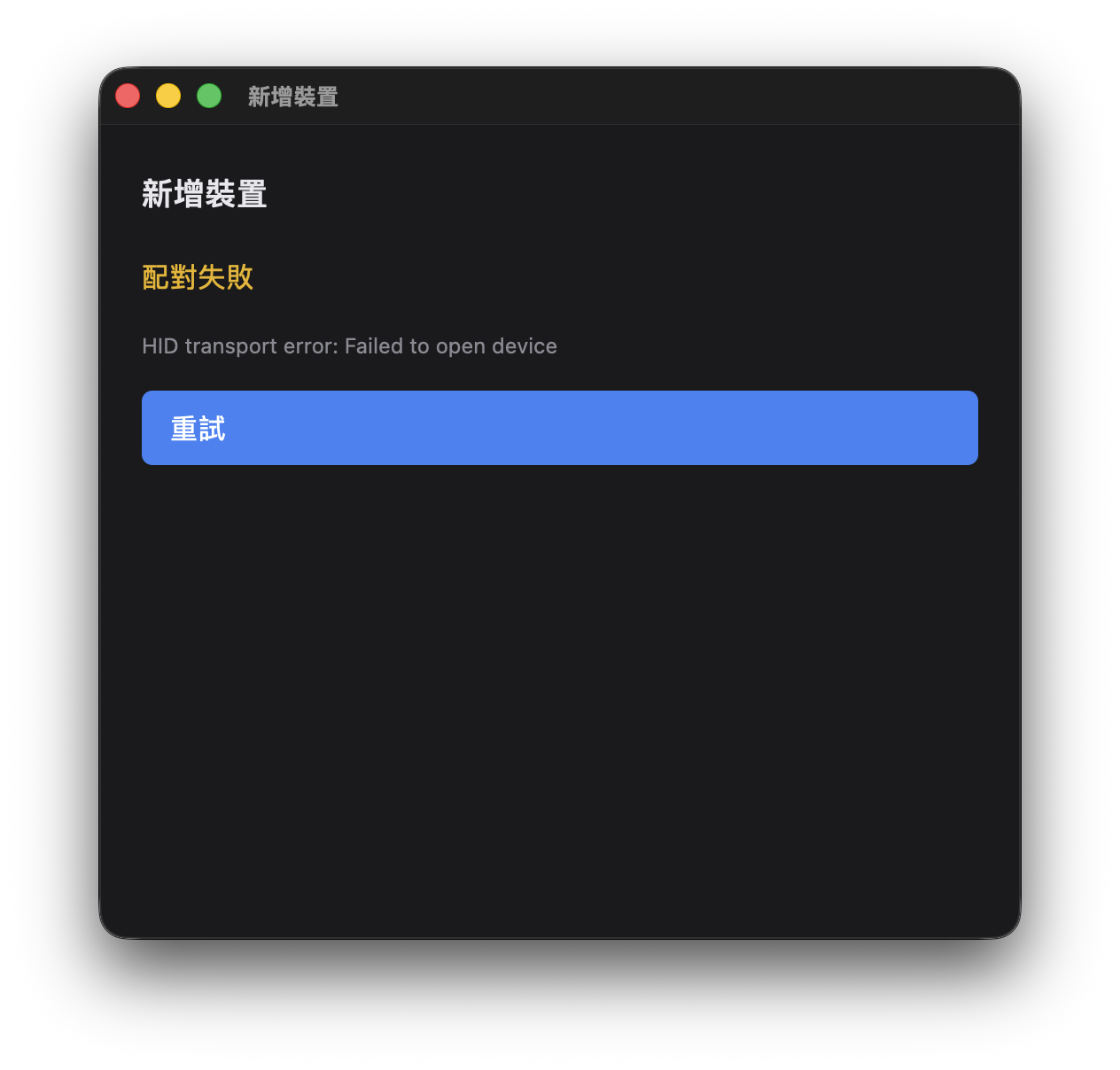
The error appeared even after the permissions had been granted.
I could not find an official definition of this exact screen, so I would not present this as a required step for everyone. On my machine, it looked as if OpenLogiAgent's HID connection session had become stuck.
This was the order that solved it for me:
- Confirm that Accessibility, Input Monitoring, and Bluetooth are granted in OpenLogi.
- Confirm that Logi Options+ is not running in the background.
- Fully quit OpenLogi so that the background OpenLogiAgent restarts, then open OpenLogi again.
- Return to Add Device and reconnect.
After the restart, OpenLogi detected the device. If you see the exact same Failed to open device message, this is a reasonable first sequence to try. It is not a universal fix, though. If restarting does not help, report the model, macOS version, connection type, and an error screenshot in a GitHub Issue.
My takeaway
What I value most about OpenLogi is that common Logitech peripheral settings stay local. I do not need to keep Options+ running just to change a few buttons.
Windows was almost install-and-use in my test. macOS required the extra permissions, and I happened to hit the HID connection hiccup. Restarting OpenLogiAgent fixed it, and Bluetooth connection, battery detection, and the settings screen now work normally. The error will not necessarily happen to everyone, but if it does, start with permissions, a possible Options+ conflict, and a background-agent restart.