

WhatCable Hands-on: See What Your Mac USB-C Cables Can Actually Do
WhatCable is a macOS menu-bar app that reads the negotiated state of USB-C cables, ports, and connected devices. In my test it surfaced USB4/Thunderbolt at 40 Gbps, 240W capability, an e-marker, and 4K 144Hz display details.
Introduction
The frustrating part of USB-C is that nearly every cable looks the same. A cable that charges a device may not run a fast SSD. A cable that drives a display may not be using the mode it should. Once the packaging is gone, it is usually guesswork.
WhatCable is a macOS menu-bar app that reads information reported by the Mac, cable, and connected device, then explains which part is limiting charging or data speed. It is not a benchmark or a physical test instrument. It reads the capabilities negotiated by the current USB-C or Thunderbolt connection. For anyone with a pile of cables, external SSDs, displays, and hubs, that is already very useful.
My test was smooth from start to finish. I installed it, opened it, and used it without permission prompts or connection issues.
What cable information it showed me
WhatCable separates the connection into the Mac port, the cable, and the device at the other end. The first card identified this connection as Thunderbolt / USB4, currently operating at the full 40 Gbps data rate.
It also showed details that are usually hard to confirm:
- The 40 Gbps connection uses two 20 Gbps lanes.
- The cable has an e-marker chip that reports its capabilities.
- It is rated for 50V / 5A, up to 240W.
- WhatCable confirms a Thunderbolt cable capable of 40 Gbps.
- The connected ASMedia 246x device is also maintaining a 40 Gbps connection.
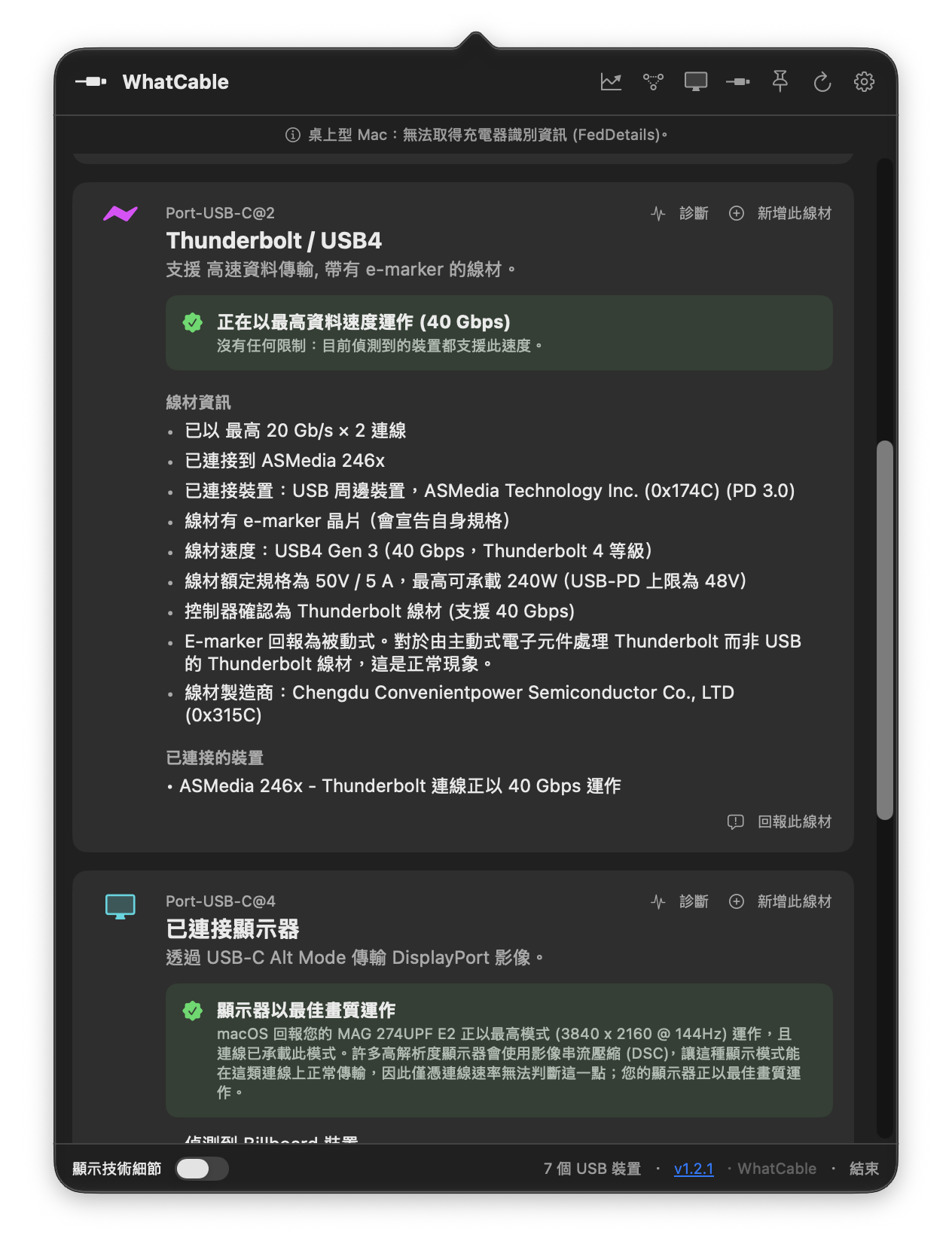
The app puts the cable, device, and port reports into one card.
The part I found most useful is that it does not stop at saying “Thunderbolt cable.” It shows the manufacturer reported by the e-marker and whether it is a passive cable. That is enough to tell me what the cable claims to be without trying to read tiny text on the outer jacket.
There is one important boundary: an e-marker reports the cable's own capabilities. WhatCable does not open up a cable and verify its materials. It is excellent for spotting obvious capability differences and current bottlenecks, but it is not an instrument for proving whether a cable is genuine.
It also shows the display connection state
The second card in my test was a display connection. WhatCable showed DisplayPort being carried through USB-C Alt Mode and that the display was running at its best available quality. The MAG 274UP E2 in the screenshot is running at 3840 × 2160 and 144Hz.
It also explains the limitation: this connection uses Display Stream Compression (DSC), so cable speed cannot be derived from the actual display transfer rate. The app can still confirm that the display is not being forced into a lower-quality mode because of the connection.
This is useful for diagnosing the classic “I bought a high-spec display, so why is it only at 60Hz?” problem. You can first check whether the cable, Mac port, hub, or display is the bottleneck instead of immediately buying another cable.
The top of the screen also says that my desktop Mac cannot retrieve charger identification information (FedDetails). I could not read that field on this machine, but the cable and display connection details below it still appeared normally, so I would not treat that message as a cable fault.
Installation
There is an official download page and GitHub Releases. If you use Homebrew, I installed the cask provided by the author:
brew install --cask darrylmorley/whatcable/whatcable
WhatCable stays in the menu bar after installation. It requires macOS 14 Sonoma or later and currently supports Apple Silicon Macs only. Once it is open, plugging in a charger, hub, SSD, or display updates the relevant connection status automatically.
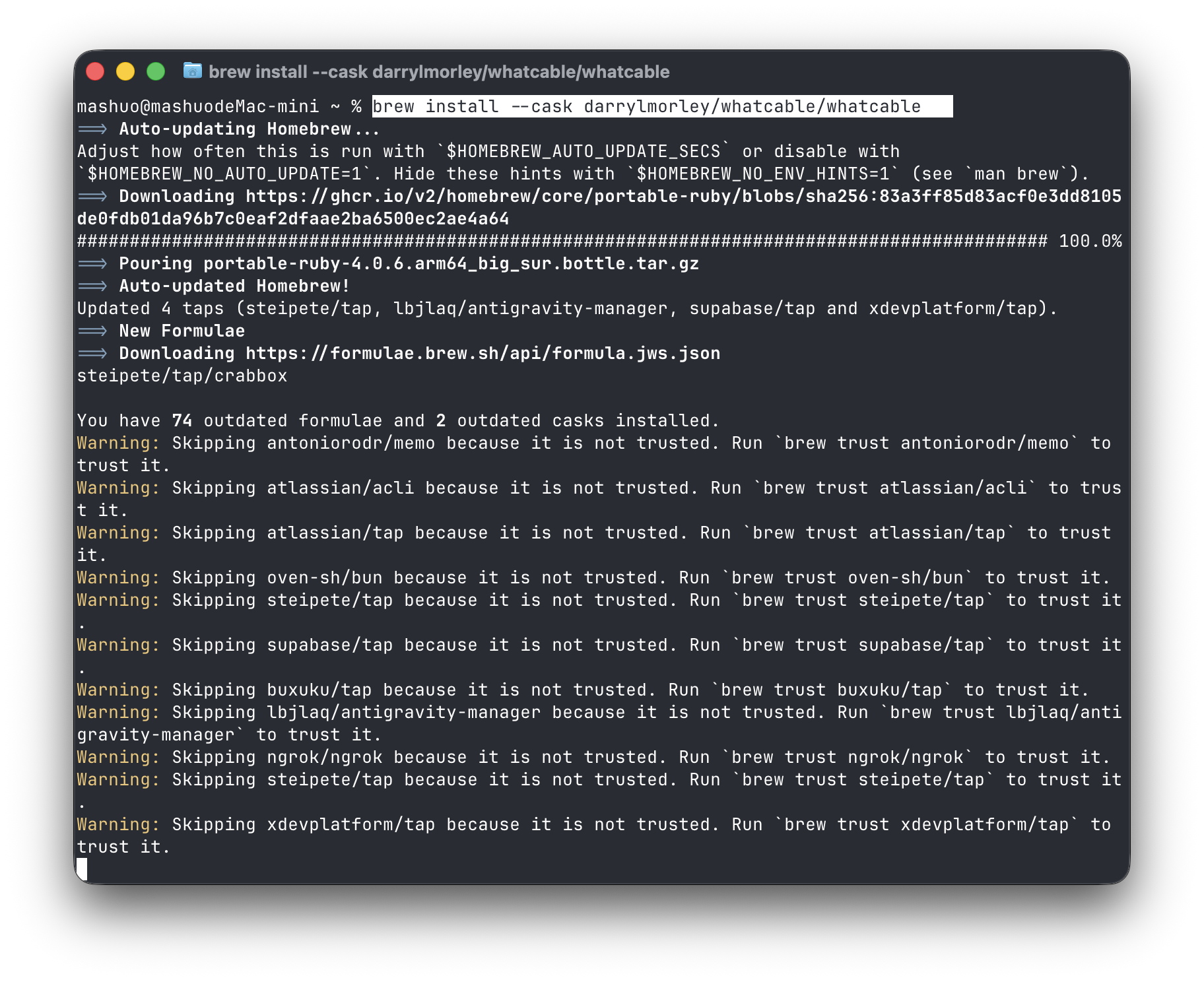
I installed WhatCable directly with Homebrew.
Few settings, but two are worth knowing
WhatCable is a menu-bar tool by default. You can launch it at login and choose whether to keep it in the menu bar. Enable “Show technical details” when you want to see more of the raw connection data.
Another practical option is “Skip deep USB probes.” According to the official guidance, some KVM switches and hubs can behave oddly when queried in depth. If a connected KVM or hub starts acting up, enable this option so WhatCable no longer reads the detailed USB device capabilities.
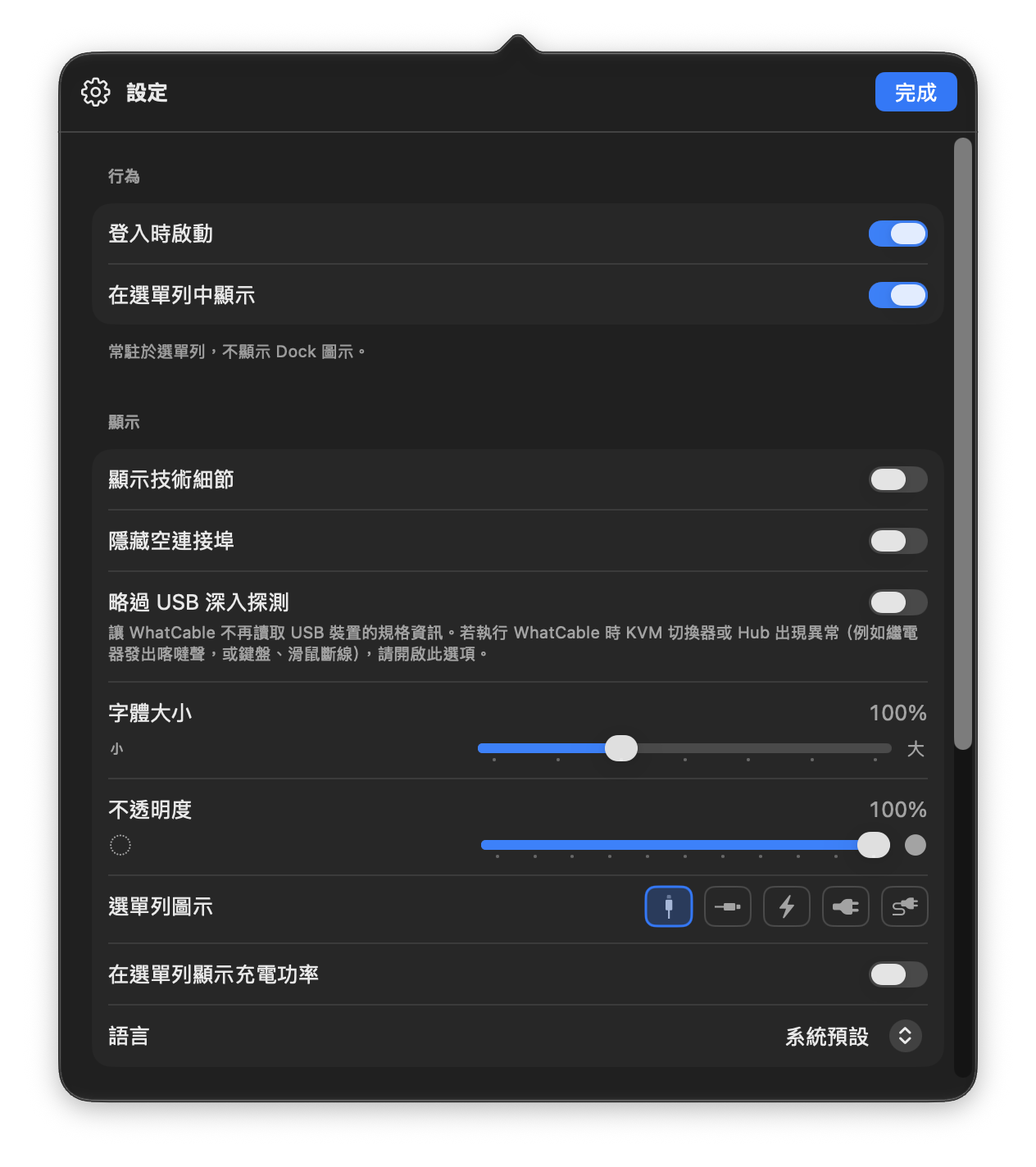
The settings cover the essentials and provide a fallback for troublesome hubs or KVMs.
Who it is for
If you only have one charging cable on your desk, WhatCable may not change much. But with external SSDs, 4K displays, docks, hubs, or a drawer full of unlabelled USB-C cables, it removes a lot of guessing.
I would keep it as a diagnostic tool: plug something in, check the current connection rate and bottleneck, then decide whether to swap the cable or use another port. It makes information that normally stays buried in system details much easier to read, without requiring an account or a setup process.