

Mos Review: Make an External Mouse Wheel Feel Smooth on macOS
Mos is a free macOS mouse utility that turns the step-by-step feel of an external mouse wheel into smooth motion. It also supports independent scroll direction and per-app scrolling profiles.
Introduction
Mos is a free utility for improving the scrolling experience of an external mouse on macOS. It turns the step-by-step input of a wheel into smooth motion, and it lets you configure scroll direction and scrolling parameters for individual apps.
If you use an external mouse to read long web pages, documents, or code on a Mac, you may know the difference: the trackpad scrolls continuously, while a wheel can feel like it moves in fixed steps. Mos addresses that specific problem.
Related links:
The external-mouse scrolling problem on macOS
The Mac trackpad captures very fine scrolling input, while an external mouse wheel sends discrete steps. The mouse itself can feel great, while a web page still does not scroll continuously.
Mos turns those wheel inputs into smooth movement with inertia. It does not simply make scrolling faster; it fills in the transition between inputs. Long articles, settings pages, and PDFs no longer move one visible notch at a time.
It does not change the way you use a mouse. It simply removes the choppy feeling that is most noticeable while scrolling.

Setup: start with the defaults
When you first open Mos, enable smooth scrolling and start there. The defaults are already enough to make most mouse wheels feel much better. Only adjust the minimum step, speed gain, and duration if it feels too slow or too floaty.
The two most useful global options are:
- Enable smooth scrolling: Mos's core feature, which removes the fixed-step feel of a wheel.
- Reverse scrolling direction: This makes the mouse direction match the trackpad direction I am used to.
The screenshot shows an example setup: a minimum step of 16.25, speed gain of 4.42, and duration of 4.35. These are not universal recommendations. Wheel resolution, the content you read, and your scrolling habits all differ, so change one setting at a time.
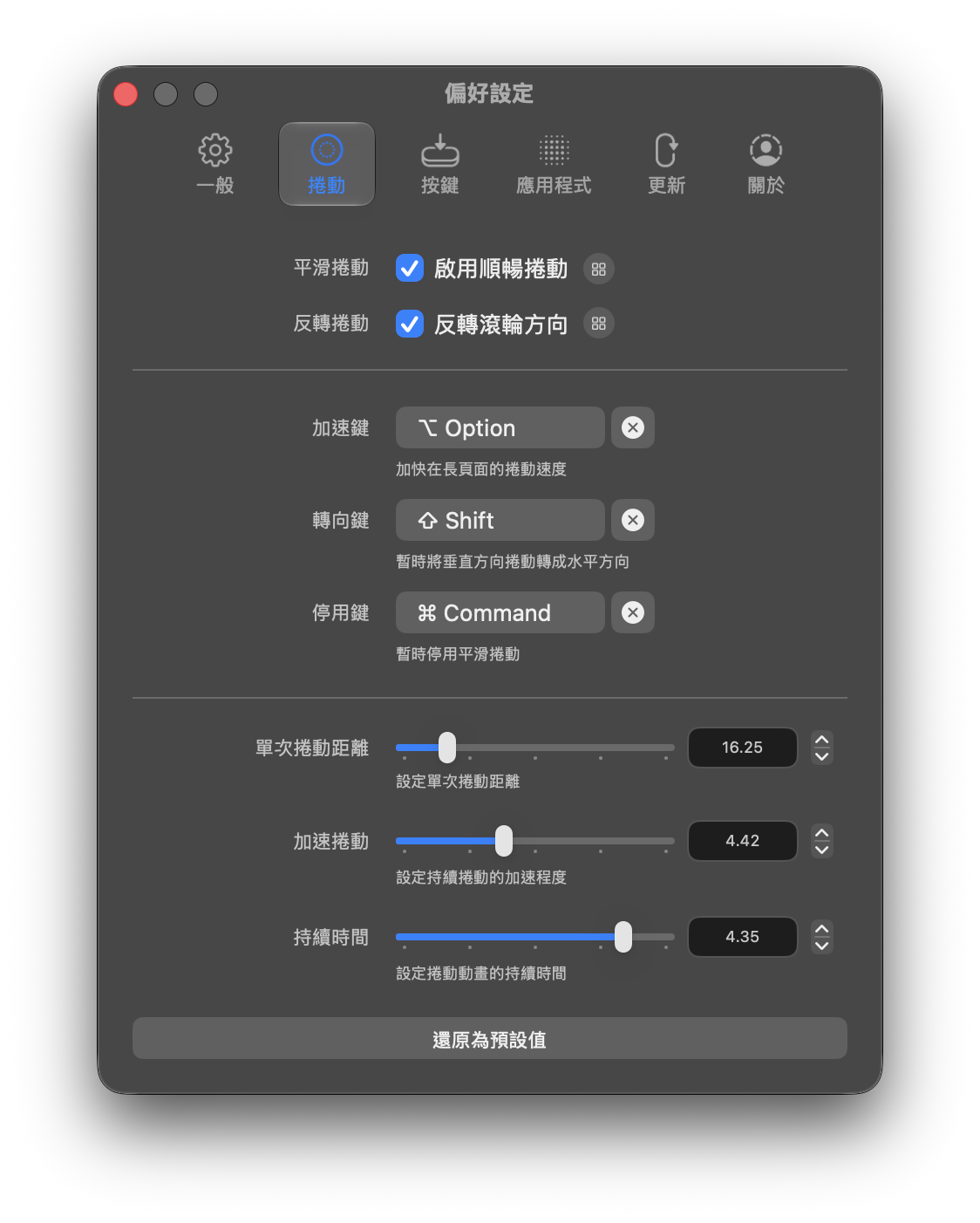
Mos can also assign three useful modifier keys: hold Option to accelerate, hold Shift to temporarily turn vertical scrolling into horizontal scrolling, and hold Command to disable smooth scrolling. They are useful in very long pages and wide tables.
Every app can have its own settings
Mos is not limited to a global setup. It can create a separate scroll curve for every app. Browsers, PDF readers, and code editors can each use their own distance, acceleration, and duration instead of sharing the global values.
Zen is only the example in the screenshot. Add a separate profile when a particular app does not feel right; there is no need to configure every app from day one.
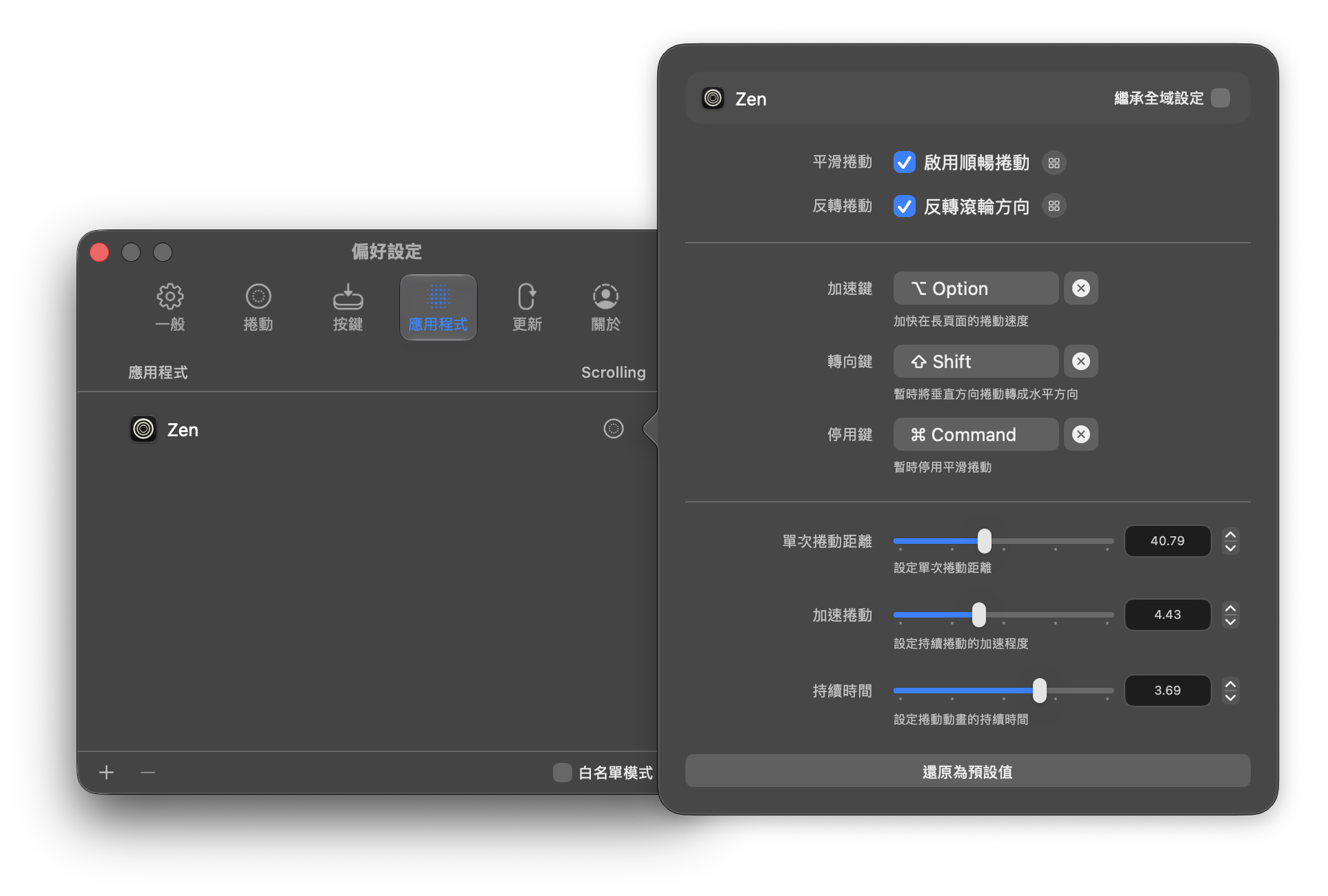
The official app also includes button bindings and Logitech HID++ support. If you want to use mouse buttons for Mission Control, switching Spaces, or keyboard shortcuts, there is more to explore. For most people, getting the wheel to feel smooth is enough.
Installation: Homebrew is the fastest route
The simplest starting point is the official Mos download page. You can download Mos.app from GitHub Releases and drag it into Applications. If you manage apps with Homebrew, run:
brew install --cask mos
On first launch, macOS will ask for Accessibility permission. Mos needs it to read and process scroll events, so this step is required. After granting it, enable smooth scrolling and use the defaults for a few days before tuning anything.
Mos is free to download and use. Its website currently lists v4.2.1 and support for macOS 10.13 and later. If you use an external mouse with a Mac, install Mos before spending time on a pile of other mouse-configuration utilities.
Is it worth installing?
If scrolling with an external mouse feels choppy on a Mac, Mos is worth trying first. It is free, quick to install, and its core setup is simple: enable smooth scrolling, then adjust direction or per-app settings only when needed.
PS: The mouse used for this hands-on test is a Logitech MX Master 3S.