

Hands-on with OmniVoice Studio, a Local AI Video Dubbing Tool, plus a macOS Installation Pitfall Guide
I recently tested OmniVoice Studio, an open-source alternative to ElevenLabs + HeyGen. It supports 646 languages, runs automatic local video dubbing, and even works on a Mac mini. This article covers my hands-on notes, how to bypass macOS quarantine, and a voice comparison between Traditional Chinese and Simplified Chinese input.
Introduction
If you have used AI voice and video dubbing tools like ElevenLabs or HeyGen, you have probably been impressed by their generation quality, while also being put off by their expensive subscriptions or cloud privacy concerns. In simple terms, OmniVoice Studio is an open-source ElevenLabs + HeyGen alternative that runs entirely locally.
The advantages of running it locally are pretty significant:
- Fully local: No API key, no account registration, and all computation happens on your own machine, so privacy is much less of a concern.
- Low resource requirements: It can run smoothly even on a regular Mac mini. If the GPU or VRAM is not enough (
VRAM <= 8GB), it automatically and intelligently offloads TTS tasks to the CPU. - Supports 646 languages: It supports a huge number of languages, including many dialects, accents, and emotion controls.
- End-to-end automatic video dubbing: Upload a video or paste a YouTube URL, and it can automatically transcribe subtitles, translate them, generate new speech, isolate vocals, remix the audio, and export a new MP4.
- Complete GUI: Unlike many open-source projects that only provide a command line or a rough Gradio interface, it ships as a polished cross-platform Tauri desktop GUI application.
UI and Setup Demo
The image below shows the initial setup process after launching OmniVoice Studio. On first launch, it automatically detects your hardware environment and configures the corresponding models and runtime setup:
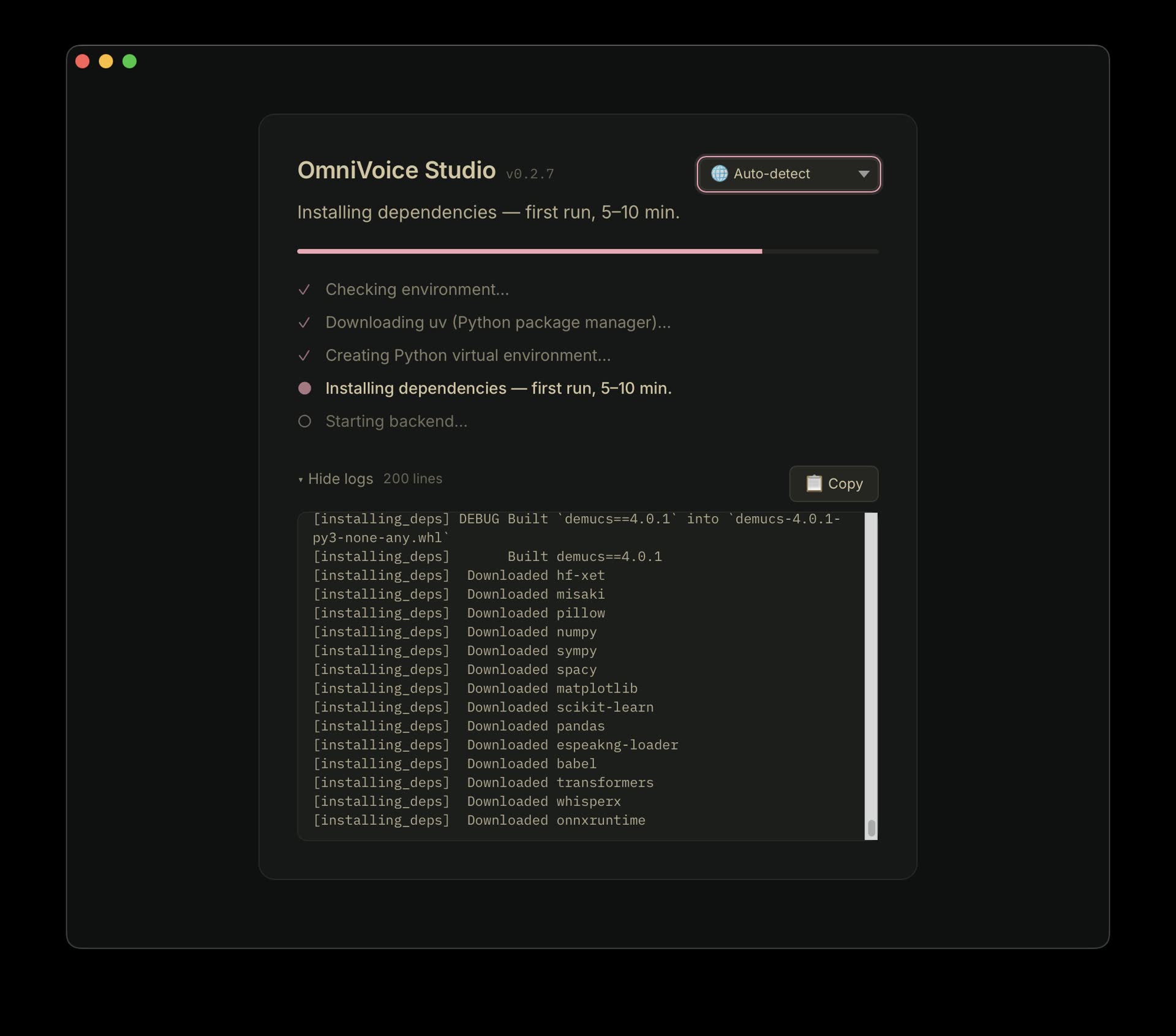
OmniVoice Studio automatic setup screen after launch
macOS Installation and Gatekeeper Quarantine Fix
Because OmniVoice Studio is still in active testing, the official developer ID signing and notarization process is expected to be implemented around v0.4. If you install the prebuilt .app directly, macOS Gatekeeper may block it and show the message that the application is damaged and cannot be opened.
Follow the steps below to install and fix it properly:
1. Normal installation steps
On the official OmniVoice Studio Launchpad, the project combines three core features: Voice Clone, Voice Design, and Video Dubbing. It also provides cross-platform installers.
The underlying technical stack is fairly complete, combining Python, Tauri, CUDA, Docker, MLX, Whisper, and other tools. On the Launchpad download page, choose the appropriate package for your operating system:
- macOS: Click to download macOS DMG.
- Windows: Click to download Windows MSI.
- Linux: Click to download Linux AppImage or the Debian .deb file.
For Mac users, after downloading the .dmg file, double-click to mount it and drag OmniVoice Studio.app into the /Applications folder.
2. Fix “the application is damaged and can’t be opened”
After dragging the app into the root Applications directory, open Terminal and run the following command to clear the macOS quarantine extended attribute:
xattr -cr "/Applications/OmniVoice Studio.app"
After that, the app should open normally. You only need to apply this fix once per installation. The application itself is fully open source. If you want to be extra careful, compare the SHA-256 checksum of the downloaded file against the checksum on the release page before clearing the attribute.
Hands-on Test and a Funny Bug: Traditional Chinese Turns into Cantonese?
Although OmniVoice supports up to 646 languages, there is currently a very awkward issue with Chinese support:
When you input Traditional Chinese for text-to-speech (TTS), the AI often switches directly into “Cantonese mode” for pronunciation.
This is not just a simple system locale configuration error. It is a common problem in many open-source multilingual TTS models right now. In the training data for these models, the association between “Traditional Chinese = Hong Kong Cantonese data” is too strong and too heavily weighted, so when the model sees Traditional Chinese characters, it instinctively pronounces them in Cantonese.
Solution: Use Simplified Chinese input
Before the official fix lands, the most effective workaround is: convert your prompt content into Simplified Chinese before input.
After converting to Simplified Chinese, the model can correctly use Standard Mandarin / Putonghua pronunciation, and the overall pronunciation and accent improve a lot.
Below is our test using the same prompt, comparing generated speech from Traditional Chinese input and Simplified Chinese input:
1. Traditional Chinese input test: directly switched to Cantonese pronunciation
Traditional Chinese test: the AI automatically switches to Cantonese pronunciation
2. Simplified Chinese input test: normal Mandarin pronunciation
Simplified Chinese test: successfully generates Standard Mandarin pronunciation, with noticeably better accent and results
OmniVoice Studio vs. Voicebox: Practical Comparison
If you have read our earlier Voicebox installation guide and core tutorial, you may be wondering which of these two local-first AI voice studios you should choose.
After testing both, my conclusion is: the tradeoff comes down to generation speed versus voice quality and stability.
- Generation speed: OmniVoice is extremely fast, much faster than Voicebox. In OmniVoice, clicking generate almost instantly outputs speech. By comparison, Voicebox generation is noticeably slower.
- Voice stability and cloning quality: Voicebox is clearly better here. OmniVoice is very fast, but its cloned voice similarity and emotional stability are still not as good as Voicebox at the moment. Voicebox output sounds fuller, has less noise, and the cloned voice is much closer and more natural.
- Feature coverage: OmniVoice wins here. OmniVoice integrates Demucs vocal separation, Pyannote speaker recognition, and automatic video dubbing. It is basically an all-in-one tool designed for video localization and dubbing. Voicebox is still more focused on pure text-to-speech, voice profile management, and a multi-track story editor.
Comparison table
| Comparison Item | OmniVoice Studio | Voicebox (Local Studio) |
|---|---|---|
| Voice generation speed | Very fast | Slower |
| Voice cloning quality | Average, can sound mechanical or distorted | Excellent, highly similar and natural |
| Voice stability | Medium, intonation can be unstable at times | Very good, smooth and stable pronunciation |
| Number of supported languages | 646 languages | Around 32 languages, depending on the model |
| Automatic video dubbing | Supports one-click video transcription and dubbing with a full workflow | Does not directly support a video workflow |
| GPU auto-detection and offloading | Supported, automatically switches to CPU when VRAM < 8GB | Requires manual adjustment or a specific engine |
| Traditional Chinese support | Poor, Traditional Chinese is often misclassified as Cantonese | Acceptable, depending on the TTS engine used |
Hands-on Notes, Pros, and Cons
Although OmniVoice Studio has a Traditional Chinese pronunciation bug where it can mistakenly switch to Cantonese, and although the interface has not been localized into Chinese yet, it is still impressive that it can turn the very complex workflow of “video transcription -> translation -> speech synthesis -> remixing” into such a polished GUI that runs locally, even on a regular Mac mini, while also generating speech so quickly.
Pros
- Very fast generation: Faster than other similar local tools I have tested.
- Complete video dubbing workflow: WhisperX, Demucs, and Pyannote are built in, so you do not need to manually wire together a pile of Python libraries.
- Lightweight and highly compatible: Supports Mac M-series chips through MPS, and can automatically offload tasks based on memory limits.
- Rich pronunciation controls: Provides multiple modes such as age, gender, pitch, and emotion, with a lot of room for adjustment.
Cons
- Traditional Chinese pronunciation bug: Traditional Chinese input is very likely to produce Cantonese output, so for now you need to work around it with Simplified Chinese.
- Cloning quality and stability still have room to improve: Compared with Voicebox, the voice quality and cloning similarity are slightly weaker.
- Interface is not localized into Chinese yet: The current UI is mainly in English.
If you care most about highly realistic voice cloning and only need straightforward text-to-speech, then Voicebox is still the better first choice. But if you want to quickly localize and dub videos, handle multi-character dialogue, or try different pronunciation modes and voice design experiments, then OmniVoice Studio is absolutely worth bypassing Gatekeeper quarantine and downloading to try.