

optimizerDuck Hands-on: An Open-source Windows Performance and Privacy Optimization Tool That Blocks Unneeded Background Telemetry
optimizerDuck is an open-source Windows system optimization tool built with .NET 10 and WPF. This article tests its performance tuning, privacy telemetry blocking, GPU power optimization, and other features, and also provides steps for resolving Windows SmartScreen blocking warnings plus a Traditional Chinese language setup guide.
Introduction
After a fresh Windows installation, the system often enables a lot of background telemetry, error reporting, promotional ad tracking, and a large number of system services that most people rarely need. These processes quietly run in the background. They not only take up CPU, memory, and disk resources, but may also have potential implications for user privacy.
On top of that, many hidden settings that can help squeeze more performance out of the hardware, such as GPU power optimization and multimedia scheduler tuning, are not enabled by default.
This article introduces and tests an open-source Windows optimization tool: optimizerDuck. It provides a centralized graphical interface that lets users clearly disable redundant features, enable performance optimizations, and take back more control over the system.
Here is a demo video of the tool in actual use:
Why Do You Need System Optimization?
Modern Windows is already fairly stable, but its default configuration includes a lot of unnecessary background activity for compatibility reasons and for Microsoft's own business purposes.
For example, the system continuously collects telemetry data in the background and sends it back to servers. Various OEM preinstalled apps and scheduled tasks also consume system performance.
optimizerDuck applies targeted system tweaks to reduce this kind of unnecessary resource usage. It also presents advanced hardware optimization options as visual toggles, so you do not need to manually edit complicated Windows Registry entries.
Core Features of optimizerDuck
The tool is designed quite carefully. Every optimization item comes with a risk level, such as safe, medium, or high, along with a detailed explanation of what it does. This helps prevent users from disabling critical services without understanding the impact.
1. System Optimization Items
The tool divides its tuning items into six major categories:
- Performance optimization: Adjusts Service Host grouping limits based on physical system memory, optimizes process priority, reduces keyboard latency, and tunes the Multimedia Class Scheduler Service (MMCSS) for smoother game frame rates.
- Privacy protection: Disables Windows telemetry, diagnostic data reporting, advertising ID, location tracking, and built-in Cortana, Copilot, and Microsoft-pushed content suggestions with one click.
- GPU-specific tuning: Writes dedicated Registry optimizations for NVIDIA, AMD, and Intel graphics cards, covering power management mode, clock gating, and display latency tuning.
- Power configuration: Disables hibernation and Fast Startup to avoid cached junk buildup, turns off USB selective suspend, disables Power Throttling, and automatically installs a custom high-performance power plan.
- Services and bloatware: Disables automatic reinstallation behavior for OEM apps and provides fine-grained tuning for more than 200 Windows background services.
- User experience: Removes mouse and menu delays, turns off taskbar animations and transparency effects, and makes window switching and system response feel more immediate.
2. System Settings and Preferences
On the custom settings page, users can directly adjust many common settings without manually digging through the Registry:
- Desktop icons: Show or hide icons such as “This PC,” “Recycle Bin,” “Network,” and “User Folder” with one click. It also supports removing the arrow marker in the lower-left corner of shortcuts.
- System preferences: Quickly adjust taskbar alignment, show seconds in the clock, enable the classic right-click menu, disable Bing search integration, and more.
- Gaming settings: Toggle Windows Game Mode, Game Bar, background recording, mouse acceleration / Enhance pointer precision, fullscreen optimizations, and other features.
3. Built-in Multi-purpose Toolbox
Besides system tuning, the software also comes with several practical day-to-day management tools:
- System dashboard: Monitors and displays current CPU, memory, GPU, storage device, and operating system version information.
- Startup and task management: Lists all startup items and Windows scheduled tasks, with support for manually disabling or directly deleting them.
- Disk cleanup: Deep-scans and cleans Windows temporary files, cached junk, Windows Update leftovers, the Recycle Bin, and old system backups.
- Bloatware App removal: Lists preinstalled system AppX packages and marks the removal risk, such as Calculator, Camera, and Xbox-related software, so users can uninstall them as needed.
Download and Installation Setup Guide
Why Does It Trigger a Windows Defender Warning?
When you download and prepare to run optimizerDuck, Windows Defender SmartScreen may show a warning window saying it is from an unknown publisher.
This is because the developer has not purchased an expensive code-signing certificate. For a free open-source project, a certificate that costs hundreds of dollars per year is a major burden.
Windows blocks unsigned external executables by default, but this does not mean the software itself contains malicious code. Since the project is fully open-source on GitHub, you can inspect the source code yourself, check the GitHub Actions build logs, or even download the source code and compile it on your own.
Download and Bypass Protection Steps
- First, go to the official website and download the latest version: optimizerDuck official website.
- Run the downloaded
optimizerDuck.exefile. - If a SmartScreen warning appears, click “More info.”
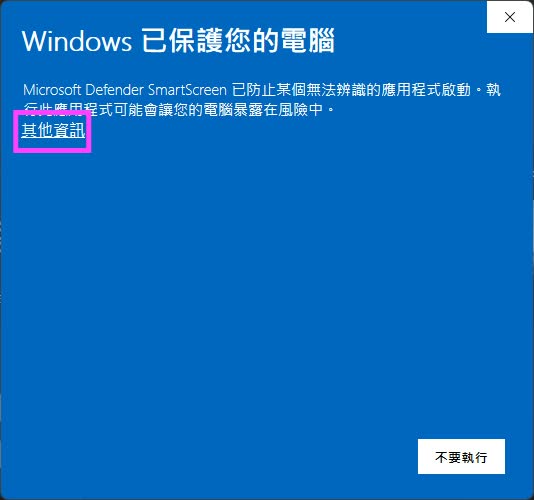
When the “Windows protected your PC” prompt appears, click More info
- Then click “Run anyway” to launch the software.
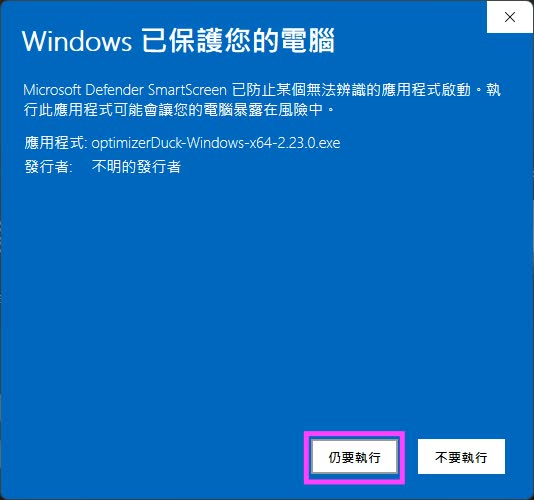
Click the Run anyway button to open the tool normally
- After entering the main screen, click “Settings” in the lower-left corner. In the “Language” dropdown menu, select “Traditional Chinese” (正體中文), then restart the application to apply the Chinese interface.
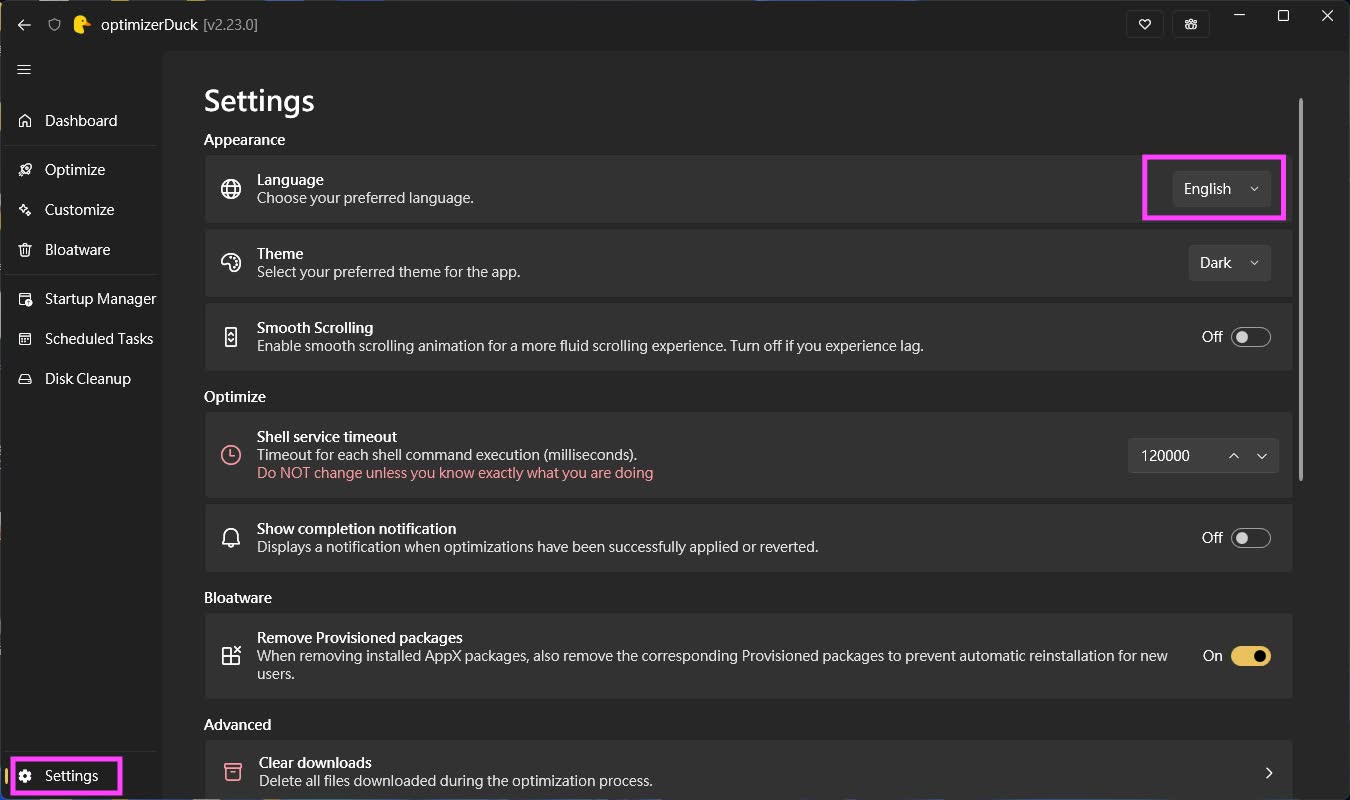
Go to Settings, find the Language option, switch it to Traditional Chinese, then restart the software for it to take effect
Safety and Restore Mechanisms
Modifying system settings or the Registry inevitably carries some risk of instability. optimizerDuck includes several safeguards here:
- Automatic backup: Before each optimization change is applied, the tool automatically writes the original state of that change to a local restore file.
- One-click recovery: If you notice anything abnormal after optimization, you can restore a single item or restore everything directly from the software interface.
- Restore point reminder: Before running optimizations for the first time, the software strongly recommends manually creating a Windows system restore point just in case.
!WARNING After applying the “High Performance Power Plan,” some users may see Task Manager continuously display CPU usage at 100% due to a display bug. See GitHub Issue #29 for details. This is only a display abnormality and does not affect the CPU’s actual load or temperature. If this bothers you, you can undo the power plan optimization inside the software.
Finally, when using this kind of system modification tool, be cautious. Before optimizing, it is recommended to back up important data and prepare a restore path.