

SmartSub 妙幕 Hands-on: The Least Fussy Local Video Subtitle Translation Tool I’ve Used So Far
SmartSub 妙幕 is a local-first desktop subtitle tool that can transcribe videos, translate subtitles, create bilingual subtitles, and burn subtitles into video. This article records my tests with DeepSeek translation, faster-whisper, CUDA acceleration, and how it differs from VideoLingo.
Preface
Today I tested SmartSub 妙幕. I had already tried quite a few video subtitle tools recently, including VideoLingo, which I wrote about before. VideoLingo is very complete, and can even go all the way to TTS dubbing, but its environment setup is genuinely more troublesome.
SmartSub gave me the opposite first impression. It feels more like a packaged desktop app. After opening it, you choose a task first, then follow the steps to transcribe, translate, proofread, and compose the video. In particular, for ASR models and GPU acceleration, SmartSub saves a lot of manual setup time.
This time I tested it with a few English talk videos, about 10 minutes in total. The translation model I used was deepseek v4 flash. I translated 4 videos, and the total cost was under USD 0.01. The speed and cost were both surprisingly good.
What It Is Good For
I would put SmartSub in the “I want to make subtitles quickly and do not want to wrestle with the environment” category.
Scenarios where it fits well:
- You need to quickly generate Chinese subtitles or bilingual subtitles for foreign-language videos.
- You already have a subtitle file and only want to translate it into another language.
- You want to burn subtitles directly into the video and export a shareable version.
- You want to use local ASR and do not want to upload the original audio or video to a cloud service.
- You want GPU acceleration, but do not want to handle CUDA, models, and Python environments yourself.
Scenarios where it is less suitable:
- You definitely need Chinese dubbing or multilingual dubbing.
- You want to connect the whole workflow into your own automation pipeline.
- You want manual control over every intermediate step and prompt detail.
If you need TTS dubbing, VideoLingo is still more complete. But if all you need is subtitle generation, translation, proofreading, and burning, I would open SmartSub first.
Download and Installation
SmartSub can be downloaded from GitHub Releases for Windows, macOS, and Linux. The official docs also provide a download table. For macOS users, Homebrew is the more recommended option. Users on other operating systems can go to SmartSub Releases to download it.
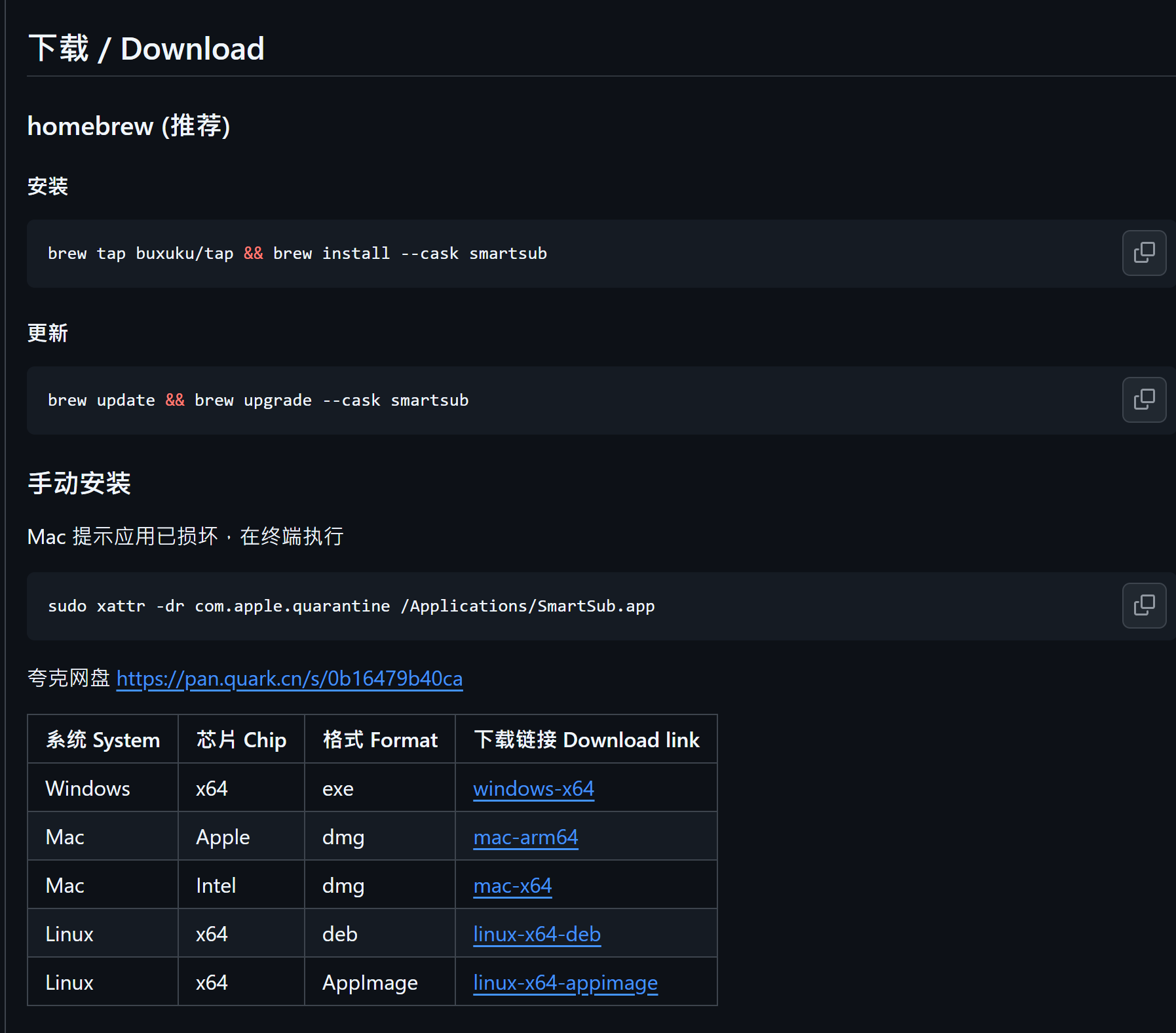
macOS can be installed with Homebrew, or you can download the matching version from GitHub Releases
On macOS, you can install it like this:
brew tap buxuku/tap
brew install --cask smartsub
If you download it manually, choose windows-x64 for Windows, mac-arm64 for Apple Silicon Mac, mac-x64 for Intel Mac, and either deb or AppImage for Linux depending on what you need.
If macOS says the app is damaged, the official docs also provide a way to remove quarantine:
sudo xattr -dr com.apple.quarantine /Applications/SmartSub.app
I would only recommend running this command when you are sure the source is the official GitHub or official website.
The Home Page Uses a Task-Based Flow
SmartSub’s home page does not throw a pile of parameters at you. Instead, it first asks what you want to do. I like this because subtitle tools easily get people stuck at “Should I transcribe first, translate first, or compose first?”
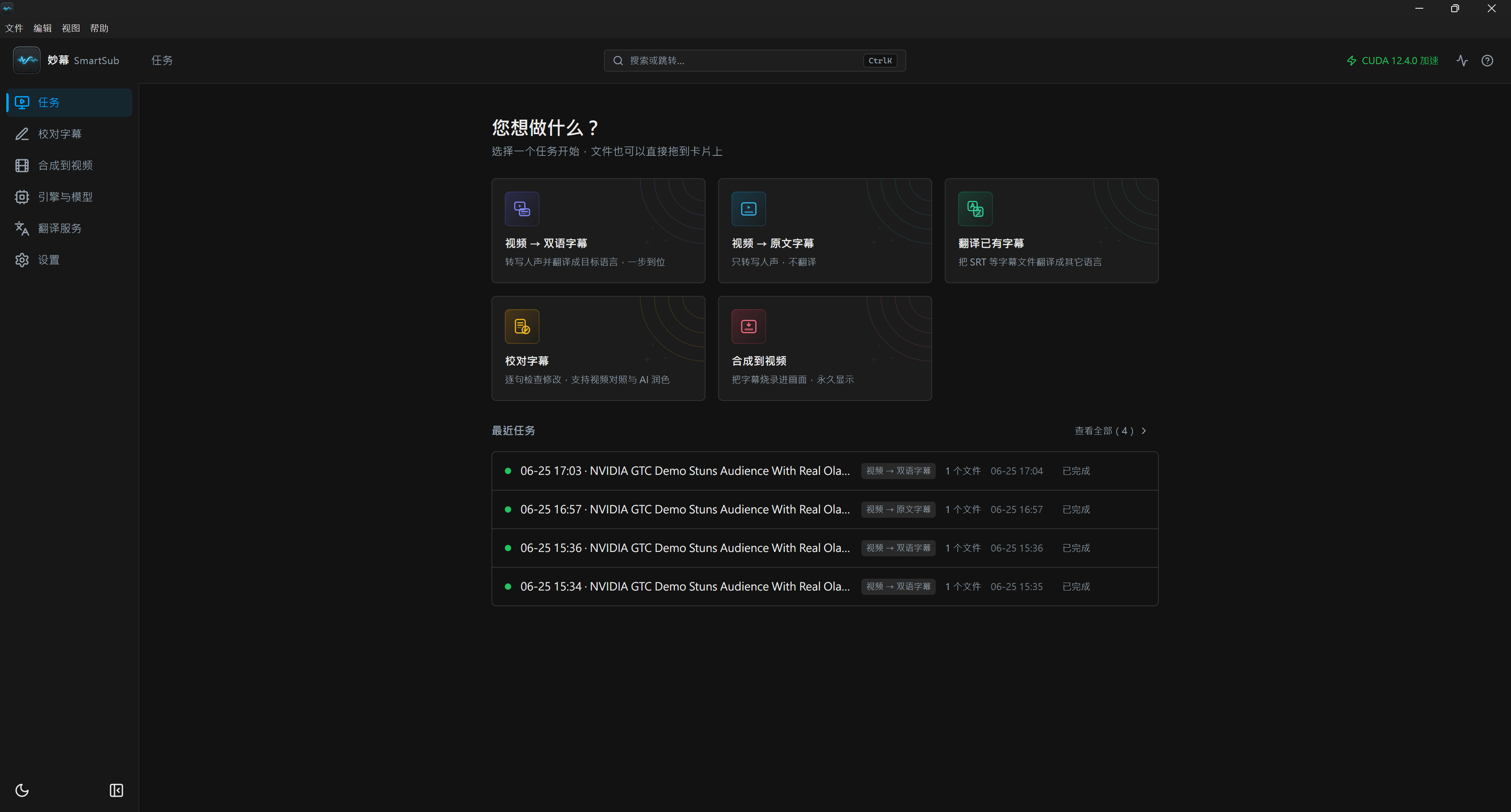
The home page directly guides you by task. You can choose video to bilingual subtitles, original-language subtitles, subtitle translation, proofreading, and composition
The commonly used tasks on the home page are roughly these:
- 影片轉雙語字幕
- 影片轉原文字幕
- 翻譯已有字幕
- 校對字幕
- 合成到影片
This time I mainly used “影片轉雙語字幕” and “合成到影片”. The former transcribes the video first, translates it into the target language, and finally outputs subtitles. The latter puts the subtitles into the video, producing a finished video that can be played directly.
ASR Model Setup Is Lighter Than Expected
This is where SmartSub stands out to me.
A common problem with this kind of tool used to be: the feature list looks complete, but once you install it, you immediately run into Python, CUDA, Whisper, FFmpeg, and model paths. It is not impossible to solve, but it drains energy every time.
SmartSub turns “engines and models” into a management page. The official README says version 3.x supports 6 transcription engines, including the built-in whisper.cpp, faster-whisper, FunASR, Qwen3-ASR, FireRedASR, and local Whisper CLI. This time I mainly looked at whisper.cpp and faster-whisper.
whisper.cpp
whisper.cpp is the built-in engine and works out of the box. It is suitable for a first test run, especially if you do not want to download a bunch of things first and only want to check whether the software works properly.
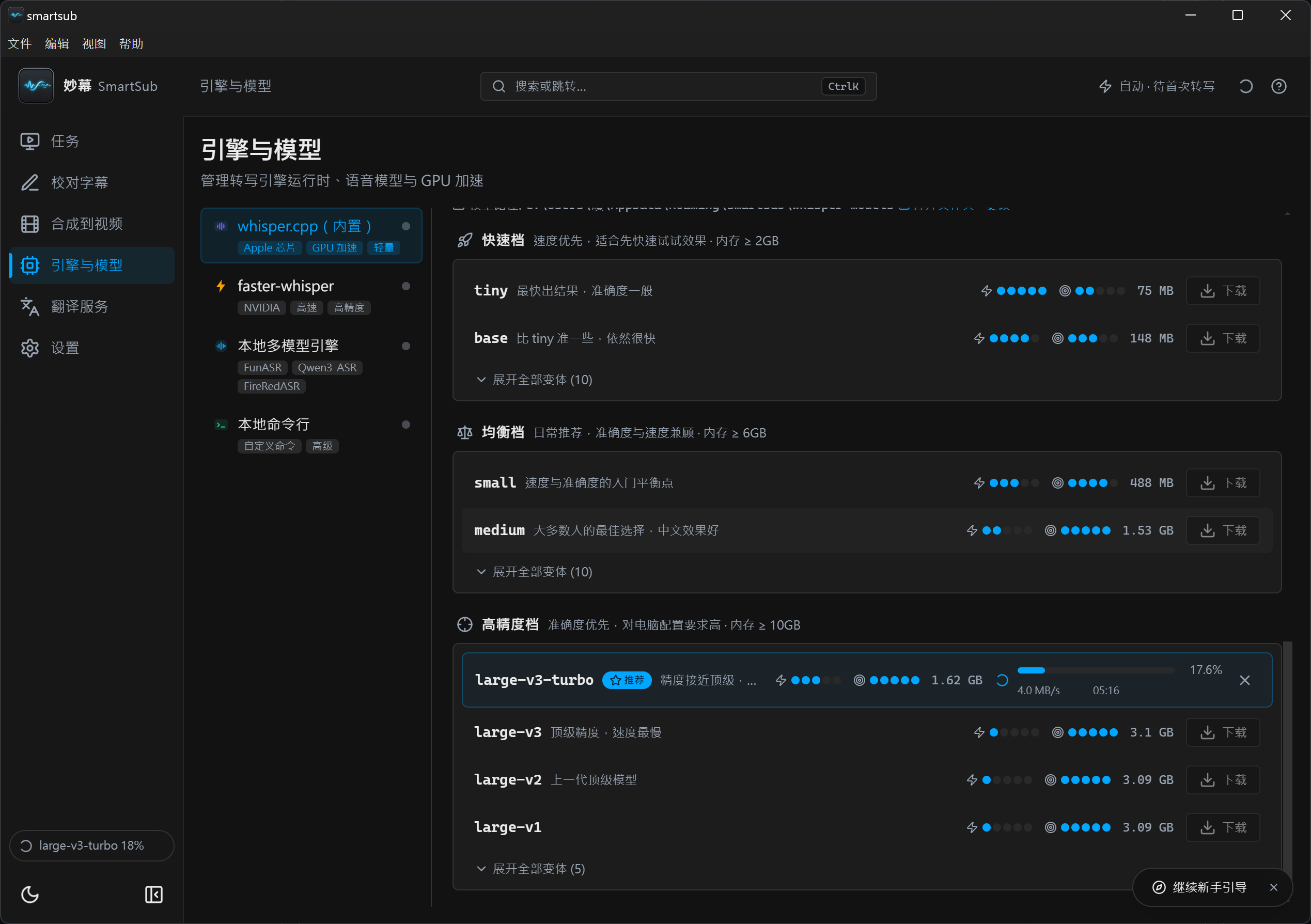
whisper.cpp is the built-in engine, suitable for quickly getting the workflow running first
Its advantage is simplicity. The downside, based on my own testing, is that it does not feel as fast as faster-whisper. For short videos, the gap is still fine. Once the video gets longer, the waiting time starts to matter.
faster-whisper
I ended up preferring faster-whisper. SmartSub downloads a self-contained Python runtime inside the app, and models can also be handled in the interface. When paired with NVIDIA CUDA, the speed difference is obvious.
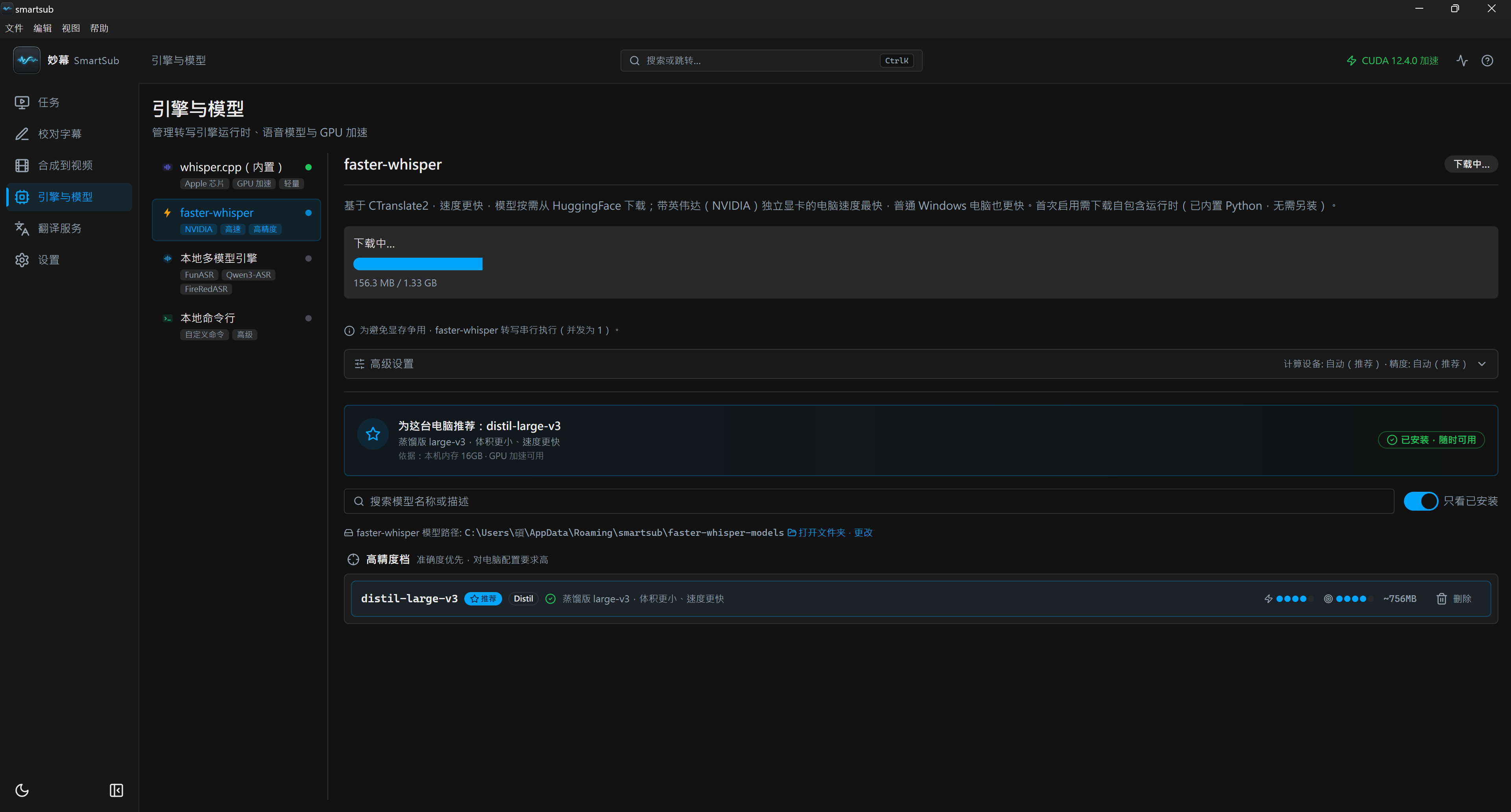
faster-whisper can use CUDA acceleration, with both models and runtime managed in the interface
The Windows machine I tested on has an NVIDIA GPU, and the CUDA acceleration status can be seen in the upper-right corner. Compared with manually installing CUDA Toolkit and dealing with Python packages yourself, this experience is much more comfortable.
If you do not have a GPU, it can also fall back to CPU. It just requires more patience once the videos get longer.
Translation Flow
SmartSub’s translation flow is roughly: extract the audio first, convert it into subtitles, then send the subtitles to a translation service. In my test, I used DeepSeek and selected the deepseek v4 flash model.
This time I translated 4 talk videos, about 10 minutes in total, and the cost was under USD 0.01. This is not a strict benchmark, just my own usage record, but it changed how I think about the cost of tools like this.
If you were worried that video translation burns money, translating only subtitle text is actually cheap. What really gets expensive is dubbing, long videos, large batch jobs, or using more expensive models.
After translation, it outputs subtitle files. At this point, I usually go into the proofreading page first to check segmentation and translation. Some proper nouns still need manual fixes, otherwise AI can confidently translate people’s names and product names into something very strange.
Compositing Output
After confirming the subtitles, you can move on to video composition. SmartSub lets you adjust subtitle styles, such as font size, position, color, outline, and shadow. You can choose to burn in hard subtitles, or package soft subtitles.
If the video is going to social platforms or to people who are not familiar with player settings, I would directly choose hard subtitles. The other person does not need to care about subtitle tracks. They can just open it and watch.
If it is for personal archiving, internal material, or you want to keep switchable subtitle tracks, soft subtitles are more flexible. But support varies across players, and when you share it, you are more likely to get asked, “Why can’t I see the subtitles?”
How to Choose Between This and VideoLingo
I would divide it like this:
- If you need subtitle generation, translation, proofreading, and burning, and want less environment setup: choose SmartSub.
- If you need full video localization, including TTS dubbing and heavier workflow control: choose VideoLingo.
VideoLingo has a strong feature set, especially the dubbing part, which is not the same direction SmartSub is currently going in. But after actually installing it myself, I feel VideoLingo is more for people willing to touch the environment. It is not bad, but the initial setup requires more patience.
SmartSub’s advantage is directness. Download the app, choose a task, choose a model, configure the translation service, and run the workflow. It hides many of the parts that would normally get people stuck inside the interface, and that matters a lot for most people who just want to make subtitles.
For now, I will use it as my daily subtitle tool. When I need dubbing, I will go back to VideoLingo.
Hands-on Notes
What stood out most to me this time with SmartSub was “much less deployment friction.” In the past, when I tested video translation tools, I often spent half an hour still dealing with the environment. This time it felt more like actually making subtitles, instead of fighting with package managers.
It is not completely configuration-free. You still need to add an API key for the translation service, models still need to be downloaded, and long videos still take time. But all of these settings are completed inside the app, so the mental overhead is much lower.
If, like me, you often watch English talks and tutorial videos and want to quickly make Chinese subtitles or bilingual subtitles, I think SmartSub is worth keeping in your toolbox. Especially when paired with cheap and fast translation models, the cost is low enough that it makes you start wanting to batch-process a whole pile of videos.
Related links: